
Updated September 2026 · the symptoms now sit in one table that jumps to the fix, and the two apps that measure the band and the line carry their own dated listing figures
Two questions decide most of what follows, and neither costs anything to answer. Does the phone fail on this one network, or on every network it tries? And does this network fail for every device in the building, or only for the phone in your hand? Google's Wi-Fi troubleshooting page splits the problem in exactly that place: if other devices can use the network, the problem is most likely with your phone, and if your phone can connect elsewhere, the problem is most likely with the network.
Put a second device on this network. Then take the phone elsewhere: a neighbour's network, a cafe, another handset's hotspot. Google reads the result three ways.
The third gets argued with. A full Wi-Fi icon means the phone and the router are talking, not that the line behind them works. Calls that fail indoors are a different job: routing calls over Wi-Fi is a carrier feature with its own switch, in turning on Wi-Fi calling on Android.
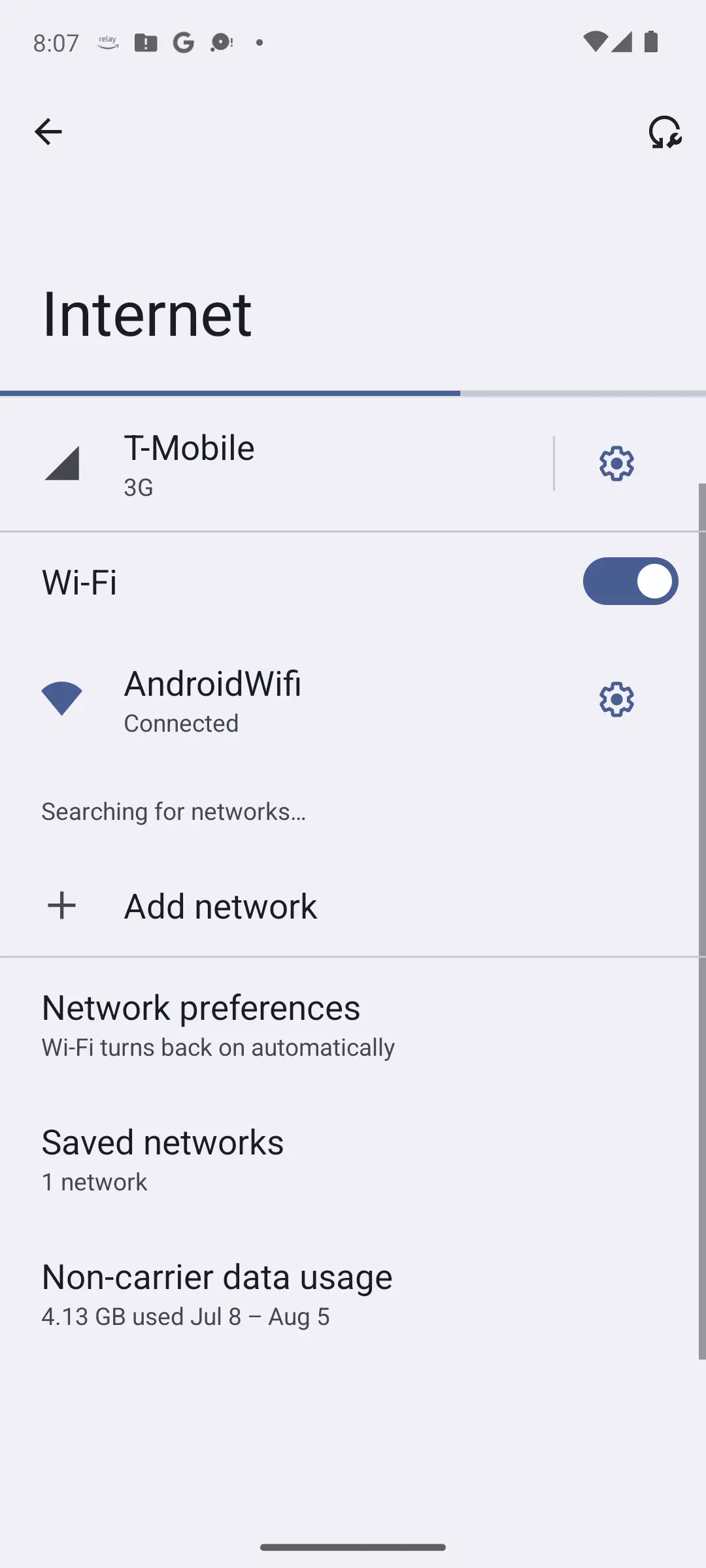
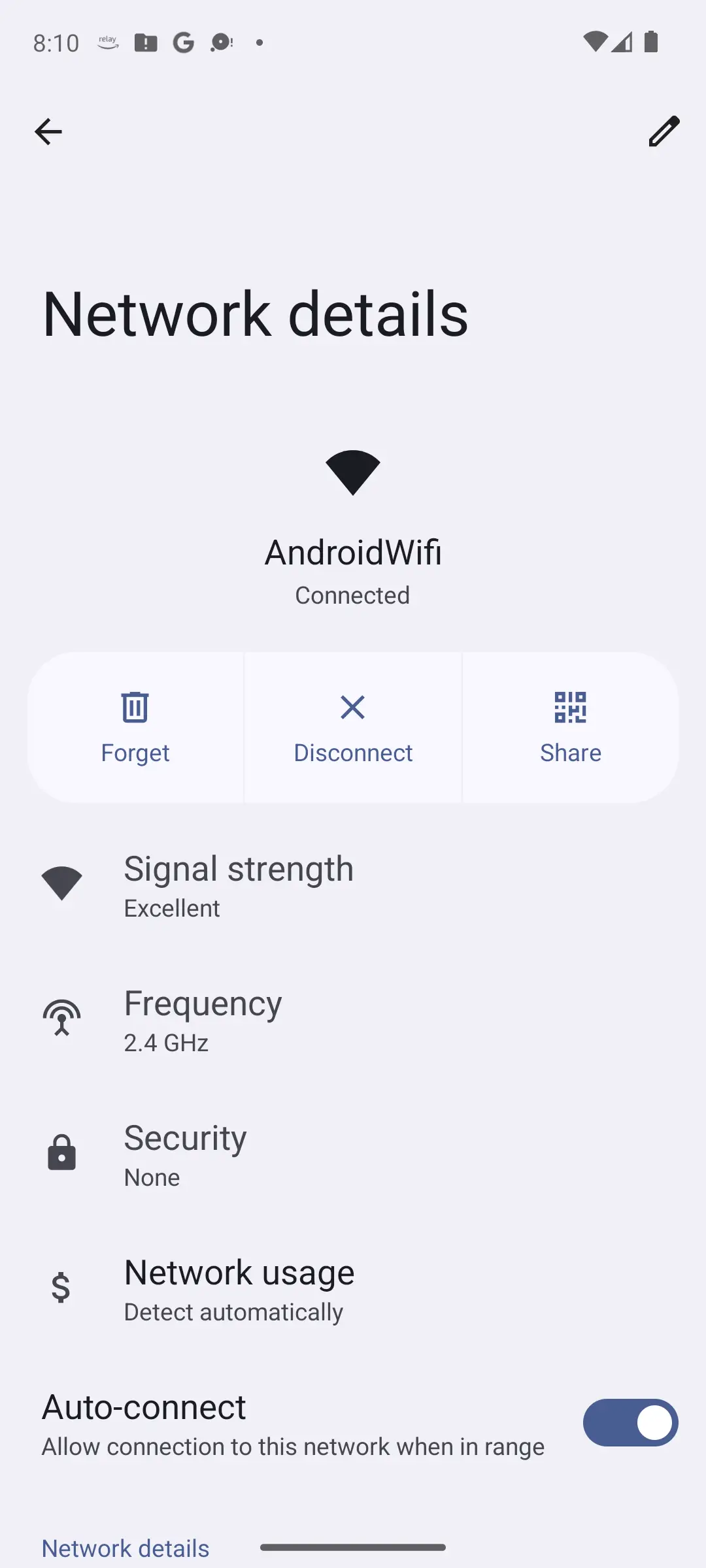
A saved profile goes stale when the router's password changes, or a character went in wrong. Google's fix is to delete and re-add it: Settings, Network and internet, Internet, Saved networks, tap it, Forget, rejoin. Retype with the characters showing, since Samsung notes that Wi-Fi passwords are case-sensitive. Or have a still-connected device show the network as a QR code and scan it: scanning QR codes on Android.
Public networks want a sign-in page completed first. When it never appears, Google says to look for the sign-in notification, then open a new page in a new window, then forget the network and rejoin.
One cause is not radio at all. Google states that an incorrect date and time can cause Wi-Fi connection problems, fixed under Settings, System, Date and time, Set time automatically. The same wrong clock stops the Play Store, and that guide explains what it is checked against.
The Android Open Source Project explains why phones hide the hardware address: because these MAC addresses are transmitted without encryption, they can be captured and used to potentially track a user's location. Android 10 and higher use a randomised address by default, one per network. AOSP adds that it is persistent, stays the same until a factory reset, and is not re-randomised if you forget and re-add the network. Seeing two different addresses is the feature working, not a fault.
It bites where a network decides who gets in by address. AOSP names those cases: persistent addresses are necessary where networks rely on that persistence, for example to remember a device and let you bypass the login screen, or to enable parental controls. An allowlist holding only the hardware address will not admit the phone, and Google's tip is to enter both.
Know the trade first: switching randomisation off gives that network a stable identifier for your phone, the tracking the feature prevents. Do it on a network you own or one whose operator asked for it, not a hotel. AOSP places the option in the Network details screen; operators who require it publish Privacy then Use device MAC on a Pixel, Advanced then MAC address type on a Galaxy.
Bands do not reach equally far: Google states that the 2.4GHz signal travels a greater distance than the 5 or 6GHz signals. Who chooses gets told wrong. On Google's own hardware one name covers every band, and band steering will attempt to guide devices to the band with the best performance for each. Attempt is the word, because Google also says your device decides which band to connect to.
Much of what you see is therefore not a fault. Google describes Wi-Fi points as transitioning you to the best point as you move about, and a handover stalls a video for a moment. Treat it as a fault only when the connection does not return by itself, or drops while the phone sits still. Google's interference list is short: microwaves, cordless phones, baby monitors, and walls of concrete or metal.
If what fails is a television, the band split becomes a discovery problem, and it is the first suspect in screen mirroring that never finds the TV. Wireless Android Auto carries the screen over 5GHz Wi-Fi after a Bluetooth handshake, which is why a head unit that never appears is a Wi-Fi problem. Splitting the bands into separate names is a router fix, not a phone one.
The section above asks you to judge whether a drop was a handover or a fault, and whether the phone sat still when it happened. One app turns that judgement into a graph, and it is a meter rather than a fixer: it reads the radio the phone sees and changes nothing.
Seeing which band and access point the phone is on, and how strong the signal is where it drops
4.1 stars from 28,828 reviews · 10,000,000+ installs · free · no in-app purchases · updated 1 July 2026 · by VREM Software Development · Contains ads: No · checked 5 September 2026
Google Play listing · 4.1 (28,828) · read 5 September 2026
A meter for the radio side of the problem. It lists every network in range with its band, channel and signal strength, and marks the access point the phone is connected to, so a phone that drops while it sits still can be watched: a weak signal on the graph, or a connected point that changes while nobody moves, says the fault is radio rather than the line. Free, with no in-app purchases and no Contains ads label on a listing read 5 September 2026, whose data safety card says No data shared with third parties and No data collected. At 4.1 stars from 28,828 reviews it is the lower rated of the two apps here, and it changes nothing: the band split and the channel are router settings.
Google's first three moves: turn Wi-Fi off and on, turn airplane mode on and off, restart. Then install anything pending, since updates can bring improvements that help fix issues. Updating your Android version has the Pixel and Samsung paths. Safe mode then tests for a rogue app: Google says that if Wi-Fi works there a downloaded app is most likely the cause, and if not, the problem is likely the network. Airplane mode turns itself on in safe mode, so switch it off first.
On a Galaxy, a common random disconnect is a feature. Settings, Connections, Wi-Fi, More options, Intelligent Wi-Fi holds Switch to mobile data, which Samsung describes as switching whenever the Wi-Fi connection is unstable, and Switch to better Wi-Fi networks. Turn both off while testing. Pixel owners look for the same switch under Adaptive connectivity and find nothing: that one is about 5G. Google also notes that some devices, such as the Pixel 7a, cannot run a hotspot and Wi-Fi at once.
A network reset is the last move on the phone side, and it destroys things, so the losses come first. Samsung's wording is that the Wi-Fi information, mobile data and Bluetooth connection are reset. In practice that is every saved Wi-Fi password and every Bluetooth pairing on the phone. Apps, photos and messages are untouched, but there is no undo.
So write the passwords you need down first, somewhere that is not this phone, starting with the ones you cannot read off a sticker.
Then, and only then, the paths. On a Pixel: Settings, System, Reset options, Reset Bluetooth and Wi-Fi, then Reset settings. On a Galaxy: Settings, General management, Reset, Reset Wi-Fi and Bluetooth settings, then Reset settings. Rejoin your home network first, so you learn straight away whether anything changed.
Three patterns make the phone a witness rather than a suspect. Everything in the building drops at once. It happens at the same time daily. Or it began the week a router firmware update landed, or the provider changed.
What proves it is the test from the top: a second device on this network, this phone on another. If the second device fails too, restart the line Google's way, unplugging the router and modem power cords for 15 seconds and waiting until the lights on both are right. If they are not, Google says you could have an issue with the modem, router or internet connection.
Past that it is somebody else's equipment. On a network you do not own, the only thing here you can change is the phone's per-network MAC setting; the rest belongs to whoever runs the place. Google's own troubleshooting ends by pointing at three parties, the internet service provider, the router manufacturer and the network administrator, and says there could be a service outage or they could need to reset your connection. Working out which one to contact is the whole job, and the two questions at the top are what answer it.
Everything above ends in the same question: does the line behind the router carry traffic? One app answers it in a minute, on the phone and on the second device alike, and the answer is worth having before you ring the provider.
Proving whether the internet connection behind the router is carrying traffic
4.6 stars from 1,486,358 reviews · 100,000,000+ installs · free to install · in-app purchases $0.99 to $9.99 per item · updated 7 July 2026 · by Ookla · Contains ads: Yes · checked 5 September 2026
Google Play listing · 4.6 (1,486,358) · read 5 September 2026
The third outcome of the two tests, connected but nothing loads, is the one a full Wi-Fi icon cannot settle, and this is the blunt instrument for it: run it on the phone, then on the second device on the same network, and a line that is down fails on both. Its listing, read 5 September 2026, carries the Contains ads label and sells in-app purchases of $0.99 to $9.99 per item, and its data safety card says the app may share data types with third parties. At 4.6 stars from 1,486,358 reviews on 100,000,000+ installs it is the better rated of the two apps here, and it measures the line only: it says nothing about which band or access point the phone was on.
A full Wi-Fi icon proves the phone and the router are talking, not that the line behind the router works. Google's guidance is that a phone which connects but gets no internet points at the internet connection. Test a second device on that network, and on a public one look for an unfinished sign-in page.
Only for a network that needs it, such as one with a device allowlist or parental controls. Android has used a randomised MAC address by default since Android 10, because the address travels unencrypted and can be used to track a device. The setting is per network, so changing it for the office leaves other networks private.
The one named Reset Bluetooth and Wi-Fi on a Pixel, or Reset Wi-Fi and Bluetooth settings on a Galaxy. Samsung's wording for it is that the Wi-Fi information, mobile data and Bluetooth connection are reset, and in practice that means every saved Wi-Fi password and every Bluetooth pairing on the phone. Apps and photos are untouched, and there is no undo, so write the Wi-Fi passwords down before you run it.
Yes. Google describes a mesh system as transitioning you to the best Wi-Fi point as you move through the home, and says the device itself decides which band to connect to. A brief stall during that handover is the system working, not a fault.
Work on that phone. Forget the network and rejoin with the password visible, since Wi-Fi passwords are case-sensitive. Install any pending update. Then try safe mode: if Wi-Fi holds there, a downloaded app is the likely cause. A network settings reset is last, because it erases every saved Wi-Fi password and Bluetooth pairing on that phone.
WiFi Analyzer (open-source) lists every network in range with its band, channel and signal strength, and marks the access point the phone is connected to, so a drop that happens while the phone sits still can be watched on the graph. Its Google Play listing, read 5 September 2026, shows 4.1 stars from 28,828 reviews and 10,000,000+ installs, with no in-app purchases and no Contains ads label, and its data safety card says No data shared with third parties and No data collected.
Run Speedtest by Ookla on the phone, then on a second device on the same network. If both fail behind a full Wi-Fi icon, the line behind the router is the fault and the router restart in the last section is the next move; if only the phone fails, work on the phone. The listing, read 5 September 2026, carries the Contains ads label, sells in-app purchases of $0.99 to $9.99 per item, and sits at 4.6 stars from 1,486,358 reviews on 100,000,000+ installs.
Checked 5 September 2026: the guide asked the reader to judge whether a drop was a handover or a fault, and whether a full Wi-Fi icon meant a working line, with nothing to measure either and no dated line. The nine symptoms now sit in one table that jumps to the fix, and two measuring apps carry fact lines read from their own listings: WiFi Analyzer (open-source) at 4.1 stars from 28,828 reviews, free with no ads label and no in-app purchases, and Speedtest by Ookla at 4.6 stars from 1,486,358 reviews, free to install with the Contains ads label and in-app purchases of $0.99 to $9.99 per item. One duplicated sentence about the address allowlist was removed from the MAC address section, the H1 now matches the page title, and three FAQ questions moved to the second person. Nothing in the diagnostic advice changed.
 Android Phone Won't Turn On? How to Fix ItTools & Utilities
 Best App Lock Apps for AndroidTools & Utilities