
Updated September 2026 · the switch locations now sit in one table that jumps to the step, and the four apps this page names carry their own dated listing figures
If your signal drops the moment you walk into your basement or the back room at work, Wi-Fi calling fixes that. It routes your regular phone calls and texts over your home or office Wi-Fi instead of the cell tower, so you keep one bar of usable service even when the cellular signal is gone. The toggle is built into Android, but it does not work just because you flip it. Your carrier has to allow it on your specific line first. Here is where the setting lives on Pixel and Samsung phones, the emergency-address step you cannot skip, and what to do when the switch is nowhere to be found.
Carrier Wi-Fi calling, sometimes labeled VoWiFi, takes your normal phone number and sends the call over the internet through your Wi-Fi network. The person you call sees your usual number. They do not need any special app, and neither do you. To them it is an ordinary call.
This is different from calling through an app like WhatsApp, Signal, or Google Meet. Those route audio over data too, but they only connect to other people running the same app, and they use a separate account instead of your phone number. Carrier Wi-Fi calling is the one that lets you dial any number, including a landline, and reach 911, all from your real line.
It is also not the same as VoLTE. VoLTE keeps calls on the 4G or 5G network for clearer audio. Wi-Fi calling kicks in when there is no usable cellular signal at all but you do have Wi-Fi. Most modern plans bundle both, and your phone hands off between them automatically.
On a Pixel, open Settings, tap Network & internet, then SIMs. Tap the carrier SIM you want (more on that below if you run two), then tap Wi-Fi calling and switch it on.
There is a second route that flips the exact same setting. Open the Phone app, tap the three-dot menu, go to Settings, then Calls, and you will find the Wi-Fi calling toggle there as well. Either path works; use whichever you remember.
Once it is on, you will usually see a small Wi-Fi calling badge or your carrier's name with a Wi-Fi marker in the status bar when an active call is going over Wi-Fi. That badge is your confirmation it is really working.
The second route above runs through the Phone app, and on a Pixel that app has a Google Play listing of its own. The switch it shows under Settings, Calls is the carrier's: the app adds nothing where the line is not provisioned.
Reaching the Wi-Fi calling switch from the dialer on a Pixel
4.4 stars from 50,815,750 reviews · 5,000,000,000+ installs · free · no in-app purchases · updated 3 September 2026 · by Google LLC · Contains ads: No · checked 5 September 2026
Google Play listing · 4.4 (50,815,750) · read 5 September 2026
The dialer behind the second Pixel route above, and the one app on this page whose own settings screen carries the switch. Free, with no in-app purchases and no Contains ads label on a listing read 5 September 2026, updated on the store on 3 September 2026, with a data safety card that says No data shared with third parties, that the app may collect data types, and that data cannot be deleted. At 4.4 stars from 50,815,750 reviews on 5,000,000,000+ installs it holds the joint lowest one-decimal rating on this page, shared with Google Meet, and it changes nothing about provisioning: the toggle it shows is the carrier's, and a line the carrier has not enabled shows no toggle in the dialer either.
Samsung puts the switch in a different place. Open Settings, tap Connections, then tap Wi-Fi Calling and turn it on. On some Galaxy models you will also find a Wi-Fi Calling toggle inside the Phone app under its own Settings, and again it controls the same feature.
One thing worth knowing on recent Galaxy phones like the S24 and S25: when you run two lines, Samsung does not always make it obvious which line is using Wi-Fi Calling. If you toggle it and the wrong number ends up routing over Wi-Fi, open the Wi-Fi Calling screen and check the per-SIM settings there before assuming it is broken.
The first time you switch Wi-Fi calling on, your phone asks for an emergency address. This is not optional paperwork. When you dial 911 over Wi-Fi, the network has no cell tower to estimate your location from, so it sends responders to the address you registered. Enter your full street address, not just a postal code. A zip code alone will not route an emergency call correctly.
If you move, or you regularly use Wi-Fi calling somewhere other than home, go back into the Wi-Fi Calling settings and update that address. On Samsung there is an Emergency Address entry right on the Wi-Fi Calling screen. This is genuinely the most important part of the whole setup, so do not breeze past it.
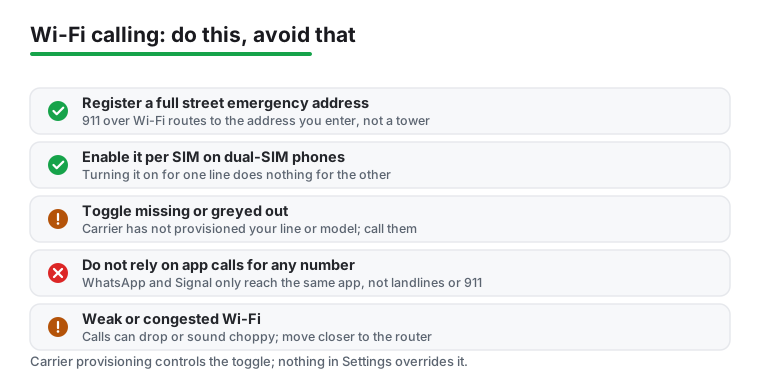
If you run a dual-SIM or dual-eSIM phone, Wi-Fi calling is a per-line setting. Turning it on for your personal number does nothing for your work number. You have to enable it for each SIM on its own.
On a Pixel, that means going back into Settings > Network & internet > SIMs, picking the other SIM, and flipping its Wi-Fi calling toggle too. If you only set up one and wonder why work calls still drop in the basement, this is almost always why. While you are in the dual-SIM settings, it is worth glancing at which line is set as default for calls so you know which number you are dialing out on.
Here is the honest limit. The Wi-Fi calling switch only appears when your carrier has provisioned the feature for your line and your exact phone model. If you do not see it at all, or it shows but stays greyed out, that is not a bug in Android. It usually means one of these:
Before you give up, try the usual reset moves: install any pending Android and carrier-settings updates, restart the phone, flip airplane mode on and off, and re-seat the SIM or re-download the eSIM. If the toggle still will not appear, the fix is on the carrier's side. Call them and ask them to enable Wi-Fi calling for your number and confirm your device is on their supported list. There is nothing you can change in Settings that overrides carrier provisioning.
The section above ends at the carrier, and one case stays unsolved: a line the carrier will not provision. The first section named the three apps that carry a call over Wi-Fi without any carrier feature, and named the price: the call reaches only someone on the same app, from an app account rather than your number, and never a landline or 911. Their listings, read 5 September 2026, follow, best rated first.
An app call over Wi-Fi when the other person is on WhatsApp
4.6 stars from 242,772,856 reviews · 10,000,000,000+ installs · free to install · in-app purchases $0.40 to $199.99 per item · updated 5 September 2026 · by WhatsApp LLC · Contains ads: No · checked 5 September 2026
Google Play listing · 4.6 (242,772,856) · read 5 September 2026
The best rated app on this page at 4.6 stars from 242,772,856 reviews, on the 10,000,000,000+ install band. Free to install with no Contains ads label on a listing read 5 September 2026, which lists in-app purchases of $0.40 to $199.99 per item, and whose data safety card says No data shared with third parties, that the app may collect data types, and that you can request that data be deleted. What it cannot do is the whole reason this page exists: a WhatsApp call goes only to another WhatsApp account, never to a landline, never to an ordinary number, and never to 911.
An app call over Wi-Fi when the other person is on Signal
4.5 stars from 2,911,707 reviews · 100,000,000+ installs · free to install · in-app purchases $1.99 to $2.99 per item · updated 31 August 2026 · by Signal Foundation · Contains ads: No · checked 5 September 2026
Google Play listing · 4.5 (2,911,707) · read 5 September 2026
Second best rated of the four apps here at 4.5 stars from 2,911,707 reviews, and by far the smallest install band, 100,000,000+, which for a fallback is the number that matters: the person you want to reach has to be on it. Free to install with no Contains ads label on a listing read 5 September 2026, with in-app purchases of $1.99 to $2.99 per item, and a data safety card that says No data shared with third parties, that the app may collect data types, and that you can request that data be deleted. The limits are the same as WhatsApp's: app to app only, no landline, no 911.
An app call over Wi-Fi when the other person is on Google Meet
4.4 stars from 11,956,432 reviews · 10,000,000,000+ installs · free · no in-app purchases · updated 4 September 2026 · by Google LLC · Contains ads: No · checked 5 September 2026
Google Play listing · 4.4 (11,956,432) · read 5 September 2026
One of two apps on this page with no in-app purchases at all, free with no Contains ads label, from Google LLC, the developer shown on the Pixel dialer's listing too, read 5 September 2026. Its data safety card is the only one of the four that lists an Independent security review, beside No data shared with third parties, that you can request that data be deleted, and that the app may collect data types. At 4.4 stars from 11,956,432 reviews it shares the lowest one-decimal rating here with Phone by Google, on the same 10,000,000,000+ install band as WhatsApp. App to app only, like the other two: no landline, no 911.
Wi-Fi calling is only as steady as the network behind it. On a weak or congested Wi-Fi connection, calls can sound choppy or drop, sometimes worse than a faint cellular signal. If quality is poor, move closer to the router or test on a different network.
Some carriers let you choose a preference for which network wins when both Wi-Fi and cellular are available. If your phone keeps clinging to a one-bar cell signal instead of switching to solid Wi-Fi, look for a calling-preference option on the same Wi-Fi calling screen and set it to prefer Wi-Fi.
If you are reading this because calls keep failing in general, it is worth ruling out other causes too. Our guide on how to stop spam calls and texts on Android covers settings that can silence or misroute legitimate calls, and once your calls run reliably over Wi-Fi you may still want to block unwanted callers. The broader Android communication guides hub collects the rest.
On most plans, no. Calls and texts over Wi-Fi to numbers in your home country are billed exactly like normal calls. International calls placed over Wi-Fi can still carry international rates, so check your carrier's terms if you call abroad.
No. They see your regular phone number and the call behaves like any other. There is nothing on their end that flags it as a Wi-Fi call.
Carrier Wi-Fi calling uses your real phone number, can reach any number including landlines and 911, and needs no app on either side. App calling, like WhatsApp or Signal, only connects you to other people on the same app and uses a separate account rather than your phone number. If you want to dial any number from your real line over Wi-Fi, you want the carrier feature, not an app.
The switch only shows up when your carrier has enabled the feature for your line and approved your specific phone model. If it is missing, update Android and carrier settings, restart, and re-seat the SIM. If it still will not appear, contact your carrier and ask them to provision Wi-Fi calling for your number. You cannot force it from Settings.
Yes. On a dual-SIM or dual-eSIM phone it is a per-line setting. Enabling it for one number does not affect the other, so open each SIM's settings and turn it on separately.
You can, but only if you registered an accurate emergency address. Because there is no cell tower to locate you, 911 over Wi-Fi sends help to the address you entered during setup. Enter your full street address and update it if you move. If you ever can reach a cell signal during an emergency, a regular cellular call gives responders better automatic location data.
None of them replaces the carrier feature, because an app call reaches only other users of the same app, never a landline or 911. If the other person is on WhatsApp, its listing, read 5 September 2026, shows 4.6 stars from 242,772,856 reviews and 10,000,000,000+ installs, free to install with in-app purchases of $0.40 to $199.99 per item and no Contains ads label. Signal shows 4.5 stars from 2,911,707 reviews on 100,000,000+ installs, free to install with in-app purchases of $1.99 to $2.99 per item and no ads label. Google Meet shows 4.4 stars from 11,956,432 reviews on 10,000,000,000+ installs, free with no in-app purchases and no ads label, and is the only one of the three whose data safety card lists an independent security review.
Checked 5 September 2026: the guide named four apps, the Phone app on a Pixel and WhatsApp, Signal and Google Meet as the contrast, without linking any of them or quoting a figure from their listings, and had no table, no capsule and no dated line. Phone by Google, the dialer behind the second Pixel route, now carries its listing figures: 4.4 stars from 50,815,750 reviews, free with no in-app purchases and no ads label. The three app-calling fallbacks carry theirs: WhatsApp at 4.6 stars from 242,772,856 reviews, Signal at 4.5 stars from 2,911,707 reviews and Google Meet at 4.4 stars from 11,956,432 reviews, none with the Contains ads label, with WhatsApp and Signal listing in-app purchases of $0.40 to $199.99 and $1.99 to $2.99 per item. Samsung's own Phone app has no Google Play listing that could be read, so the Galaxy route stays prose. Four FAQ questions moved from the first person to the second: Will the person I call know I am on Wi-Fi, Why can I not find the Wi-Fi calling toggle on my phone, Do I need to set up Wi-Fi calling on both SIMs, and Can I rely on Wi-Fi calling for 911. The SEO title and description were rewritten around the switch locations, and nothing in the setup steps changed.
 RCS vs SMS on Android, ExplainedCommunication
 How to Block Ads on Android Without Rooting (2026)Security & Privacy