
Updated for 2026
Updated: July 16, 2026. New: a photo recovery how-to for this category.
Your phone is probably the only camera you carry every day, so the right app makes all the difference between a snapshot and something you want to share. We spent time with the photo editors, video tools, cameras, and drawing apps below on real Android phones, checking how they handle big files, low light, and the moments you do not want to fumble. Whether you are touching up a portrait, cutting together a quick clip, or just want a gallery that stays out of your way, start here.
It helps to stop thinking about "photo and video apps" as one category and instead think about three separate jobs. There is capture, which is the camera and the moment you press the shutter. There is editing, which is everything you do to an image or clip afterward, from a quick crop to color grading and trimming. And there is playback and organizing, which is how you find, sort, view, and back up what you already have. These jobs pull in different directions, and the app that is excellent at one is often mediocre at the others.
That is why most people end up with two or three apps rather than one. A camera app that gives you manual controls and RAW files is not the place to build a montage with music. A gallery that is fast and tidy is not where you do careful retouching. Trying to find a single app that does all three usually means accepting a tool that is average everywhere. It is fine, and normal, to keep one app for each job and switch between them.
The stock camera on most Android phones is good enough for everyday shots, and for a lot of people it is the only camera app they need. You might reach for one of the best camera apps for Android when you want manual controls (shutter, ISO, focus), RAW capture for more editing headroom, or a better night or long exposure mode than your phone ships with. Be honest about whether you will actually use those. Manual controls reward practice and slow you down in the moment, so if you mostly grab quick photos of people and places, the stock camera plus a good editor will serve you better than a complex pro camera you never master.
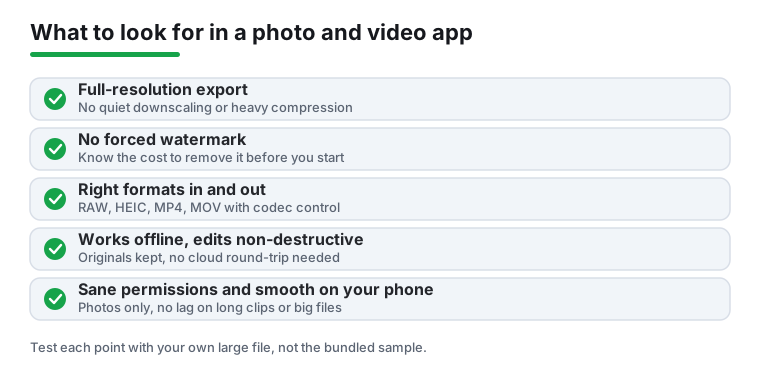
This is where the most choice lives. The best photo editor apps handle cropping, color, retouching, and effects on stills, while a dedicated video editor will trim, splice, and add music, captions, or transitions. Some apps try to do both, and a few do it well, but the workflows are different enough that many people keep them separate. The thing to watch is whether the editor keeps your original file untouched. Non-destructive editing means you can always go back and re-export, while an app that overwrites the source by default can quietly cost you the original.
A gallery app is the one you open most and think about least. Its job is to load fast, group photos sensibly, and let you find a shot from three months ago without scrolling forever. Search by date, album, and increasingly by what is in the picture all help. This is also where backup lives, and backup is where the privacy questions start, because organizing and uploading are often bundled together in the same app.
Before you download anything, the single most useful question is what do you actually shoot and make. Someone who posts short clips to social media wants fast video trimming and captions. Someone editing family photos wants color, cropping, and a calm interface. A hobbyist who shoots RAW wants format support and fine control. Match the tool to your real habits, not to the most feature packed app in the list.
Photo and video apps touch some of the most personal data on your phone, so a few habits are worth keeping.
A photo app reasonably needs access to your photos or storage, and the microphone only matters if you are recording or adding voice. It does not need your contacts or precise location to crop an image. On recent Android versions you can grant access to selected items instead of your whole library, and that is the safer default. Start narrow and widen access only if the app genuinely needs it.
Backup and "AI" features usually mean your media is being uploaded somewhere. That can be convenient and is often fine, but it is worth knowing it is happening. Check whether upload is automatic or something you trigger, whether it covers everything or only what you choose, and whether you can turn it off. An editor that needs the cloud to do simple edits is sending your files off the device to do work your phone could do locally.
Photos often carry hidden metadata called EXIF, which can include the exact location and time a shot was taken. When you share a photo directly, that data can travel with it. Many messaging apps and social platforms strip it, but not all, and not always. If you are sharing publicly or with people you do not know well, look for an option to remove location data, or use an app that strips EXIF on export. This matters most for photos taken at home or anywhere you would rather not pin on a map.
Some apps lean on a free trial that converts to a recurring charge, or bury core features behind a subscription that is easy to start and harder to cancel. Read what the free tier includes, note when a trial ends, and prefer a clear one time purchase when your use is light. If an app pushes hard for a subscription before you have done anything useful, that is a reason to be cautious, not a reason to hurry.
Every app here was installed and used hands on across a range of real Android phones at different ages and price points. We check export quality, watermarks, offline behavior, and permissions ourselves. There is no paid placement and no bought rankings, and nothing is listed that we would not keep on our own devices.
Pair it with: a good photo editor for cleaning up and retouching the shots you capture, the best gallery apps to keep everything fast to find and sorted, and a scanner app for the times you need to capture a document rather than a picture.
Many do, but not all. Watermarks usually appear on free video exports and on certain filters or templates rather than across the board. Check the export screen before you invest time in a project. Some apps remove the mark with a one-time purchase, others only through a subscription, and a few quality editors have no watermark at all on the free tier.
It can, if the app downscales or recompresses on export. Look for a resolution and quality selector and set it to match your original capture. Apps that edit non-destructively keep your source file untouched, so you can always re-export at full quality later. Avoid tools that overwrite the original automatically.
A proper editor should do its core work offline. If basic edits stall without a connection, the app is likely processing your files on a remote server, which is slower and means your media leaves your device. Cloud features like backup or AI effects may still need internet, but trimming, color, and export should not.
Storage or photo access is expected, and the microphone only matters if you are recording or adding voice. There is no good reason for a photo editor to want your contacts or precise location. On recent Android versions you can grant access to selected items instead of your whole library, which is the safer default.
They can. Photos often carry hidden EXIF metadata that includes the location and time of the shot. Some messaging apps and social platforms strip this when you upload, but not all of them do. If you are sharing publicly or with people you do not know well, remove the location data first, either through your phone's share options or an app that strips EXIF on export.
Often, yes. Capturing, editing, and organizing are different jobs, and an app that is strong at one tends to be average at the others. A few apps handle both photo and video editing well, but many people find it simpler to keep a fast everyday editor, a separate video tool, and a clean gallery, then switch between them as needed.