
Best Notes Apps for Android (2026)
A good notes app should open the second you have a thought and never lose it. We installed every serious option on real phones, jotted grocery lists, clipped articles, and dumped half formed ideas at midnight to see what held up. The picks below cover fast capture, deep organization, and private offline notebooks, so you can find the one that fits how your brain actually works. For more ways to stay on top of things, browse our wider Productivity guides.
1. Google Keep
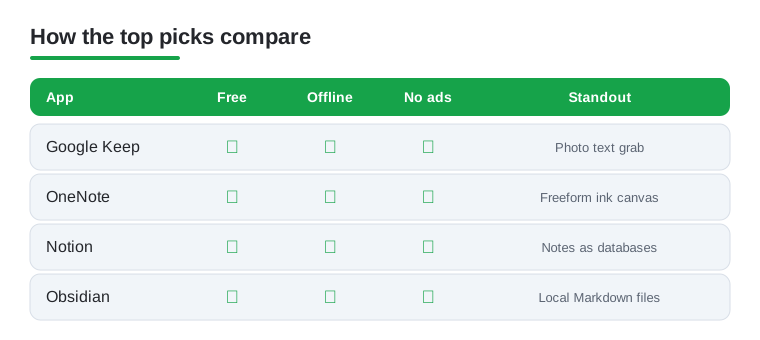
Keep is the one we reach for without thinking. It launches instantly, syncs across every device tied to your Google account, and turns notes into colored cards you can drag around. In our testing the voice notes auto transcribed cleanly and location reminders fired at the right store. It is completely free, and the standout trick is pulling text straight out of a photo with one tap.
2. Microsoft OneNote
OneNote feels like an endless binder, with notebooks, sections, and pages you fill with typed text, ink, tables, or pasted screenshots anywhere on the canvas. It suits anyone juggling research, classes, or long running projects. We loved how a Samsung S Pen sketch sat right beside typed notes. It is free with generous storage, and our OneNote tablet showdown shows how it shines on bigger screens.
3. Notion
Notion is less a notepad and more a flexible workspace where notes become databases, wikis, and trackers you build block by block. It suits students and teams who want everything linked in one place. On Android it has grown noticeably snappier, and offline pages finally sync without fuss. The free personal plan is plenty for one person, and the templates turn a blank page into a working planner in seconds.
4. Obsidian
Obsidian stores every note as a plain text Markdown file on your phone, so your writing is yours forever with no lock in. It is built for thinkers who link ideas and watch a knowledge web grow. The Android app handles linking and search smoothly once you settle in. It is free for personal use, with optional paid sync, and the graph view mapping how notes connect is genuinely addictive.
5. Evernote
Evernote remains a powerhouse for clipping and finding things later, with search that even reads text inside images and scanned PDFs. It suits people with years of receipts and articles to wrangle. The Android app feels heavier than the minimalists here, but the web clipper and scanner earn their keep. The free tier is tight now, so heavy users pay. See our full Evernote comparison.
6. Samsung Notes
If you own a Galaxy phone or tablet, Samsung Notes is already the best handwriting notebook you have. It pairs beautifully with the S Pen, converting scrawl to text and recording audio while you write. We found the PDF annotation genuinely useful for marking up documents on a Tab. It is free and preinstalled, and the quiet win is how typed notes, sketches, and voice memos share one page.
7. Simplenote
Simplenote does exactly what its name promises and nothing more. It is fast, free with no ads, and syncs plain text notes across every device almost instantly. It suits writers and minimalists who want a distraction free place to think. We appreciated the version history that quietly saved a draft we nearly deleted, and the tag based organization keeps things tidy without ever needing folders.
8. Standard Notes
Standard Notes is the pick for the privacy minded, encrypting everything end to end so even the company cannot read your notes. It suits anyone keeping journals or sensitive ideas. The free plan covers plain text across all your devices, while a subscription unlocks rich editors and themes. In our testing it felt reassuringly locked down without being fussy, and it works fully offline, syncing safely once you reconnect.
9. Joplin
Joplin is the open source notebook for people who like control. It uses Markdown, supports end to end encryption, and lets you sync through your own cloud like Dropbox instead of a company server. It is completely free. The Android app handles checklists and attachments well, though setup asks a little patience. The web clipper paired with self hosted sync makes it a favorite for tinkerers.
10. ColorNote
ColorNote is the no nonsense notepad that has quietly sat on millions of Android phones for years. It sticks to two formats, a plain note or a checklist, and pins notes to your home screen as colorful sticky widgets. It suits anyone who just wants to write a list and move on. It is free, and we liked the calendar view that ties notes to dates for quick reminders.
11. Apple Notes
Apple Notes has no native Android app, but switching from an iPhone does not mean abandoning years of notes. Through iCloud on the web you can read and edit them on your phone, and exporting into Keep or OneNote is straightforward. It suits anyone mid migration who still needs their old notes. Our guide to migrating Apple Notes walks through moving everything across cleanly.
How to choose a notes app for Android
The best notes app is the one that matches how you actually capture and find things, not the one with the longest feature list. Before you settle on a favorite, it helps to think through a handful of practical questions. The answers will narrow ten good apps down to the one or two that fit your day.
Capture speed and offline access
For most people the first thing that matters is how fast you can get a thought down. A note you cannot capture in a couple of seconds tends to slip away, so look at whether the app offers a home screen widget, a quick capture tile, or a shortcut you can tap the moment an idea arrives. Apps like Google Keep and ColorNote are built around this, while heavier workspaces can take a few more taps to reach a blank line. It is also worth checking offline access, because some apps go nearly blank without a connection. If you take notes on a train, a plane, or anywhere the signal drops, make sure the app lets you read and write while offline and then syncs the changes once you are back online.
Sync and where your notes live
Decide next whether you want your notes on more than one device. If you jot something on your phone and expect it waiting on a laptop a moment later, you need reliable cloud sync, and you should check that it actually covers every platform you use, including a computer or a tablet if you have one. If you only ever take notes on one phone, a local only app is simpler and gives you one less account to manage. Either way, ask where the notes are stored and whether you can get them out again later. An app that lets you export your whole library to a plain file is one you can always leave, which is a quiet but real form of safety.
Format and how you like to write
Some people think in quick checklists, others in long typed pages, and others in handwriting or sketches. Match the format to your habit. ColorNote and Google Keep are built for short lists and cards. OneNote and Notion give you a roomy canvas for research and structured pages. Samsung Notes and OneNote handle a stylus well if you write by hand. If you care about owning your words in a plain, open format, look for apps that store notes as Markdown or plain text, such as Obsidian, Joplin, or Simplenote, so nothing is trapped in a proprietary file.
Organization, web clipping, and search
Think about how you will find a note three months from now, not just where you put it today. Folders and notebooks suit people who like a tidy hierarchy, while tags and a fast search bar suit people who would rather just type a word and jump to it. Neither is better, so pick the one that matches the way you already think. If you save a lot of articles, a web clipper that pulls a page into your notes is worth having, and Evernote and Joplin both offer one, while OneNote and others provide browser tools that do something similar. Strong search is the quiet feature that matters most over time, so favor an app that searches the full text of every note, and in some cases the text inside images and scanned documents. The more you trust search, the less time you spend filing things, which is usually time well saved.
The privacy part, and why it matters more than a lock screen
Notes hold some of the most sensitive things we write down. People keep passwords, half formed business ideas, health details, journal entries, and personal addresses in them. That makes it worth understanding how your notes are actually protected, because the answer is often not what people assume.
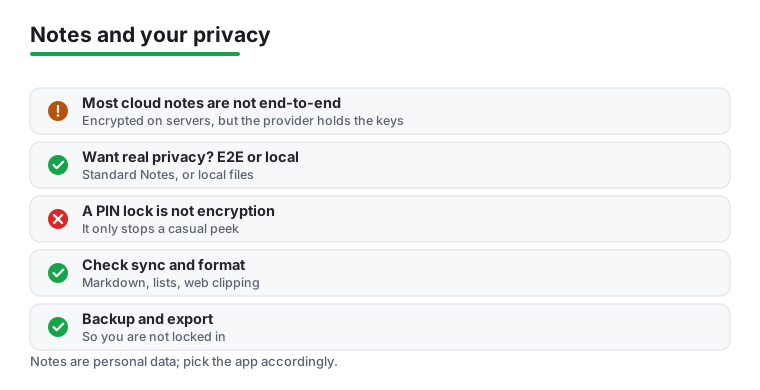
Most cloud notes apps, including Google Keep, are encrypted in transit and at rest. That means your notes are scrambled while they travel to the servers and while they sit on disk there. This is good and normal, but it is not the whole story. In these apps the provider holds the encryption keys, so the company could technically read your notes, and so could anyone who lawfully compels the company to hand them over. For grocery lists this does not matter. For a journal or anything truly private, it might.
If you want notes that only you can read, look for end to end encryption or local only storage. With end to end encryption, your notes are scrambled with a key that only you hold, so the provider stores data it genuinely cannot read. Standard Notes works this way by default. Joplin can do it too once you enable it. Local only storage takes a different route by keeping notes as files on your own device, as Obsidian does with plain Markdown files that never have to touch a company server at all.
One common misunderstanding is worth clearing up. A PIN, pattern, or fingerprint lock on the app is not the same as encryption. An app lock stops a person who picks up your unlocked phone from opening the app, which is useful. It does nothing about how your notes are stored on the company servers, and it does not stop the provider from reading them. The two protect against completely different risks, so do not let a fingerprint prompt give you a false sense that your notes are private from the company that hosts them.
Putting it together
For everyday capture, choose for sync and the format you enjoy, and a mainstream cloud app is fine. If some of your notes are genuinely sensitive, choose real encryption, either an end to end encrypted app or a local only one, and keep the casual stuff wherever is most convenient. Many people happily run two apps, a fast one for lists and a private one for the things that matter, and there is nothing wrong with that.
Frequently asked questions
What is the best free notes app for Android?
For most people Google Keep is the easiest free choice. It opens instantly, syncs with your Google account, and handles lists, voice notes, and photo text capture without ever asking for a subscription. If you want more structure, OneNote and Notion both offer generous free plans worth trying alongside it.
Which notes app is best for handwriting and a stylus?
On a Samsung Galaxy device, Samsung Notes paired with the S Pen is hard to beat for natural handwriting and sketching. For everyone else, OneNote offers the most flexible inking canvas and works well with any active stylus on a larger Android tablet.
Are my notes private and secure?
It depends on the app. Standard Notes and Joplin encrypt your notes end to end, meaning no one but you can read them. Mainstream apps like Keep and OneNote secure data in transit and at rest but can technically access it, so choose an encrypted option if privacy is your priority.
Can I move my notes from an iPhone to Android?
Yes. You can read iCloud notes through a browser on Android, then copy them into an app like Keep or OneNote, or use an export tool to bring everything over at once. Our migration guide covers the smoothest path so nothing gets left behind.
Does a fingerprint or PIN lock on a notes app keep my notes private?
Not in the way most people think. An app lock stops someone holding your unlocked phone from opening the app, but it is not encryption. Your notes can still be stored in a form the provider can read on its servers. For real privacy, choose an app with end to end encryption or local only storage rather than relying on the lock alone.
What is the difference between encryption in transit and end to end encryption?
Encryption in transit and at rest, which most cloud apps use, scrambles your notes while they travel and while they sit on the company servers, but the provider holds the keys and could technically read them. End to end encryption scrambles notes with a key only you hold, so the provider stores data it cannot read. Choose end to end if your notes are sensitive.