
Best Office Suite Apps for Android (2026)
Editing a spreadsheet or finishing a slide deck on a phone used to feel like a punishment. It does not anymore. We spent weeks living inside these office suite apps on Android phones and tablets, opening real documents from coworkers, fixing formulas on the bus, and signing PDFs in a parking lot.
Below are the suites that genuinely held up. Some are full Word and Excel replacements, some are featherweight and free, and a few surprised us. If you also juggle scanned paperwork, our roundup of PDF editor apps for Android pairs nicely with any of these. For the wider toolkit, browse the Productivity hub.
1. Google Workspace (Docs, Sheets, Slides)
For most people this is the answer. Docs, Sheets, and Slides are three free apps that sync the second you tap a word, so a note you start on your phone is waiting on your laptop. In our testing the offline mode is dependable on a flaky connection, and real time comments from teammates show up instantly. Power features in Sheets are thinner than Excel, but for everyday work it is hard to beat.
2. Microsoft 365 (Office)
If your job runs on Word and Excel, this keeps your formatting intact in a way nothing else quite matches. The single Office app bundles documents, spreadsheets, and slides with a built in scanner and PDF tools. Basic editing is free on phones; a Microsoft 365 subscription unlocks the full feature set and bigger screens. On a tablet with a keyboard, it feels close to the desktop.
3. WPS Office
WPS crams a word processor, spreadsheet, presentation tool, and PDF editor into one tidy app, and it opens Office files faithfully. It suits anyone who wants everything in a single download without paying. The catch is ads in the free tier, which can nag you mid edit. We found the PDF to Word conversion genuinely handy, and tab based document switching makes juggling several files feel natural.
4. OnlyOffice Documents
OnlyOffice is the quiet overachiever for fidelity. It renders complex Word and Excel layouts more accurately than most free rivals, which matters when a client sends a fussy template. It is free, connects to Nextcloud and other clouds, and respects your privacy. The interface is a touch utilitarian, but if you care about a document looking exactly right when it lands in someone else's inbox, this one earns its place.
5. Collabora Office
Built on LibreOffice, Collabora is the pick for the open source crowd and people allergic to subscriptions. It handles ODF files natively and opens Office formats well, with no account required and no ads. It suits students and anyone who already lives in LibreOffice on a desktop. The mobile layout takes a minute to learn, but everything is genuinely free, and your files stay on your device unless you choose otherwise.
6. Zoho Workplace (Writer, Sheet, Show)
Zoho splits its suite into clean, focused apps, and Writer in particular is a joy to type in with a distraction free layout. It fits small teams and freelancers who want polished collaboration without Google. The free tier is generous, and paid plans bundle email and storage. We liked how Sheet handles larger data sets on a tablet, and the whole thing syncs reliably across devices.
7. Polaris Office
Polaris ships preinstalled on many Samsung and other Android phones, so you may already own it. It opens and edits Word, Excel, PowerPoint, and PDF files, plus a built in converter. It suits people who want one familiar app without hunting the Play Store. The free version leans on ads and a daily usage cap, but for opening an attachment and making a quick edit, it does the job without fuss.
8. SmartOffice (Artifex)
SmartOffice is the lightweight option when storage and patience are tight. It is small, fast, and opens Office and PDF files cleanly, with surprisingly accurate print layouts. It suits older or budget phones that choke on heavier suites. You will not find deep collaboration here, but for reading a contract, tweaking a slide, and printing straight from your phone, it loads quickly and rarely stumbles.
9. Apple Pages, Numbers, and Keynote (web)
Not an app exactly, but worth knowing if you switched from an iPhone. Apple's iWork apps run through iCloud in your Android browser, so the documents you made on a Mac stay reachable. It suits people straddling two ecosystems who do not want to abandon old files. Editing in a browser is clunkier than a native app, yet for opening a Keynote a relative sent you, it quietly saves the day.
10. Notion
Notion treats a document as a flexible workspace of text, tables, and embedded content rather than a printable page. It fits people who write notes, draft together, and organize projects in one place, and it imports Google Docs and PDFs. It is free for personal use and uncluttered. Do not expect precise .docx page formatting or full spreadsheet math here; that is not its job. What you get is fast co writing and note taking that works well on a phone, with edits syncing across devices.
How to choose an office suite for Android
An office suite on Android usually means three things in one place: a word processor for documents, a spreadsheet tool for numbers, and a presentation app for slides. Most modern suites also open and sign PDFs. The names are familiar, but the right pick depends less on raw feature count and more on where your files come from, where they are stored, and who you share them with. Before you commit to one, it helps to think through a few honest questions.
Will it open the files other people send you?
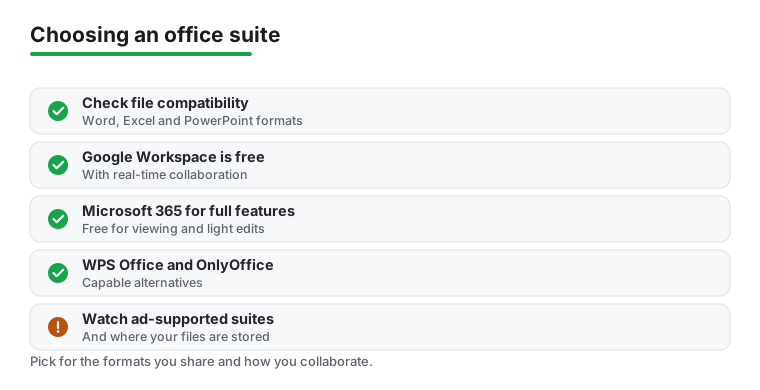
This is the question that trips up most people. If your coworkers, school, or clients send Microsoft Word, Excel, and PowerPoint files, you want a suite that reopens those files looking the way the sender intended. The formats to watch for are .docx, .xlsx, and .pptx, plus the older .doc, .xls, and .ppt versions that still circulate.
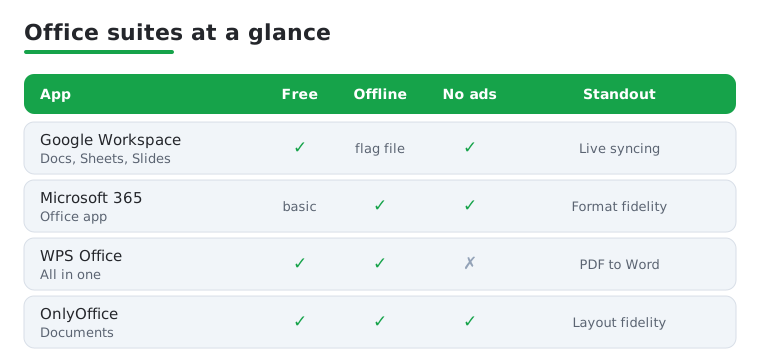
A few facts worth knowing. Microsoft 365 handles its own formats most reliably, since it created them. The free Google Workspace apps (Docs, Sheets, and Slides) import and export those formats well, though very complex layouts or advanced Excel features can shift slightly during conversion. WPS Office and OnlyOffice are both capable with Microsoft formats and often render fussy templates faithfully. If your work depends on a document looking pixel for pixel correct when it lands in someone else's inbox, test your own real files in a suite before you rely on it.
Cloud or offline?
Be honest about how you actually work. If you are usually online and want your edits to appear on every device, a cloud first suite is the natural fit. Google Workspace saves to Google Drive automatically, and Microsoft 365 saves to OneDrive. The upside is that nothing is lost if your phone breaks. The trade off is that your documents live on someone else's servers.
If you commute through dead zones, travel by air, or simply prefer to keep files on your own device, confirm the app edits fully offline. Microsoft 365, WPS Office, and OnlyOffice can all create and edit without a connection. Google Docs and Sheets work offline too, but only after you flag a specific file for offline use ahead of time, so plan before you lose signal.
Do you need real-time collaboration?
If you write or build spreadsheets with other people at the same time, real-time collaboration is worth a lot. Google Workspace is the clearest example: open a Doc, share a link, and several people can type, comment, and see each other's cursors live, all for free with a Google account. Microsoft 365 offers similar shared editing through OneDrive, and several other suites support comments and shared links. If you almost always edit alone, this feature matters far less, and you can choose on other grounds.
What will it really cost?
Price is rarely a simple yes or no. Here is the honest shape of it:
- Google Workspace (Docs, Sheets, Slides) is free with any Google account and collaborates in real time. Paid plans exist mainly for businesses that want more storage and admin controls.
- Microsoft 365 apps are free for viewing and light edits on phones and small tablets. The full feature set, and editing on larger screens, sits behind a Microsoft 365 subscription.
- WPS Office and OnlyOffice are capable alternatives, and some offer a usable free tier. WPS in particular funds its free version with ads, which can interrupt a long edit, and it sells a paid tier to remove them.
Two things are worth a careful look before you settle in. First, watch for ad-supported suites. Ads are a fair trade for free software, but a banner that pops up mid sentence, or a full screen ad when you open a file, gets old fast on a small screen. Second, check where your files are stored. Some suites default to saving in their own cloud, which may be hosted anywhere in the world. If a document is private or sensitive, read the app's storage settings and confirm you can keep it on your device, or in a cloud you already trust, rather than uploading it somewhere by default.
Documents, spreadsheets, or slides: which matters most?
It is worth being clear about which of the three tools you lean on, because suites are not equally strong across all three. For plain documents, almost every suite here does a fine job of typing, formatting, and exporting a clean .docx file. The differences are small.
For spreadsheets, the gap widens. If you rely on advanced formulas, pivot tables, or large workbooks, Microsoft 365 is the closest match to desktop Excel, and Google Sheets covers most everyday needs while handling shared editing well. Lightweight suites can open a spreadsheet and edit a few cells, but they may quietly drop or mishandle the most advanced features, so check that your key formulas survive a save before you trust them with real work.
For presentations, all of the major suites can open a PowerPoint file and let you edit text and swap images on a phone. Building a polished deck from scratch on a small screen is slow no matter which app you use, so a tablet with a keyboard helps a great deal. If you mostly need to review and tweak slides someone else built, any capable suite will do.
Privacy, safety, and the legal basics
An office suite touches some of your most personal information: contracts, tax documents, school work, and private notes. A calm, honest look at a few points saves trouble later.
- Permissions. When you install a suite, glance at what it asks for. A document app needs access to storage; it usually does not need your contacts, microphone, or location. If an app requests more than its job requires, that is a reason to pause and consider a different pick.
- Account sign in. Cloud first suites ask you to sign in, which is normal and lets them sync. Suites like Collabora Office and OnlyOffice can work without any account, keeping files on your device, which some people prefer for sensitive work.
- Reading before you agree. The privacy policy is dull, but a quick skim tells you whether your documents are scanned, where they are stored, and whether anything is shared. For free apps especially, it is fair to ask how the app makes its money.
- Legal and licensing. Stick to the official Google Play listing or the developer's own site, not a random copy from somewhere else, so you get genuine, updated software. Free for personal use does not always mean free for a business, so if you are working for a company, check the license terms. And only edit and share documents you have the right to.
None of this needs to make you anxious. The point is simply to choose with your eyes open, keep private files where you can see them, and avoid handing more access than a document editor truly needs.
A simple way to decide
If you are unsure, start with whatever ecosystem already holds your files. Choose Google if you live in Gmail and Drive and value free, instant collaboration. Choose Microsoft if your job runs on Office and exact formatting is non negotiable. Reach for WPS Office or OnlyOffice if you want a single capable app that edits offline without a subscription, and you do not mind managing a few ads or settings. Switch only if a specific gap, whether ads, offline limits, formatting fidelity, or where your files live, actually bothers you in daily use. The best suite is the one that opens your real documents cleanly and stays out of your way.
Frequently asked questions
Which office suite app is best for Android in 2026?
For most people Google Workspace wins on free price, instant syncing, and effortless sharing. If your work depends on perfect Word and Excel formatting, Microsoft 365 is the safer choice. Want everything offline and free in one download? Try WPS Office or OnlyOffice.
Can I edit Microsoft Word and Excel files without a subscription?
Yes. WPS Office, OnlyOffice, Collabora, and Polaris all open and edit .docx and .xlsx files for free. Microsoft's own Office app also allows basic editing free on phones, and a 365 subscription only becomes necessary for advanced features and larger screens.
Do these office apps work offline?
Most do. Microsoft 365, WPS, OnlyOffice, Collabora, and SmartOffice all let you create and edit without a connection. Google Docs and Sheets work offline too once you flag a file for offline use, then sync the changes the next time you are back online.
What is the best free office suite for an older or low end Android phone?
SmartOffice and Collabora Office are the gentlest on aging hardware. SmartOffice in particular is small and loads fast, so it opens documents quickly on budget phones. For broader notes and writing alongside your documents, see our notes apps guide.
Are free office apps safe, and where are my files stored?
Most are safe, but the details vary. Cloud first suites like Google Workspace and Microsoft 365 save to Google Drive or OneDrive by default, so your files live on their servers. Other suites may default to their own cloud. If a document is private, open the app's storage or save settings and confirm you can keep it on your device, or in a cloud you already trust, before you upload anything.
Should I worry about ads in free office suites?
Ads are a fair trade for free software, but they affect comfort more than safety. WPS Office and Polaris Office show ads in their free tiers, which can interrupt a long edit on a small screen, and both sell paid tiers to remove them. Google Workspace, OnlyOffice, and Collabora Office have no ads, so if interruptions bother you, start there.