
Best Camera Apps for Android (2026)
- Best free, no ads: Open Camera, with full manual controls.
- Best photo quality: Google Camera (GCam), unbeatable on a Pixel.
- Best for editing and RAW: Adobe Lightroom shoots DNG raw.
- Most fun: Snapchat for lenses and AR effects.
Your phone's stock camera is fine, but the right app turns a quick snap into something you are proud to share. We have spent years shooting on everything from a budget Moto to the latest Pixel and Galaxy, and these are the camera apps that earned a permanent spot. Some give you full manual control, others just make selfies look great, and a few are pure creative fun. Pair any of them with a solid app from our Photo & Video guides and your gallery will thank you. If you care about what a camera app can see and what your photos quietly reveal, read the privacy section below on permissions, location and EXIF metadata, and how much to trust a GCam port.
1. Open Camera
If you want a free, open source camera with zero ads and serious depth, this is the one we recommend first. It exposes manual ISO, shutter speed, focus, and white balance, plus a proper level grid for straight horizons. In our testing it ran smoothly even on older hardware. The interface looks plain, but once you map the on screen controls it becomes the workhorse you reach for daily.
2. Google Camera (GCam)
On a Pixel this is simply the best point and shoot experience on Android, and ported versions bring that magic to other phones too. Night Sight pulls usable shots out of near darkness, and the computational HDR handles tricky backlight without fuss. It suits anyone who wants stunning results with no settings to fiddle with. Free on Pixel devices, and the photos genuinely look a class above.
3. Adobe Lightroom
Lightroom hides a superb camera inside its editing app, and it shoots in DNG raw so you keep every bit of detail for later. We love grabbing a high contrast scene here, then pulling back shadows on the same screen seconds afterward. It suits hobbyists who edit as much as they shoot. The core app is free, though a paid plan unlocks cloud sync and the smartest masking tools.
4. ProCam X
This is the app we hand to friends moving up from auto mode who still want a clean, friendly layout. You get manual exposure, a live histogram, and 4K video with no subscription, which feels rare in 2026. In practice the shutter is quick and the controls stay tidy. There is a free Lite version to try first, then a one time purchase unlocks everything.
5. Camera FV-5
Built for people who think like DSLR shooters, Camera FV-5 lays out aperture priority style controls, bracketing, and long exposure timers in one dense screen. We used it for light trails at night and the intervalometer never missed a beat. It suits enthusiasts who want repeatable, technical shots. A free Lite edition covers the basics, while the paid version adds full resolution capture and raw output.
6. Footej Camera
Footej strikes a nice middle ground between simple and serious, with a slick gallery built right in so you review burst shots fast. The GIF maker is a genuine surprise, turning a quick burst into a shareable loop in a tap. It suits casual shooters who still want manual mode on tap. It is free with ads, and a small Premium upgrade clears them and unlocks raw capture.
7. Lens Buddy
When you are shooting yourself with no one to press the button, Lens Buddy is the answer. Its self timer fires off a whole sequence of frames so you can move between poses and pick the best later. We leaned on it for solo travel photos, and you can see the results in our creative Lens Buddy shots. Free to start, with a small upgrade for more options.
8. Snapchat
It is easy to forget Snapchat is one of the most used cameras on Android, but the lenses and AR effects are still the best in the business. We keep it around for goofy group shots and quick stories that do not need to be perfect. It suits anyone who values fun and speed over fine detail. Completely free, and the camera opens the instant you launch the app.
9. B612
B612 is the selfie camera we recommend to people who want to look polished without learning a photo editor. The beauty tools smooth skin gently rather than turning faces plastic, and the sticker collection stays fresh. In our testing the real time filters previewed accurately before the shutter. It is free with ads, and a paid tier removes them along with watermarks for cleaner saves.
10. VSCO
VSCO pairs a capable manual camera with the film inspired presets that made it famous, so you can nail a mood from capture to export. We reach for it when we want a muted, editorial look rather than punchy phone colors. It suits anyone chasing a consistent feed aesthetic. The basics are free, while a yearly membership opens the full preset library and finer editing dials.
11. Pixtica
Pixtica bundles a surprising amount into one app, including manual controls, live filters, time lapse, and even a slow motion mode. We had fun setting up a sunset hyperlapse without juggling separate tools. It suits tinkerers who like one app that does a bit of everything. It is free to use with optional ads, and a low cost Pro unlock removes them and adds raw plus extra capture modes.
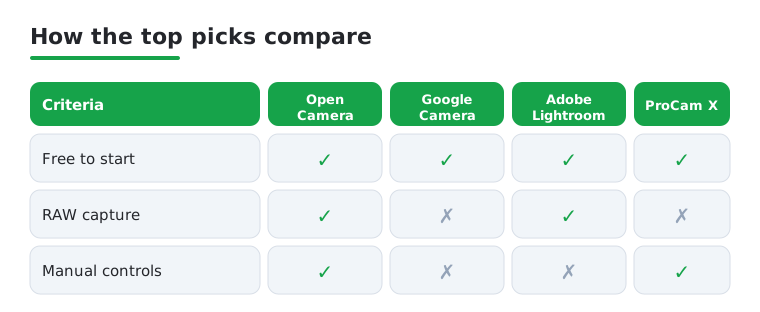
Not sure where to start? This quick comparison lines up four of our favorites against the things people ask about most: cost, RAW capture, and proper manual controls.
How to actually choose a camera app
It helps to start with a calm truth that no app can change: your hardware sets the ceiling. The sensor, the lens, and the image pipeline your phone uses to turn raw light into a finished photo do most of the heavy lifting. A camera app sits on top of that. It can give you more control over how the pipeline behaves, or expose data the stock app hides, but it cannot add detail that the sensor never captured. So before you go hunting for the perfect app, set a realistic expectation: you are choosing how much control and which look you want, not buying a better camera.
With that in mind, the honest question is not which app is best, but which app fits how you shoot. If you only ever point and shoot, the camera that came with your phone is usually well tuned for your specific hardware and a fine default. The reasons to add a third party app are narrow and practical: you want manual control the stock app withholds, you want RAW files to edit later, you want a particular creative look, or your phone's processing leaves quality on the table that another app can recover.
What GCam ports are, and their real limits
Google Camera, often called GCam, is the app that gives Pixel phones their reputation, mostly through computational tricks like Night Sight and strong HDR. Because that processing is software, the community has produced GCam ports: modified copies of Google Camera built by third parties to run on non Pixel phones. On some devices a port genuinely improves photos, especially in low light, by replacing weaker stock processing with Google's pipeline.
The limits are just as real. A port is only adapted to a model, not built for it, so results vary widely between phones and even between port versions. Some features stay broken, and an update can quietly change behavior. Most important, a port is software from a third party that you grant camera and storage access, so where you get it matters. We cover that trust question in the privacy section, because it is the part people skip.
RAW and pro modes
If you plan to edit, look for RAW capture, usually saved as a DNG file. A RAW file keeps far more of the sensor's original data than a finished JPEG, which gives you real room to recover shadows, fix white balance, and pull back blown highlights afterward. The trade is size and effort: RAW files are large and look flat until you edit them, so they reward people who actually open an editor later. Not every phone allows full RAW output, and some budget models cap it at the hardware level, so confirm yours supports it before you commit a workflow to it.
Pro or manual modes are the other reason to reach past the stock app. Direct control over ISO, shutter speed, focus, and white balance lets you do things auto mode cannot, like a long exposure for light trails or a fixed setting across a series so the frames match. If those words mean nothing to you yet, that is fine. Start in auto, and add manual control only when you hit a wall the automatic mode cannot get past.
Privacy: permissions, metadata, and trust
A camera app is one of the more sensitive things you install, because it can watch through your lens and read what you have already shot. The good news is that Android gives you clear ways to see and limit that, once you know where to look.
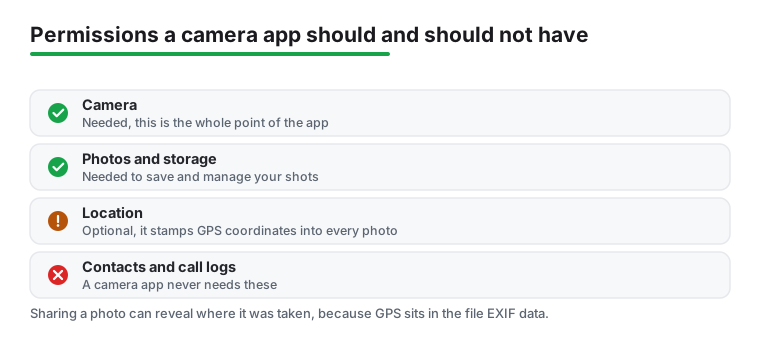
Grant only the permissions a camera app needs
A camera app typically needs camera access and storage access, and sometimes location. That is the whole list for most people. It does not need your contacts or your call logs. If an app asks for those, treat it as a reason to pause and ask why. The safe habit is to grant only what the app needs to do its job, and to decline or revoke anything that does not fit taking a photo.
Android also helps you catch access you did not expect. On Android 12 and later, the system shows a small indicator when an app uses the camera or microphone (a green dot for the camera, an orange one for the mic), so unexpected access is visible. On older versions there is no such dot. If you see that dot when you are not knowingly using the camera, that is worth investigating. You can read how the indicator works from the Android Open Source Project, and Android's own overview of these controls lives on the Android site.
Location and EXIF metadata: what your photos reveal
Most photos can carry hidden details called EXIF metadata: the phone model, the date and time, the camera settings, and, if the camera app has location permission and geotagging is on, the GPS coordinates of where the shot was taken. That last one matters. Sharing a photo can therefore reveal where it was taken, even when nothing in the frame gives it away, which is easy to forget when you post a picture from home.
You have two straightforward defenses. You can strip the metadata before sharing, so the coordinates and other details never leave with the file, or you can turn off the camera app's location permission so the GPS tag is never written in the first place. From Android 11, the system stopped other apps from silently launching a third-party camera and lifting GPS coordinates out of the resulting photo's EXIF. What decides whether your own photos get a GPS tag is the camera app's own location permission. The change is explained by 9to5Google. The practical takeaway is simple: if you do not need geotags, leave location off for your camera app, and check a photo's metadata before posting anything from a private place.
Why permissions and updates matter
It is not only careless apps that pose a risk. The stock Google Camera once had a vulnerability that let other apps control the camera and read photos and their metadata without permission. It was patched, but it is a useful reminder that even a trusted, built in app can have flaws, which is exactly why keeping apps updated and keeping permissions tight both matter. Updates close holes like that one, and tight permissions limit the damage if something does go wrong.
Trusting a GCam port
This is where the earlier point about GCam ports becomes a privacy decision. A port is a modified copy of Google Camera made by a third party, and you give it camera and storage access to do its job. A genuine port from a reputable maker can be perfectly safe and improve your photos. A malicious copy, dressed up to look the same, could abuse that same camera and storage access. So install a port only from a source you trust, be wary of look alike downloads from unknown sites, and if a port asks for permissions a camera has no business wanting, do not install it.
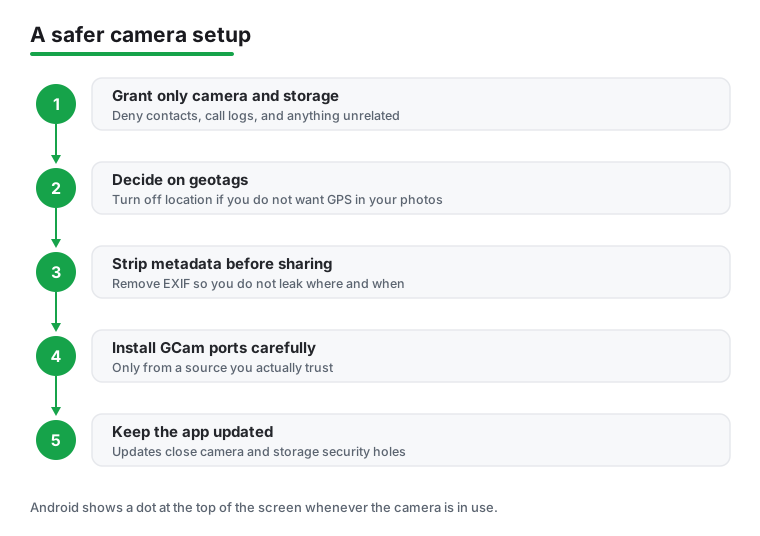
A safer setup checklist
None of this requires being an expert. A few minutes of setup covers most of the risk and lets you go back to enjoying the photos.
- Review permissions: allow camera and storage, allow location only if you want geotags, and deny contacts, call logs, and anything else a camera does not need.
- Decide on location early: if you do not want your photos tagged with where you were, turn off the camera app's location permission so the GPS data is never written.
- Check metadata before sharing: strip EXIF data when you post from a private place, since a photo can reveal its location even when the picture itself does not.
- Watch the indicator: if the camera or microphone dot appears when you are not using the camera, find out which app is responsible.
- Keep apps updated: updates patch flaws like the old Google Camera vulnerability, so do not put them off.
- Trust your sources: install camera apps, and especially GCam ports, only from listings and sources you trust, and skip clones with odd names.
Once your camera is set up the way you like, the rest of the workflow is the fun part. Send your best frames to a capable photo editor app, and if you also photograph documents and receipts, a dedicated scanner app handles those far better than a general camera does.
Frequently asked questions
Do I really need a camera app if my phone already has one?
Not always, but it helps. Stock cameras are great for quick shots, yet a dedicated app gives you manual exposure, raw files, and creative modes your default may lack. If you only ever point and shoot, the built in camera is fine. If you want more control or a specific look, one of these apps is worth installing.
What is the best free camera app for Android?
For most people we point to Open Camera. It is completely free, has no ads, and packs real manual controls. If you own a Pixel, the built in Google Camera is hard to beat for sheer photo quality. Both cost nothing, so it is worth trying each to see which layout you prefer.
Which app should I use to shoot in RAW?
Adobe Lightroom and Camera FV-5 are our top picks for raw capture, and Open Camera supports it on many phones too. Raw files hold far more detail for editing, though they take up more storage. Just check that your specific phone allows raw output, since some budget models limit it at the hardware level.
Are these camera apps safe to install?
The ones we list here all come from the Google Play Store and have strong track records. Stick to official listings, glance at the permissions a camera app requests, and be wary of clones with odd names. When you finish shooting, a good photo editor app or a tidy gallery app rounds out a safe, useful setup.
What permissions should a camera app have, and how do I know if it is watching?
A camera app normally needs only camera and storage access, plus location if you want your photos geotagged. It does not need your contacts or call logs, so treat a request for those as a reason to pause. Android also shows a small privacy indicator, a dot at the top of the screen, whenever an app is using the camera or microphone, so if that dot appears when you are not knowingly taking a photo, check which app is responsible and revoke access you did not intend to grant.
How do I stop my photos from revealing where they were taken?
Photos store hidden EXIF metadata, including the phone model, date and time, camera settings, and GPS coordinates if location is enabled, so sharing one can quietly reveal where it was taken. You have two easy options: turn off the camera app's location permission so no coordinates are ever written, or strip the metadata from a photo before you share it. From Android 11, the system stopped other apps from silently launching a third-party camera and lifting GPS coordinates out of the resulting photo's EXIF. What decides whether your own photos get a GPS tag is the camera app's own location permission. The simplest habit is to leave location off unless you actually want geotags.
Are GCam ports safe to install?
GCam ports are modified copies of Google Camera built by third parties, and they can improve photos on some phones, especially in low light. Because a port gets camera and storage access, install one only from a source you trust. A malicious copy could abuse that same access, so be wary of look alike downloads from unknown sites, and do not install any port that asks for permissions a camera has no reason to want.