
Updated September 2026
Updated September 2026 · every app listing re-read on 1 September 2026, refreshing 13 review counts, 5 listing dates and 1 rating, and the verdict moved below the comparison table so the picks sit next to the evidence
Sixteen entries: thirteen Play listings that publish a star rating, three of them also carrying the Contains ads label, two Play listings that publish no rating at all, one of them also on F-Droid, two more that are on Google Play and on F-Droid alike, and one launcher carried only on F-Droid, a catalogue that publishes no rating, price or advertising label for anything. Where a catalogue publishes no such field, this page says so rather than leaving a blank cell for a reader to fill in.
For more ways to make a phone yours, browse our wider Personalization guides, or pair a fresh home screen with one of the best Android keyboards.

Also on this site. Four of these launchers have their own page, each read from the entry it is published in: Android launchers in 2026.
Niagara Launcher is our best overall because its 25 August 2026 listing shows 4.8, free, in-app purchases, no ads label.
Olauncher is our best free because its 25 August 2026 listing shows 4.8, nothing to buy, no ads label.
Lawnchair is our icon pack pick because its documentation, read 18 August 2026, publishes the path and its listing sells nothing.
Kvaesitso is our niche pick because F-Droid, read 21 August 2026, calls it free, open source, and flags Non-Free Network Services.
Data checked: 3 September 2026.
The table gives you the map; the entries below give you the territory, launcher by launcher.
Every rating, count, price and date below carries the date it was read, 1 September 2026 for the thirteen listings that publish a rating and 21 August 2026 for the three entries that publish none, and drifts over time. Three entries publish no star rating at all: two Play listings that show none, and one launcher carried only on F-Droid, which publishes no rating for anything. Their sections say so in words.
Deep grid and gesture control
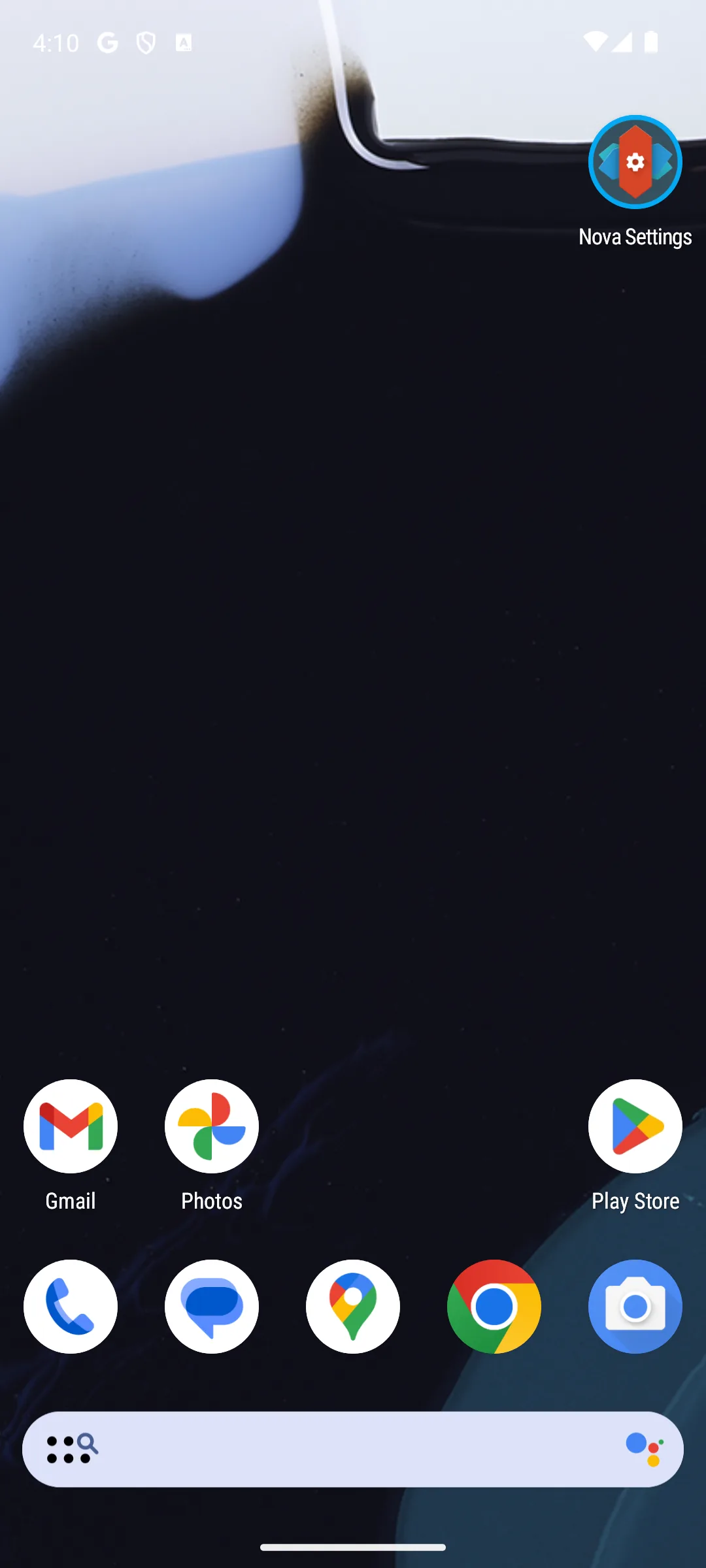
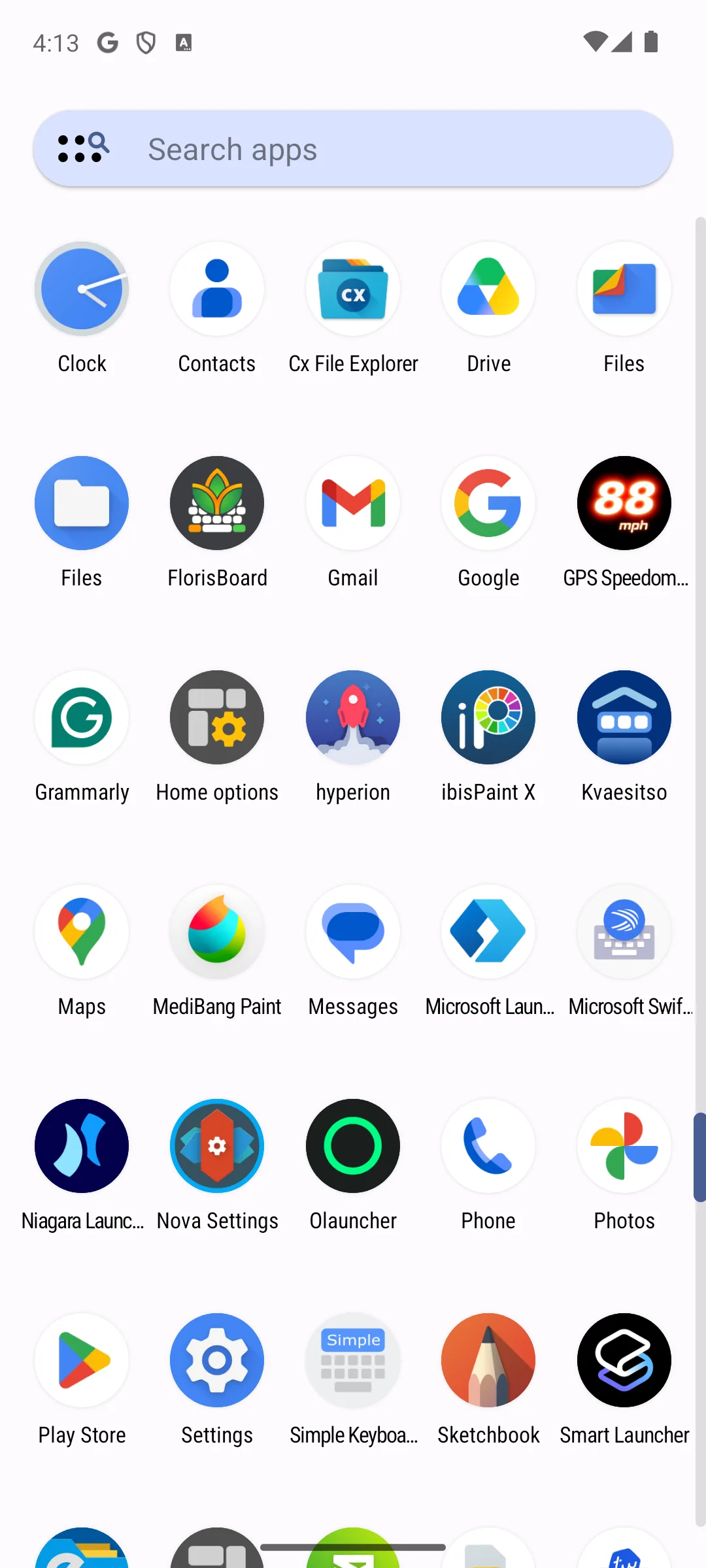
Rating 3.4 from 1,383,860 reviews · Installs 100,000,000+ · Free to install · in-app purchases $0.99 to $99.99 per item · Developer entry: Instabridge Sweden AB · Category: Tools · Listing updated 24 August 2026 · Source code: not published on f-droid.org, which returns no entry for its package · Data Safety: this app may share these data types with third parties, may collect these data types, data is encrypted in transit, and you can request that data be deleted · Contains ads: Yes · checked 1 September 2026
Google Play listing · 3.4 (1,383,860) · read 1 September 2026
Nova is the launcher this category used to open with, and what you get without paying is the reason to look twice: its developer states in plain words that the free build shows advertising, and its listing carries the Contains ads label to match. Read on 1 September 2026 it rates 3.4 from 1,383,860 reviews, the lowest of the Play listings here that publish a rating, and it is free to install with in-app purchases $0.99 to $99.99 per item. Its grid, gesture and icon controls are still why people pick it.
Read this first. What the free tier costs you, in the developer's own words: The free version of Nova Launcher includes ads to support ongoing development. Nova Launcher Prime is completely ad-free
, a paid upgrade sold two ways: Nova Launcher Prime is available as a yearly subscription or a lifetime purchase via the Nova Prime app
(novalauncher.com/faq, read 21 August 2026). The lifetime route has a catch the store page does not mention: the same FAQ says the Nova Prime app is an unlocker for all the features in Nova Launcher. Prime features won't be available if the Prime app isn't installed
, so a lifetime buyer keeps a second app on the phone to hold the licence, while a yearly subscriber does not. The developer site lists what the free tier does without: gestures, notification badges and drawer folders are all printed under Nova Prime Features (novalauncher.com, read 21 August 2026).
Nova also changed hands, and that is a listing fact rather than an announcement this page could find. Development under Branch ended in September 2025; founder Kevin Barry wrote in his farewell notice I have left Branch and am no longer involved with Nova Launcher
(teslacoilapps.com, dated 6 September 2025, read 21 August 2026). The listing read the same day gives the developer entry as Instabridge Sweden AB, and neither that notice nor novalauncher.com, both read the same day, says when the listing passed to Instabridge Sweden AB or on what terms. Its Data Safety section declares that the app may share these data types with third parties and may collect these data types; the word may is the listing's own, so that is a declaration by the developer rather than a measurement. The same listing discloses two grants worth reading before you install, in the developer's own words: This app uses the Device Administrator permission for optional screen off/lock functionality
and This app uses a Notification Listener for optional badges on icons and media playback controls
, both described there as optional (Google Play, read 21 August 2026). Choose Nova over Lawnchair if that depth of control is worth the advertising in the free build; choose Lawnchair over Nova if a listing with no such label is what decides. Skip it if paying to take advertising off your own home screen is not a trade you want to make.
One-handed reach
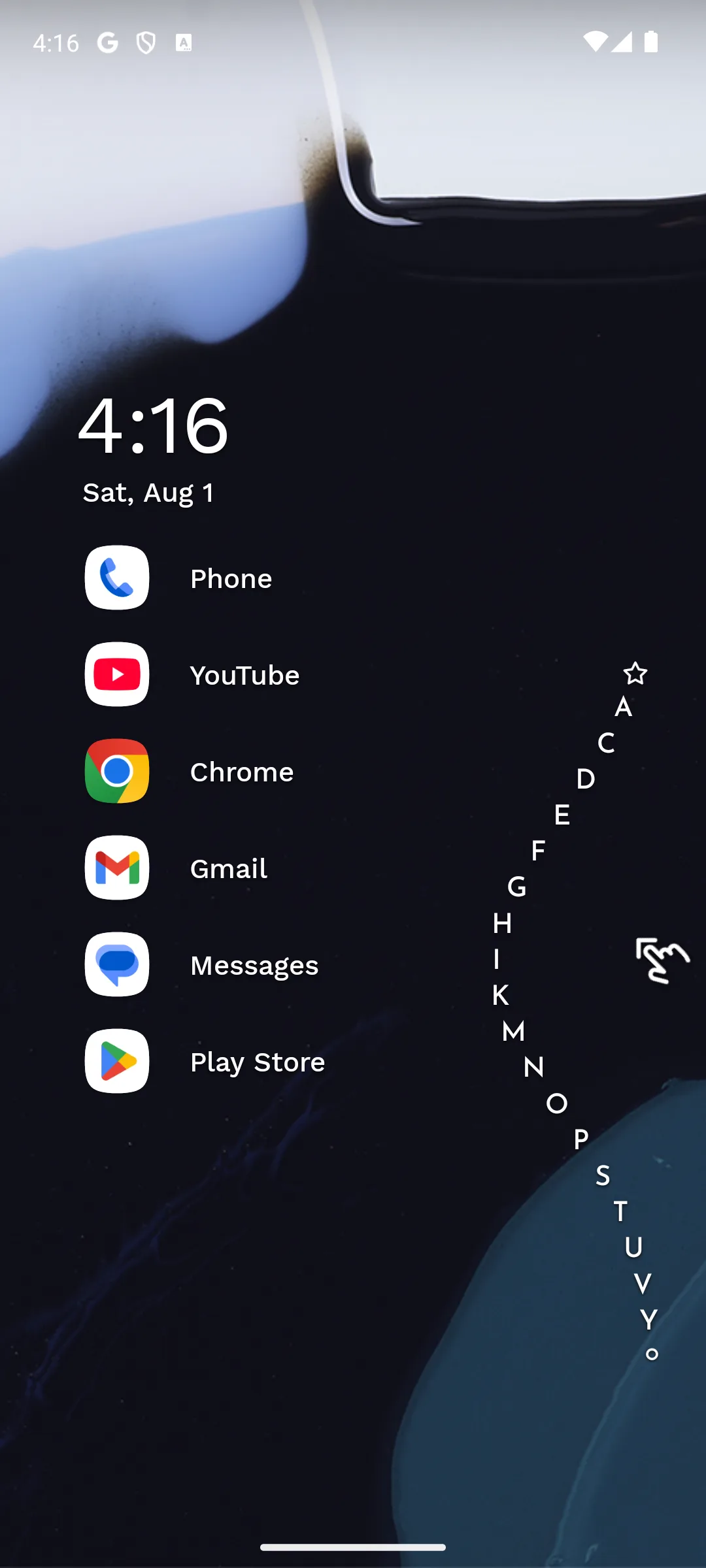
Rating 4.8 from 226,428 reviews · Installs 10,000,000+ · Free to install · in-app purchases $0.99 to $74.99 per item · Developer entry: Mellowdrop Studio · Category: Personalization · Listing updated 31 August 2026 · Source code: not published on f-droid.org, which returns no entry for its package · Data Safety: this app may share these data types with third parties, may collect these data types, data is encrypted in transit, and you can request that data be deleted · Contains ads: No · checked 1 September 2026
Google Play listing · 4.8 (226,428) · read 1 September 2026
Niagara throws out the grid and lists your favourite apps down one side, sorted so a thumb reaches everything one handed. Read on 1 September 2026, its listing shows 4.8 from 226,428 reviews, free to install and no Contains ads label, with in-app purchases $0.99 to $74.99 per item. The blunt part sits in the same listing rather than in the price: its Data Safety section declares that the app may share these data types with third parties.
The developer publishes the split itself, which most launchers on this page do not. Its own comparison page lists the free tier as Ad-free experience
with Limited customization options
, and puts full theme access, icon, font and clock customisation, the calendar and weather widget, pop-up folders, widget stacks and the usage breaker behind Pro, priced there at EUR 12,99 a year or EUR 39,99 for life (niagaralauncher.com, read 21 August 2026; those are the developer's own euro figures, and the Play listing prices its in-app purchases in dollars instead). So the free tier is genuinely usable and genuinely plain: what you give up by not paying is theming, not the launcher. Choose Niagara over Smart Launcher 6 if one handed reach is what decides; choose Smart Launcher 6 over it if you want a conventional grid that sorts itself. Skip it if icon packs and widget layouts are the point of a launcher for you. Our minimalist home screen guide covers the setup.
People already in Microsoft 365
Rating 4.7 from 1,738,195 reviews · Installs 50,000,000+ · Free to install, and the listing shows no in-app purchases at all · Developer entry: Microsoft Corporation · Category: Personalization · Listing updated 8 May 2026 · Source code: not published on f-droid.org, which returns no entry for its package · Data Safety: no data shared with third parties, this app may collect these data types, data is encrypted in transit, and you can request that data be deleted · Contains ads: No · checked 1 September 2026
Google Play listing · 4.7 (1,738,195) · read 1 September 2026
Microsoft Launcher is one of seven entries here with nothing to sell you: read on 1 September 2026 its listing shows 4.7 from 1,738,195 reviews, 50,000,000+ installs, free to install, no Contains ads label and no in-app purchases at all. The cost is paid in a different currency. Its feed, the headline feature, is a Microsoft account feature, and the listing itself has not been touched since 8 May 2026, a date nine of the fifteen Play listings here have moved past.
What the free tier gives you is therefore easy to state and easy to get wrong. There is no paid tier on that listing, no unlock and no advertising label, so nothing this page names is held back behind a purchase. That absence is a field Google Play publishes rather than one we failed to find. The feed is the part that is conditional, and Microsoft states the condition itself, on the support page its own Play listing publishes as its developer URL: We recommend signing in with your Microsoft account and work/personal account for the best experience
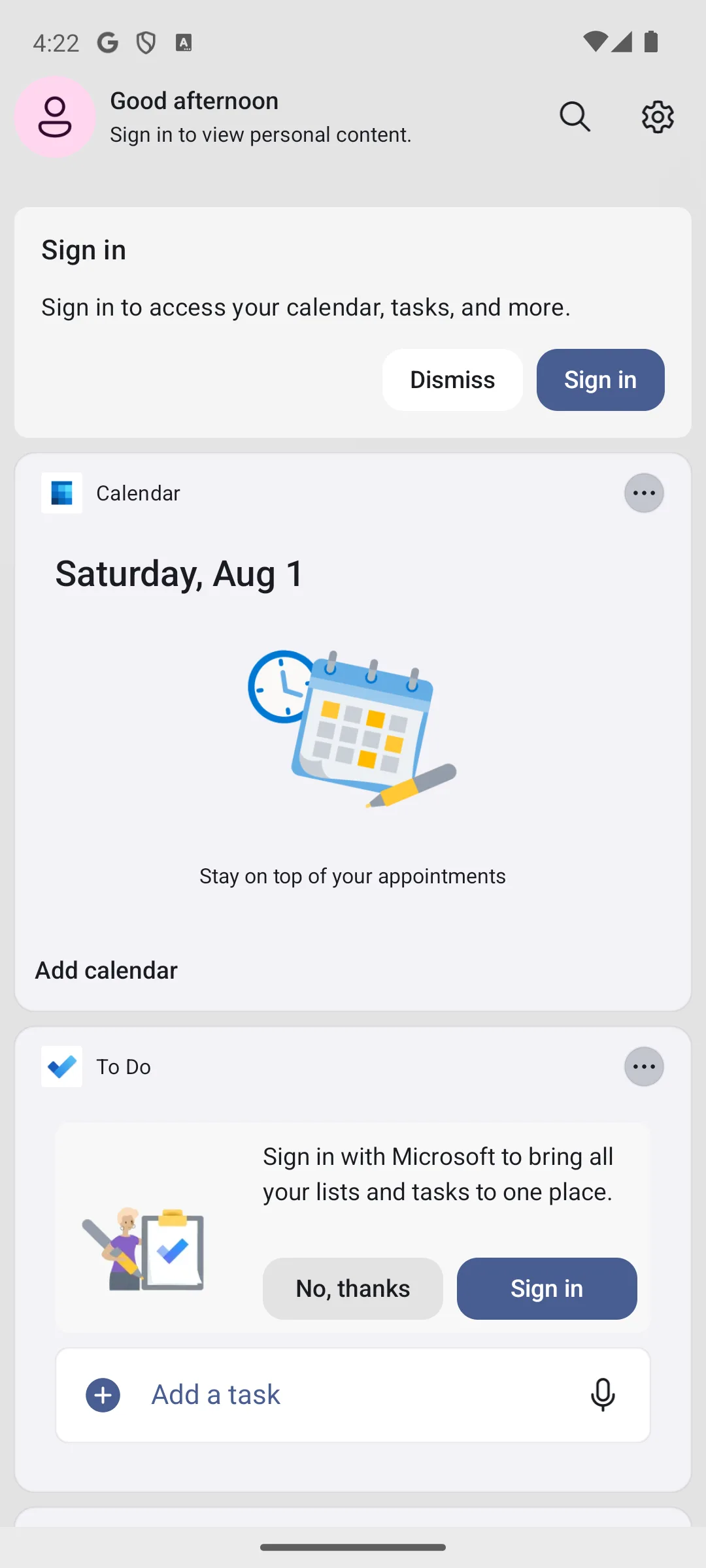
(support.microsoft.com, read 21 August 2026), on a page that describes the feature as a personalized feed for your calendar, to do lists and Sticky Notes. Signed out it offers a Sign in card, a Calendar card that asks you to add a calendar and a To Do card that asks you to sign in with Microsoft, which is the state the screenshot in this section illustrates rather than the basis for the claim. Its Data Safety section declares no data shared with third parties, that the app may collect these data types, that data is encrypted in transit and that deletion can be requested. Choose Microsoft Launcher over Nova if you want the whole app for nothing and already live in Outlook and To Do; choose Nova over it if grid and gesture depth is the point. Skip it if you have no Microsoft account, because the half that distinguishes it needs one.
A stock Pixel look
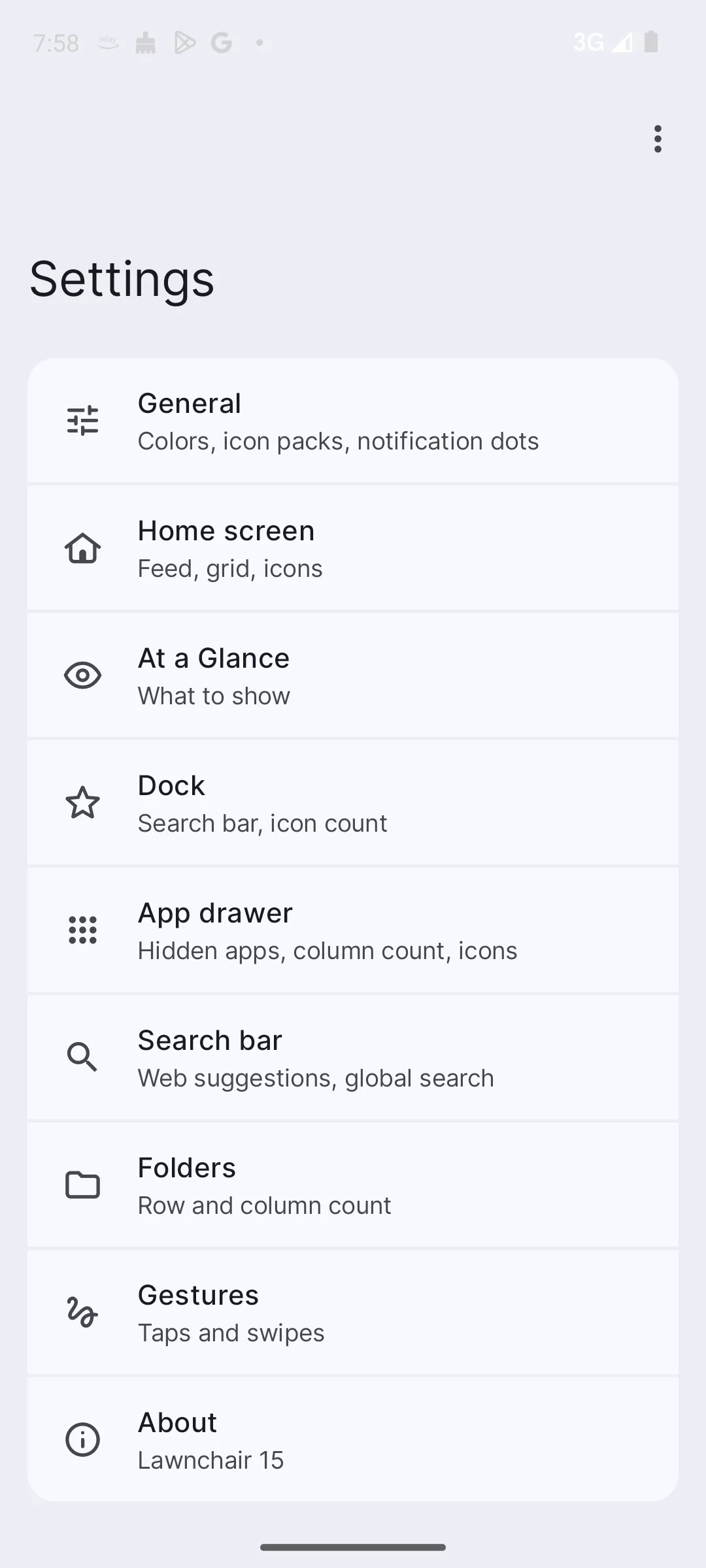
No star rating and no review count are published on its Google Play listing, checked 21 August 2026 · Installs 500,000+ · Free to install, and the listing shows no in-app purchases · Developer entry: David Sn · Category: Personalization · No last updated date is published on the listing, checked 25 August 2026 · No Contains ads label on the listing · Source code: public at github.com/LawnchairLauncher/lawnchair, where GitHub names no standard licence for the repository · Data Safety: no data collected and no data shared with third parties · Google Play listing, read 21 August 2026
Google Play listing · no star rating is published there to quote · read 21 August 2026
Lawnchair is the clean Pixel style pick, and on the question this page is built around it has the simplest answer of all: there is nothing to buy. Its listing, read 21 August 2026, shows a free install with no in-app purchases and no Contains ads label, 500,000+ installs, and a Data Safety section declaring no data collected and no data shared with third parties. The blunt limit belongs at the front too: that listing publishes no star rating and no review count at all, which is nothing published rather than a poor score, so there is no crowd verdict to set beside the rated listings here.
On customising, icon packs are the part this page can source, and the route is published rather than described: our own icon pack guide quotes Lawnchair's documentation as Go to Home settings > General. Tap Icon style. Select the icon pack you want.
(read 18 August 2026). Nothing on that path sits behind a purchase, which is what the answer capsule below the comparison table rests on. Grids and widget layouts are a different question, and no page we read publishes Lawnchair's terms for those, so this page claims nothing about them.
One thing it does hold back is not held back by the developer at all. Its own site says Lawnchair has support for QuickSwitch, a Magisk module that adds Recents customization
(lawnchair.app, read 21 August 2026), and a Magisk module means a rooted phone, which is a far larger ask than a purchase. The same page frames the rest of the offer as Being an open-source project, you get all the latest Pixel Launcher features shipped by Google in their latest Android release, plus added customizability
. Its code is public at github.com/LawnchairLauncher/lawnchair, where GitHub reports no standard licence identifier for the repository, so this page names no licence for it. An open repository is a fact about the code and not a promise about privacy, advertising or quality. Its listing also discloses two grants in the developer's own words: Lawnchair uses the AccessibilityService permission for optional support of making certain system functions more accessible, such as with desktop gestures, like turning the screen off
, adding No data is collected from the AccessibilityService; it is merely used to invoke system actions
, and Lawnchair uses the Device Administrator permission to lock the screen when a selected gesture is detected. This is optional and disabled by default
(Google Play, read 21 August 2026). One practical warning the live page carried and this pass keeps: a separate listing called Lawnchair Legacy, under a different package, still answers on Google Play today, so use the listing linked from this section rather than the first result a store search returns (Google Play, read 21 August 2026). Choose Lawnchair over Smart Launcher 6 if you want a launcher with nothing at all behind a purchase; choose Smart Launcher 6 over it if you want a rating and a review count behind your choice. Skip it if a published rating is part of how you judge an app.
Folders sorted for you
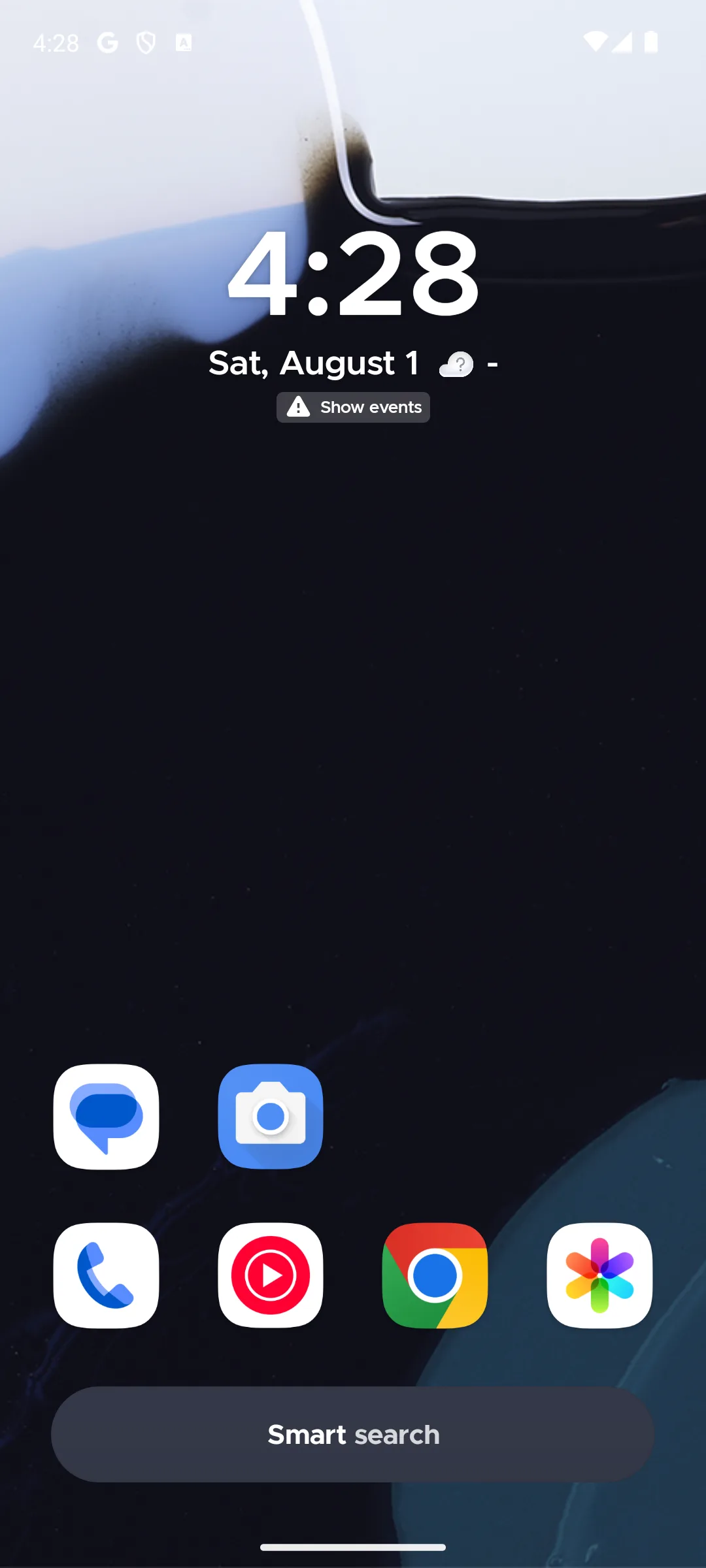
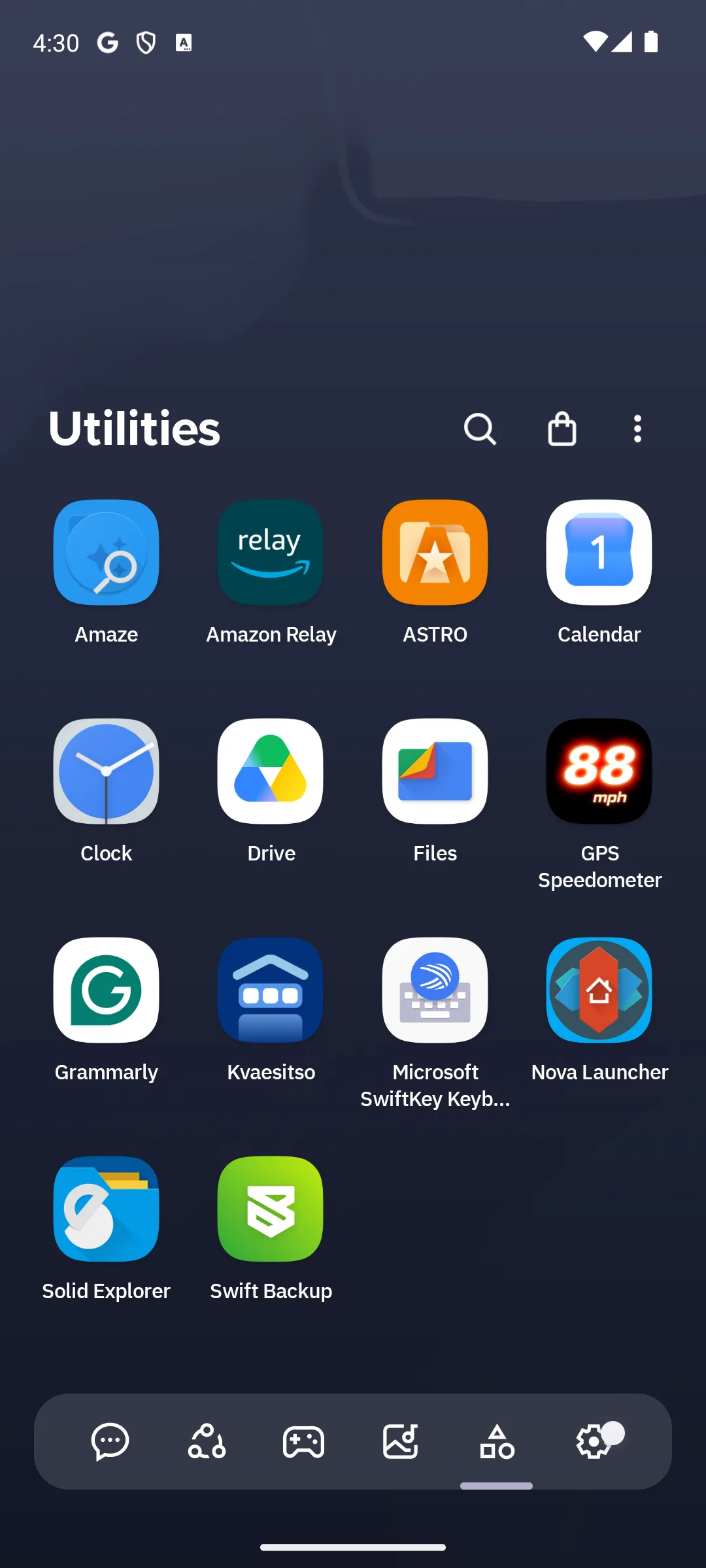
Rating 4.6 from 687,519 reviews · Installs 50,000,000+ · Free to install · in-app purchases $0.49 to $29.99 per item · Developer entry: Smart Launcher Team · Category: Personalization · Listing updated 25 August 2026 · Source code: not published on f-droid.org, which returns no entry for its package · Data Safety: no data shared with third parties, this app may collect these data types, data is encrypted in transit, and data cannot be deleted · Contains ads: No · checked 1 September 2026
Google Play listing · 4.6 (687,519) · read 1 September 2026
Smart Launcher sorts your apps into category pages without being asked, which is the whole pitch. Read on 1 September 2026, its listing shows 4.6 from 687,519 reviews, 50,000,000+ installs, free to install and no Contains ads label, with in-app purchases $0.49 to $29.99 per item. The blunt part is the one this page cares most about: no page we read on the developer's own site says what Pro costs or what it unlocks, so the only account of the free tier is the price range on the listing.
That gap is worth stating plainly rather than filling in. smartlauncher.net, read on 1 September 2026, describes the Fluid Grid System, the app page, the search page and the news page, and nowhere on the pages we read does it name a Pro price, a subscription, a lifetime option or a list of what is held back. The listing is the only source here for the money question, and what it publishes is a range rather than a tier: in-app purchases from $0.49 to $29.99 per item. Its Data Safety section declares no data shared with third parties, that the app may collect these data types, that data is encrypted in transit and that data cannot be deleted. Choose Smart Launcher 6 over Niagara if you want a conventional grid that files itself; choose Niagara over it if you want the developer to publish what the paid tier costs before you install. Skip it if an undocumented upgrade path is the kind of thing that annoys you later.
Power users who will read the small print
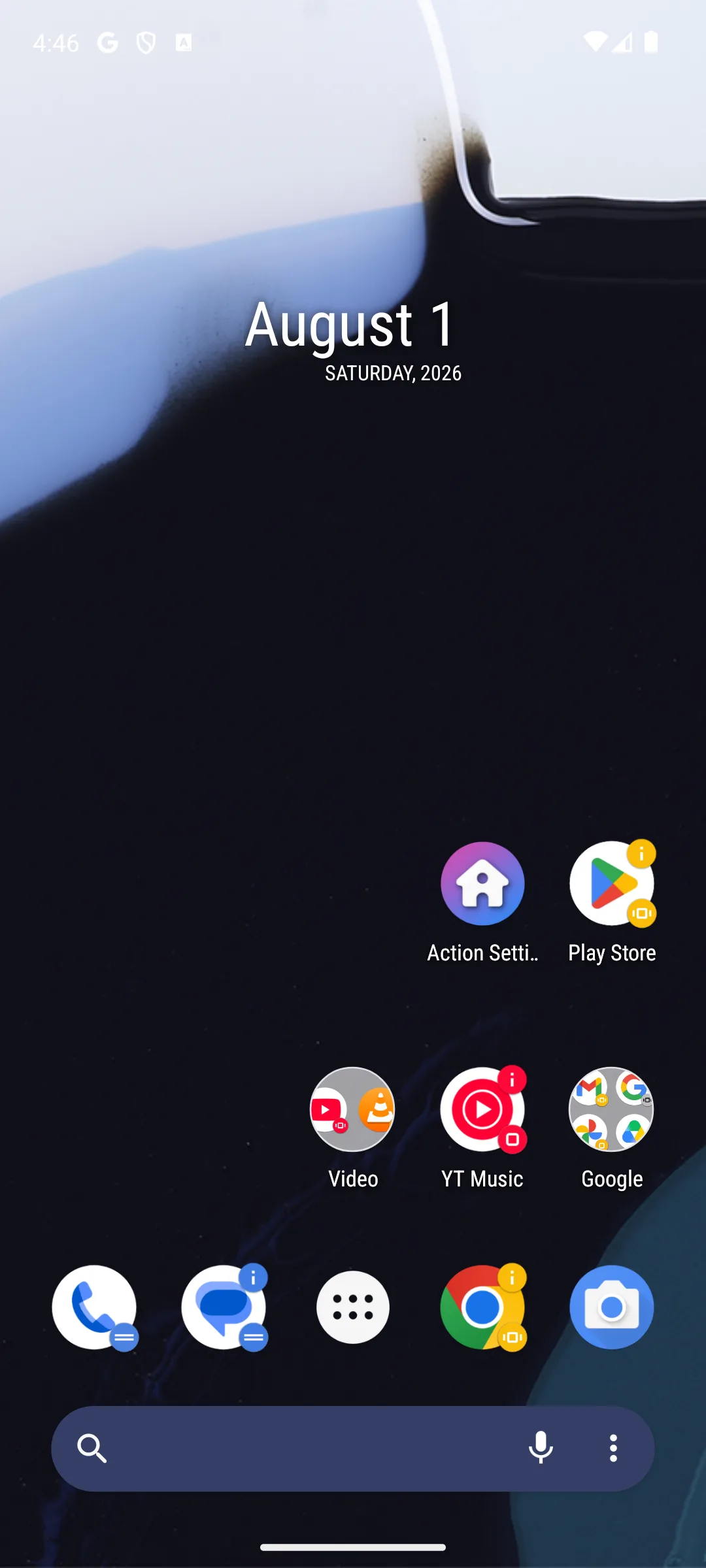
Rating 3.7 from 109,192 reviews · Installs 10,000,000+ · Free to install · in-app purchases $4.99 to $12.00 per item · Developer entry: Action Launcher · Category: Personalization · Listing updated 6 August 2025 · Source code: not published on f-droid.org, which returns no entry for its package · Data Safety: this app may share these data types with third parties, may collect these data types, data is encrypted in transit, and data cannot be deleted · Contains ads: Yes · checked 1 September 2026
Google Play listing · 3.7 (109,192) · read 1 September 2026
Action Launcher is the one on this page whose paid tier comes with a footnote, and the footnote is the reason to read the section. Its listing, read 21 August 2026, shows 3.7 from 109,192 reviews, the Contains ads label, free to install, in-app purchases $4.99 to $12.00 per item, and a listing that has not moved since 6 August 2025. Shutters, Covers and Quicktheme are still genuinely unusual features. Only Nova Launcher and Hyperion Launcher rate lower here.
Read this first. The paid tier does not stay bought in full, and the developer says so. Its FAQ states that in countries that support Bing affiliate search, A Plus purchase unlocks all app premium features in perpetuity, with the sole exception of picking search engines when using Action Search
, and that 12 months after a Plus purchase, use of Action Search with custom search engines requires a Supporter Badge purchase from the last 2 years
(actionlauncher.com/faq, read 21 August 2026). The United States is on the list of Bing affiliate countries printed on that same page, so a reader here buys Plus and, a year later, buys again to keep choosing a search engine. What that rule is protecting is a routing default the same FAQ states outright, and it is the part a reader should know before installing anything: In 2019 Action Launcher introduced Action Search, which by default directs searches initiated from Action Search to Bing (in supported countries) using an affiliate code
. So in the United States what you type into Action Search goes to Bing unless you change it, and the affiliate code on those queries is what pays for the app: Since 2019, the affiliate revenue earned from such queries has been integral in allowing Action Launcher to remain a viable financial product
, on the same page and the same day. The FAQ also notes the way out: switch Action Search off and the search engine is yours to set again.
The listing has stood still for about a year, which the fact line above dates. Its Data Safety section declares that the app may share these data types with third parties, that it may collect these data types, that data is encrypted in transit and that data cannot be deleted. Choose Action Launcher over Nova if Shutters and Covers are features you actually want; choose Nova over it if you want a listing that moved this month. Skip it if a purchase that partly lapses after twelve months is not something you want to keep track of.
Colour and theming control
Rating 3.5 from 16,980 reviews · Installs 1,000,000+ · Free to install · a single in-app purchase, $1.99 · Developer entry: prjkt.io · Category: Personalization · Listing updated 12 March 2026 · Source code: not published on f-droid.org, which returns no entry for its package · Data Safety: no data shared with third parties, this app may collect these data types, data is encrypted in transit, and data cannot be deleted · Contains ads: No · checked 1 September 2026
Google Play listing · 3.5 (16,980) · read 1 September 2026
Hyperion is the theming canvas here, and it has the simplest money story on the page: one in-app purchase at $1.99, with no subscription and no tiers on the listing. Read on 1 September 2026 it shows 3.5 from 16,980 reviews, the second lowest rating here, 1,000,000+ installs, free to install and no Contains ads label. The blunt part is pace: Google Play shows the listing last updated on 12 March 2026.
The developer's own site was requested on 21 August 2026 and returned HTTP 403 to this page, so nothing here is sourced to it and no claim about what the unlock contains is made beyond the listing's own single price. That is a gap, and stating it is better than filling it from memory. Its Data Safety section declares no data shared with third parties, that the app may collect these data types, that data is encrypted in transit and that data cannot be deleted. Choose Hyperion over Nova if a one-off unlock beats a subscription and colour control is what you are here for; choose Nova over it if you want a listing that moves every month. Skip it if a rating of 3.5 on a base of 16,980 reviews is not a risk you want to take on your home screen.
Digital detox
Rating 4.8 from 80,141 reviews · Installs 1,000,000+ · Free to install, and the listing shows no in-app purchases at all · Developer entry: Digital Minimalism · Category: Personalization · Listing updated 1 July 2026 · Source code: public at github.com/tanujnotes/Olauncher, where GitHub reports the GNU General Public License v3.0 (read 21 August 2026) · Data Safety: no data shared with third parties and no data collected · Contains ads: No · checked 1 September 2026
Google Play listing · 4.8 (80,141) · read 1 September 2026
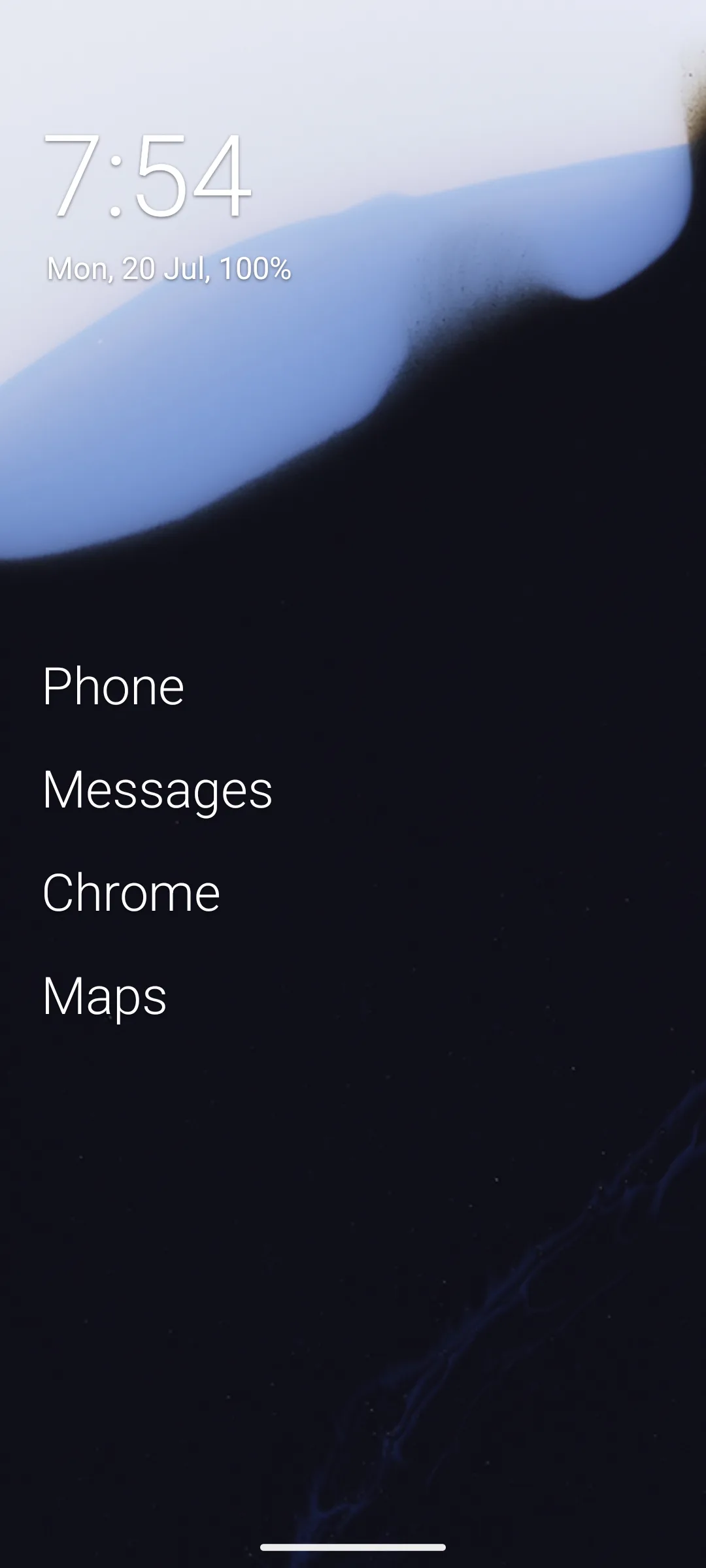
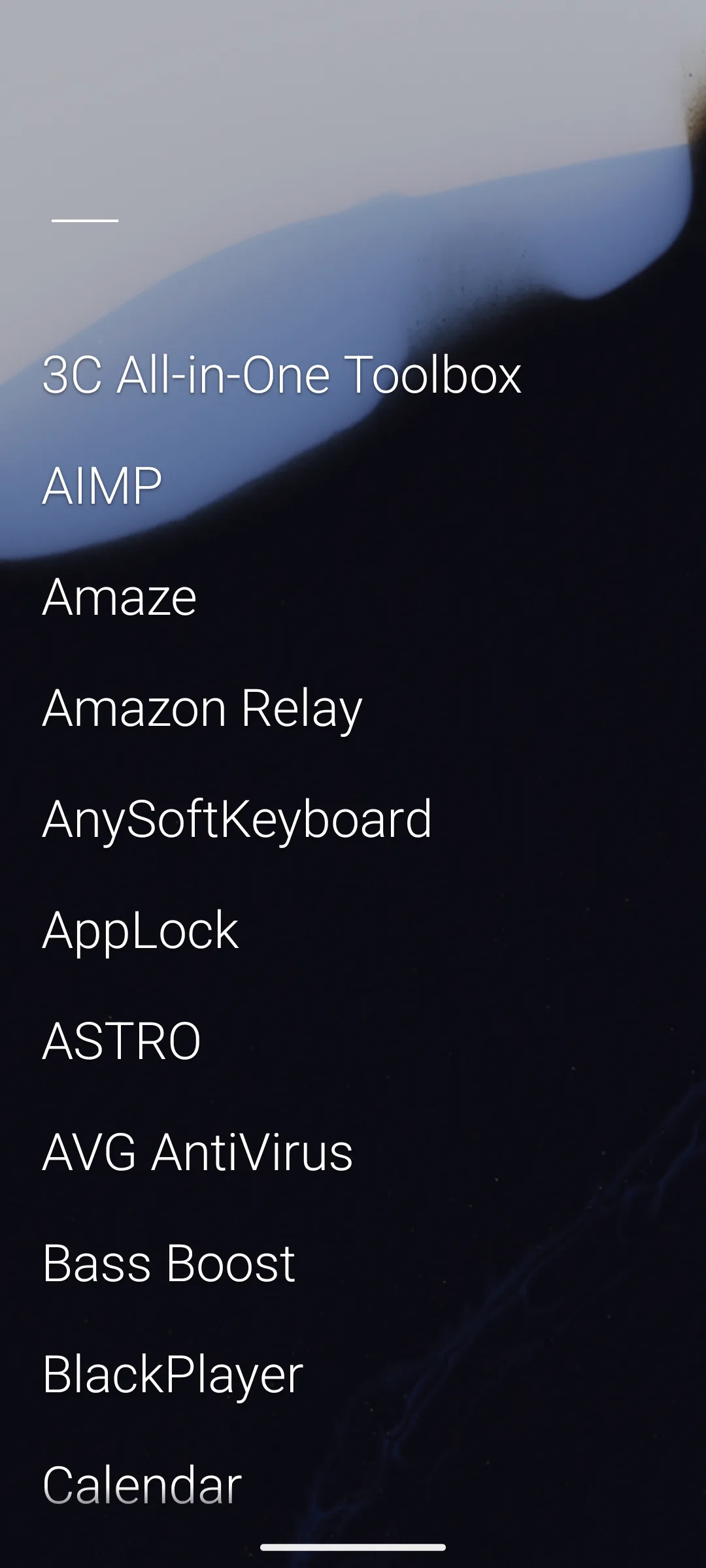
Olauncher is the shortest answer on this page to the question this rebuild is about: everything it does is free. Read on 1 September 2026 its listing shows 4.8 from 80,141 reviews, the joint highest here, 1,000,000+ installs, free to install, no in-app purchases at all and no Contains ads label, with a Data Safety section declaring no data shared with third parties and no data collected. The blunt part is what it refuses to do: no icons, no widgets, no grid.
A home screen of app names in plain text is a working method rather than a lesser launcher, and it is the reason people either stay for years or uninstall in a day. Its rating rests on a review base in the tens of thousands rather than the hundreds of thousands, so it is not the same kind of measurement as the largest listings here. Choose Olauncher over Before Launcher if you want nothing at all held back behind a purchase; choose Before Launcher over it if you want a notification filter with it. Skip it if you want icons on your home screen, because it does not draw any.
Xiaomi and POCO owners
Rating 4.5 from 710,187 reviews · Installs 100,000,000+ · Free to install, and the listing shows no in-app purchases at all · Developer entry: Xiaomi Inc. · Category: Personalization · Listing updated 13 March 2023 · Source code: not published on f-droid.org, which returns no entry for its package · Data Safety: this app may share these data types with third parties, no data collected, and data is encrypted in transit · Contains ads: Yes · checked 1 September 2026
Google Play listing · 4.5 (710,187) · read 1 September 2026
POCO Launcher is the entry where the free question has the harshest answer: its listing carries the Contains ads label and shows no in-app purchases at all, so there is nothing on sale that would take the advertising away. Read on 1 September 2026 it shows 4.5 from 710,187 reviews and 100,000,000+ installs, and Google Play gives the listing as last updated on 13 March 2023, which is more than three years before this check.
That date is the reason this entry sits low. A store record untouched since 2023 is not a claim that the app is broken, and Xiaomi ships a launcher with its phones that is a separate thing from this Play build; what it does mean is that nothing about this listing has been restated by its developer for years, while the ratings and reviews on it keep accumulating. Its Data Safety section declares that the app may share these data types with third parties, that no data is collected and that data is encrypted in transit. Choose POCO Launcher over Smart Launcher 6 only if you are matching the look of a POCO phone you already own; choose Smart Launcher 6 over it in every other case. Skip it if a listing that has stood still since 2023 is not something you want on your home screen.
Search beyond the phone
Licence: GNU General Public License v3.0 or later · Current version 1.40.2-fdroid · That version was added to F-Droid on 3 June 2026 · One Anti-Feature listed: Non-Free Network Services · F-Droid publishes no rating, no review count, no install band, no price, no in-app purchase range, no Contains ads label and no Data Safety section · F-Droid entry, read 21 August 2026
F-Droid entry · no rating and no advertising label are published there to quote · read 21 August 2026
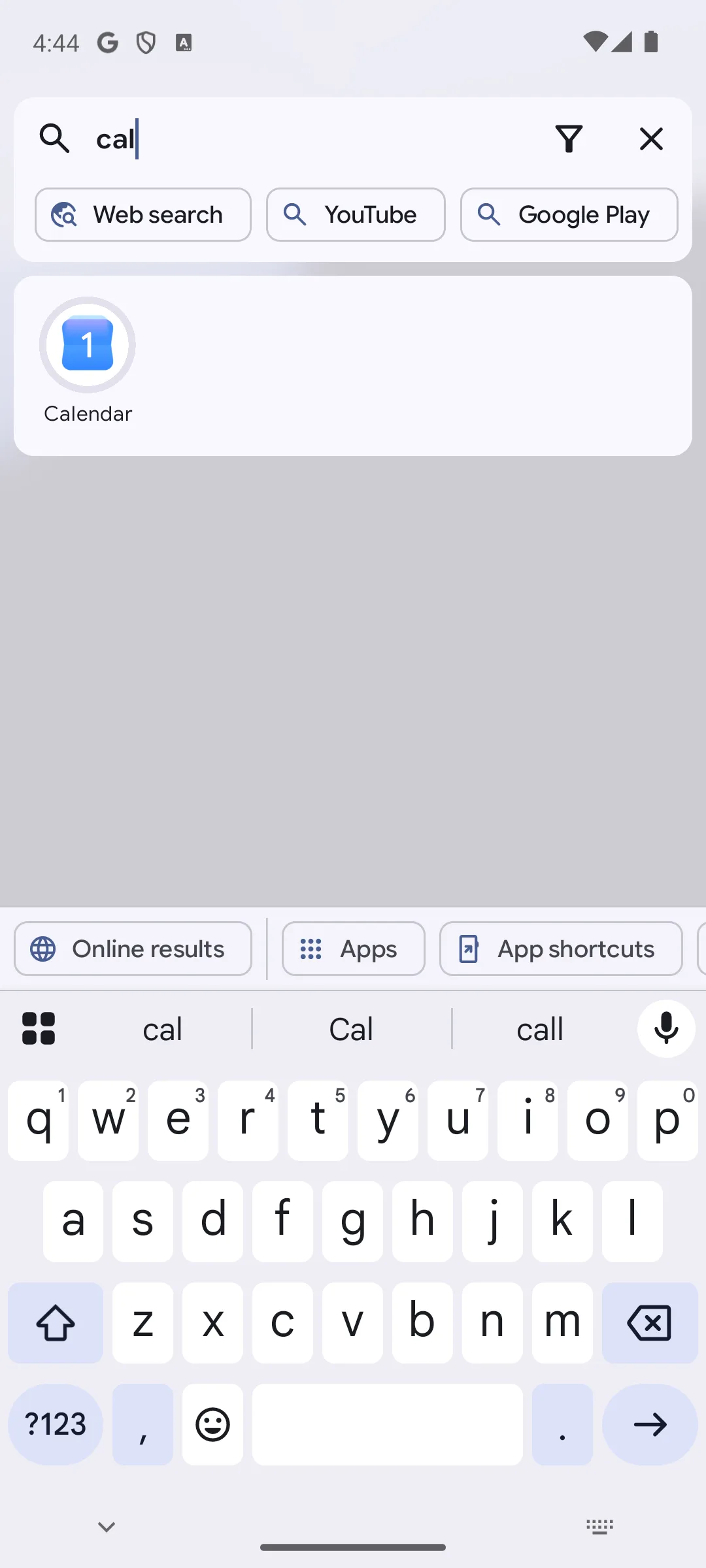
Kvaesitso is the search first entry: one bar that looks for apps, contacts, files and settings, and it is the only launcher on this page with no Google Play listing at all. On what you get free, no source we read publishes a price for it: its F-Droid entry, read on 21 August 2026, publishes the licence, GNU General Public License v3.0 or later, and the current version, 1.40.2-fdroid, added on 3 June 2026, and F-Droid publishes no price field for anything it carries; the project's own site at kvaesitso.mm20.de, read the same day, publishes no pricing page. That is what we read, not a finding that no paid tier exists. Its own summary there is A search-focused, free and open source launcher for Android
. What that entry does not publish, for this or any other app, is a rating, a review count, an install band, a price, an advertising label or a Data Safety section, so none of those appear above.
One flag does sit on this entry, and it is the blunt part. F-Droid calls its warning flags Anti-Features, and Kvaesitso carries Non-Free Network Services, with the reason the catalogue prints beside it: App uses a third party service for currency exchange rates
(f-droid.org, read 21 August 2026). That is a flag about a dependency, not an advertising label, and F-Droid publishes no advertising label for anything. The developer also runs a repository of their own at fdroid.mm20.de, which publishes a nightly build and separate plugins for services the main build leaves out, and the project documents the launcher at kvaesitso.mm20.de (both read 21 August 2026). Choose Kvaesitso over KISS Launcher if you want search that reaches beyond the phone; choose KISS Launcher over it if you want a Play listing with a rating behind it. Skip it if installing outside Google Play is not something you want to set up.
Information on the home screen
Rating 4.5 from 16,943 reviews · Installs 1,000,000+ · Free to install · in-app purchases $0.99 to $12.99 per item · Developer entry: AIO Mobile Soft · Category: Personalization · Listing updated 25 August 2026 · Source code: not published on f-droid.org, which returns no entry for its package · Data Safety: this app may share these data types with third parties, may collect these data types, data is encrypted in transit, and data cannot be deleted · Contains ads: No · checked 1 September 2026
Google Play listing · 4.5 (16,943) · read 1 September 2026
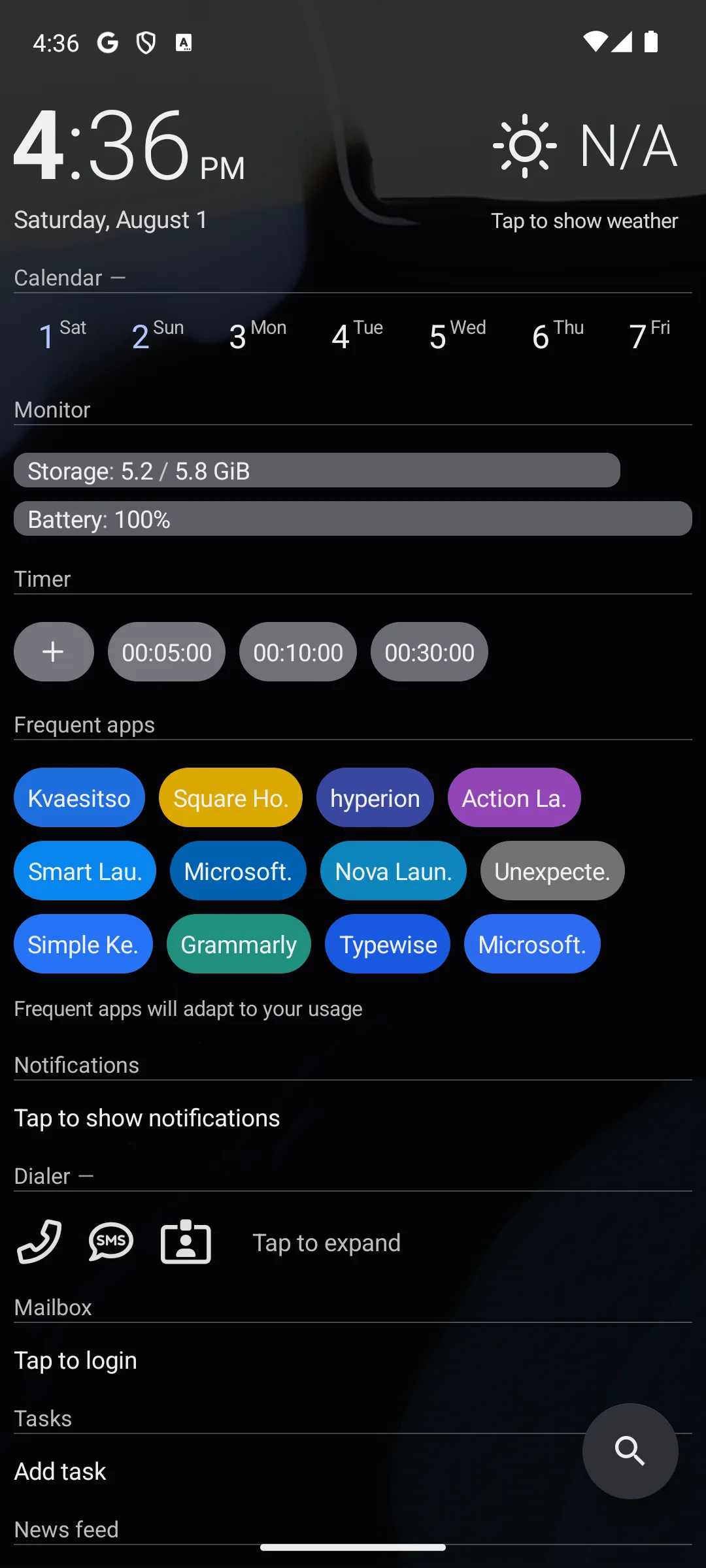
AIO Launcher replaces icons with a page of text blocks: clock, calendar, storage and battery monitors, a timer, frequent apps, notifications and a dialler. Read on 1 September 2026 its listing shows 4.5 from 16,943 reviews, 1,000,000+ installs, free to install, no Contains ads label and in-app purchases $0.99 to $12.99 per item. The blunt part is not the price but the plumbing: the developer sells licence keys outside Google Play, and a Play purchase does not get you one.
That is worth knowing before you pay, and the developer states it: keys bought directly you can use on up to five different devices
, and license keys are sold separately. We don't provide free keys, including for apps purchased through Google Play
(aiolauncher.app/key.html, read 21 August 2026). So the two routes do not convert into each other in either direction, which matters to anyone moving to a phone without Google services. Its Data Safety section declares that the app may share these data types with third parties, that it may collect these data types, that data is encrypted in transit and that data cannot be deleted. Choose AIO Launcher over Olauncher if you want information rather than emptiness on the home screen; choose Olauncher over it if you want nothing held back behind a purchase at all. Skip it if a dashboard of text is not what you want to see when you unlock the phone.
Large, resizable tiles
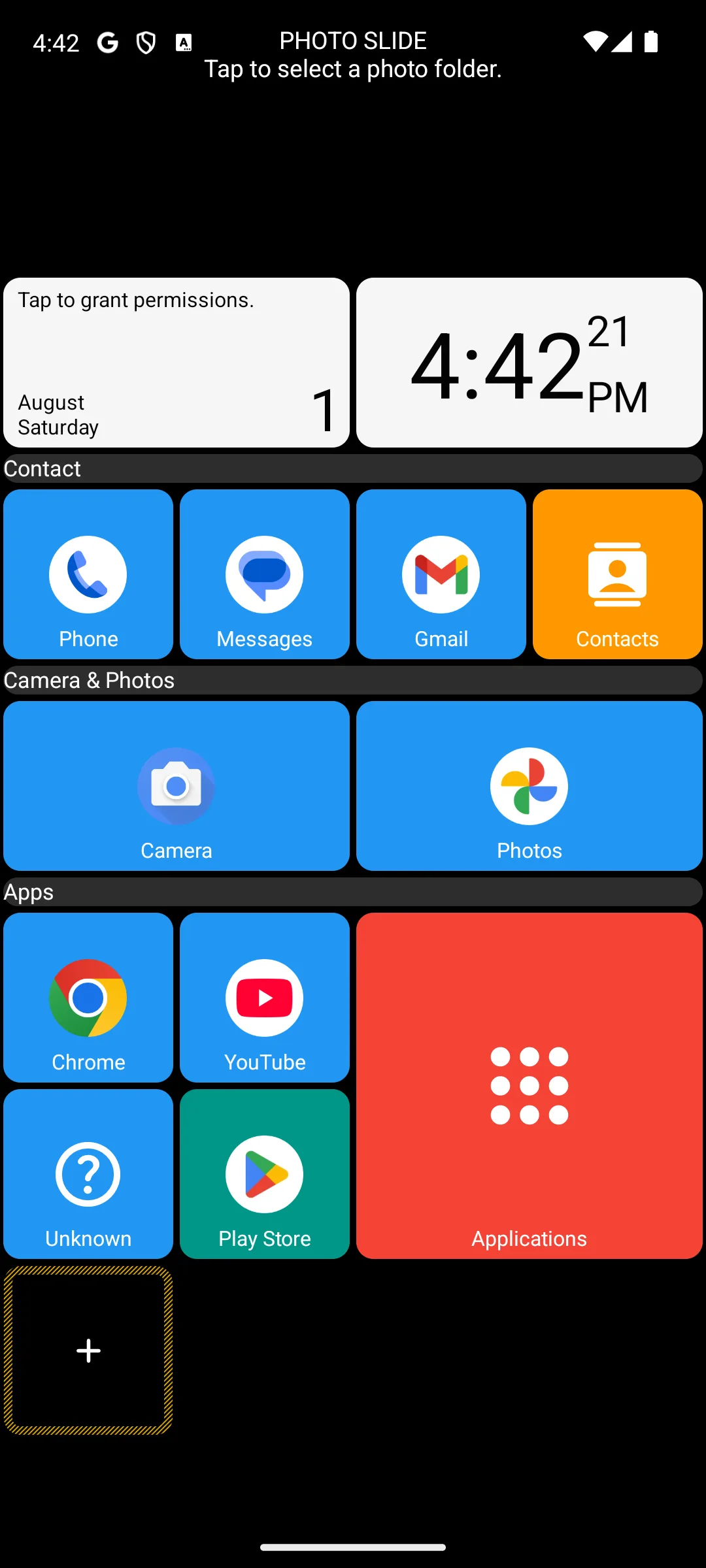
Rating 4.6 from 104,571 reviews · Installs 5,000,000+ · Free to install · in-app purchases $1.99 to $5.99 per item · Developer entry: Total_Apps · Category: Personalization · Listing updated 16 August 2026 · Source code: not published on f-droid.org, which returns no entry for its package · Data Safety: no data shared with third parties, no data collected, and data is not encrypted · Contains ads: No · checked 1 September 2026
Google Play listing · 4.6 (104,571) · read 1 September 2026
Square Home lays the home screen out as large coloured tiles under headings you name, which is genuinely easier to hit than a grid of small icons. Read on 1 September 2026 its listing shows 4.6 from 104,571 reviews, 5,000,000+ installs, free to install, no Contains ads label and in-app purchases $1.99 to $5.99 per item. The blunt part is in its own Data Safety section: it declares that data is not encrypted, the only entry on this page that does.
The same section declares no data shared with third parties and no data collected, so the encryption line is about how the app holds what is on the device rather than about anything leaving it. Both statements are the developer's own declaration rather than a measurement. What the free tier gives you is a working tile layout; what the purchases add is not documented on the developer's blog, which on 21 August 2026 carries release notes rather than a feature comparison, so the listing's price range is again the only source. Choose Square Home over Microsoft Launcher if large touch targets are the point; choose Microsoft Launcher over it if the encryption declaration bothers you. Skip it if you want the phone to look like stock Android.
Search with nothing else
Rating 4.2 from 4,666 reviews · Installs 500,000+ · Free to install, and the listing shows no in-app purchases · Developer entry: Neamar · Category: Personalization · Play listing updated 24 July 2026 · No Contains ads label on the listing · On F-Droid: version 3.26.0, added 3 July 2026, under the GNU General Public License v3.0 only, and no Anti-Features are listed on that entry · Google Play listing and F-Droid entry, both read 1 September 2026
Google Play listing · 4.2 (4,666) · F-Droid entry · read 1 September 2026
KISS Launcher deletes the grid and leaves a search bar with the apps you use most beside it. On what you get free the answer is the whole app: its Play listing, read 21 August 2026, shows a free install with no in-app purchases and no Contains ads label, 4.2 from 4,666 reviews and 500,000+ installs, and its F-Droid entry publishes the source under the GNU General Public License v3.0 only. The blunt part is the rating: at 4.2 it sits below Olauncher among the open source entries here that have a Play rating at all.
Its two catalogues do not measure the same thing, and this page keeps them apart. The Play listing update date, 24 July 2026, is when a developer last changed a store record; the F-Droid date, 3 July 2026 for version 3.26.0, is when a build entered that repository. No Anti-Features are listed on the F-Droid entry read on 1 September 2026, and that is the absence of a flag rather than a finding that the app is clean. The project documents itself at help.kisslauncher.com, read the same day. Choose KISS Launcher over Kvaesitso if you want a Play listing with a rating behind it; choose Kvaesitso over it if you want search that reaches past the phone. Skip it if you want a home screen you can decorate, because this one is a text field.
Thumb gestures
Rating 4.0 from 785 reviews · Installs 100,000+ · Free to install, and the listing shows no in-app purchases · Developer entry: Markus Fisch · Category: Tools · Play listing updated 13 July 2026 · No Contains ads label on the listing · On F-Droid: version 1.28.0, added 18 July 2026, under the MIT License, and no Anti-Features are listed on that entry · Google Play listing and F-Droid entry, both read 1 September 2026
Google Play listing · 4.0 (785) · F-Droid entry · read 1 September 2026
Pie Launcher puts a small radial menu under your thumb instead of icons in fixed positions, which is its own summary of itself on F-Droid: Control your phone with a dynamic pie menu instead of fixed positioned icons.
, read 21 August 2026. Free means free here as well: the Play listing shows no in-app purchases and no Contains ads label, and the code is published under the MIT License. The blunt parts are size and scope: 785 reviews is the smallest review base on this page by a wide margin, and a pie menu is not a home screen replacement in the sense the rest of this list means.
The two catalogues are also a version apart, which is worth stating rather than smoothing over: Google Play showed version 1.27.0 on 21 August 2026 while F-Droid carried 1.28.0, added there on 18 July 2026. Neither figure is a release date for the other. No Anti-Features are listed on the F-Droid entry read on 1 September 2026, which is the absence of a flag and not a finding about the app. Choose Pie Launcher over KISS Launcher if a thumb gesture is how you want to open things; choose KISS Launcher over it if you want search first. Skip it if you want a conventional home screen at all.
Minimalism with a notification filter
Rating 4.7 from 13,218 reviews · Installs 500,000+ · Free to install · in-app purchases $1.99 to $6.99 per item · Developer entry: Before Labs · Category: Productivity · Listing updated 2 August 2026 · Source code: not published on f-droid.org, which returns no entry for its package · Data Safety: no data shared with third parties, this app may collect these data types, data is encrypted in transit, and data cannot be deleted · Contains ads: No · checked 1 September 2026
Google Play listing · 4.7 (13,218) · read 1 September 2026
Before Launcher is the minimal home screen with a filter attached: it sorts notifications into what it treats as important and what it does not, which no other minimal entry here does. Read on 1 September 2026 its listing shows 4.7 from 13,218 reviews, 500,000+ installs, free to install, no Contains ads label and in-app purchases $1.99 to $6.99 per item. The blunt part: its listing sits in Productivity, not Personalization, and only two Play listings here rest on fewer reviews.
The developer's own site was requested on 21 August 2026 and returned HTTP 403 to this page, so the free tier is described from the listing alone and nothing is claimed about what the purchases contain. Its Data Safety section declares no data shared with third parties, that the app may collect these data types, that data is encrypted in transit and that data cannot be deleted. Choose Before Launcher over Olauncher if you want the notification filter; choose Olauncher over it if you want a launcher with nothing at all behind a purchase. Skip it if you want icons and widgets, because this is a text list with a filter in front of it.
A plain, private app grid
No star rating and no review count are published on its Google Play listing, checked 21 August 2026 · Installs 10,000+ · Free to install, and the listing shows no in-app purchases · Developer entry: Fossify · Category: Personalization · Play listing updated 17 February 2026 · No Contains ads label on the listing · Data Safety: no data collected, no data shared with third parties, data is encrypted in transit, and data cannot be deleted · On F-Droid: version 1.10.0, added 18 February 2026, under the GNU General Public License v3.0 only, and no Anti-Features are listed on that entry · Google Play listing and F-Droid entry, both read 21 August 2026
Google Play listing · no star rating is published there to quote · F-Droid entry · read 21 August 2026
Fossify Launcher Beta is the conventional one among the open entries: a normal app grid with widgets, themes and hidden apps rather than a concept piece. On the free question it is as clean as Lawnchair, with a free install, no in-app purchases and no Contains ads label read on 1 September 2026. Two blunt parts belong at the front. Its Play listing publishes no star rating and no review count, which is nothing published rather than a low score, and the newest build in either catalogue is from February 2026, the oldest of the open source entries here.
The developer's own one line pitch on the Play listing calls it a fast, ad-free, open-source launcher (Google Play, read 21 August 2026); the ad-free half of that is the developer's claim rather than a Play label, and what the listing itself shows is the absence of a Contains ads label. The two dates on this entry measure different things and are not one figure: a Play listing update is when a developer last changed a store record, and an F-Droid date is when a build entered a repository. No Anti-Features are listed on the F-Droid entry read on 1 September 2026, which is the absence of a flag rather than a finding that the app is clean. Choose Fossify Launcher over Lawnchair if a named licence matters to you; choose Lawnchair over it if a listing that moved more recently does. Skip it if a beta on your daily home screen is not something you want.
No rating or review count stands behind this half of the page. It is about how Android itself behaves and what the entries above cost you in practice, and where a claim here is Google's, Google is linked for it in the same sentence; where it is a developer's, the developer is.
A launcher is the app that draws your home screen and app drawer. Android treats being that app as a role rather than a setting: Google's own API reference names it the home role, and says of roles in general that There can be multiple applications qualifying for a role, but only a subset of them can become role holders
and that an app will need user consent to become a role holder
, adding that Upon becoming a role holder, the application may be granted certain privileges that are role specific. When the application loses its role, these privileges will also be revoked
(developer.android.com, read 21 August 2026). In plain terms: one launcher holds the home screen at a time, you grant it, and handing the role to the next one takes the privileges back.
To change it, Google's own help page says to open Settings, tap Apps and then Default apps, tap the default app you want to change, and tap the app you want to use by default, noting that Some of these steps only work on Android 14 and up
(support.google.com, read 21 August 2026). On phones that do not follow the Pixel wording, the same setting is usually under Apps and then a Home app entry; that last part is guidance rather than a Google statement, because the wording is the manufacturer's.
Two limits belong here because they surprise people who switch. The first is gestures. Google's own developer guidance says The new system gestures for home and quick switch both involve swipes at the bottom of the screen in the space previously occupied by the nav bar. Apps can't opt out of these gestures as they can with the back gesture
(developer.android.com, read 21 August 2026). Those swipes belong to the system, not to the launcher you installed. A developer says the same from the other side: Nova Launcher's FAQ answers the question about the on screen navigation buttons with You can only change the navigation buttons from system settings if your system supports it. This isn't something 3rd party launchers such as Nova Launcher have control over
, and, of gesture navigation, This isn't up to Nova Launcher, or any 3rd party launcher, but up to the system
(novalauncher.com/faq, read 21 August 2026). That is a developer's statement about navigation and gestures, and it is quoted here rather than under the recents screen below, which is a different question and has its own answer on the same page.
The second is the recents screen, and the clearest statement of it on the run day comes from a developer rather than from Google. Nova Launcher's FAQ answers a question about that screen by name, and its answer is that no third party launcher has any access to it: That's all up to your device OEM and Android and the recent apps screen is tied to the stock launcher of your device
(novalauncher.com/faq, read 21 August 2026). Treat that as the developer's statement it is; Google publishes no page we read that puts it in those words. Lawnchair's own site puts a price on the exception: customising Recents needs QuickSwitch, which it describes as a Magisk module, and a Magisk module means a rooted phone (lawnchair.app, read 21 August 2026). Treat the smoothness of the app switching animation as the one thing you may notice and cannot fix from inside a launcher.
The third column of the table above is the one this page spends its effort on, because it is the one that is usually written from a store blurb. Free on Google Play means free to install, and it says nothing about what happens next. Read on 1 September 2026, the entries here fall into four shapes. Seven show no in-app purchases at all on their listings: Microsoft Launcher, Olauncher, POCO Launcher, Lawnchair, KISS Launcher, Pie Launcher and Fossify Launcher Beta. Six of those seven carry no advertising label either, so nothing they do is held back for money; the seventh is POCO Launcher, whose listing carries the label and offers nothing for sale that would remove it. Some are free with advertising and sell the way out, which is Nova Launcher. Some are free and plain, with theming behind a paid tier, which is Niagara Launcher by its developer's own comparison page. And some are free with a purchase whose terms are simply not published anywhere we could read, which is Smart Launcher 6 and Square Home.
Two further catches are worth checking before you pay, because neither is visible on a store page. Nova Launcher's lifetime unlock is held by a second app that has to stay installed, by its developer's own FAQ. Action Launcher's Plus purchase is permanent except for one feature, and choosing your own search engine inside Action Search needs a further purchase twelve months on in the countries its FAQ lists, the United States among them. Both are stated by the developers themselves and both are quoted in those sections above.
A launcher replaces your home screen, which means it can see which apps you have installed and which ones you launch from it. Your wider app usage history is a separate permission you grant yourself: Google's own reference for UsageStatsManager says most of that API requires android.permission.PACKAGE_USAGE_STATS and that "the user of the device still needs to grant permission through the Settings application" (read 21 August 2026). That much is normal and necessary for a launcher to do its job, and it makes the choice of developer matter more than with most apps. Read the Data Safety section on a listing before you install: it is the developer's own declaration rather than a measurement, and on this page those declarations range from no data collected to may share these data types with third parties. Some free launchers pay for themselves by showing advertising or by collecting usage data, and that is the trade you accept in exchange for the price. Neither is automatically wrong, but you should know which one you picked.
If avoiding tracking matters to you, an open source launcher at least lets anyone read what the code does, which is a fact about the code rather than a promise about the app. The same care applies across our other tools and utilities guides. The practical check is permissions: a launcher needs very little to function, so be cautious if one asks for access that has nothing to do with drawing a home screen, such as your contacts, your location, your microphone or your call logs, with no obvious reason. Two requests on this page are expected rather than unexplained, and both are the developer's own disclosure on the listing: a launcher that offers a screen off gesture asks for Device Administrator, and one that offers desktop gestures asks for the AccessibilityService. Nova Launcher and Lawnchair both declare exactly that on their listings, read 21 August 2026, and both describe the grants as optional; Lawnchair says its Device Administrator use is optional and disabled by default
. Those are the two highest privilege grants a launcher can ask for, so the test is whether the listing explains the request, not whether the request exists. You can review and revoke these under Settings, Apps, the launcher, Permissions at any time.
Several stock launchers already do part of this: themed icons, a grid size setting and a colour palette pulled from the wallpaper are common. That is guidance rather than a Google or a manufacturer statement, because the features and the wording differ by phone and by Android version and no page we read publishes one list covering them all, so check your own Settings first. Many people want a feature their stock launcher already offers. A third party launcher earns its place when you want gestures, real icon packs, or a calmer screen your phone refuses to give you. Your hand built layout does not move between launchers by itself, so before you swap, take a screenshot of each home screen to rebuild from, and if the launcher you are leaving offers a backup file, save it first.
Pair it with: a fresh home screen pairs well with an app lock app so the apps you put one tap away stay private, a cleaner app to keep a light launcher feeling fast on older hardware, and a file manager app for getting at the icon packs and wallpapers you use to make a launcher your own.
Octopi Launcher: aimed at foldables, with separate layouts for the inner and the cover screen. No listing was read for it in this pass, so no figure for it appears anywhere on this page.
Apex Launcher: a classic name from the Nova era. Its Play listing, com.anddoes.launcher, was requested again on 21 August 2026 and returned 404, so there is no supported way to install it from the store.
Evie Launcher: both of the package names this page has ever linked for it, com.evie.launcher and is.shortcut, were requested again on 21 August 2026 and both returned 404.
Ratio: left off in an earlier pass on the strength of what its listing carried then. No listing was re-read for it on 21 August 2026, so nothing is claimed about it today, and the note an earlier pass carried about who publishes it has been dropped rather than repeated, because no source on this page supports it.
It depends on what you want the home screen to do, and the honest starting point is what the entries publish. Of the Play listings here that publish a rating, Niagara Launcher and Olauncher share the highest at 4.8, both free to install and neither carrying a Contains ads label. Olauncher goes further and shows no in-app purchases at all, while Niagara's developer puts theming behind a paid tier. Nova Launcher, the old default answer, is at 3.4 today and its listing does carry that label. Checked 21 August 2026.
Seven of the sixteen show no in-app purchases at all on their Play listings, read 21 August 2026: Microsoft Launcher, Olauncher, POCO Launcher, Lawnchair, KISS Launcher, Pie Launcher and Fossify Launcher Beta. Of those, POCO Launcher carries the Contains ads label and sells nothing that would remove it, and Microsoft Launcher is free of both but its feed asks for a Microsoft account. Kvaesitso has no Play listing at all, and no source we read publishes a price for it: F-Droid publishes no price and no advertising label for anything it carries, and the project's own site publishes no pricing page, so that is what we read rather than a finding about the app. Checked 21 August 2026.
It depends entirely on the launcher, which is why the table has a column for it. Niagara Launcher's own comparison page describes the free tier as ad-free with limited customization options and puts themes, icon, font and clock control, the calendar and weather widget, pop-up folders and widget stacks behind Pro. Nova Launcher's FAQ says the free version includes advertising and that Prime is completely ad-free. Two entries publish nothing at all about what a purchase adds, Smart Launcher 6 and Square Home, so for those the listing price range is all there is. Checked 21 August 2026.
Google's own help page says to open Settings, tap Apps and then Default apps, tap the default app you want to change, and tap the app you want to use by default, and notes that some of those steps only work on Android 14 and up. On phones that do not use the Pixel wording the same setting usually sits under Apps and then Home app, which is guidance rather than a Google statement. Android treats this as a role that one app holds at a time, granted by you and revoked when you hand it to the next launcher. Checked 21 August 2026.
Yes, and the limits are the system's rather than the launcher's. Google's developer guidance says the system gestures for home and quick switch both involve swipes at the bottom of the screen and that apps cannot opt out of them the way they can with the back gesture. Nova Launcher's FAQ puts the same point from the other side, that navigation and gesture support are up to the system and not something a third party launcher controls. The one thing you may notice is that the app switching animation can look less fluid. Nova Launcher's FAQ, answering a question about the recent apps screen, says that screen is tied to the stock launcher of your device and is up to your device maker and Android, which is a developer's statement rather than Google's. Checked 21 August 2026.
A launcher can see which apps you have and which ones you launch from it, so the developer behind it matters more than with most apps. Your wider app usage history is a separate Android permission, PACKAGE_USAGE_STATS, that you grant yourself in Settings, and Google's own developer reference says so. What this page can tell you is what each entry declares: read the Data Safety section on a Play listing before installing, and remember that it is the developer's own declaration rather than a measurement. Six entries here publish their source, which lets anyone read the code. That is a fact about the code and not a promise about privacy, advertising or quality. Checked 21 August 2026.
On modern hardware the impact is usually small, and that is guidance rather than a figure anyone here measured. A launcher does more than draw the home screen: it hosts your widgets and can keep services running behind them, so a heavy live wallpaper or a constantly refreshing feed widget costs more than the launcher itself. Turn those off first if you notice any drain. Checked 21 August 2026.
Some declare that they may. Because a launcher can see which apps you install and open, a free one may pay for itself with advertising or with usage data, while others are funded by a purchase or a subscription. The Data Safety section on each Play listing is where the developer says which, and the entries on this page range from no data collected to may share these data types with third parties. One entry, Square Home, declares that data is not encrypted. Checked 21 August 2026.
It runs, and the honest answer changed this year. Development under Branch ended in September 2025 when its only developer left, in a farewell notice dated 6 September 2025. The Play listing read today gives the developer entry as Instabridge Sweden AB, so it has changed hands, and neither that notice nor novalauncher.com says when that happened or on what terms. Its listing carries the Contains ads label, its developer site says the free version includes advertising and that Prime is completely ad-free, and the lifetime version of Prime needs a second app kept installed to hold the licence. Checked 21 August 2026.
Six of the sixteen, on what their own entries and repositories publish. Four have an F-Droid entry that names a licence, read 21 August 2026: KISS Launcher and Fossify Launcher Beta under the GNU General Public License v3.0 only, Kvaesitso under version 3.0 or later, and Pie Launcher under the MIT License. Olauncher's repository, github.com/tanujnotes/Olauncher, is reported by GitHub as GNU General Public License v3.0. Lawnchair calls itself an open source project on its own site, and GitHub reports no standard licence identifier for its repository, so this page names no licence for it. For the other ten, f-droid.org returns no entry for the package. A licence is a fact about the code, not a promise about the app. Checked 21 August 2026.
No. A launcher only draws the home screen and app drawer, so your apps, accounts and data stay exactly where they are. You do rebuild the home screen layout itself, since each launcher arranges its own icons and widgets, and your old launcher stays installed so you can switch back at any time. Checked 21 August 2026.
Lightweight ones help most. Olauncher draws only text, KISS Launcher replaces the grid with a search bar and Pie Launcher puts a small menu under your thumb; all three are free to install with no in-app purchases on their listings. POCO Launcher was built for budget Xiaomi phones, but its Play build has not been updated since 13 March 2023 and its listing carries the Contains ads label. Heavy theming launchers ask more of the phone. Checked 21 August 2026.
Checked 21 August 2026: every figure on this page was re-read from the entry it is published in, five days after the previous pass, and the structure was rebuilt around one question: what a reader actually gets without paying. The comparison table's third column used to be headed Price, and across its fifteen app rows it read Free on five, Free to install on two and Free plus a tier name on the other eight, which looked verified and decided nothing. It is now headed What you get free, and every cell answers it from the developer's own documentation where there is any and from the listing where there is not. The second column has been rebuilt for the same reason: it used to repeat, word for word, the one line verdict printed under each entry's own heading, so a fifth of the table decided nothing at all. It now reports what each app's own Data Safety section declares on its listing, read today, and those declarations fall into four different shapes across the sixteen rows. Two developer sites, prjkt.io and beforelabs.com, returned HTTP 403 to this page today, so the Hyperion Launcher and Before Launcher sections say so and source nothing to them.
Figures that moved in five days. Every one of the thirteen review counts this page prints is a different number today: Nova Launcher from 1,382,109 to 1,382,690, Microsoft Launcher from 1,736,891 to 1,737,235, POCO Launcher from 709,904 to 710,015, Smart Launcher 6 from 684,950 to 685,710, Niagara Launcher from 217,913 to 220,432, Action Launcher from 109,184 to 109,188, Square Home from 104,491 to 104,520, Olauncher from 79,069 to 79,400, Hyperion Launcher from 16,965 to 16,967, AIO Launcher from 16,928 to 16,930, Before Launcher from 13,172 to 13,190, KISS Launcher from 4,659 to 4,663 and Pie Launcher from 777 to 780. One purchase range moved: Niagara Launcher's in-app purchases ran to $42.99 per item on the previous pass and run to $74.99 today. Three listing dates moved, and only three: Nova Launcher from 28 July to 18 August 2026, Niagara Launcher from 14 to 20 August 2026 and Square Home from 7 to 16 August 2026. Not one rating changed, not one install band changed, and not one entry left the page.
Withdrawn from the image captions, and this is the largest change in this pass. Every gallery said its screenshots were not captured by us and named Google Play, or in one case F-Droid, as the source. That attribution does not hold and the files refute it: all twenty are 1080 by 2400, all carry the same wallpaper and the same status bar, their legible clocks fall into two runs on two dates rather than being scattered, and several show an app list holding the other launchers on this page, which no store screenshot from eleven different developers could do. Each of the eleven catalogue entries was re-read on 21 August 2026 and none publishes any image at that size, so these files are not the screenshots those entries publish, and that is what the captions now say. Also withdrawn, from an earlier draft of this same pass: the wording that went on to call them this site's own image files. Refuting the catalogue is not the same as establishing who made them, so the captions stop at what was checked. The store link in each caption is relabelled as the app's listing rather than as the source of the picture. No image was removed, no image markup was altered, and the counts are unchanged at twenty two distinct files, thirty one figure elements and forty one image tags. Four descriptions were corrected against the pictures themselves: the second Microsoft Launcher capture was called a personalised feed when the screen is the feed signed out, offering a Sign in card and asking for a Microsoft account on both the Calendar and To Do cards; the second Olauncher capture was called a searchable alphabetical app list when no search field is in frame; the Smart Launcher home screen was called a curved dock when the dock is a flat two row grid, two icons above four on a constant column pitch; and the banner in the introduction was called four home screen apps when it is a text card with no phone screen in it. That third correction had been proposed and then withdrawn earlier in this pass on a claim of a re-read at full resolution. The withdrawal was itself the error, and it is reversed here.
Corrected the same day, after an adversarial re-read of this page's own draft. An attribution first: the answer capsule said the Niagara Launcher listing showed Pro at EUR 12,99 a year. It does not. That listing was fetched again today and publishes no such figure, and it prices its in-app purchases in dollars, to $74.99 per item. EUR 12,99 is the developer's own price, published on niagaralauncher.com and read today, and that pass's capsule named that source in the same clause as the price. The same capsule had also paraphrased the Kvaesitso entry as a search-focused, open source launcher, dropping the word free that the entry's own summary carries, and had left out the warning flag that same entry publishes; both are restored. Next, a claim of absence: the Kvaesitso section and the FAQ both stated that the app has no paid tier. No source we read says that. F-Droid publishes no price field for anything it carries, and the project's own site publishes no pricing page, and both places now say that instead of the stronger claim. Next, a quotation sitting under the wrong claim: the paragraph on the recents screen quoted Nova Launcher's FAQ answers about the on screen navigation buttons and about gesture navigation, which are a different question. Those two quotes have moved to the paragraph about gestures, where they belong, and the recents paragraph now quotes the answer on that same page that is about the recents screen. Next, an omission with a cost attached: Action Launcher's FAQ says Action Search by default directs searches to Bing in supported countries, the United States among them, using an affiliate code. This page quoted the revenue that arrangement earns without ever stating the arrangement, and now states it in the box at the top of that entry. Added from the two listings themselves, because the permissions note tells readers to be wary of exactly this kind of access: the Device Administrator, AccessibilityService and Notification Listener grants that Nova Launcher and Lawnchair disclose in their own words, all described there as optional. Finally, the Apex Launcher and Evie Launcher listings were requested again today rather than resting on an earlier pass, and returned 404 again, so that check now carries today's date; and the note an earlier pass carried about Ratio, that it was originally Blloc and is now published by Prometheus Interactive, was withdrawn rather than repeated, because no source on this page supports it and no listing was read for it today.
Also retracted: the claim in the previous pass's own note that the two comparison tables merged into one was the structural news of this page, which was true then and is stale now; and the metaDescription sentence Nova Launcher rates 3.3 and carries the ads label, which led on the weakest entry rather than on what the page is for. Added: a section on what setting a launcher as default actually costs you, sourced to Google's own API reference for the home role, to Google's default apps help page and to Google's gesture navigation guidance, all read today, with the recents screen limit quoted from a developer and labelled as such; the free tier terms Nova Launcher, Niagara Launcher, Action Launcher, AIO Launcher and Lawnchair publish on their own sites, including the second app a Nova lifetime unlock needs, the twelve month search engine rule on an Action Launcher Plus purchase, the AIO licence key that a Play purchase does not produce, and the Magisk module Lawnchair's Recents customisation asks for; and honest gaps stated as gaps, at Smart Launcher 6 and Square Home, where no page we read on either developer's own site prices what it sells. KISS Launcher and Pie Launcher moved out of the shared app template and are hand written now, because both are also F-Droid packages and the template prints a single advertising cell and a rating for every entry it renders, which cannot speak for two catalogues at once.
Checked again 25 August 2026: all fifteen Google Play listings on this page were re-read twice in the US store, four days after the pass above. Not one star rating, install band, in-app purchase range or Contains ads label had moved, so every figure printed further up keeps its 21 August 2026 date. Review counts drift by the hour and are deliberately not restated. Two listing dates did move, Nova Launcher's and AIO Launcher's, and one claim was withdrawn as a result: the Niagara Launcher entry called its listing the most recently updated on this page, which those two moves make false, and it now gives its own date instead of ranking itself. One correction of sourcing: the Lawnchair entry printed a listing update date of 18 April 2026 as though Google Play published it. Play publishes no update date for that listing at all, on every attempt today, so the claim is withdrawn and the entry now says so.