
Best Calendar Apps for Android (2026)
- Best overall: Google Calendar, free and preinstalled with instant Gmail sync.
- Best for families: TimeTree for shared calendars, or Cozi for lists and chores too.
- Best for power users: Business Calendar 2 for top resizable widgets.
- Best for privacy: Proton Calendar with end to end encryption.
A calendar lives on your home screen, so the right one quietly saves you a dozen small moments every day and the wrong one makes you dread tapping it. We spent a month moving our actual lives into each of these, school runs, standups, dentist reminders and all, to see which ones feel effortless on Android. Whether you want a clean widget, tight Google sync, or a planner that doubles as a to-do list, there is something here for you. This is part of our Android productivity coverage.
1. Google Calendar
The default for good reason. It comes preinstalled on most phones, syncs instantly with Gmail and Workspace, and the Schedule view turns a busy week into a readable list. In our testing the standout was Reminders rolling into Tasks and the way event invites just appear from your inbox. It is free, and unless you have a specific itch, most people never need to leave it.
2. Microsoft Outlook
If your work runs on Microsoft 365, Outlook puts your mail and calendar in one app and it is genuinely good on Android. We loved booking meeting rooms and seeing colleagues' availability without opening a laptop. The calendar widget is clean, and RSVP handling is painless. It is free, ties neatly into Teams, and suits anyone juggling work and personal accounts side by side.
3. Business Calendar 2
This is the power user pick. The drag to create events, the multi day overview, and the customizable color coding make a packed schedule feel manageable. In our testing the resizable widgets were the best on Android, full stop. The basics are free, and a one time Pro purchase unlocks recurring tasks and more views. Great if you live in your calendar and want it bent to your habits.
4. TimeTree
Built for sharing, TimeTree shines for families and couples who need one calendar everyone can see and edit. We used it for a household and the comment thread on each event meant no more group texts asking who is picking up the kids. It is free, works across iPhone and Android, and sends a tidy daily summary each morning. The cleanest shared calendar we tried.
5. Proton Calendar
For the privacy minded, Proton encrypts your events end to end so even Proton cannot read them. Pairing it with Proton Mail feels seamless, and the Android app finally feels mature with widgets and offline access. It is free with a paid tier for more calendars. If you have left Google on principle, this is the most polished private option we tested.
6. Any.do
Any.do blends a calendar, to-do list, and reminders into one warm, friendly app. We found the daily planning moment, where it nudges you to sort tomorrow, oddly satisfying. Tasks sit right beside events so nothing slips. The free tier is generous, and Premium adds recurring tasks and location reminders. A lovely choice if you think in tasks as much as appointments. See our planner apps guide for more like this.
7. DigiCal
DigiCal is a beautiful skin over your existing calendars with seven view styles and a built in weather forecast on the agenda. In our testing it made Google events look far better than Google did. The widgets are gorgeous and highly themeable. It is free with a small DigiCal+ upgrade for extra views. Pick it if you want a fresh face without changing where your events actually live.
8. Cozi Family Organizer
Cozi is the household command center, a shared calendar plus grocery lists, chores, and meal plans that the whole family can open. We tried it across a busy four person home and color coded entries per person kept everyone straight. It is free with ads, and Cozi Gold removes them and adds a month view. If a wall calendar runs your family, this is its digital twin.
9. Samsung Calendar
If you own a Galaxy, do not overlook the one already on your phone. Samsung Calendar syncs with Google, Outlook, and your Samsung account at once, and the S Pen sticker support on tablets is a small joy. We liked the seamless reminders tie in and the clean monthly grid. It is free and deeply integrated with One UI, which makes it the path of least resistance for Galaxy owners.
10. Notion Calendar
Formerly Cron, Notion Calendar is a fast, keyboard friendly calendar that links straight to your Notion pages and databases. On Android it stays snappy, and pulling a project doc into an event saved us real context switching. It is free, syncs with Google accounts, and pairs well with our favorite notes apps. The time zone planner is a quiet gem for remote teams.
11. aCalendar
aCalendar is a lightweight, ad free German made calendar that respects your privacy and your battery. We appreciated the swipe gestures between days, weeks, and months, which feel natural the moment you start using them. Birthday integration with contacts is a nice touch. The core app is free, and aCalendar+ adds tasks and business features. A solid no nonsense pick for people who want fast and clean.
12. Tiny Calendar
Tiny Calendar gives you Google and Apple calendar sync with offline editing and a layout that feels familiar from day one. We found the floating action button and quick event templates genuinely speed up booking on a phone. It is free with an in app upgrade for advanced sync settings. A great middle ground if the stock Google app feels too plain but a full overhaul feels like too much.
How to choose a calendar app for Android
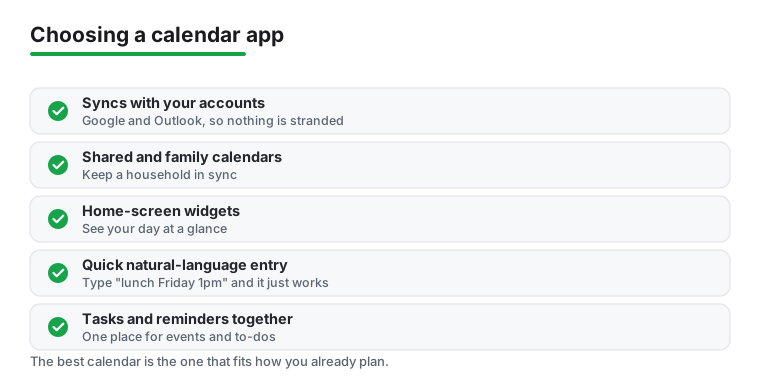
The best calendar is usually the one that fits the way you already keep track of your life, not the one with the longest feature list. Before you install anything, it helps to notice how you actually plan now. Do most of your events arrive as email invites? Does your partner need to see the same schedule you do? Do you think in tasks and to-dos as much as in fixed appointments? Your honest answer to those questions points you toward the right app far more reliably than any ranking. The sections below walk through the things that tend to matter most, so you can match a calendar to your habits rather than rearranging your habits to fit a calendar.
Start with where your events already live
Almost every calendar app on Android is really a window onto an account that lives somewhere else, usually Google or Microsoft. That account is where your events are stored, and the app is just how you view and edit them. So the first thing to check is whether an app syncs cleanly with the account you already use.
If your email is Gmail, Google Calendar needs no setup at all, and most other apps in this list can connect to a Google account too. If your working life runs on Microsoft 365, Outlook keeps your mail and calendar in one place and handles meeting invites without friction. Many third party apps, including DigiCal, Business Calendar 2, and Samsung Calendar, simply read whatever Google or Outlook accounts you have signed into on the phone, then add their own views and widgets on top. That means you can change how your calendar looks and feels without moving a single event. If you would rather not use a Google account at all, Proton Calendar, Outlook, and Samsung Calendar can each run on their own accounts instead.
Sharing a calendar with family or a partner
The moment more than one person needs to see the same schedule, the requirements change. A shared calendar is only useful if everyone can both view and edit it, and if changes show up quickly on every phone.
- A couple coordinating two busy weeks: a single shared calendar inside Google Calendar or a dedicated app like TimeTree is usually enough. TimeTree adds a comment thread to each event, which quietly replaces a lot of back and forth texting about who is doing the pickup.
- A whole household with kids, chores, and meals: Cozi leans into this, with per person color coding plus grocery lists and chore tracking alongside the calendar. It works well when the calendar is only part of what the family needs to keep straight.
- A team or work group: Outlook and Google Calendar both let you see colleagues' availability and book shared resources, which matters more than visual polish in that setting.
A practical tip: decide who owns the shared calendar before you all commit to it, because the owner controls permissions and is the easiest person to sort out a tangle later.
Home-screen widgets
For a lot of people the widget is the calendar. You glance at the home screen, see what is next, and never open the app at all. If that sounds like you, judge an app by its widgets first.
Look for widgets you can resize to fit your layout, that show the level of detail you want (a single next event, a daily agenda, or a full month grid), and that stay readable in both light and dark themes. Business Calendar 2 is the standout here for sheer flexibility, with widgets you can tune in detail. DigiCal and aCalendar also offer attractive, themeable widgets. The stock Google and Samsung widgets are perfectly good for most people and have the advantage of being already on your phone.
Natural-language event entry
Typing event details into separate fields gets tedious fast. Several apps let you write something like "lunch with Sam Friday at noon" in a single box and work out the date, time, and title for you. Google Calendar and Any.do both handle this well, and it genuinely speeds up adding events on a small screen. It is a small feature that you stop noticing precisely because it removes friction, which is the point. If you add events on the move all day, it is worth trying before you settle on an app.
Tasks and reminders alongside events
Some people keep appointments and to-dos in separate places, and some want them in one view. There is no right answer, only what matches your head.
- If you think mostly in fixed appointments, a plain calendar like Samsung Calendar or DigiCal keeps things uncluttered.
- If your day is a mix of meetings and tasks, Google Calendar shows Tasks and Reminders right alongside events, so nothing falls between the two.
- If tasks are the main event and appointments are secondary, Any.do is built around a daily planning habit that pulls both together, and it is worth a look if you live in a to-do list.
The thing to avoid is splitting your life across two apps that do not talk to each other, because that is how things quietly slip.
Offline access
You will sometimes need your calendar with no signal, on a plane, in a basement meeting room, or out of coverage. Most modern apps keep a local copy and let you view and even add events offline, then sync the changes once you are back online. Google Calendar, Outlook, Proton Calendar, and Tiny Calendar all handle this gracefully. It is worth a quick test: turn on airplane mode, open the app, and check that your week is still there. If a calendar shows you nothing without a connection, that is a real drawback for anyone who travels.
Matching the app to how you organise your life
Put it together and a picture forms. If you live inside Gmail and want zero setup, Google Calendar is hard to beat. If your work is on Microsoft 365, Outlook earns its place. If a household runs on one shared schedule, TimeTree or Cozi will feel right. If you care about privacy above all, Proton Calendar is the polished private option. And if you simply want your existing events to look and feel better, a viewer like DigiCal or a power tool like Business Calendar 2 changes the experience without moving your data. Start from your habits, try one or two for a week, and keep the one you stop thinking about.
A quick visual comparison
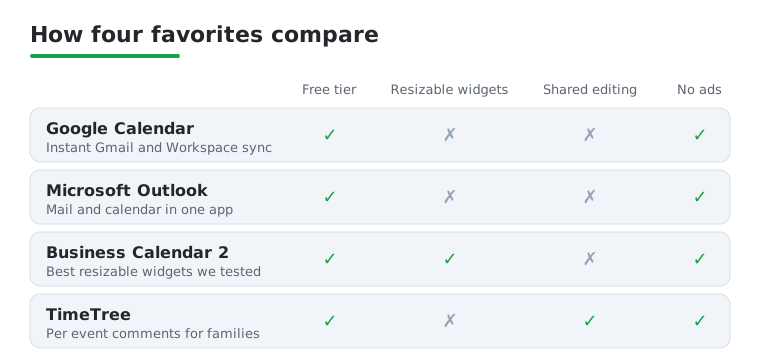
Not sure where to start? Here is a quick side by side of four favorites across the things our testing kept coming back to.
Frequently asked questions
What is the best free calendar app for Android?
For most people Google Calendar is the best free option because it is already installed, syncs everywhere, and handles email invites automatically. If you want nicer widgets and more views without paying, DigiCal and Business Calendar 2 both have strong free tiers worth a look.
Which calendar app is best for families sharing one schedule?
TimeTree and Cozi are the two we recommend for shared family use. TimeTree keeps things simple with per event comments, while Cozi adds grocery lists, chores, and meal plans, so it suits a household that wants one app for everything, not just appointments.
Can I use a calendar app without a Google account?
Yes. Proton Calendar works with a Proton account and keeps events encrypted, while Outlook, Samsung Calendar, and TimeTree all support their own or third party accounts. You can run a full calendar on Android without ever signing into Google.
Do these calendar apps sync across my phone, tablet, and computer?
The major ones do. Google Calendar, Outlook, Notion Calendar, and TimeTree sync seamlessly across Android, iPhone, and the web. As long as you sign in with the same account, an event you add on your phone shows up on every other device within seconds.
Can I add an event by just typing a sentence?
Often, yes. Apps like Google Calendar and Any.do support natural language entry, so typing something like "dentist Tuesday at 3pm" fills in the date, time, and title for you. It is one of the quicker ways to add events on a phone, and it is worth trying before you commit to an app.
Do calendar apps work offline?
Most do. Apps such as Google Calendar, Outlook, Proton Calendar, and Tiny Calendar keep a local copy so you can view and add events with no signal, then sync once you reconnect. It is easy to check by switching on airplane mode and opening the app to confirm your schedule is still there.