
Best Planner Apps for Android (2026)
A good planner does not just hold your to-do list, it tells you what to do next and gets out of the way. We spent weeks running our real weeks through each of these apps on Android, the deadlines, the school pickups, the half formed someday goals, to see which ones actually stuck. Some are full life organizers, some are gentle daily nudgers, and a couple are quietly brilliant at one thing. This guide sits inside our wider Android productivity coverage.
1. Todoist
Todoist is the planner we keep coming back to. Type "pay rent every 1st at 9am" and it just parses the date for you, which still feels like magic months in. The board view, labels, and filters scale from a grocery list to a full project without ever feeling heavy. In our testing the calendar layout and daily review made planning tomorrow a two minute habit. Free tier is generous, Pro adds reminders.
2. TickTick
TickTick is Todoist with a built in calendar, habit tracker, and Pomodoro timer baked right in, and that combination won us over fast. We loved dragging tasks onto a time slot and watching the focus timer count down beside them. The Eisenhower matrix view is a genuinely useful way to sort what matters. It is free with a fair Premium tier, and the widgets on Android are among the best we used.
3. Microsoft To Do
Free, clean, and tied straight into Outlook and Microsoft 365, To Do is the easy pick if your life already runs on Microsoft. The My Day list resets each morning and asks what you actually plan to tackle, which kept us honest. Flagged emails from Outlook drop in automatically, and sharing a list with a partner takes seconds. It is not flashy, but it is fast, reliable, and genuinely free.
4. Any.do
Any.do blends tasks, a calendar, and reminders into one warm, friendly app, and its daily planning moment quietly nudges you to sort tomorrow before you forget. We found the WhatsApp reminders and shared family board surprisingly handy for a busy household. Tasks sit right beside your events so nothing slips through. The free tier covers the basics well, and Premium adds recurring tasks and location alerts that fire when you arrive somewhere.
5. Google Tasks
If you want zero setup and zero cost, Google Tasks lives inside Gmail and Google Calendar and shows up on time blocks automatically. We used it for a week of simple day planning and the sheer speed of jotting a task from an email was the draw. It is bare bones, with no priorities or labels, but that is the point. For people who think their calendar is their planner, this fits perfectly.
6. Notion
Notion is less a planner and more a blank canvas you shape into one, and the payoff is a system that bends to exactly how you think. We built a weekly dashboard with tasks, notes, and a habit grid on a single page and never looked back. The Android app has gotten much faster, and offline access finally works. It is free for personal use. Pair it with your favorite notes apps and it becomes a second brain.
7. Evernote
Evernote earns a spot here for people who plan in long form, mixing checklists, web clippings, and meeting notes into one searchable home. We leaned on the Tasks feature to pull action items straight out of our notes, which closed the gap between thinking and doing. The Android widget and powerful search are still standouts. The free tier is tighter than it once was. See our deeper Evernote breakdown for the details.
8. Planner Pro
Planner Pro pulls your daily schedule, to-do list, and notes onto one timeline view, which is exactly what you want if you think in hours rather than projects. We liked seeing appointments and tasks stacked together so a packed day stayed readable at a glance. It syncs with Google Calendar and offers a tidy monthly overview. The core app is free with a low cost upgrade, and it suits anyone who misses a paper day planner.
9. Structured
Structured turns your day into a visual timeline you can drag and rearrange, and that simple idea makes time blocking feel almost playful. We planned mornings by sliding tasks around until the day looked sane, then let the gentle reminders carry us through. It syncs with your calendar and now has solid Android support after years on iPhone. It is free to start, with a Pro tier for unlimited tasks and AI planning help.
10. Sectograph
Sectograph is the most original planner we tried, plotting your day as a clock face widget so you can literally see the hours you have left before the next thing. Glancing at the home screen and grasping your whole day in one second genuinely changed how we paced work. It reads from your existing calendar, so setup is instant. It is free with ads, and the Pro version adds more widgets and removes them.
11. Trello
Trello brings the Kanban board to your pocket, and for visual planners who like moving cards across To Do, Doing, and Done, nothing else feels as satisfying. We ran a side project and a house move on separate boards and the drag and drop on Android held up well. Due dates, checklists, and attachments keep each card self contained. It is free for personal use, and Power-Ups add calendar and automation when you need them.
12. Notion Calendar
Formerly Cron, Notion Calendar is a fast, keyboard friendly schedule that links straight to your Notion tasks and pages, closing the loop between planning and your calendar. On Android it stays snappy, and pulling a project doc into an event saved us real context switching. It is free and syncs with Google accounts. If you already lean on a calendar to plan, our calendar apps guide pairs nicely with this.
How to choose a planner app for Android
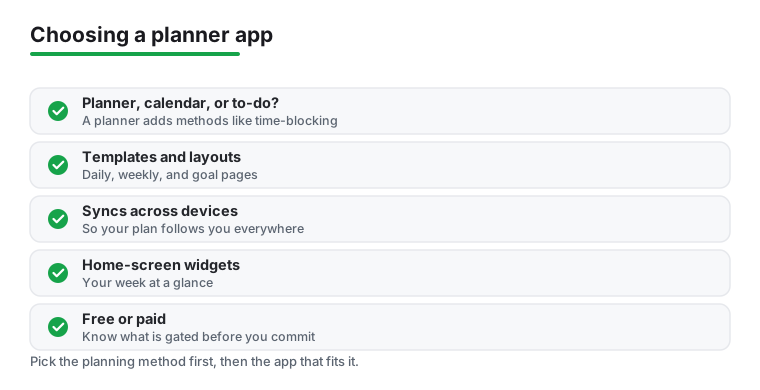
Picking a planner is less about feature counts and more about matching the tool to how you already think about your week. The best app is the one you will actually open on a Tuesday morning when you are tired and slightly behind. Before you download anything, it helps to be honest about one thing: do you plan around tasks (things you need to get done), around time (the hours in your day), or around projects and goals (bigger outcomes made of many small steps)? Most people lean toward one of these, and the right planner leans the same way.
How a planner differs from a calendar or a plain to-do app
A calendar app is built around events that have a fixed time, like a dentist appointment at 3pm. A plain to-do app is built around a flat list of things to check off. A planner sits between them and adds something both of those lack: a sense of when and in what order you will actually do the work. That is the real difference. A to-do list can grow forever and tell you nothing about today; a planner forces a few small decisions about what fits in the time you have.
In practice that shows up as three planning methods worth knowing:
- Time blocking. You drag tasks onto specific slots in your day so your list and your schedule become one picture. Apps like Structured, Planner Pro, and TickTick make this easy, and it is the single best cure for an overlong to-do list.
- The weekly review. Once a week you look back at what slipped, clear out what no longer matters, and decide on a handful of priorities for the days ahead. A planner that offers a clean weekly view (or a daily review prompt, as Todoist does) makes this a ten minute habit rather than a chore.
- Goal tracking. Bigger ambitions need to be broken into steps and revisited. Tools with sub-tasks, projects, or a flexible page (Todoist, Trello, Notion) let a goal live somewhere other than your head, so it does not quietly disappear under daily noise.
If you only ever needed to remember appointments, a calendar would be enough. If you only needed a shopping list, any to-do app would do. You are reading this because the week has more moving parts than either handles alone.
Templates and layouts: match the view to your brain
The layout you see first matters more than people expect, because it quietly shapes how you plan. There are a few common ones:
- List view is fast and familiar. Good for people who just want to capture and check off (Microsoft To Do, Google Tasks).
- Timeline or day view stacks tasks and events by hour. Good for people who think in terms of when something happens during the day (Structured, Planner Pro).
- Board or Kanban view moves cards across columns like To Do and Done. Good for visual thinkers and anything with stages (Trello).
- Free canvas lets you build a dashboard from scratch with tasks, notes, and habit grids together (Notion).
Some apps ship ready-made templates for a weekly plan, a project, or a habit tracker. Templates are a fine shortcut, but treat them as a starting point. A layout you tweak to fit your own week will always beat a polished one you fight against.
Syncing across devices
Almost everyone plans on more than one screen: a phone for capture on the move, a laptop or tablet for the weekly review. If that describes you, check that the app syncs reliably across Android, web, and desktop before you commit. Todoist, TickTick, Any.do, Microsoft To Do, Notion, and Trello all do this well, and a task you add on the bus shows up everywhere within seconds. Sync usually requires an account, so if you would rather keep everything local and offline, that narrows your options. It is worth a quick test in your first week, because discovering a sync gap a month in, after you have built a system around the app, is a genuine headache.
Home-screen widgets
On Android, a good widget can be the difference between a planner you use and one you forget. Seeing your next three tasks or your day as a timeline right on the home screen removes the friction of opening the app at all. TickTick and Sectograph stand out here, the latter showing your day as a clock face so you can read your remaining hours at a glance. Before settling on an app, add its widget for a few days and see whether glancing at it actually changes what you do next. If it does not, the widget is just decoration.
Free versus paid
Most strong planners are genuinely usable for free, and you should start there. Microsoft To Do and Google Tasks are fully free with no upsell. Todoist, TickTick, and Any.do offer generous free tiers, with paid plans that mostly unlock reminders, more recurring tasks, or larger limits rather than core function. Notion is free for personal use. The honest advice is to run the free version through two or three real weeks first. If you keep bumping into a specific wall, a paid reminder you genuinely need, more projects than the free cap allows, then upgrading is money well spent. Paying upfront for features you have not yet missed is usually how planner apps end up unused.
Matching the planner to your week
To pull it together: if your week is mostly errands and small tasks, a simple list app like Microsoft To Do or Google Tasks will not get in your way. If your days are scheduled by the hour, a timeline planner like Structured or Planner Pro will feel natural. If you juggle projects with many steps, Todoist or Trello give you room to break them down. And if you want one place that bends to all of it, Notion rewards the time you put into setting it up. Start with the one that matches how you already plan, give it two real weeks, and change only if it keeps fighting you.
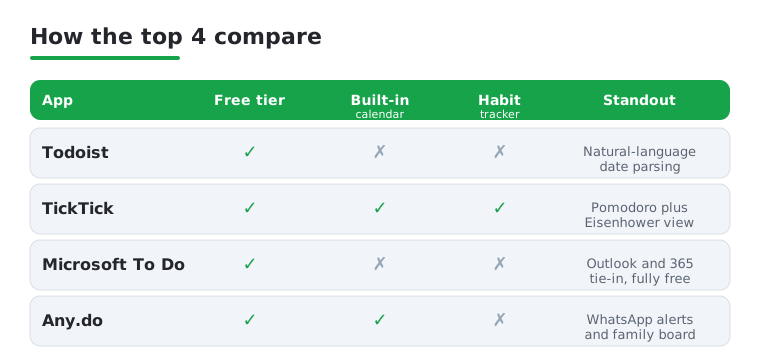
Still deciding between the top all-rounders? This quick comparison lines up our four favorites so you can see which one fits the way you plan.
Frequently asked questions
What is the best free planner app for Android?
For most people TickTick or Todoist offer the best free experience because they combine tasks, due dates, and reminders in one fast app. If you want something truly zero cost with no upsell, Microsoft To Do and Google Tasks are both completely free and sync across your devices.
What is the difference between a planner app and a calendar app?
A calendar app is built around events tied to a specific time, like a meeting at 3pm. A planner app centers on tasks and goals, what you need to do, and often layers a calendar on top. Many of our picks, like TickTick and Any.do, blend both so your to-do list and your schedule live in one place.
Can a planner app help me build daily habits?
Yes. TickTick has a habit tracker built in, and Notion lets you create a habit grid on the same page as your tasks. If habits are your main focus, it is worth pairing a planner with a dedicated tool from our habit tracker apps guide for streaks and reminders.
Do these planner apps sync between my phone and computer?
The major ones do. Todoist, TickTick, Any.do, Microsoft To Do, Notion, and Trello all sync seamlessly across Android, the web, and desktop. As long as you sign in with the same account, a task you add on your phone appears everywhere else within seconds.
What is time blocking and is it worth trying?
Time blocking means assigning each task to a specific slot in your day rather than leaving it on an open list. It is worth trying if your to-do list keeps growing faster than you finish it, because it forces you to be honest about how many hours you actually have. Apps like Structured, Planner Pro, and TickTick let you drag tasks onto a timeline, which is the easiest way to start.
Should I pay for a planner app right away?
Usually not. Almost every planner here has a free tier that is enough for several weeks of real use. Run the free version first, and only upgrade once you hit a specific limit you genuinely need past, such as more reminders, more projects, or larger lists. Paying for features before you miss them is the most common way these apps end up unused.