
Best Drawing Apps for Android (2026)
Your Android phone or tablet is a surprisingly capable sketchbook once you pair it with the right app and a decent stylus. We spent weeks doodling on the bus, inking comic panels, and painting full illustrations to see which apps actually hold up under real use. Below are the drawing apps we keep coming back to in 2026, whether you want a free pad for quick ideas or a serious studio with layers and pressure sensitivity. For more visual tools, our Photo & Video hub rounds up the rest.
1. Sketchbook
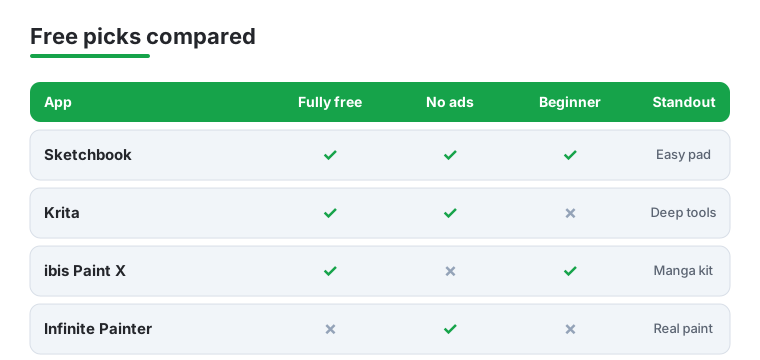
Sketchbook is where we send anyone nervous about a steep learning curve. The interface fades away so it is just you and the canvas, and the brushes feel genuinely natural with a stylus. It is fully free now, including the once paid pro tools. On Android it runs smoothly even on mid range tablets, and the predictive stroke smoothing makes shaky line work look confident. A lovely everyday sketch pad.
2. Infinite Painter
Infinite Painter punches above its price for serious illustrators on Android. The natural media brushes blend and smudge like real paint, and the perspective and symmetry guides are some of the best we have used on a tablet. It is free to try with a one time unlock for the full toolset. In our testing the canvas stayed responsive even at large sizes.
3. ibis Paint X
ibis Paint X is the app we recommend to budding manga and anime artists. It ships with a huge library of brushes, screentones, and ready made comic panel tools, plus those oddly hypnotic features that replay your whole drawing. The core app is free with ads, and a modest subscription removes them. On a phone it is genuinely usable, which is rare for something this feature packed.
4. Clip Studio Paint
Clip Studio Paint is the closest thing to desktop illustration software you can get on an Android tablet. Comic creators love its panel, ruler, and 3D pose tools, while painters get a deep brush engine that feels pro grade. It runs on a monthly or annual plan after a free trial. We found it best on a larger tablet with an active pen, where the pressure curve really shines.
5. Krita
Krita earned a devoted following on desktop, and the Android build brings that open source painting power to your tablet for free with no catches. The brush stabilizers and customizable shortcuts suit anyone making detailed digital paintings. It is still maturing on touch devices, so we hit the odd hiccup, but for a free tool with this much depth it is remarkable.
6. Concepts
Concepts is our pick for designers, planners, and anyone who sketches to think. The infinite canvas and vector based strokes mean you can zoom forever and reshape lines after you draw them, which is brilliant for floor plans, storyboards, and wireframes. A generous free tier covers the basics, with a subscription for the full brush set and layers. On Android it feels precise, fast, and stylus friendly.
7. MediBang Paint
MediBang Paint is a lightweight favorite for comic artists who bounce between devices. It is free, includes cloud saving so your pages follow you from tablet to laptop, and comes loaded with fonts, tones, and brushes aimed at sequential art. We liked how light it is on storage and battery. The trade off is a busier interface, but the team templates make collaborating on a project genuinely easy.
8. Adobe Fresco
Adobe Fresco stands out for its live watercolor and oil brushes that actually bleed and mix like wet media on the page. If you already live in the Adobe world it syncs cleanly with your other files. There is a usable free tier, with premium brushes behind a subscription. We found it most at home on a powerful tablet with a pressure sensitive pen.
9. PENUP
PENUP is Samsung's own drawing and sharing community, free and preloaded on Galaxy devices. It is not the deepest studio, but the coloring pages, live drawing broadcasts, and friendly challenges make it a warm place to practice with the S Pen. We enjoyed the social nudge of seeing other artists tackle the same prompt. If you own a Galaxy tablet, open it before downloading anything else.
10. Tayasui Sketches
Tayasui Sketches nails the calm, analog feeling of a real paper notebook. The tools are deliberately limited to pencils, pens, watercolors, and markers, which we found freeing when we just wanted to draw without fiddling. The base app is free, with a one time pro upgrade for extra brushes and layers. It is a joy for relaxed sketching, and the watercolor brush looks gorgeous.
11. Pixilart
Pixilart is the one we reach for when the goal is pixel art and retro game sprites. The grid based editor, palette tools, and frame by frame animation make tiny detailed work easy, and the community gallery is endlessly inspiring. It is free with optional extras. On a phone the precise zoom controls let you place individual pixels without frustration. A charming, focused little app.
12. Sketchar
Sketchar takes a clever route for absolute beginners by using your camera and augmented reality to project a guide drawing onto real paper, so you can trace and learn the fundamentals by hand. It also has lessons and a normal digital canvas. The basics are free with a subscription for full courses. We thought the AR tracing felt gimmicky at first, then genuinely useful for building hand confidence.
Not sure where to start? Here is how our top free-friendly picks stack up on the things that matter most for everyday Android drawing.
How to choose a drawing app for Android
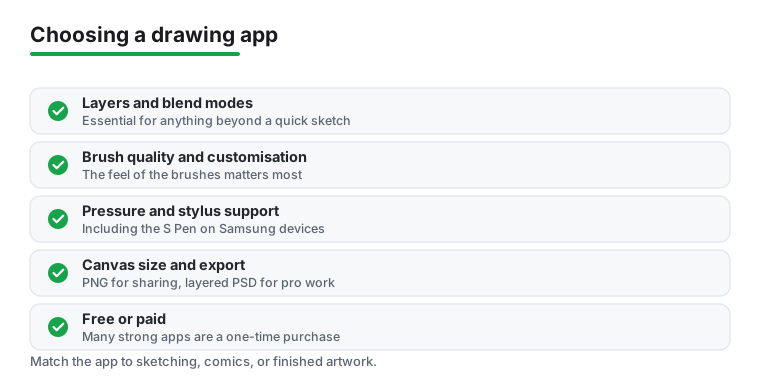
The good news is that there is no single best drawing app, only the one that fits how you work. A person sketching ideas on a phone during a commute wants something very different from someone inking a forty page comic on a tablet. Rather than chasing feature lists, it helps to think about a handful of things that genuinely shape the daily experience. Below we walk through each of them in plain terms, then suggest which kind of app suits sketching, comics, or finished artwork.
Layers
Layers are the single feature that separates a casual doodle pad from a real drawing tool. They let you keep your rough sketch on one layer, your clean line work on another, and your colour underneath, so you can redraw or recolour any part without disturbing the rest. If you are at all serious about your work, treat layers as essential.
Two practical details matter more than the headline. The first is how many layers an app allows, since some free tiers cap the count, and that limit can pinch on a detailed piece. The second is the set of blend modes and the ability to group, lock, and reorder layers. Multiply for shadows and a screen or add mode for highlights will cover most needs. If you only ever sketch single drawings, layers matter less, and a simpler app will feel calmer.
Brush quality and customisation
A brush is more than a shape. A good brush responds to how fast you move, builds up colour naturally, and tapers the way real ink or pencil does. Cheaper apps often ship brushes that feel slippery or plastic, while the better tools give pencils a believable grain and let paint smudge and blend. The difference is obvious within a few strokes.
Customisation is the next step up. The strongest apps expose a brush engine where you can adjust size, opacity, texture, scatter, and how each setting reacts to pressure and speed. You may never touch those controls, and that is fine, but if you do find your style, being able to shape one brush exactly to your hand is a quiet joy. Importing brush packs is a bonus that can transform an app you already own.
Pressure and stylus support, including the S Pen
Drawing with a finger is perfectly possible for quick ideas, and many people start there. For anything detailed, though, a stylus changes everything. The feature to look for is pressure sensitivity, where pressing harder gives a thicker, darker stroke, which is what makes line work feel alive.
If you own a Samsung Galaxy tablet or phone, the bundled S Pen is a real pressure sensitive pen, and most of the apps here support it well, including tilt for shading in some cases. On other Android devices, support varies by both the pen and the app, so it is worth a quick test before committing. A basic capacitive stylus, the kind with a soft round tip, does not report pressure and behaves much like a finger. When pressure support matters to you, confirm that the specific app recognises your specific pen rather than assuming it will.
Canvas size and resolution
Canvas size decides how large you can print or zoom without your art turning soft and blocky. For screen only work, a canvas around 2000 pixels on its longest side is plenty. If you ever want a sharp print, aim higher, since print quality is usually measured at 300 pixels per inch, which adds up quickly for anything larger than a postcard.
Here is the honest trade off. Bigger canvases with many layers demand more memory, and on a phone or an older tablet a heavy file can stutter or refuse to add another layer. It is wise to set a sensible canvas size at the start of a piece, because enlarging later can blur your work. Match the canvas to the device you actually own rather than the one you wish you had.
Export formats, including PNG and layered PSD
How you get art out of an app matters as much as how you make it. PNG is the everyday choice for sharing online because it keeps crisp edges and supports transparency. JPG suits photographs more than line art, since it can smudge sharp edges. For printing, some artists prefer a higher quality format, and a few apps export PDF.
The format to watch for is layered PSD. A PSD keeps all your separate layers intact, so you can open the file later on a computer, in desktop software, and keep editing as if nothing had been flattened. If you move between a tablet and a desktop, or you collaborate with someone who finishes work elsewhere, PSD export is close to a requirement. If you only ever post finished images, plain PNG is all you need.
Free versus paid
Plenty of excellent Android drawing apps are free, and a few are free with no catch at all. Others are free to try with a one time unlock, and some run on a subscription. None of these models is wrong. A one time purchase often suits a hobbyist who wants to pay once and forget it, while a subscription can make sense for a working artist who relies on regular updates and cloud features.
Two things deserve a closer look before you pay. The first is ads, which a couple of free apps show and which can interrupt your flow, though a small fee usually removes them. The second is what the free tier actually limits, whether that is layer count, export quality, or brushes, so you know exactly what you gain by upgrading. Our advice is simple. Start free, learn the app, and only pay once you have hit a wall you genuinely care about.
Matching an app to your work
With those basics in mind, here is how the categories tend to break down in practice.
- For sketching and quick ideas: you want a calm, fast app that opens straight onto the canvas, with natural pencils and just enough layers. A clean, distraction free tool beats a feature heavy studio here, since the goal is to capture a thought before it fades.
- For comics and manga: look for panel tools, rulers, screentones, and text or speech bubble support, alongside reliable layered PSD export so a finished page survives the move to a computer. Stable performance across many layers matters, because comic pages stack up fast.
- For finished artwork and painting: prioritise a deep brush engine, strong pressure and tilt support, generous layers with full blend modes, and a large, high resolution canvas. This is where a powerful tablet, an active pen, and a paid app most often earn their place.
If you are unsure, start with a free app that leans toward your category, spend a week with it, and notice what frustrates you. Those frustrations are the clearest guide to what you actually need, and they will point you to the right next step far better than any feature comparison can.
Frequently asked questions
Do I need a stylus to draw on Android?
You can absolutely draw with your finger, and plenty of people start that way for quick doodles. That said, a stylus transforms the experience. An active pen with pressure sensitivity, like a Samsung S Pen or a third party capacitive stylus, gives you line variation and control that fingers simply cannot match for detailed work.
What is the best free drawing app for Android?
For most people we point to Sketchbook, which is completely free including its pro tools and stays beginner friendly. If you want more raw power and do not mind a rougher edge, Krita is free and surprisingly deep. ibis Paint X is the free pick for comic and manga artists thanks to its tones and panel tools.
Are these drawing apps better on a phone or a tablet?
A tablet wins almost every time. The larger screen gives your hand room to move, your palms a place to rest, and your artwork space to breathe. Phones are great for capturing ideas on the go, and several of these apps run well on one, but for finished illustrations a tablet with a pen is the comfortable choice.
Can I edit photos inside a drawing app?
Most drawing apps let you import a photo as a reference layer to trace or paint over, but they are not built for retouching. For cropping, color correction, and filters you will want a dedicated tool. Take a look at our guides to the best photo editor apps and the best camera apps for that side of things.
Why do my layers disappear when I share a drawing?
Sharing usually exports a flattened PNG or JPG, which merges every layer into one image so it can be viewed anywhere. Your layers are not lost. They stay in the app's own project file. If you want to keep editable layers when moving to a computer, export a layered PSD instead, and open that file in desktop software.
Will a heavy drawing app slow down my phone?
It can, especially with a large canvas and many layers on an older or lower memory device. If you notice stutter or crashes, lower the canvas resolution, reduce the layer count, or close other apps first. A tablet with more memory handles big files far more comfortably, but most phones cope fine with everyday sketching at a sensible canvas size.