
Best Keyboard Apps for Android (2026)
- Best multilingual: SwiftKey
- Best for privacy: HeliBoard or FlorisBoard, fully offline
- Best for fast swiping: Fleksy
You tap your keyboard more than any other app on your phone, so the right one quietly saves you time and typos all day. We set each of these as our default for at least a week, fired off real messages and long emails, and lived with the autocorrect, the swipe accuracy, and the way each one handles emoji. The picks below run from polished mainstream keyboards to lean privacy first options, so you can match one to how you actually type. Because a keyboard reads every word you enter, the guide below also explains the security and privacy side in plain terms, so you know what each choice means before you commit. For more ways to make your phone yours, browse our wider Personalization guides.
1. Gboard
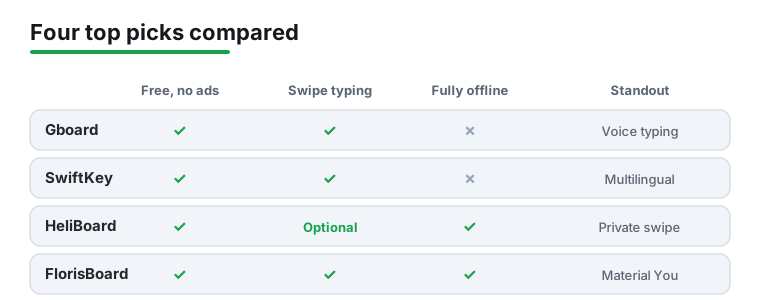
Gboard is the keyboard we hand most people first, partly because it is already installed on most phones and partly because it just works. Glide typing is fast and forgiving, the built in Google search and translate are genuinely handy, and voice typing is the best on Android. It suits almost everyone. It is completely free with no ads, and in our testing the way it learns your slang without ever feeling creepy kept it on as our daily driver.
2. SwiftKey
SwiftKey, now owned by Microsoft, built its name on autocorrect that actually understands context, and it still nails the next word you meant to type. It suits bilingual typers especially, since it handles several languages at once without you switching anything. It is free with no ads, and the rich theme store makes it fun to personalize. We pit it head to head with Gboard in our SwiftKey versus Gboard breakdown if you are torn between the two giants.
3. Microsoft SwiftKey AI
This is SwiftKey with Copilot baked in, letting you rewrite a message in a friendlier tone or draft a quick reply without leaving the text field. It suits people who already lean on AI to polish their writing. It is free, and you sign in with a Microsoft account to use the smart features. We found the tone shift button surprisingly useful for softening a blunt work message, though you can ignore the AI panel entirely and just enjoy the excellent prediction underneath.
4. FlorisBoard
FlorisBoard is an open source keyboard built from the ground up with privacy in mind, so nothing you type leaves your phone. It suits anyone who wants modern features without the data collection that comes with the big names. It is completely free and ad free. Glide typing arrived recently and works well, and in our testing the clean Material You styling and the fact that it has no internet permission, so nothing you type can leave your phone, made it the easiest privacy pick to recommend to a wary friend.
5. OpenBoard
OpenBoard is a stripped back, fully offline keyboard based on the old Android open source one, with zero tracking and no internet permission at all. It suits minimalists and the privacy conscious who do not need swipe typing or fancy themes. It is free and open source. The layout feels instantly familiar if you remember stock Android, and we liked that it does exactly one job, typing, without ever phoning home or nagging you to upgrade.
6. HeliBoard
HeliBoard is the keyboard privacy fans have been waiting for, a maintained fork of OpenBoard that adds optional glide typing through a separate library and keeps everything offline. It suits people who loved OpenBoard but missed swiping. It is free, open source, and has no internet permission by default. In our testing it felt like the best of both worlds, with multilingual typing and clipboard history that the older offline keyboards never offered.
7. Typewise
Typewise ditches the usual cramped rows for a honeycomb layout of large hexagonal keys, which sounds odd until you stop fat fingering every other letter. It suits anyone with bigger thumbs or a habit of typos. It is free with a Pro tier for extra features, and it processes everything on device for privacy. There is a learning curve over the first day or two, but we noticed our error rate genuinely drop once the new key shapes clicked into place.
8. Fleksy
Fleksy is a fast, gesture driven keyboard where you swipe to delete, add punctuation, or jump between words without lifting your thumb far. It suits speed typers and people who love shortcuts. It is free, with mini apps and GIFs built right into the bar. The compact footprint frees up screen space, and in our testing its autocorrect kept pace even when we typed sloppily, which is exactly what you want when you are firing off quick replies.
9. Grammarly Keyboard
Grammarly puts a full grammar and clarity checker right under your thumbs, flagging mistakes and suggesting cleaner phrasing as you type anywhere on your phone. It suits students, professionals, and anyone who fires off important emails on the go. The keyboard is free, with a Premium tier unlocking deeper tone and rewrite suggestions. We found it caught the kind of clumsy sentence you write when rushing, making it a smart pick if your phone doubles as a work device.
10. Simple Keyboard
Simple Keyboard is exactly what it says, a tiny offline keyboard with no permissions, no themes to speak of, and nothing to track you. It suits people who want the lightest possible footprint or a backup keyboard that just types. It is free and open source. There is no swipe and no autocorrect, which is the whole point, and we kept it around as a trustworthy fallback for entering passwords and sensitive text without a third party watching.
11. Chrooma Keyboard
Chrooma is the keyboard for people who want their typing surface to look as good as the rest of their setup, shifting color to match the app you are in. It suits theme lovers who still want solid prediction underneath, especially if you have already styled your home screen with one of the best launcher apps. It is free with a Pro unlock for the full color palette and emoji tweaks. The adaptive theming is the headline, and we found the night mode that dims automatically genuinely easier on the eyes during late night messaging.
12. Unexpected Keyboard
Unexpected Keyboard packs symbols, numbers, and special characters into corner swipes on each key, so power users and coders reach everything without flipping layouts. It suits programmers, terminal users, and anyone tired of hunting for brackets. It is free, open source, and fully offline with no permissions. The swipe in eight directions trick takes practice, but once it sticks we found typing a command line or a snippet on a phone far less painful than usual.
How to choose an Android keyboard
Most keyboards do the same core job, so the differences that matter are the ones you feel after a few days of real use, not the feature list on the store page. Before you weigh privacy, it helps to be honest about how you actually type. Do you glide your thumb across the letters, or tap each key? Do you write in more than one language? Do you care about themes, or would you rather the keyboard disappear and stay out of the way? Sorting that out first makes the rest of the decision much simpler.
Swipe typing and prediction
If you glide rather than tap, swipe quality is the single biggest factor. A good engine follows a sloppy path and still lands the word you meant, including names and slang it has learned from you. Prediction is the companion skill: the next word suggestions sit above the keys and, when they are accurate, let you finish a sentence with a couple of taps. Gboard and SwiftKey both do this well after a short learning period. If you do not swipe at all, you can ignore this entirely and pick a simpler keyboard with a clear layout.
Layouts and languages
If you write in more than one language, look for a keyboard that handles several at once without making you switch by hand. The better multilingual keyboards detect the language as you type and adjust autocorrect on the fly. Check that your specific layout is supported, whether that is a regional script, a programmer friendly arrangement with easy brackets, or simply a number row you can keep visible. A layout that fits your hands and your writing matters more day to day than any single headline feature.
Themes and comfort
Themes are the part everyone notices first and the part that matters least to how well you type, but comfort is real. Key size, spacing, a one handed mode, an adjustable height, and a readable contrast level all reduce mistakes over a long session. Pick a look you like, then spend a minute in the settings making the keys the size and height that suit your thumbs. A keyboard that is comfortable is a keyboard you will type on accurately.
Security and privacy: your keyboard sees everything you type
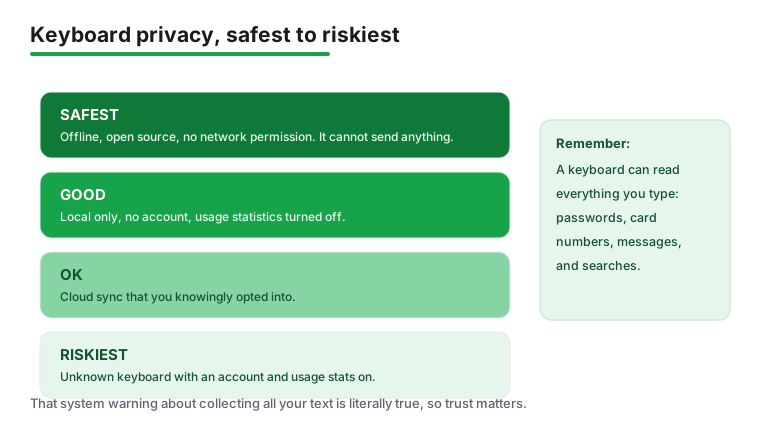
Here is the fact that should shape your choice more than swipe speed or themes. A keyboard handles every word you enter on your phone, which means passwords, card numbers, private messages, search queries, and everything else. Of all the software on a phone, the keyboard has the most potential to leak what you do. This is not a reason to panic, but it is a reason to be deliberate about which one you install and trust.
Android knows this, which is why enabling any third party keyboard triggers a system warning that the keyboard may be able to collect all the text you type, including passwords and credit card numbers. That warning is not boilerplate. It is the operating system telling you, accurately, what you are granting. Read it, then decide whether you trust the app behind it. In practice, reputable keyboards do not learn from fields marked as password fields (Microsoft says SwiftKey ignores password and credit-card fields), and Android's autofill can fill saved passwords without routing them through the keyboard at all. The real danger is a keyboard you should not have trusted, because that password-field flag is advisory, not an enforced block.
What the mainstream keyboards actually collect
The big names are not all the same, and the differences are worth knowing. Gboard sends data about the words you enter, such as language, word length, the time of input, and which app you typed in. You can reduce this by turning off Share usage statistics, and its incognito mode pauses learning during private browsing or when an app requests it. Microsoft SwiftKey takes a different approach: it stores your personal and language data locally on the device and does not transfer it unless you opt in to a Microsoft SwiftKey Account. Microsoft documents how this works in its Microsoft Support privacy notes, which are worth a read if you use it.
One point that often gets confused: both Gboard and SwiftKey use standard encrypted (TLS) connections, so someone intercepting their traffic in transit is unlikely. The privacy question with a mainstream keyboard is not about weak encryption. It is about what gets collected in the first place, and what the company does with it. Strong encryption protects data on its way to a server; it says nothing about whether the data should be sent at all.
Reading the Data Safety section
Every keyboard on Google Play must fill in a Data Safety section that states what data it collects and shares. It sits on the store listing, and it is the single most useful thing to read before you install. If a keyboard you have never heard of declares that it collects your typed text and shares it with third parties, that tells you what you need to know. Security researchers at Kaspersky documented keyboards that sent keystrokes to servers over weak or missing encryption, which is exactly the risk a keyboard with network access can pose.
The fully offline option
If you want certainty rather than a policy you have to trust, an offline keyboard removes the question entirely. AnySoftKeyboard is open source, sends no telemetry, and does not even request network permission, so it cannot send what you type anywhere. The same logic applies to the offline picks in our list, such as HeliBoard, OpenBoard, and Simple Keyboard. A keyboard with no internet permission has nowhere to send your words, which is a stronger guarantee than any privacy policy can offer.
Why this is not paranoia
The risk is not theoretical. The Ai.type keyboard suffered a breach that exposed records of about 31 million users, including roughly 9 million entries of typed data such as web searches, email addresses, locations, phone numbers, and even passwords. That is exactly the category of data a keyboard handles, leaking exactly as the system warning describes. You do not need to abandon mainstream keyboards over it, but it is a clear argument for sticking to apps from sources you can actually evaluate.
A privacy respecting setup, step by step
You do not have to choose between a good keyboard and a private one. A few minutes of setup gets you most of the protection with little loss of convenience. Use this as a checklist.
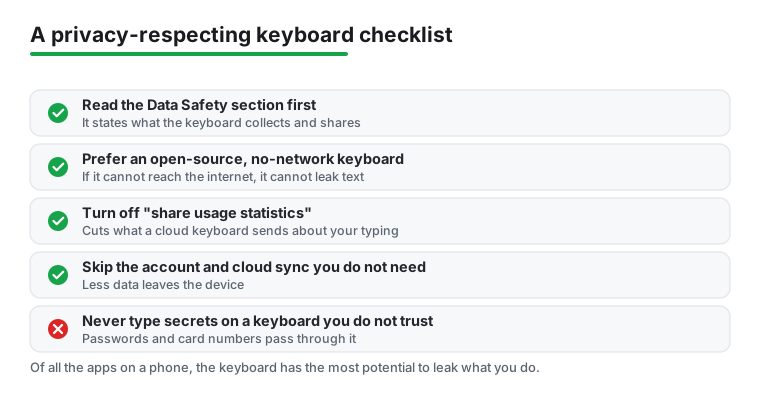
- Read the Data Safety section before installing. Open the Play Store listing and check what the keyboard says it collects and shares. If it is vague or alarming, pick something else.
- Heed the enable warning. When Android tells you the keyboard may collect everything you type, treat that as a real decision, not a dialog to dismiss.
- Tune the settings on a mainstream keyboard. On Gboard, turn off Share usage statistics and use incognito mode for sensitive typing. On SwiftKey, you can simply not sign in to a SwiftKey Account, which keeps your data on the device.
- Consider a fully offline keyboard for the strongest guarantee. AnySoftKeyboard, HeliBoard, OpenBoard, or Simple Keyboard cannot send your words anywhere because they hold no network permission.
- Keep a no permission keyboard as a fallback. Some people switch to a minimal offline keyboard, such as Simple Keyboard, specifically for entering passwords and other sensitive text.
- Check the network permission. In Android Settings, you can see whether a keyboard has internet access at all. A typing app that does not need the network is a reassuring sign.
If privacy across your phone is the wider goal, it pairs well with the same thinking applied elsewhere, from private SMS apps to a good antivirus app, and you will find more in our tools and utilities section.
Frequently asked questions
What is the best keyboard app for Android?
For most people Gboard is the safest first choice, since it is fast, accurate, and already on your phone. If you want stronger multilingual prediction, SwiftKey is the classic alternative. If privacy matters most to you, look at HeliBoard or FlorisBoard, which keep everything you type on your device.
Are third party keyboard apps safe to use?
A keyboard can technically see everything you type, so this is one app category where the source really matters. Stick to well known names with clear privacy policies, or choose an open source, offline keyboard like HeliBoard, OpenBoard, or Simple Keyboard if you want to be certain nothing leaves your phone. Avoid unknown keyboards that demand network access.
How do I change the default keyboard on my Android phone?
Install the keyboard from the Play Store, then open Settings, go to System or General management, tap Languages and input, then On screen keyboard, and pick your new keyboard as the default. Most keyboards also walk you through this setup the first time you open them, so it usually takes under a minute.
Which Android keyboard is best for fast swipe typing?
Gboard and SwiftKey both have excellent, well tuned glide typing that handles long words and slang reliably. If you want something faster and more gesture heavy, Fleksy is built around swiping shortcuts. Privacy fans who still want to swipe should try HeliBoard, which adds optional glide typing while keeping everything offline.
Can a keyboard app really see my passwords?
In principle, yes. When you enable any third party keyboard, Android warns you that it may be able to collect all the text you type, including passwords and credit card numbers, because the keyboard handles every keystroke. In practice, reputable keyboards do not learn from fields marked as password fields (Microsoft says SwiftKey ignores password and credit-card fields), and Android's autofill can fill saved passwords without routing them through the keyboard at all. The real danger is a keyboard you should not have trusted, because that password-field flag is advisory, not an enforced block. This is why the source matters so much. A reputable keyboard will not misuse this, and a fully offline one like AnySoftKeyboard cannot send your text anywhere because it does not even request network permission. For genuinely sensitive entries, some people keep a minimal no permission keyboard, such as Simple Keyboard, as a fallback.
Does using an encrypted keyboard keep what I type private?
Encryption and privacy are two different things here. Gboard and SwiftKey both use standard encrypted (TLS) connections, so someone intercepting their traffic in transit is unlikely. That protects the data on its way to a server but says nothing about what is collected in the first place. To judge collection, read the Data Safety section every keyboard on Google Play must fill in, which states what data it collects and shares. If you want to remove the question entirely, choose an offline keyboard that holds no network permission.