
Best Photo Editor Apps for Android (2026)
Editing photos on a phone has come a long way, and these days your Android can do most of what we used to need a laptop for. We spent weeks shooting, cropping, and retouching on real devices to see which apps actually feel good to use. Below are the editors we keep coming back to, whether you want a fast cleanup before posting or a proper layered project. Expect a mix of free and paid picks, with honest notes on where each one shines.
1. Snapseed
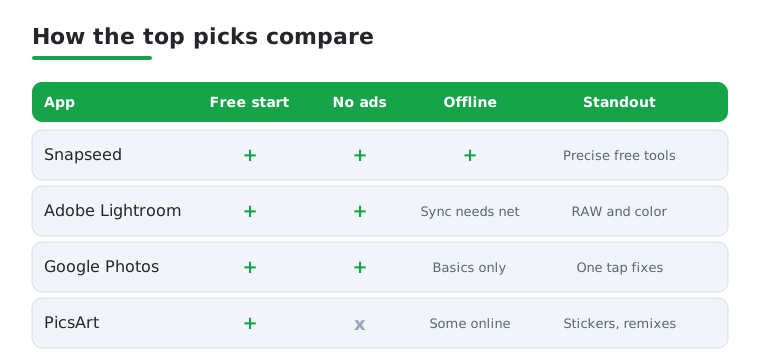
Snapseed is still the one we recommend first when someone asks where to start. It is completely free from Google, with no ads and no subscription, and the Selective and Healing tools punch well above their weight. In our testing the brush based dodge and burn felt precise on a small screen, and stackable filters let you undo a single step later. If you install one editor, make it this.
2. Adobe Lightroom
Lightroom is where we go for serious color work and RAW files. The free tier alone covers curves, selective masking, and genuinely useful presets, while a Creative Cloud plan unlocks cloud sync and AI masking. On Android it feels calm and deliberate rather than rushed, and the healing brush has quietly become excellent. It suits anyone who shoots a lot and wants results they can recreate across a gallery.
3. Adobe Photoshop
The mobile Photoshop app finally brings real layers and Generative Fill to your phone, and it is far more capable than the old Express ever was. We used it to remove a stranger from a holiday shot in seconds, and the result held up. It leans on a subscription for the best features, but the free tier is generous. Best for people who already think in layers.
4. PicsArt
PicsArt is the playground of the bunch, packed with stickers, cutout tools, double exposure effects, and a huge community template library. We found it brilliant for social posts and collages when you want something eye catching fast. The free version is usable but ad heavy, and the Gold subscription removes that friction. If your editing is more about creative remixing than clean retouching, this is the one to grab.
5. Google Photos
It is already on most Android phones, so it is easy to overlook how good the built in editor has become. The Magic Eraser wipes out photobombers, and auto enhance gets a surprising amount right in one tap. Most tools are free, with a few AI extras tied to a Google One plan. We reach for it constantly for quick fixes, simply because the photo is right there already.
6. VSCO
VSCO is for people who care about mood and a consistent look. Its film inspired presets are the draw, and the subtle grain and fade options give photos that considered, editorial feel. The free version includes a solid starter set, while the membership opens the full vault and finer controls. In our use it felt less like a toolbox and more like a darkroom for building a style.
7. Pixlr
Pixlr is a friendly middle ground between a basic editor and a full design suite. It handles layers, overlays, and one tap AI cleanup without overwhelming you, and it runs comfortably on older hardware. The free tier shows ads but covers the essentials, and a cheap Premium plan removes them. We liked it for quick web style edits and text heavy graphics when we wanted something lighter.
8. Fotor
Fotor keeps things refreshingly simple, with a clean one tap enhance, tidy retouch tools, and a decent set of collage layouts. We found it a comfortable pick for beginners who feel intimidated by busier apps. The free version handles everyday touch ups, while Fotor Pro adds AI features and removes ads. For fast, good looking results without a learning curve, it earns its place easily.
9. Photo Editor by dev.macgyver
This is the quiet workhorse we recommend to anyone who just wants to fix a photo without ads or sign ups. It is free, lightweight, and lets you adjust exposure, color, and sharpness with simple sliders, plus a handy clone and heal tool. There is no community feed or template store, which is exactly the point. In testing it loaded instantly even on a budget phone.
10. Canva
Canva blurs the line between photo editing and design, and that is its strength. You can drop a photo into a template, tidy it with the background remover, add text, and have a polished post in minutes. The free plan is hugely capable, with Pro adding premium assets and brand tools. We lean on it whenever a photo needs to become a thumbnail, a story, or a flyer.
11. Photo Lab
Photo Lab is the fun one, full of artistic filters, frames, and those face effects that turn a selfie into a painting or a magazine cover. It is not for precision work, but for a quick laugh or a creative share it delivers. The free version is ad supported, with a subscription unlocking the full library in higher resolution. A nice palate cleanser when serious editing feels like a chore.
12. TouchRetouch
TouchRetouch does one job and does it brilliantly, removing unwanted objects, power lines, and blemishes from photos. It is a paid app with no subscription, and worth the small one time cost if you constantly clean up backgrounds. In our testing it erased a whole fence line in a couple of swipes, leaving no smudge behind. Pair it with a broader editor and you have a tidy workflow.
13. YouCam Perfect
YouCam Perfect leans into selfies and portraits, with smoothing, reshaping, and skin tools that can be subtle or dramatic depending on how heavy a hand you use. We appreciated that the retouching looked natural when dialed back. The free version covers the basics with ads, while Premium unlocks the full beauty kit. If most of your photos feature faces, it is more tuned to that than a general editor.
14. Polarr
Polarr is a sleeper pick for anyone who loves custom filters. You can build your own looks, save them as codes, and share them, which makes it a favorite among people chasing a signature style. The interface is sleek and the masking tools are genuinely advanced for a mobile app. The free tier is workable, and Pro adds depth based selections. It rewards a little patience.
Picking a photo editor is mostly about matching the tool to the work you actually do. Before you install anything, it helps to know which features matter for your photos, and which ones you can comfortably skip. This guide walks through the practical choices, then covers a privacy section that is easy to overlook, and finally a short note on what free tiers tend to hold back.
How to choose a photo editor
Start with layers. A layer based editor lets you stack adjustments, text, and cutouts on separate planes, so you can move or delete one part without redoing the rest. If your edits are simple crops and color tweaks, you may never need layers, and a slider based app will feel faster. If you build composites, merge two shots, or add graphics, layers save a lot of frustration. It is worth deciding this early, because layer support is one of the clearest dividing lines between a casual editor and a heavier one. A useful test is to ask yourself whether you ever want to change one part of an edit a day later without starting over. If the answer is yes, layers are the feature that makes that possible, and an app without them will leave you redoing work.
Next, think about RAW. Many newer Android phones can capture RAW files, which hold far more detail in shadows and highlights than a standard JPEG. An editor that reads RAW gives you room to recover a blown out sky or lift a dark face without the image falling apart. If you shoot in RAW, or plan to, confirm the app opens those files rather than quietly converting them first. If you only ever edit JPEGs from a messaging app, RAW support is not something to chase.
AI tools are the headline feature in most editors now. Background removal, object erasers, and generative fill can do in one tap what used to take careful manual work. These tools are genuinely useful, and they are also where the biggest differences between apps appear, both in quality and in how they handle your photo. Treat the AI features as a convenience to test rather than a reason to commit, because results vary a lot depending on the subject and the background. A clean erase on a plain wall can turn messy against a busy scene.
Presets and filters matter more than they first appear. A good preset is a saved recipe of adjustments you can apply in a tap and then fine tune, which keeps a whole gallery looking consistent. If you post often and want a recognizable style, an app with strong, editable presets will pay off. If you prefer to start fresh each time, this is less important. Either way, check whether presets can be adjusted after you apply them, or whether they are a fixed one tap effect, because the editable kind is far more flexible.
Finally, look at export. This is the step most people forget to check until it bites them. See whether the app can export at full resolution, whether it lets you choose the file format, and whether it adds anything you did not ask for. Some editors downscale images or stamp a watermark on free exports, which we cover further down. A good editor gives you control over the size and quality of what leaves the app, so the photo you worked on is the photo you actually get. It also helps to do a quick test export early, before you have invested hours in a project, so you learn what the finished file looks like and whether the app changes anything along the way. That small check can save you from discovering a limit only when you are ready to post.
Privacy and security
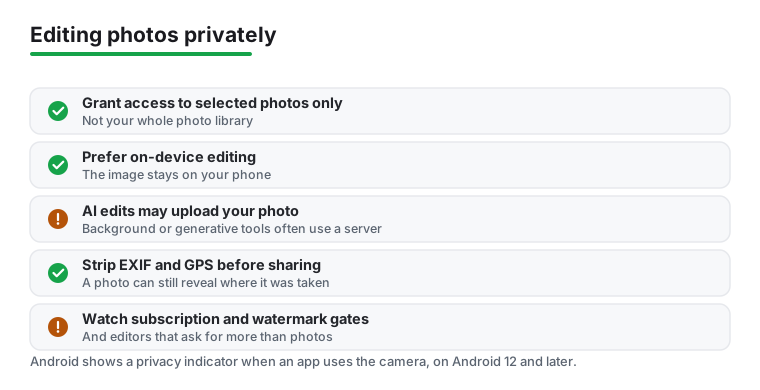
A photo editor needs access to your photos, and that is normal. What is worth a moment of thought is how much access you hand over. On modern Android you can grant access to selected photos only, instead of opening your whole library to the app. If you just want to touch up a few shots, selecting only those is a sensible default. You can always grant more later, and many editors work perfectly well with limited access.
The bigger and less obvious question is where the editing happens. Some editors, especially AI features like background removal or generative edits, upload your photo to a server to process it. On-device editing keeps the image on the phone instead. Neither approach is automatically wrong, but they are very different in practice, so it is worth checking whether editing happens on-device or in the cloud, particularly for photos you would rather not send anywhere. If an app is vague about this, that itself is useful information.
Then there is metadata. Photos carry EXIF metadata, which can include GPS coordinates if location was on when you took the shot. The catch is that exporting or sharing an edited photo can still include that data unless the app strips it. So a picture you edited and posted can quietly carry the place it was taken. If that matters to you, look for an option to remove location or metadata on export, and check the exported file rather than assuming it was cleaned.
Two more habits are worth keeping. First, watch the permissions an editor asks for, and be wary of editors that ask for more than photo access, since a photo tool rarely needs your contacts or your precise location to crop a picture. Second, use the cues Android already gives you. Android shows a privacy indicator when an app uses the camera or microphone on Android 12 and later, so if that indicator appears while you are only editing a saved photo, it is worth understanding why. You can read more about these signals from Android and the Android Open Source Project.
A note on free tiers
Most of the best editors are free to start, which is genuinely good news, but the free tier usually has edges. The two most common are subscription gates, where the more advanced tools sit behind a monthly plan, and watermark gates, where free exports get a logo stamped on them. Neither is dishonest by itself, and many people never hit those limits. It is simply worth knowing they exist before you build a workflow around an app, so a watermark does not surprise you on the photo you were about to share. Try the free version first, see which limits you actually run into, and only then decide whether a paid plan earns its place. A practical way to do this is to run a real edit, the kind you would normally make, all the way through to export, and note exactly where the app asks you to pay or stamps the result. If the limit sits on a feature you never touch, the free tier may be all you ever need. If it lands squarely on the thing you do every day, that tells you the plan is worth its cost, and you can pay knowing precisely what you are paying for rather than guessing.
Frequently asked questions
What is the best free photo editor for Android?
Snapseed is our top free pick because it has no ads, no subscription, and a deep set of precise tools from Google. For RAW files and color grading, the free tier of Adobe Lightroom is hard to beat. Many people happily get by with both installed and never pay a penny. Browse more options in our Photo and Video hub.
Do I need to pay for a good photo editing app?
Not at all. Snapseed, Google Photos, and the free tiers of Lightroom and Canva cover almost everything a casual editor needs. Paid plans mainly add AI features, cloud sync, premium presets, and the removal of ads. We suggest living with the free versions first to see what you actually miss.
Which app is best for removing objects from a photo?
For a dedicated tool, TouchRetouch is the cleanest object remover we tested. If you would rather not install something extra, the Magic Eraser in Google Photos and Generative Fill in the Photoshop app both do an impressive job straight from your camera roll.
Can Android phones really replace a computer for editing?
For most everyday work, yes. Layers, masking, RAW support, and AI cleanup now live on your phone, and apps like Lightroom close much of the gap. Heavy composites and very large batches still feel better on a desktop, but the daily stuff rarely needs one. If you also shoot clips, pair your editor with a good video editor, and a strong camera app gives you better files to start from.
Does editing a photo on my phone send it to a server?
It depends on the app and the tool. Plenty of basic edits run entirely on-device, but some AI features, such as background removal or generative edits, upload your photo to a server to process it. If you would rather keep a photo on the phone, check whether the app states that editing happens on-device, and lean on tools that do not need a connection.
Will a shared photo still contain my location?
It can. Photos carry EXIF metadata that may include GPS coordinates if location was on when you took the shot, and exporting or sharing an edited photo can still include it unless the app strips it. Look for an option to remove metadata or location on export, and confirm by checking the exported file before you share it widely.