
Best Gps Navigation Apps for Android (2026)
A good navigation app is the difference between a relaxed drive and a stressful one, and Android gives you more solid choices than most people realize. We have spent months bouncing between these apps on daily commutes, weekend road trips, and a few genuinely confusing city centers. Below are the ones we keep coming back to, whether you want live traffic, offline maps, or turn by turn directions that just work. For more on this category, browse our full Navigation & Auto hub.
1. Google Maps
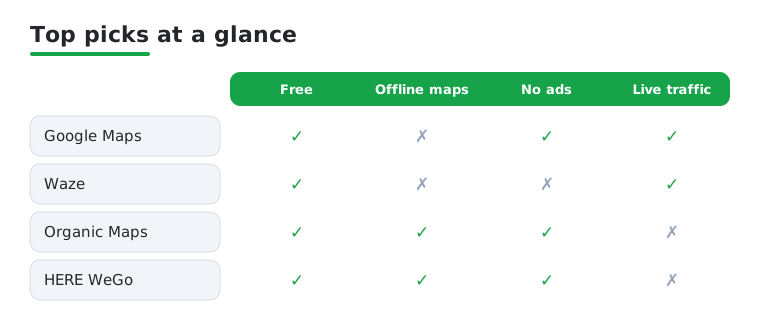
This is the one almost everyone already has, and for good reason. The traffic rerouting is fast and accurate, lane guidance keeps you in the right place at messy interchanges, and the sheer depth of business listings and reviews is unmatched. On Android it feels instant, and Android Auto support is rock solid. It is free, though it leans on a data connection for the best experience.
2. Waze
Waze is our pick for daily commuters who want to dodge traffic and speed traps. The crowd sourced alerts about crashes, police, and potholes are genuinely useful, and in our testing it found shortcuts Google Maps missed. The playful interface is not for everyone, and the constant pop ups can distract, but for beating rush hour it is hard to top. Completely free.
3. Organic Maps
If you care about privacy and offline use, Organic Maps is a quiet gem. It is built on OpenStreetMap data, runs entirely offline once you download a region, and tracks nothing about you. We rely on it for hiking and overseas trips where data roaming is painful. It is free and open source with no ads, though it lacks live traffic, so pair it with something else for cities.
4. HERE WeGo
HERE WeGo struck us as the best all rounder for travelers who want offline maps without giving up turn by turn voice guidance. Download a whole country, then navigate by car, transit, bike, or foot with no signal needed. The public transport directions across European and Asian cities are especially strong. It is free, and the maps feel clean and uncluttered on a phone screen.
5. Sygic GPS Navigation
Sygic is a proper offline first navigator with premium polish. Maps download per country and the voice guidance is clear, but the standout is the head up display mode that projects directions onto your windshield at night. We found the free tier usable, while the paid premium unlocks real time traffic, speed limit warnings, and lane assist. Good for road trippers who drive somewhere without reliable data.
6. Garmin Drive
Garmin earned its reputation in dedicated car units, and that pedigree shows in its Android app. Navigation is dependable, the maps are detailed, and drivers who already trust the brand will feel right at home. We dig into what makes it tick in our Garmin Android GPS guide. It suits people who want a no nonsense driving companion rather than a social map.
7. TomTom GO Navigation
TomTom GO brings the company's long history with sat nav to your phone, and the traffic data is some of the most reliable we have used. Offline maps, lane guidance, and clear spoken instructions make long drives easy. It runs on a subscription after the trial, which feels steep next to free apps, but the routing quality and accurate arrival times win over serious drivers.
8. Maps.me
Maps.me is another OpenStreetMap based app we reach for when traveling light. Download a region and you get offline search, walking routes, and points of interest with very little data use, which saved us more than once abroad. The driving directions are decent rather than great, and there are some ads, but as a free offline backup map it earns a permanent spot on our phones.
9. Petal Maps
Petal Maps is Huawei's navigation app, and it has grown into a surprisingly capable option on any Android phone. The interface is bright and modern, real time traffic works well, and we liked the smooth voice navigation on city drives. It is free with no aggressive upsells. Coverage is strongest in Asia and Europe, so try it in your area before committing to it as a daily driver.
10. OsmAnd
OsmAnd is the power user's offline map, packed with features for hikers, cyclists, and anyone who loves customization. Contour lines, trail overlays, and detailed offline routing make it our go to for the backcountry. The trade off is a busy interface with a learning curve. The free version limits map downloads, while a one time purchase or subscription unlocks unlimited maps and extras. If you head off grid a lot, keep one of our favorite compass apps on hand as a backup.
11. Komoot
Komoot is not a car app, and that is the point. It is the route planner we trust for cycling, hiking, and trail running, with community tested routes and turn by turn voice directions tuned for the outdoors. The offline maps keep you on track where there is no signal. Your home region is free, and additional map bundles or the lifetime pack are paid one time purchases.
Not sure which one to start with? This quick comparison of our four most-used picks lines up what matters most on the road, so you can match an app to how you actually drive.
How to choose a navigation app for Android
It is tempting to pick the app with the prettiest map or the most reviews and stop there. That works, but it leaves out the things that quietly matter once you are actually driving. A navigation app is software you hand your location to, often every day, and the differences between apps show up most clearly in three places: whether they work without a signal, how much data they use, and what they remember about where you have been. Map quality is real, but it is rarely the thing that goes wrong on a trip.
Start with a simple question: where will you use this? If you mostly drive in a well covered city with a reliable data plan, a connected app with live traffic will serve you well. If you travel, hike, or drive through areas with patchy coverage, offline support moves to the top of the list. Offline maps that you download in advance work without a signal and share less data while travelling, which makes them both more dependable and more private on the road.
It also helps to separate what an app does well from what it costs you in less obvious ways. A free app is not free if it leans on a constant data connection while you roam abroad, and a beautiful map is little comfort when you lose signal in a tunnel or a valley. The most useful way to think about this category is in terms of trade offs rather than a single winner. Live traffic and crowd reports are valuable in a busy city, but they depend on a connection and on the app knowing where you are. Offline routing is steadier and quieter, but it cannot warn you about a jam that formed ten minutes ago. Knowing which trade off you prefer tells you far more than any star rating.
Match the app to how you actually travel
Be honest about your habits rather than aspirational. A few questions worth answering before you commit:
- Coverage: Do you regularly lose signal? If so, prioritize apps that let you download whole regions or countries in advance.
- Data use: Are you on a limited plan or roaming abroad? Offline maps save data because the app is not streaming tiles as you move.
- Location history: Do you want a record of your trips, or would you rather the app keep nothing? This varies a lot between apps and is worth checking before you settle in.
- Driving style: Commuters benefit from live traffic and crowd reports, while travelers and hikers lean on offline detail and accurate routing.
The takeaway here is plain: choose a navigation app on offline support, data use, and how it handles your location history, not just on map quality. Two apps can draw nearly identical streets and behave very differently in the ways that affect your bill and your privacy.
Privacy: location access, offline maps, and location history
Navigation apps are unusual because they genuinely need the thing people are most cautious about sharing. Navigation apps need your location to route you, and there is no way around that. What you can control is how much access you grant, how often, and how precise it is. Modern Android gives you real choices here, and they are worth understanding rather than tapping through.
Granting location access deliberately
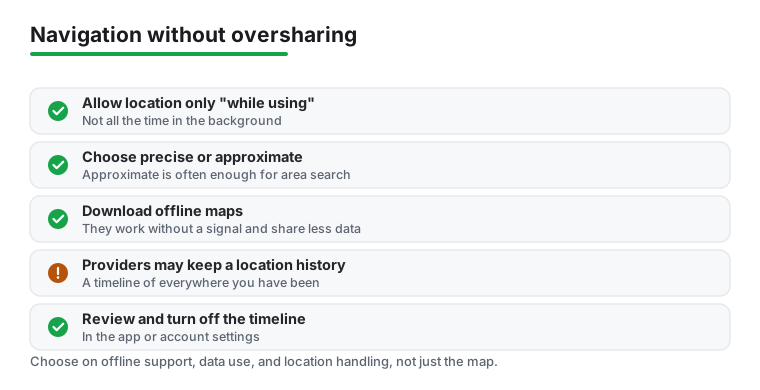
When an app first asks for your location, Android offers more than a simple yes or no. On modern Android you can limit access to "while using the app" and choose precise or approximate location. Limiting an app to "while using the app" means it cannot quietly read your position in the background when you are not navigating. That is usually the right setting for a navigation app, since you only need directions while you are actually using it.
The precise versus approximate choice is the other lever. Turn by turn driving needs precise location to put you in the correct lane, so most drivers will leave precise on while navigating. For lighter uses, approximate location may be enough, and it shares less about exactly where you are. You can revisit both settings at any time in Android's app permissions, so a generous grant on day one is not permanent. A good habit is to grant the minimum that makes the app work, then loosen it only if you find something genuinely missing. It is easier to give an app more access later than to claw it back after months of use, and there is no penalty for being cautious at the start.
Offline maps as a privacy choice
Offline maps are often framed as a convenience for dead zones, but they are also a quiet privacy feature. When the map and routing live on your device, the app does not need to send a steady stream of requests describing where you are and where you are going. Offline maps that you download in advance work without a signal and share less data while travelling. If reducing what leaves your phone matters to you, downloading regions before a trip is one of the most effective steps you can take, and it helps your battery and data plan at the same time.
Location history and timelines
This is the part most people never look at. Many map providers can keep a history of where you have been, for example a location timeline, which you can usually review and turn off. A timeline can be genuinely useful for remembering a restaurant you visited or retracing a route, but it is also a detailed record of your movements that you may not want kept. The honest advice is to go look. Open your map app's settings, find the location history or timeline section, and decide for yourself whether to keep it on, review what is stored, or turn it off entirely. Different apps store different amounts. Offline, open source map apps like the OpenStreetMap based options in our list generally collect less and usually do not build a personal location timeline the way a big cloud provider can, but this depends on the specific app and its settings, so check each one rather than assuming.
There is no single correct answer here, only an informed one. Some people value the timeline and happily leave it on because it answers questions like where they parked last week. Others would rather their phone keep no running log of their movements at all. Both choices are reasonable. What matters is that the decision is yours and that you have actually made it, rather than leaving the default in place without knowing what it does. If you share a device or pass an old phone along, reviewing and clearing any stored history before you do is a sensible last step.
If you want to understand the underlying Android controls rather than any single app's settings, the platform's own overview is a reasonable place to read more, for example Android.
A short, practical takeaway
Pick the app that fits where you drive, not just the one with the most polished map. Before a trip, download the regions you will need so you are covered without a signal and sharing less along the way. Set location access to "while using the app," keep precise location on while you navigate, and take two minutes to check whether location history is on and whether you want it. Those few choices give you dependable directions and a clear, honest handle on what your phone is sharing.
Frequently asked questions
Which Android GPS app works best offline?
For driving without a signal, Organic Maps and HERE WeGo are our top picks because both let you download entire regions and navigate with voice guidance offline. Sygic is excellent too if you want premium offline features. For hiking and trails, OsmAnd and Komoot are hard to beat. Just remember to download your maps over Wi Fi before you leave home.
Is Google Maps or Waze better for daily driving?
It depends on your priorities. Google Maps gives you cleaner directions, deeper place information, and a calmer interface, so it suits most people. Waze shines if your main goal is dodging traffic, since its real time crowd sourced alerts often find faster routes during rush hour. Both are free and owned by the same company, so try each on your usual commute and see which one saves you more time.
Do free GPS navigation apps drain your battery?
Navigation is one of the more demanding things you can ask a phone to do, since the screen stays on and the GPS radio runs constantly. In our testing, offline apps like Organic Maps used noticeably less power than data heavy ones. Keeping your screen brightness sensible and using a car charger on longer trips makes the drain a non issue for almost everyone.
Can I use these apps with Android Auto?
Yes, several of them. Google Maps and Waze have full Android Auto support, and Sygic, TomTom GO, and Petal Maps work with it as well, putting big clear directions on your car display. Coverage changes over time, so check the current app listing if Android Auto is a must have for you. Plug in or connect wirelessly and the app should appear on your dashboard. If you want your whole in car screen to feel better, a good car launcher app pairs nicely with any of these.
How do I limit a navigation app's access to my location?
On modern Android you control this from the location permission prompt and from the app's entry in your phone settings. The two settings that matter most are letting the app reach your location only "while using the app" rather than all the time, and choosing precise or approximate location. For turn by turn driving, keeping precise location on while you navigate makes sense, while limiting background access keeps the app from reading your position when you are not using it. You can change either setting whenever you like.
Can I stop a maps app from keeping my location history?
Usually, yes. Many map providers can keep a history of where you have been, often shown as a location timeline, and in most cases you can review what is stored and turn it off. Open your map app's settings and look for a location history or timeline section. Offline, open source apps like the OpenStreetMap based options in our list generally collect less and usually do not build a personal location timeline the way a big cloud provider can, but this depends on the specific app and its settings, so check each one rather than assuming it keeps nothing.