
Best Gallery Apps for Android (2026)
The gallery app that ships with your phone is fine until you have 30,000 photos and need to find one shot from a road trip three years ago. A good gallery app makes scrolling feel instant, keeps your private folders actually private, and never nags you to buy cloud storage you do not want.
We installed each of these on a couple of real Android phones, loaded them with messy libraries, and lived with them for a few weeks. These are the gallery apps we kept coming back to in 2026. For more in this category, browse our full Photo & Video guides.
1. Simple Gallery Pro
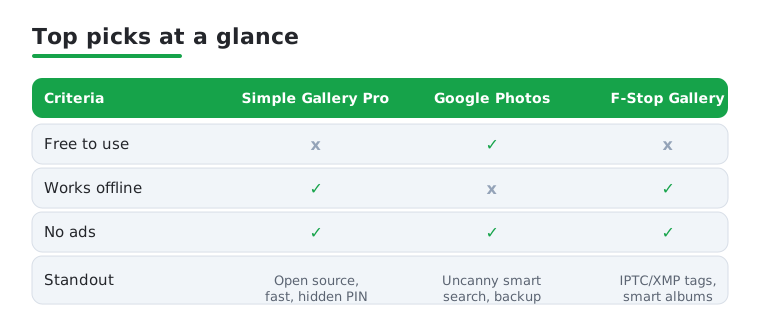
This is the one we recommend most often to people who just want a clean, fast gallery with zero ads and no cloud pressure. It is open source, opens folders instantly, and lets you hide albums behind a PIN. After Google bought the original developer, the actively maintained fork is what we now test, and it stays snappy even on a five year old phone. The Pro version is a small one time purchase.
2. Google Photos
Still the default for most people, and for good reason. The search is genuinely uncanny, you can type "red bicycle" or a friend's name and it just finds the photos. It suits anyone who wants automatic backup and does not mind living in Google's world. Free backup is capped now, so heavy shooters will hit the paywall, but the on device browsing and editing remain excellent.
3. F-Stop Gallery
If you actually care about how your photos are organized, F-Stop is the power user pick. It reads and writes IPTC and XMP metadata, so you can tag, rate, and build smart albums that filter by keyword or camera. The learning curve is real, but once your library is tagged it feels like a proper desktop catalog in your pocket. A modest Pro key unlocks the full feature set.
4. Aves Libre
Aves is the gallery we point open source fans toward when Simple Gallery feels too basic. It handles motion photos, animated GIFs, SVGs, and even shows EXIF and GPS data on a built in map. Scrolling through a huge library stays buttery, and the open-source Aves Libre build has no ads or trackers. It is completely free, with a polished Material You design that adapts to your wallpaper colors.
5. Gallery (by Google, the Files app gallery)
This is the lightweight gallery many budget and Android Go phones ship with, and it deserves a mention because it is genuinely good at one job: showing your photos quickly with no internet needed. It suits anyone on limited storage who wants offline browsing and basic edits without the full Google Photos cloud machinery. It is free and uses almost no resources, which we appreciated on older hardware.
6. Piktures
Piktures wins on looks and gestures. It organizes your library into a tidy timeline, has a built in secret vault, and even sorts out screenshots and selfies into their own spaces automatically. Swiping between photos feels fluid and a little playful. The free tier covers most people, while a premium upgrade removes ads and unlocks the vault's larger capacity. We found it a nice middle ground between minimal and feature packed.
7. Microsoft OneDrive
If your photos already live in Microsoft's ecosystem, OneDrive's gallery view is underrated. Camera roll backup is automatic, and the Personal Vault adds a genuinely secure space for sensitive shots behind a second authentication step. It suits anyone with a Microsoft 365 subscription, since you get a terabyte of storage that makes backing up your whole library painless. Free tier storage is tight, so it shines once you are paying.
8. Fossify Gallery
Fossify is the community continuation of the original Simple Gallery, fully open source and ad free. If you loved Simple Gallery before the buyout and want a project that is clearly independent, this is it. It does everything you expect: folder based browsing, a built in editor, recycle bin, and a hidden vault. Free on the Play Store and F-Droid, with an optional small donation. We have had zero stability issues with it.
9. 1Gallery
1Gallery's headline trick is built in encryption. You can lock individual photos and videos behind AES encryption, not just hide them, so even file managers cannot peek. It suits anyone who keeps sensitive images on a shared or work phone. The interface is clean and the editing tools are decent for quick crops and filters. It is free with ads, and a one time purchase removes them and unlocks extras.
10. Memoria Photo Gallery
Memoria leans into the timeline and memories experience without sending anything to the cloud. It keeps your library on the device and does its processing locally, including a private vault and face grouping. It is a good fit for privacy minded people who still want the "on this day" nostalgia features. The free version is generous, and a premium tier adds more vault space and customization. It felt fast and respectful of battery in our testing.
11. QuickPic Gallery (Mod)
The original QuickPic was beloved for being feather light, and the maintained community builds keep that spirit alive without the adware that crept into later official versions. It is the gallery to reach for when you want instant launch and dead simple folder browsing on an aging phone. It handles big libraries with almost no lag and stays out of your way. Free, and best installed from a trusted source given its modded status.
How to choose a gallery app on Android
A gallery app has one core job, which is to show you the photos and videos already stored on your phone and let you find them again later. Almost every option in the list above does that well, so the decision really comes down to a handful of practical questions rather than a feature checklist. It helps to start by being honest about how you actually use your library, then match an app to that, instead of installing the one with the longest feature list.
Speed and how it handles a large library
The first thing to test is how the app behaves when you scroll through your whole library at once. A gallery that feels instant on a fresh install can stutter badly once it has to render thousands of thumbnails. Open the app, jump to your oldest photos, and scroll quickly back to today. If it stays smooth and the thumbnails load without long gray gaps, that is a good sign. This matters most on older or budget hardware, where a lightweight app makes a real difference.
Organization that matches how you think
Some people think in folders, some think in dates, and some want tags and keywords. The apps above split along these lines. If you copy photos around manually and want the gallery to reflect your folder structure, pick a folder based browser. If you want a single timeline with automatic grouping, pick a timeline first app. If you genuinely tag and rate your shots, a metadata aware app that reads keyword fields will feel like a desktop catalog. There is no single correct model here, only the one that fits your habits.
Offline use versus cloud features
Decide early whether you want the app to stay entirely on the phone or to back your photos up to a server. Both are reasonable choices, but they are different products with different trade offs. An offline gallery keeps everything local and asks for nothing. A cloud connected gallery can search, back up, and sync across devices, at the cost of sending your photos to a company you have to trust. Mixing the two by accident is the usual source of regret, so it is worth being deliberate about which one you are installing.
Editing, sharing, and the small extras
Most galleries include a basic editor for cropping, rotating, and quick adjustments, plus a recycle bin so a mistaken delete is recoverable for a while. These are pleasant to have, but they are rarely the reason to switch. Treat them as tie breakers. If two apps are otherwise equal, the one with a recycle bin and a sensible share sheet is the safer daily driver.
Privacy and security, the part most guides skip
A gallery app is unusual because it needs broad access to some of the most personal data on your device. Your photos can reveal where you live, who you spend time with, and what your daily routine looks like. That is worth a few minutes of attention before you hand any app the keys to your library. None of this is cause for alarm, it is just the kind of basic hygiene that pays off quietly over years.
Photo access: grant the minimum
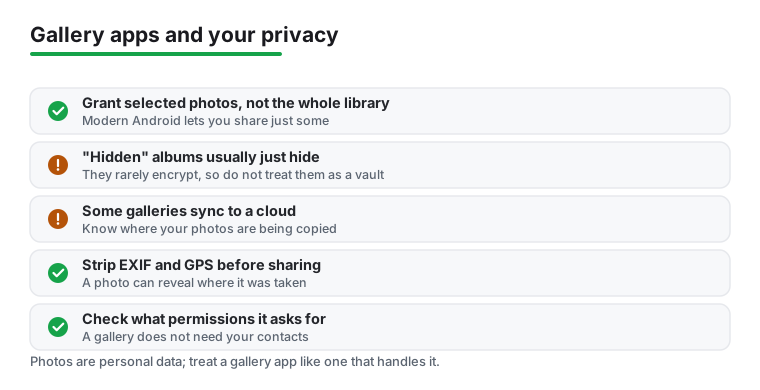
A gallery app needs access to your photos in order to display them. On modern Android you do not have to grant access to your entire library. You can choose to grant access to selected photos instead, which is the right default for any app you are still evaluating or do not fully trust. When you install something new, watch the permission prompt and ask whether full access is actually necessary for what you want to do. A gallery you only use for a specific album does not need to see everything.
Hidden is not the same as encrypted
This is the single most common misunderstanding in this category. Many apps advertise a hidden album, a private folder, or a vault, and most of these features simply hide photos rather than truly encrypting them. A hidden photo is moved out of the normal view, but the underlying file is often still sitting on your storage in readable form, where a file manager or a connected computer can find it. That is fine for keeping a surprise gift out of casual sight. It is not fine if your concern includes someone with real access to the device. Do not treat a hidden folder as a secure vault. If you need genuine protection, look specifically for on device encryption, and read the description carefully, because the words hidden and encrypted are often used loosely.
Cloud sync: know where your photos go
Some galleries sync to a cloud, sometimes automatically and sometimes after a single tap you might not remember making. Before you commit, check whether the gallery uploads to a server at all, and if it does, what that means for you. Cloud backup is genuinely useful and protects you against a lost or broken phone. The point is simply to choose it on purpose. An app that quietly uploads your library is not doing anything malicious, but you should be the one who decided that your photos leave the device.
EXIF metadata, including location
Photos carry EXIF metadata, the hidden information your camera records alongside the image. This often includes the time, the device, the camera settings, and, if location was on when the shot was taken, the GPS coordinates of where you stood. That means sharing a photo straight from your gallery can quietly reveal where it was taken, which is easy to forget when you post a picture from home. Before sharing sensitive shots, check whether your gallery or your share flow strips this data, and strip it if you care about the location staying private. Some galleries can show you the EXIF and GPS data directly, which is a useful way to see exactly what a photo is carrying.
A short checklist before you trust an app
- Permissions: grant access to selected photos rather than the whole library while you are still testing an app.
- Server: check whether the gallery uploads to a server, and decide on purpose whether you want that.
- Vault: confirm whether a private folder actually encrypts files or only hides them, and adjust your expectations accordingly.
- Sharing: strip EXIF location data before posting photos taken somewhere you would rather not disclose.
If you want the official ground rules for how Android handles app permissions and your data, the platform documentation from Android is a sensible reference.
The practical takeaway
Pick a gallery by being honest about two things, which are how you find photos and how private you need them to be. For everyday use, a fast app that respects your folders and stays offline is hard to beat. If you keep sensitive images, choose real encryption rather than a hidden folder, and get into the habit of stripping location data before you share. Then compare your shortlist on the points below.
Frequently asked questions
Do I really need a third party gallery app on Android?
Not strictly, but most stock galleries are average. If your default constantly pushes cloud upsells, struggles with a large library, or lacks a proper private folder, switching to something like Simple Gallery Pro or Aves Libre is a noticeable upgrade. It is a five minute change you usually feel within a day.
Which gallery app is best for keeping photos private?
For true privacy, look for on device encryption rather than just hidden folders. 1Gallery encrypts individual files, Memoria keeps everything offline, and OneDrive's Personal Vault adds a second authentication step. A hidden album only moves photos out of view, while encryption actually protects them if someone digs through your storage.
Can a gallery app find old photos without uploading them to the cloud?
Yes. Aves Libre and Memoria do on device search, face grouping, and EXIF based filtering with nothing leaving your phone. They will not match Google Photos' "find every photo with a dog" magic, but for date, location, and folder searches they are quick and completely private.
Will switching gallery apps move or delete my photos?
No. Gallery apps read the photos already stored on your phone, so installing a new one does not duplicate or remove anything. You can run several side by side and uninstall the ones you do not like. Just be careful with the delete or recycle bin features, which do remove the actual files. If you also edit your shots, pair your gallery with one of our picks for photo editor apps or photo filter apps.
What is the difference between hiding a photo and encrypting it?
Hiding a photo just moves it out of the normal gallery view. The file usually stays on your storage in readable form, so a file manager or a connected computer can still open it. Encryption actually scrambles the file so it cannot be read without the right key or PIN. Many gallery apps that advertise a private folder only hide photos, so read the description carefully and do not treat a hidden album as a secure vault.
How do I stop my gallery from revealing where a photo was taken?
Photos carry EXIF metadata, and if location was on when you took the shot, that includes the GPS coordinates of where you stood. Sharing the photo can pass that data along. Before sharing something sensitive, check whether your gallery or the share flow can strip metadata, and remove the location data if it is there. Some galleries can show you the EXIF and GPS details directly, which is a quick way to see what a photo is carrying.