
Updated September 2026

Updated September 2026 · the app the whole guide depends on now carries its own dated listing figures, and the steps sit in one table
That sinking feeling when your pocket is empty is the worst part. Take a breath. If your phone was signed in to a Google Account with location turned on, you have real tools to work with, and most run from any web browser. This guide covers what to do in the first few minutes, how Google's finding network works in 2026 (including when the phone is offline or dead), and the carrier and police steps that matter once a phone is truly gone. It also covers the part nobody warns you about: the scam texts that arrive days later. Let's go through it calmly, in order.
Locating, ringing, locking and erasing your own phone
4.2 stars from 1,671,309 reviews · 1,000,000,000+ installs · free · no in-app purchases · no ads · by Google LLC · Contains ads: No · checked 3 September 2026
Google Play listing · 4.2 (1,671,309) · read 3 September 2026
Everything below runs through this one app and its web version at android.com/find. It is free, carries no ads and no in-app purchases on its own listing, and it is already on most Android phones, so the install band is close to meaningless as a recommendation: what matters is whether it is signed in and switched on before the phone goes missing. The rating is the lowest of any Google app on this site, and the reason is visible in the reviews: people meet it on the worst day they have had all year, and it can only report what the phone last told it.
You do not need your phone to find your phone. Any laptop, tablet, or a friend's phone works. Open a browser and go to android.com/find, then sign in with the same Google Account that was on the missing device. Google's official lost-phone guide points to the same starting place.
On a friend's Android phone, tap Sign in as guest first so you are not poking around in their account. On a computer, an incognito or private window does the same and signs you out cleanly when you close it.
Google rebranded this service from "Find My Device" to Find Hub in May 2025, so you will see that name in the app and on the web. Same tool, friendlier scope: it now also finds tablets, watches, earbuds, and Bluetooth trackers. Google's own support page on finding, securing, or erasing a device walks through the same screen.
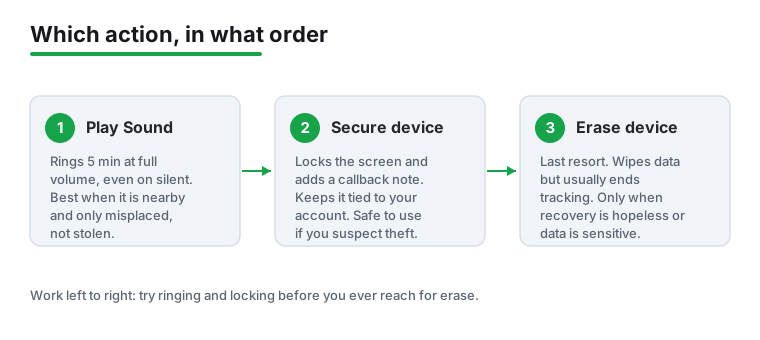
Once the phone shows up, you get three actions. Use them in the order that fits your situation.
Play Sound. Best when the phone is nearby, maybe under a cushion or in another room. It rings at full volume for about 5 minutes even on silent or vibrate; press the power or volume button to stop it. This is the right first move for a misplaced phone, not a stolen one, since you do not want to announce its location to a thief.
Secure device (sometimes labeled Mark as lost). This locks the screen with your existing PIN, pattern, or password right away, and lets you set one if you never had a lock. You can also add a short message and a callback number to the lock screen so an honest finder can reach you, for example: "This phone is lost. Please call 555-0147, reward offered." The phone stays locked and signed in to your account, which keeps it tied to you.
Erase device. The last resort. This wipes the phone to factory settings and removes your data. Important catch: after an erase you usually cannot locate the phone anymore, and the erase only happens once the phone is online. Do not rush here. Ring and lock first, and erase only when you have given up on recovery or it holds sensitive data you cannot risk.
If the phone is on and connected, the map shows its live spot. The clever part is what happens when it is offline or switched off. Find Hub runs a crowdsourced network of more than a billion Android phones worldwide. When your lost phone is near other Androids, they quietly pick up its short-range Bluetooth signal and pass an encrypted location back to you. Nobody sees who reported it, and the data is end-to-end encrypted, meaning not even Google can read it.
For this to work, the feature has to be switched on before the phone goes missing (see the setup section below). On a supported Pixel, the phone can report its spot for a while even after the battery dies, using a low-power Bluetooth beacon. Through 2025 Google also added ultra-wideband for pinpoint close-range direction on compatible trackers, and satellite finding so a device can be located where there is no mobile or Wi-Fi signal. These extras depend on hardware that supports them.
One honest limit: the network needs another Android phone to pass within Bluetooth range of your device. In a busy city that happens fast. On a quiet trail or in a locked drawer, it may take a while or not happen at all.
This is common and not the end of the road. A few things to try and understand:
If the phone simply cannot be found and you suspect theft, stop chasing the map and move to the carrier and police steps further down.
The five minutes you spend now is what makes everything above possible later. Most of it is on by default in 2026, but check with your own eyes.
On a Pixel (and most stock Android):
On a Samsung Galaxy (One UI 7 and later): Galaxy phones use Find Hub too, plus Samsung's own service, so check both. For Samsung's tool, open the SmartThings app > Life tab > Find under More services > the three-dot menu > Settings, and turn on Send last location and Offline finding. You can also reach it from a browser at smartthingsfind.samsung.com with your Samsung account. Two finders means two independent ways to locate a Galaxy.
Two more habits worth building: keep a real screen lock (PIN or biometric, not "swipe to open"), and consider locking your most sensitive apps individually with one of the app lock apps so a thief who somehow gets past the screen still cannot open your banking or photos. Also write down your phone's IMEI number now. Dial *#06# and it pops up instantly, or find it under Settings > About phone. Save it in your password manager or email it to yourself. You will need it if the phone is stolen, and you cannot get it after the phone is gone.
In January 2026 Google expanded a set of theft features that go beyond plain finding. They are designed for the snatch-and-run, not just the dropped-on-the-bus phone. Check they are on under Settings > Google > All services > Theft protection (on Samsung, look under Settings > Security and privacy > Theft protection).
Bookmark android.com/lock on a laptop or a trusted person's phone as your emergency button.
If the phone was stolen, or you have given up finding it, your carrier is the next call. Two requests, ideally in one conversation:
A blocklist is shared among carriers in the same country, and often across borders too, so a blocked phone becomes a paperweight on legitimate networks. The limit: a determined thief can still use it on Wi-Fi, or sell it where the shared list is ignored. Blocking does not recover the phone; it makes it far less useful and protects your number.
While you are at it, change your Google Account password from a trusted computer, and sign out of the lost device from your account's security page. If banking, wallet, or email apps were on the phone, change those passwords too and watch for unusual logins. On the replacement phone, a reputable antivirus app can help flag the phishing links covered below.
For a stolen phone, file a police report. It rarely brings the phone back on its own, but it is the official record insurers and carriers ask for, and it is what police need if your phone's location later turns up at an address (never knock on that door yourself; hand the location to the police). Bring the make, model, color, and IMEI.
The same IMEI logic protects you when buying used: run the number through a free blacklist checker before you pay. And if you ever own a phone that was wrongly blacklisted and your carrier will not clear it despite proof of purchase, you can file a complaint with the FCC in the US, which usually nudges the carrier to act.
This is the part that catches calm, careful people days or weeks later. You get a text, email, or message that looks like it is from Google, Find Hub, Samsung Find, or your carrier, saying your phone has been found and asking you to sign in through a link to see where it is. It often quotes your exact phone model and color to seem real.
It is a phishing trap. Thieves cannot use a locked, account-tied Android, so their goal is to trick you into typing your Google or Samsung password on a fake login page. If you do, they remove the account lock and the phone becomes sellable. Security researchers have documented these "your phone was found" texts for years, and the same playbook now targets Android. Smishing (scam-by-text) that targets Android account holders is common enough that the message below is a template rather than a one off.
Protect yourself with three simple rules:
If a message pushes you to log in right now, that urgency is the tell. Close it and go to the official site directly.
To set expectations honestly: finding works best when the phone is on, connected, signed in, and had offline finding enabled before it vanished. Ringing is great for a phone lost at home. The crowdsourced network can surprise you in a city. Carrier and police steps protect your number and money more than they recover the device. A wiped phone usually cannot be tracked, though it also cannot be used by the thief. None of these are magic, but used together and quickly they give you a genuinely good shot. For a deeper look at apps built for locating devices and people, see our roundup of phone tracker apps, and the wider security and privacy section covers the rest. Find Hub itself sits at 4.2 stars from 1,671,309 reviews on a listing read 3 September 2026, and that score is mostly people meeting it on their worst day.
Mostly no. Find Hub needs Location to have been on to place the phone on a map. If it was off, your best fallback is Google Maps Timeline, which may show where the phone last was if you had Location History enabled. Going forward, keep Location and "Find your offline devices" switched on.
Sometimes. The map will show the phone's last known spot before it lost power. On supported Pixel models with offline finding set to With network everywhere, the phone can keep sending a low-power Bluetooth beacon for a while after it dies, so nearby Androids may still report its rough location. On most other phones, a dead battery means no new updates until it is charged and back online.
No. Ringing is for a phone you misplaced nearby. If it was stolen, ringing only tells the thief the phone is being tracked. Instead, use Secure device to lock it and add a callback message, note its location quietly, and then call your carrier and the police. Hand any location to the authorities rather than confronting anyone yourself.
Find Hub (at android.com/find) is the full toolkit: locate, ring, lock, and erase, using your Google Account. Remote Lock (at android.com/lock) is a quick, single-purpose button that locks the screen using just your phone number, handy when you want the screen locked this second without signing in to everything. Set up its phone-number verification in advance so it is ready.
Not directly. Blocking the IMEI stops the handset from connecting to mobile networks, even with a new SIM, which makes it far less useful to a thief and protects your phone number. It does not reveal the location or return the device. Pair it with suspending your SIM and filing a police report, and treat recovery as a separate, lower hope.
Treat it as a scam. Genuine recovery never arrives as a link asking you to log in. These messages mimic Google, Samsung, or your carrier and quote your phone model to look real, but the link leads to a fake login page that steals your account password so thieves can clear the lock. Do not click. Open android.com/find by typing it yourself, and make sure 2-Step Verification is on.
No. Its Play listing is free, declares no in-app purchases and carries no Contains ads label, read 3 September 2026. It sits at 4.2 stars from 1,671,309 reviews, which says more about the day people open it than about the app.
Checked 3 September 2026: the guide walked through every step of finding a lost phone without once naming the figures of the app it depends on, and had no store link, no dated line and no table. Find Hub now carries a fact line read from its own listing, a store link and three pros and three cons, and the nine steps sit in one table that jumps to each of them. One figure is withdrawn: the line saying smishing traffic rose with researchers tracking more than 10,000 domains tied to these scams, credited to nobody by name; the warning itself stands without it. The key numbers: 4.2 stars from 1,671,309 reviews, 1,000,000,000+ installs, free, no in-app purchases, no ads.
 8 Free Android PDF Editors · Where Each One Stops Being FreeProductivity
 Google Play Store Not Working or Won't Download AppsTools & Utilities