
Updated September 2026 · every app listing re-read on 1 September 2026, refreshing 6 review counts, 1 listing date and 1 rating, and the verdict moved below the comparison table so the picks sit next to the evidence
Six Android car launchers with a Play listing, compared on the thing a store page never states plainly: what each one actually runs on. None of them is Android Auto. Beside that, the price, the trial each listing states, the advertising label, the rating and what each Data Safety section declares.
AGAMA Car Launcher is our best overall because its Play listing, read 1 September 2026, shows 4.5, no advertising label, a 30 day trial then $8.49, and declares third party sharing.
Car Launcher is our best free pick because its Play listing, read 20 August 2026, is free to install, no advertising label, shows 4.3, and declares no data shared.
AutoZen is our pick for a mounted phone because its Play listing, read 20 August 2026, installs free, carries advertising and declares third party sharing.
Data checked: 3 September 2026.
The table has no room for the Data Safety line, and on these six listings that line splits the field. AGAMA, AutoZen and Car Home Ultra each declare that the app may share data types with third parties. Car Launcher, Car Launcher Pro and CarWebGuru each declare that they do not. Every section below prints its own listing's wording, read on 20 August 2026.
What this page does not judge. A car launcher puts a live screen in the driver’s field of view, and nothing here is a finding about whether any of it is safe or lawful to operate while the car is moving. Local road rules decide that, and no store listing settles it.
A dedicated dash screen
Rating 4.5 from 46,706 reviews · Installs 5,000,000+ · Free to install · In-app purchases $8.49 per item · Developer altercars.ru · Requires Android 5.0 or later · Data Safety: may share data types with third parties, no data collected, data is not encrypted, deletion can be requested · Listing updated 19 May 2026 · Contains ads: No · checked 1 September 2026
Google Play listing · 4.5 (46,706) · read 1 September 2026
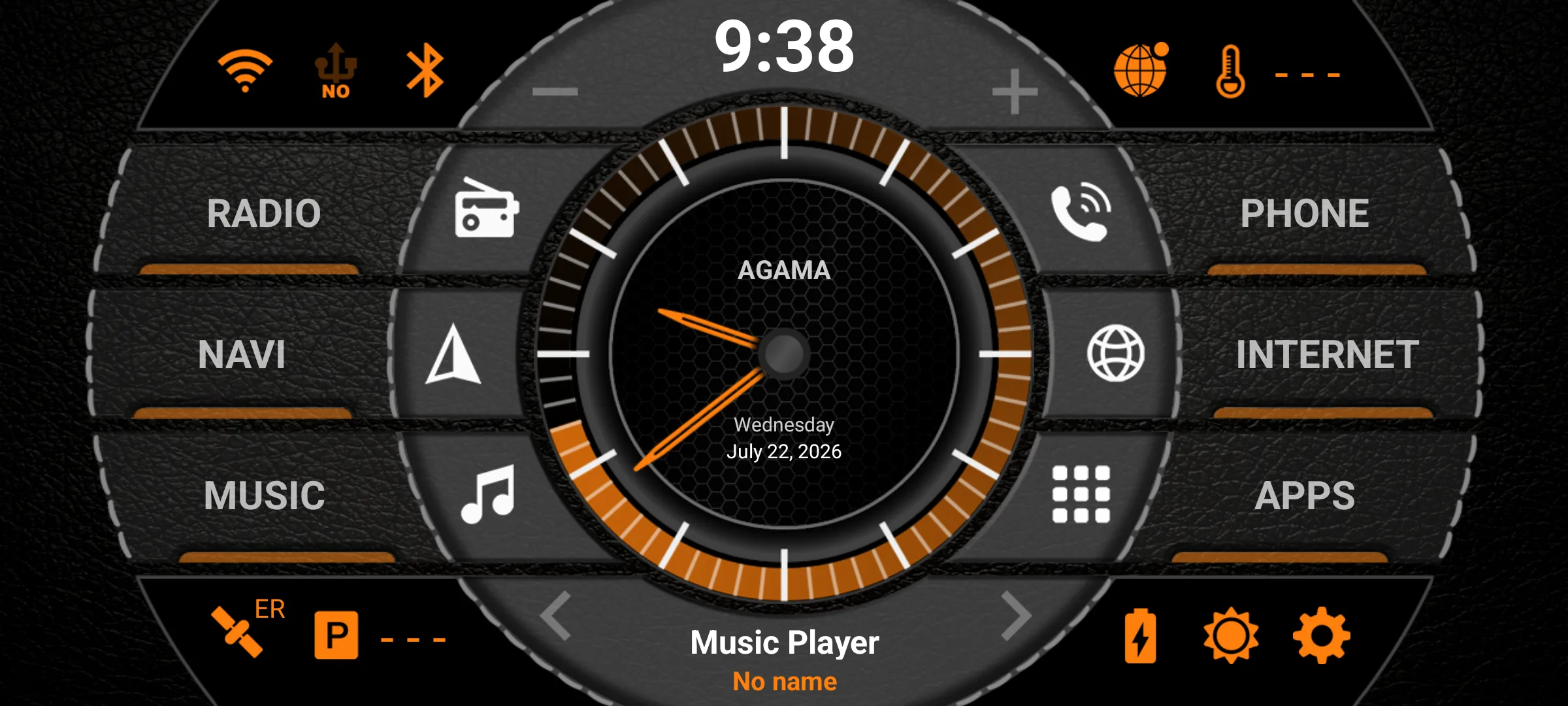
AGAMA Car Launcher is the lead pick here, and its own listing is specific about what it runs on: The AGAMA Car Launcher is intended for use in dashboard units and audio systems working on the Android operating system, as well as for Android phones and tablets for use in a car
, from its Google Play description, read 20 August 2026. It rates 4.5 from 46,706 reviews on 5,000,000+ installs and carries no advertising label. The blunt part is that free means free for a while: the same description says The application is distributed with a free 30-day trial period. To activate the application, you must purchase the full version
, and the full version is an in-app purchase of $8.49 an item.
Read this first. Its own Data Safety section declares This app may share these data types with third parties
and Data isn’t encrypted
, beside a line saying no data is collected and one saying deletion can be requested. All four were read from its Google Play listing on 20 August 2026.
The developer’s own manual describes what the trial withholds rather than how long it lasts. altercars.ru, the developer the listing names, writes in its own AGAMA manual, read 20 August 2026, The trial version of the launcher has no restrictions in comparison with the full version and differs only in this information window
. The manual states no length, and the store description is where the 30 days comes from, so between them the whole launcher is available for a month.
Skip this if. Skip it if you want a launcher that stays free, because its own description gives it 30 days before the full version has to be bought.
Choosing between them. Choose AGAMA over CarWebGuru for the higher rating and a listing with no advertising label, and CarWebGuru over it to stay on a free tier for longer than a month.
Seeing it before paying
Rating 4.3 from 86,383 reviews · Installs 1,000,000+ · Free to install · In-app purchases $2.59 to $14.99 per item · Developer Apps LabDev · Requires Android 5.0 or later · Data Safety: no data shared with third parties, no data collected, data encrypted in transit, data cannot be deleted · Listing updated 22 July 2026 · Contains ads: No · checked 1 September 2026
Google Play listing · 4.3 (86,383) · read 1 September 2026
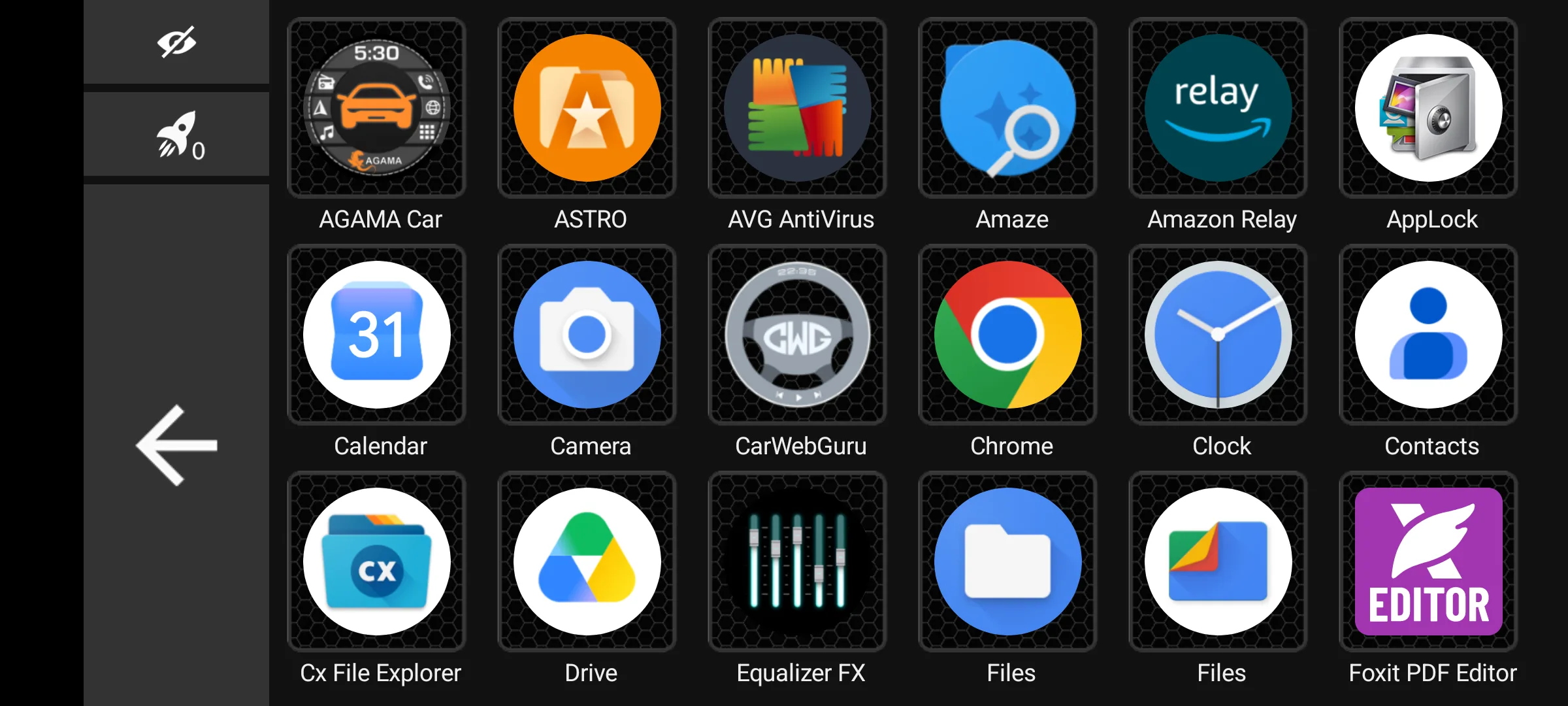
Car Launcher is the free build Apps LabDev publishes beside its paid Car Launcher Pro, and its own description names no trial: it sets out a For All Users feature list and then a separate For PRO Version Additionally list, from its Google Play description, read 20 August 2026. The same description says Works on your phone, tablet, and Android head unit
and Set as the default launcher (essential for head units)
. It installs free with no advertising label, rates 4.3 from 86,383 reviews on 1,000,000+ installs, and the blunt part is what sits in the second list: the theme editor, the extra home screens and system widget support are PRO version features, sold as in-app purchases of $2.59 to $14.99 per item.
Skip this if. Skip it if you would rather pay once and be done, because this listing sells its unlocks item by item instead.
Choosing between them. Choose Car Launcher over Car Launcher Pro to see the layout without paying first, and Car Launcher Pro over it for a listing with no in-app purchases behind it at all.
Paying once and being done
Rating 4.3 from 43,881 reviews · Installs 100,000+ · Price $15.99 on Google Play · No in-app purchases listed · Developer Apps LabDev · Requires Android 5.0 or later · Data Safety: no data shared with third parties, no data collected, data encrypted in transit, data cannot be deleted · Listing updated 22 July 2026 · Contains ads: No · checked 1 September 2026
Google Play listing · 4.3 (43,881) · read 1 September 2026
Car Launcher Pro is the same launcher as the free Car Launcher, bought outright. Its own description says it Works on phones, tablets, and Android head units
, from its Google Play description, read 20 August 2026. It costs $15.99 on Google Play, lists no in-app purchases behind that, carries no advertising label, and its Data Safety section declares no data shared with third parties and no data collected at all. The blunt part is that the money is due before the first launch: the install button on this listing reads $15.99 Buy.
Skip this if. Skip it if you want to see the layout on your own screen before paying, because that means installing the free Car Launcher build instead.
Choosing between them. Choose Car Launcher Pro over AGAMA when the point is one payment and a Data Safety section that declares nothing shared, and AGAMA over it to put a dashboard on the screen before any money moves.
Skins on a car radio
Rating 3.5 from 9,129 reviews · Installs 1,000,000+ · Free to install · In-app purchases $0.99 to $49.99 per item · Developer SoftArtStudio · Requires Android 5.0 or later · Data Safety: no data shared with third parties, this app may collect data types, data encrypted in transit, data cannot be deleted · Listing updated 16 July 2026 · Contains ads: Yes · checked 1 September 2026
Google Play listing · 3.5 (9,129) · read 1 September 2026
CarWebGuru is the one written for the radio in the dashboard rather than for the phone in your pocket: The program is designed to work in the car radio system with the android, but you can install it on your smartphone or tablet
, from its Google Play description, read 20 August 2026. It installs free on 1,000,000+ installs and its listing is blunt about how that is paid for: it carries the advertising label, and unlocks run $0.99 to $49.99 per item. It rates 3.5 from 9,129 reviews, the lowest score of the six.
Skip this if. Skip it if advertising on the screen in the car bothers you more than a one time payment would.
Choosing between them. Choose CarWebGuru over AutoZen for the Data Safety section that declares no sharing, and AutoZen over it for the higher rating and the newer listing.
A phone on a mount
Rating 4.1 from 6,018 reviews · Installs 1,000,000+ · Free to install · In-app purchases $0.99 to $34.99 per item · Developer ZenThek · Requires Android 7.0 or later · Data Safety: may share data types with third parties, may collect data types, data encrypted in transit, deletion can be requested · Listing updated 31 August 2026 · Contains ads: Yes · checked 1 September 2026
Google Play listing · 4.1 (6,018) · read 1 September 2026
AutoZen is the odd one out: a navigation app with a launcher mode, written for a phone rather than for a head unit, and its own description is the bluntest statement on this page of what a car launcher is not: AutoZen it can't be connected to your car screen like Android Auto is a standalone App
, from its Google Play description, read 20 August 2026. It installs free on 1,000,000+ installs and rates 4.1 from 6,018 reviews. Two blunt parts sit on the same listing: it carries the advertising label, and its Data Safety section declares that the app may share data types with third parties.
The same description opens AutoZen, the Car Auto Launcher and Navigation app is a great driving companion for your Android Phone
and pitches the app as a replacement for the discontinued Android Auto for phones
. It does not speak with one voice: the sentence immediately before the one quoted at the top of this section offers to work as car infotainment using mirrorlink to mirroring the screen to your car
, so the listing offers screen mirroring and then rules out an Android Auto connection in the next breath. The device the table names for it is the developer’s own: You can easily convert your phone as a dashboard car for your car by putting your phone on a car phone holder and starting the app
. One item the same description lists is not neutral everywhere. It offers It can display speed cameras along the road with alerts
, and whether a driver may use such a function is set by road traffic law rather than by the listing: German road traffic law, in StVO section 23 paragraph 1c, read 20 August 2026, bars a driver from using the traffic enforcement warning function of a device that also serves other purposes. The listing says nothing about that.
Skip this if. Skip it if the point is Android Auto on the car’s built in screen, because its own description says it cannot be connected there the way Android Auto is. The mirroring it does offer, one sentence earlier on the same listing, is MirrorLink.
Choosing between them. Choose AutoZen over Car Home Ultra for a listing updated on 31 August 2026 and a higher rating, and Car Home Ultra over it for a listing with no advertising label.
A plain media dock
Rating 3.6 from 11,817 reviews · Installs 1,000,000+ · Free to install · In-app purchases $1.99 to $14.99 per item · Developer TheSpinningHead · Requires Android 5.1 or later · On Google Play since 1 October 2010 · Data Safety: may share data types with third parties, no data collected, data encrypted in transit, data cannot be deleted · Listing updated 5 November 2025 · Contains ads: No · checked 1 September 2026
Google Play listing · 3.6 (11,817) · read 1 September 2026
Car Home Ultra is the one here that its own description does not call a launcher: Car Home Ultra is a car dock app that makes it easy to manage your phone while in the car
, from its Google Play description, read 20 August 2026. It installs free, carries no advertising label, and the same description states This is a 30 day trial, if you like the app please purchase CarHome Ultra License for unlimited use
. That licence is a separate Play app rather than one of this listing’s in-app purchases: CarHome Ultra Unlocker, $19.99 on its own Google Play listing, read 20 August 2026, whose own description says This is a license only, it will not open or run on it's own
. It rates 3.6 from 11,817 reviews and its listing has not been updated since 5 November 2025.
It is still reached the way a launcher is. The same description has it start when the car’s Bluetooth is detected, and says you can always easily get back to CHU by tapping either the home button or the overlay button
. What separates it from the four written for a head unit or a car radio is the device: its description names a phone throughout and neither of those.
Skip this if. Skip it if the screen in the car is an aftermarket head unit, because this description names a phone throughout and no head unit at all.
Choosing between them. Choose Car Home Ultra over AutoZen for a listing with no advertising label, and AutoZen over it for a listing that was updated this month.
A launcher only changes the screen it runs on. Google’s own Android Auto help page, read 20 August 2026, says Android Auto is integrated into phones. You do not need to download it
, and its setup runs over a cable or wirelessly to a compatible car, where it appears on the car’s own display. None of the six above does any of that, and the reason is not that the help page forgets to mention them. Google’s own developer documentation for cars, read 20 August 2026, is explicit that Android Auto and Android Automotive OS only support certain types of apps
, and the table it then prints lists those types: media audio, messaging notifications, templated messaging, calling, navigation, points of interest, internet of things, weather, and the parked categories of video, games and browsers. A home screen is not one of them. Each of the six is an ordinary Android app that draws a dashboard on the device it is installed on, so if the car already shows Android Auto on its built in screen, none of these replaces it or adds to it.
If the goal is engine data rather than a tidy screen, a launcher is the wrong tool as well. Readings like coolant temperature or a stored fault code come from an OBD2 adapter and an app built to talk to it, and our guide to OBD2 apps for hidden car features covers those. If all you want is a large speed readout on a spare phone, the free speedometer apps do that without replacing the home screen at all.
And if none of these six fits, the wider category, including launchers too small to carry a Play rating yet, is in our best car launcher apps for Android roundup. The rest of the category sits in the navigation and auto hub.
It is free to install, and free to keep for 30 days. Its own Play description says the application is distributed with a free 30-day trial period and that the full version must be purchased to activate it. The full version is an in-app purchase of $8.49 an item, and the listing carries no advertising label. Checked 20 August 2026.
Its Data Safety section declares that the app may share data types with third parties, that no data is collected, and that data is not encrypted. It also says deletion can be requested. Those are the four lines the listing itself carries, not a summary of them. Checked 20 August 2026.
Five of the six install free: AGAMA, Car Launcher, CarWebGuru, AutoZen and Car Home Ultra. Car Launcher Pro is the exception at $15.99 before it opens at all. Free to install is not free to keep, though. AGAMA and Car Home Ultra both state a trial in their own descriptions, of 30 days each, after which a purchase is required. CarWebGuru and AutoZen name no trial in their descriptions and carry the advertising label instead. Checked 20 August 2026.
Car Launcher Pro and Car Launcher, the paid and free builds from the same developer. Both Data Safety sections declare no data shared with third parties, no data collected, and data encrypted in transit. CarWebGuru also declares no sharing with third parties, and adds that the app may collect data types. AGAMA, AutoZen and Car Home Ultra each declare that the app may share data types with third parties. Checked 20 August 2026.
You need a screen that stays in the car. In practice that is a cheap tablet or a retired phone on a mount and a charging cable, or an aftermarket Android head unit in the dashboard. Four of the six describe an Android head unit or a car radio in their own listings; AutoZen and Car Home Ultra describe a phone. Check the Android version on whatever you dig out of a drawer first: AutoZen requires Android 7.0 or later, the highest floor of the six, and the other five state lower ones on their own listings, printed in each section above. A launcher can be set as the home app on an everyday phone as well, and then it takes over the home button on the device you carry around all day. Checked 20 August 2026.
No, and none of the six on this page is Android Auto or works with it. Google’s own Android Auto help page says Android Auto is integrated into phones and does not need to be downloaded, and its setup steps run over a cable or wirelessly to a compatible car, where it appears on the car’s own display. Google’s developer documentation for cars settles the other half: it says Android Auto and Android Automotive OS only support certain types of apps, and the list it gives, from media and messaging through navigation to weather, has no home screen in it. A car launcher is an ordinary Android app that draws a dashboard on the device it is installed on, which is the answer when the car has no Android Auto to offer. Checked 20 August 2026.
Checked 20 August 2026: every listing was read again and the review counts moved: AGAMA 46,656, Car Launcher 86,243, Car Launcher Pro 43,821, CarWebGuru 9,121 and AutoZen 5,990. AutoZen’s listing was updated again on 19 August 2026, so it is still the most recently maintained of the six. The previous version of this page said that the trial length was not on the listing, and that was wrong: AGAMA’s own store description states a free 30-day trial period and says the full version must be purchased to activate it, and Car Home Ultra’s states a 30 day trial and a licence purchase for unlimited use. Both trials are back on the page and in the price column, which now separates a trial from an ordinary in-app purchase, and the answer that said five of six can be used without paying was corrected with it. The comparison table gained the column this page existed to provide and did not have: what each listing says the app runs on, an aftermarket head unit, a car radio, or a phone on a mount, with AutoZen’s own description saying in as many words that it cannot be connected to the car screen the way Android Auto is. AGAMA’s section carries both of the developer’s own statements about the trial, each read again today: the store description for its length, and its own AGAMA manual on altercars.ru for what the trial withholds, which by that manual’s own account is nothing but an information window. The verdict capsule was rebuilt as Our answer: each pick is now one sentence carrying its own read date, its price and advertising reality, and what that listing’s Data Safety section declares about sharing with third parties, which the previous capsule stated for one pick only. The price this page gave for keeping Car Home Ultra was also wrong and has been corrected: it read as though the licence its description asks for were one of that listing’s in-app purchases, and the previous version sold that as unlocks stopping at $14.99. The licence is a separate Play app, CarHome Ultra Unlocker, at $19.99, and the comparison table now prints that as the price after the trial.
 GPS Speedometer: The Best Free Speed App for AndroidNavigation & Auto