
Updated for 2026
A password manager is just a locked notebook for your logins. You remember one strong passphrase, and the app remembers everything else. On Android it can also fill those logins straight into apps and websites, so you stop reusing the same password in twelve places. This guide names four good picks, shows where the settings live on a Pixel and a Samsung phone, and is honest about what costs money and what quietly breaks. Just what works in 2026 and how to set it up without a headache.
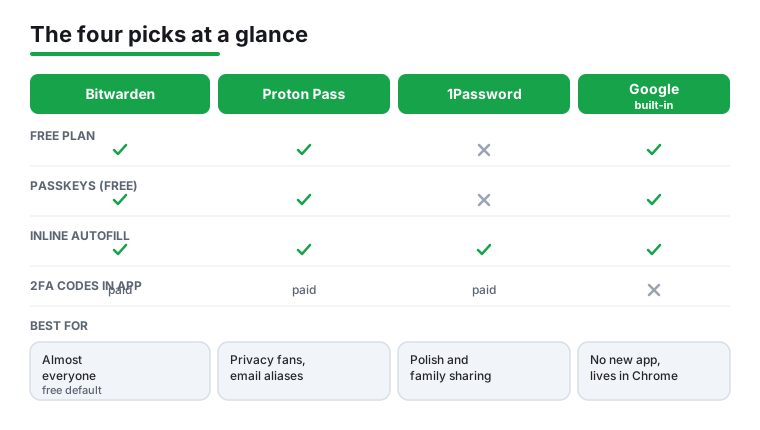
Bitwarden is our best overall pick because on 28 August 2026 its listing showed 4.7 stars, free to install and no ads label.
Proton Pass is our best free pick because its 28 August 2026 Data Safety card said no data is shared with third parties and its extras start at $4.99 per item.
1Password is our pick for polish because it is free to install but everything runs on purchases of $4.99 to $299.99 per item, read 28 August 2026.
Data checked: 3 September 2026.
Ratings, review counts, install bands, prices, purchase ranges, advertising labels and the listing update date come from each app's own Play listing, reached through the store link in its fact line and read on the date that line carries; the Data Safety section is read separately. Where Play publishes no purchase price, as with Bitwarden, this page says so and points to the developer's own pricing page instead of quoting a figure the store cannot confirm. Feature claims are linked to developer documentation where used, from Bitwarden, 1Password and Google. Google Password Manager has no store listing, so its row reads no listing rather than borrowed numbers. Nothing here rests on installing or running the apps.
Most password managers do the same core job. The differences that affect daily life are small but real, so here is what to weigh before installing anything.
One thing that does not matter much: the number of "features" on a comparison chart. Dark-web monitoring and password health scores are nice, but a manager you actually use beats a feature-packed one you abandon.
The free default
If you want one recommendation and nothing more, this is it. Bitwarden's free plan stores unlimited passwords and passkeys across unlimited devices and syncs them everywhere. That alone covers what most people need, and it has done so for years.
Where the money part is concerned, read the price at the source. Bitwarden's Google Play listing, read on 28 August 2026, publishes no in-app purchase prices at all, so nothing about Premium or Families is billed through the store and no figure here can be checked against it. Premium adds vault health reports, file attachments, emergency access, and a built-in authenticator for two-factor codes, and the Families plan covers up to six people on one bill. Check the current yearly figure on Bitwarden's own pricing page before you subscribe.
One honest catch: the built-in authenticator stores your two-factor secrets on any plan, but generating the six-digit codes needs Premium, as Bitwarden states in its integrated authenticator docs. So the free plan is excellent for passwords; if you want your 2FA codes inside the same app, you pay.
Set it up on Android:
That is the whole thing. Next time you open an app login, Bitwarden offers your saved entry above the keyboard.
↑ Back to the comparisonPay for polish
1Password has no free tier, only a time-limited trial, so it is a deliberate choice rather than a default. What you get for the money is a calmer, more finished app: clear vaults, easy sharing inside a family, and a feature called Travel Mode that hides selected vaults when you cross a border.
What the store actually publishes: on 28 August 2026 the listing showed 1Password as free to install with in-app purchases of $4.99 to $299.99 per item, and no ads label. Google Play prints a range per item rather than a monthly bill, so any monthly or yearly figure you read is the vendor's number and belongs on 1Password's own pricing page, not here. One more line from the listing is worth knowing before you commit: it needs Android 12 or newer, where Bitwarden asks for Android 10 and Proton Pass for 8.1.
It is a good fit if you share logins with a partner or run a small household and want the nicest experience. If you are mainly trying to stop reusing one password everywhere, Bitwarden's free plan does the same security job for nothing.
Setup follows the same pattern: install, sign in, then go to phone Settings and set 1Password as your autofill provider (paths below). 1Password's own Android autofill guide walks through the toggles if you get stuck.
↑ Back to the comparisonPrivacy and aliases
Proton Pass comes from the company behind Proton Mail, and it leans hard into privacy. The 2026 free plan is unusually generous: unlimited passwords, unlimited devices, a password generator, and unlimited passkeys that sync across devices for free users too. The free tier also gives you up to 10 email aliases (throwaway addresses that forward to your real inbox), which is handy for sign-ups you do not fully trust.
Pass Plus adds unlimited aliases, a built-in two-factor authenticator, file attachments, dark-web monitoring, and emergency access. On 28 August 2026 the listing put its in-app purchases at $4.99 to $119.88 per item, which is the only price Google Play publishes for it; a monthly figure is not one of the store's fields. The privacy claim does get store backing in one place: Proton Pass's Data Safety card says no data is shared with third parties, while the Bitwarden and 1Password cards both say the app may share data with third parties.
Pick Proton Pass if email aliases and a privacy-focused company appeal to you, or if you are already in the Proton ecosystem for mail and VPN. The autofill setup is the same three-step pattern as the others.
↑ Back to the comparisonAlready on your phone
If you have an Android phone and a Google account, you already have a password manager. It is built into the system and into Chrome, it costs nothing, and it syncs to every device signed into the same Google account. For a lot of people, this is genuinely enough.
What you give up by staying here: it is tied to Google, the desktop experience really only lives inside Chrome, and sharing a login with a family member is awkward compared with the dedicated apps. What you gain: zero setup and one less app to think about.
It also supports passkeys and offers on-device encryption, an opt-in mode where the keys never leave your devices so that, in Google's words, only you can see your passwords. You can read what it covers on the official Google Password Manager help page.
Find it and turn on autofill:
If you later switch to Bitwarden or Proton Pass, you do not have to delete the Google one. You just change which app is the active autofill provider, which is the next section.
↑ Back to the comparisonThis is the part people get stuck on, because the menu names differ by brand. The idea is the same everywhere: tell Android which app is allowed to fill your logins. You can only have one autofill provider active at a time.
On a Pixel or other stock Android phone:
On a Samsung phone with One UI:
After this, test it. Open an email app, tap the username field, and your manager should suggest the login above the keyboard. If nothing appears, see the mistakes section below.
A passkey is a login that lives on your device and is opened with your fingerprint, face, or screen-lock PIN. There is no password to type, phish, or reuse. When a site offers "sign in with a passkey," your phone proves it is you without ever sending a secret the site could leak.
On Android, passkeys are stored by whichever password manager you set as the provider, and they sync the same way your passwords do. Google's own manager syncs them between your Android devices and Chrome, as described in Google's passkeys documentation. From Android 14 onward you can choose to store passkeys in a third-party manager like Bitwarden, 1Password, or Proton Pass instead.
A small worked example. Say you enable a passkey for your email:
You do not have to go all-in. Most people keep passwords for old accounts and add passkeys for the important ones (email, bank, main shopping account) over time.
Migration sounds scary and almost never is. Every manager exports to a CSV file (a plain spreadsheet of your logins) and imports from one. The catch is that the CSV is unencrypted while it sits on disk, so you delete it the moment you are done.
Here is moving from Google Password Manager to Bitwarden, the most common switch:
Two real-world notes. Import does not check for duplicates, so if you run it twice you get every login twice; clean those up rather than re-importing. And doing the export and import on a desktop browser is far less fiddly than on the phone, even though the result lands on your phone seconds later. Newer phones are starting to support a direct, encrypted transfer between managers, but the CSV route works on everything today.
A few things trip people up. None are serious, but knowing them saves an afternoon.
If you want the short answer: install Bitwarden and use the free plan. It is the safe choice for nearly everyone, and you can move to Premium later if you want the extras, at whatever Bitwarden's own pricing page says on the day, since the Play listing publishes no purchase prices.
Choose Proton Pass instead if email aliases and a privacy-first company matter to you, especially if you already use Proton Mail or VPN. Choose 1Password if you happily pay for the most polished app and you share logins with family. Stick with Google Password Manager if you would rather not add an app at all and you live inside Chrome anyway.
Whatever you pick, the win is the same: one strong passphrase you actually remember, and unique passwords everywhere else. While tidying up your phone's security, it is worth reviewing your VPN options, locking sensitive apps with an app lock, and browsing the rest of our security and privacy section. Your keyboard app also affects how nicely inline autofill suggestions appear, so it is part of the same picture.
Yes, when it is a reputable one. Bitwarden and Proton Pass publish their code and pay outside firms to audit it, and Google's manager sits behind Google's account security. "Free" here does not mean weaker encryption; the paid tiers mostly add convenience features like built-in two-factor codes, file storage, and family sharing, not stronger protection for your passwords.
In most cases the vault is gone, and that is by design. These apps cannot read your data, so they cannot reset your master password for you. The fix is prevention: write it on paper, store it somewhere safe, and set up the emergency access feature if your manager offers one. A few apps allow biometric sign-in and account-recovery options, but never count on a reset email existing.
No need to delete it. Android only lets one app be the active autofill provider at a time, so you simply set your new manager as the provider in Settings. On a Pixel that is Settings, Passwords and accounts, Autofill service. On Samsung it is Settings, General management, Passwords, passkeys, and autofill. Your old Google data stays put in case you ever switch back.
Not all at once. Passkeys are growing fast and big sites support them, but plenty of accounts still rely on passwords. A sensible approach in 2026 is to add passkeys for your most important logins (email, bank, main shopping account) and keep passwords for everything else. Your manager can hold both, so you lose nothing by mixing them.
A handful of apps block Android's autofill framework, usually banking or other security-sensitive apps. When that happens, try turning on inline autofill so suggestions show in your keyboard, or open your manager, copy the password, and paste it manually. It is the app's choice, not a fault in your manager, so there is rarely a permanent fix beyond those workarounds.
The short window is the only risk. The exported CSV is a plain, unencrypted list of your logins, so anyone who finds that file can read it. The safe routine is to export, import into the new app right away, then delete the CSV and empty the trash. Do the whole thing on a trusted computer rather than a shared one, and you are fine.
 How to Move From iPhone to Android Without Losing AnythingProductivity