
Updated September 2026 · three authenticator apps now carry their own dated listing figures, with how each one backs up in the table
A password is one lock. This adds the second, explains why a text message is the weakest version of it, and gets the codes onto a new phone without locking you out on the way.
Two-factor authentication means you prove who you are with two different things. The first is something you know, your password. The second is something you have, like a code from an app on your phone or a fingerprint tied to your device. Even if a thief has your password, they cannot finish signing in without that second factor.
You will see it called 2FA, two-step verification, or multi-factor authentication. The names differ but the idea is the same. The second factor can be a text message, a code from an authenticator app, a tap on a prompt sent to your phone, a physical security key, or a passkey. They are not equally safe, which is the part most guides skip.
Getting a code by text is better than no second factor at all. It is also the easiest one to defeat. The problem is called a SIM swap. An attacker contacts your mobile carrier, pretends to be you, and convinces them to move your number to a SIM card they control. From that moment, your calls and texts arrive on the attacker's phone, including every login code.
This is not rare. In 2024 the FBI's complaint center logged hundreds of SIM swap reports with losses above 26 million dollars, and both CISA and the FBI have told people to stop relying on SMS for sign-in security. A text code also travels across the carrier network, where it can be intercepted in other ways. A code from an authenticator app never leaves your phone and is not tied to your number at all, so a SIM swap does nothing.
If SMS is the only second factor an account offers, turn it on. But where you have the choice, use an app or a passkey instead, and treat SMS as a fallback rather than your main method.
Simplest setup, codes that sync
3.9 stars from 677,995 reviews · 100,000,000+ installs · free to install · no in-app purchases listed · by Google LLC · Contains ads: No · checked 3 September 2026
Google Play listing · 3.9 (677,995) · read 3 September 2026
Google Authenticator is the one most guides assume: scan the QR code, and it produces a six digit code every 30 seconds without a network. Its optional Google account sync is what makes moving to a new phone survivable. It is free with nothing sold inside and no Contains ads label. The blunt con: at 3.9 stars from 677,995 reviews it is the lowest rated of the three here, and syncing codes to an account is a trade some people should not make.
An authenticator app generates a fresh six-digit code every 30 seconds, based on a secret shared once between the app and the account. The code is calculated on your phone, so there is nothing to intercept. Google Authenticator is the obvious starting point on Android because it is free and works with almost every service, not just Google.
To install and use it:
For your Google account specifically, open your Google Account, go to Security, then under how you sign in to Google pick 2-Step Verification and follow the steps to turn it on. You can add the authenticator from there.
Google Authenticator can now sync your codes to your Google account, so if you log in to the app on a new phone your codes come with you. Turn that on inside the app. It removes the old nightmare where a lost phone meant lost access. If you would rather keep everything offline, the sync is optional and you can leave it off. Authy and Microsoft Authenticator are solid alternatives if you prefer their backup approach, and they work the same way with the same QR codes.
One more setting worth using: the Privacy Screen option in Google Authenticator asks for your PIN, pattern, or fingerprint before the app will open, so a stranger holding your unlocked phone still cannot read your codes.
Keeping the second factor off the cloud
4.7 stars from 6,215 reviews · 500,000+ installs · free to install · no in-app purchases listed · by Beem Development · Contains ads: No · checked 3 September 2026
Google Play listing · 4.7 (6,215) · read 3 September 2026
Aegis is the pick if the point of a second factor is that it lives nowhere but your phone: the vault is encrypted behind its own password, and the export is a file you keep rather than a sync you trust. It is free with nothing sold inside and no Contains ads label, and at 4.7 stars it is the highest rated app on this page. The blunt con: a manual export is only a backup if you actually take one, and its audience is small at 6,215 reviews.
Codes on a phone and a tablet at once
3.7 stars from 96,836 reviews · 10,000,000+ installs · free to install · no in-app purchases listed · by Twilio · Contains ads: No · checked 3 September 2026
Google Play listing · 3.7 (96,836) · read 3 September 2026
Authy is the one built around having your codes on more than one device, with encrypted backups tied to a phone number. It is free with nothing sold inside and no Contains ads label. The blunt con: at 3.7 stars from 96,836 reviews it is the lowest rated app on this page, and tying recovery to a phone number reintroduces exactly the SIM swap weakness this guide warns about in the SMS section.
Passkeys are the direction sign-in is heading. Instead of a password plus a code, a passkey lets you sign in with the same fingerprint, face, or screen lock you already use to unlock your phone. Behind the scenes your device holds a private key that never leaves it, and the website only ever sees a matching public key. There is no shared secret to phish and no code to steal.
To create one for your Google account, go to your Google Account settings or visit the passkeys page, then follow the prompt to make a passkey. Your phone asks for your fingerprint, face, or PIN to confirm. You need Android 9 or later and a screen lock set. If you are already signed in on an Android phone, Google may have quietly created a passkey for you already.
Passkeys are stored in Google Password Manager and sync across your Android devices and Chrome browsers signed in to the same account. You can even sign in on a nearby laptop by approving it on your phone, without copying the passkey over. The honest limit: passkey support is still growing, so not every site offers it yet, and you usually keep an authenticator app or backup codes as your fallback. Think of passkeys as the better primary method, not a complete replacement yet.
This is the step people skip, and it is the step that saves you. When you turn on 2FA, most services offer a set of one-time backup codes. Google gives you ten. Each one works once to get past the second step if your phone is lost, dead, stolen, or reset.
Get your Google backup codes from the 2-Step Verification screen by choosing Backup codes, then download or print them. Where you put them matters:
Each code dies after one use. If you run low or think they have been seen, open the same screen and refresh the set to invalidate the old ones. Treat these codes like a spare key to your house, because that is what they are.
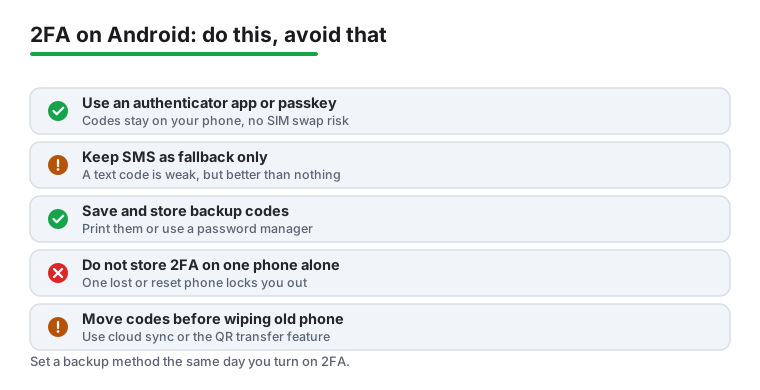
Changing phones is where most lockouts happen, because the second factor lives on the old device. Plan the move before you wipe or sell the old one.
If you use Google Authenticator with cloud sync on, the easy path is to install the app on the new phone and sign in to your Google account. Your codes appear automatically. If you keep sync off, transfer them manually: on the old phone open Authenticator, tap the menu, choose Transfer accounts, then Export accounts, and pick the accounts to move. It makes a QR code. On the new phone choose Transfer accounts, then Import accounts, and scan it.
For passkeys, signing in to the same Google account on the new Android phone brings them across through Google Password Manager. For accounts secured with non-Google authenticator apps, repeat the QR setup or use that app's own backup feature. Keep the old phone working until you have confirmed you can sign in to every account on the new one. Only then reset the old device.
Here is the trap. People turn on 2FA, store the only second factor on one phone, never save backup codes, then lose, break, or factory-reset that phone. Now the account asks for a code that no longer exists anywhere, and the recovery process can take days or fail entirely.
Avoid it by always having a second way in before you need it. That means at least two of: cloud-synced authenticator codes, saved backup codes, a passkey on another device, or a registered recovery phone and email. Set them up the same day you turn on 2FA, not later. The whole point of 2FA is to keep attackers out, but it should never be the thing that keeps you out.
It is better than nothing and worse than everything else here. A SIM swap moves your number to an attacker's card, and the codes follow. Use it only where a service offers no other option. Checked 3 September 2026.
That depends entirely on what you set up in advance. Backup codes get you in; an app with sync or an export restores the codes; neither of those set up means the account recovery process, which can take days. Checked 3 September 2026.
No. All three apps here are free to install, list no in-app purchases and carry no Contains ads label, read 3 September 2026. Paying is not what separates them: how they back up is. Checked 3 September 2026.
Gradually, and not yet everywhere. A passkey folds both factors into the device unlock you already use, but coverage is uneven, so most people run passkeys where they exist and an authenticator app everywhere else. Checked 3 September 2026.
Yes, and that is the normal setup: each account adds its own entry and its own rotating code. It also means one phone holds many keys, which is why the backup question matters more than the app choice. Checked 3 September 2026.
Somewhere that survives losing the phone and is not inside the account they protect. A password manager on another device, or printed and kept with your documents. Not a screenshot in the photo library that syncs to the same account. Checked 3 September 2026.
Checked 3 September 2026: the guide recommended an authenticator app without naming a single one in a way a reader could act on, with no store link, no rating and no dated line. Three now carry a fact line read from their own listing, a store link, a decision table row with how each one backs up, and three pros and three cons. The figures reorder the advice: Aegis rates 4.7 stars, Google Authenticator 3.9 and Authy 3.7, and Authy ties recovery to a phone number, which is the same channel the SMS section of this page warns about.
 The Best Password Manager Apps for Android (2026)Security & Privacy
 Android Phone Won't Turn On? How to Fix ItTools & Utilities