
Updated September 2026 · the five toggles now sit in one table, and the app the remote features depend on carries its own dated figures
Android has shipped a full anti-theft suite since late 2024, and January 2026 added a toggle of its own for Failed Authentication Lock. This guide turns all five on in the right order and says plainly what none of them can do.
Theft Protection is not one feature but five, and they have different version requirements:
The suite does not run on Android Go phones, tablets or Wear OS watches. If a toggle is grayed out or missing, that model does not support it; there is no hidden flag to force it. Everything below assumes a PIN, pattern or password is set, because every feature requires a screen lock.
Google buried this menu deeper than it deserves. The canonical path:
Many current phones, including Pixels on Android 16, also expose a shortcut under Settings > Security & privacy > Device unlock > Theft protection. If neither exists, update Google Play services first; the suite ships through Play services rather than firmware, which is why a 2020 phone on Android 10 still gets it. Searching "theft" in the Settings search bar is the fastest route of all.
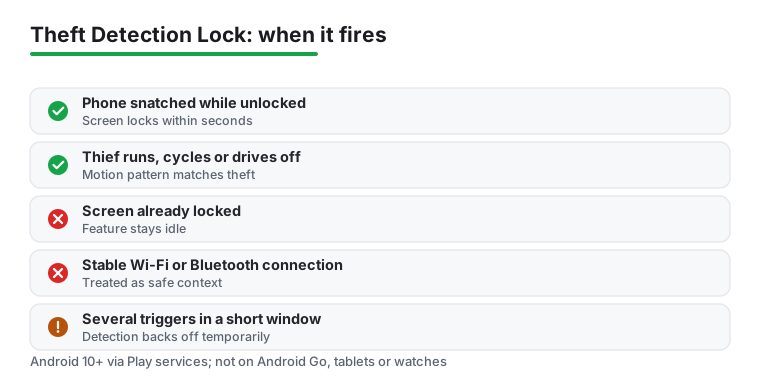
On the Theft protection screen, tap Theft Detection Lock and flip the toggle. There is nothing else to configure. The model runs entirely on-device, combining accelerometer data with Wi-Fi and Bluetooth context to recognize a phone being yanked from your hand while unlocked, followed by someone running, cycling or driving away. On a match, the screen locks within a second or two.
The caveats matter as much as the feature:
There is no notification when it fires; the phone is simply locked when you next look at it.
The first thing an experienced thief does is toggle airplane mode or pull the SIM so the phone stops reporting its location. Offline Device Lock counters that: if the phone is unlocked and loses all connectivity, the screen locks automatically.
Same menu, tap Offline Device Lock, turn it on. Two caveats. First, it locks the screen at most twice in any 24-hour period, a limit that keeps subway commuters and flight passengers from being punished endlessly. Second, it does nothing about the offline state itself; the phone still cannot be tracked until it reconnects, which is why it pairs with Remote Lock rather than replacing it.
Failed Authentication Lock watches for someone hammering wrong PINs, patterns or passwords and locks the device down when attempts pile up. Until this year it was managed for you; the January 2026 update gave phones on Android 15 and newer a dedicated toggle on the Theft protection screen, so check that it is actually on rather than assuming.
Two related hardening changes shipped alongside it on Android 16. Lockout timers after failed attempts now escalate more aggressively, stretching the time between guesses. And entering the same wrong PIN repeatedly no longer burns additional attempts, so a phone bouncing in a pocket, or you confidently retrying a misremembered PIN, no longer counts as an attack.
Remote Lock is the feature you will actually use in a crisis, because it works from any browser with nothing but your phone number. No Google password needed, which is the point: after a theft you are usually standing on a street holding someone else's phone.
Setup:
To use it later, open android.com/lock on any device, enter the phone number, complete the verification challenge, answer your security question, and confirm. If the thief already forced the phone offline, the lock lands the instant it reconnects. It works a maximum of twice per 24 hours and requires Find Hub, which is on by default on any device signed in to a Google account.
A locked screen is worthless if the thief watched you type your PIN before grabbing the phone, the most common pattern in bar and transit thefts. Identity Check closes that hole: away from your trusted places, sensitive actions demand your fingerprint or face, and the PIN is not accepted as a fallback.
Setup: Theft protection > Identity Check, then sign in, confirm biometrics are enrolled, and designate trusted places such as home and work. It launched on Android 15 for Pixel and Samsung, and Google has since expanded it to cover every app that uses Android's biometric prompt, including banking apps and Google Password Manager. That means a thief with your PIN still cannot read saved passwords, change the screen lock, or turn off Find Hub outside your trusted zones.
If the option does not appear on your Theft protection page, your manufacturer has not enabled it yet. In that case a third-party locker from our roundup of app lock apps for Android can gate individual banking and email apps behind a separate credential, which covers part of the same ground.
Locating and locking a phone that is gone
4.2 stars from 1,671,213 reviews · 1,000,000,000+ installs · free to install · no in-app purchases listed · by Google LLC · Contains ads: No · checked 3 September 2026
Google Play listing · 4.2 (1,671,213) · read 3 September 2026
Find Hub is the app behind the parts of Theft Protection that work after the phone is gone: Offline Device Lock reports through it, and Remote Lock is its web counterpart. It is signed in and on by default on any phone with a Google account, free to install, with no Contains ads label and nothing sold inside. The blunt con: it only helps a phone that is powered on and signed in, which is exactly what a careful thief changes first.
Google lists the app under its current name on its own Play listing, which reads "Google's Find Hub": guides that still say Find My Device are describing the same app under its old name.
Speed matters most in the first ten minutes. Borrow any phone or laptop and work down this list:
Be clear about the limits. None of these features prevent the physical theft, and none of them protect data on a phone stolen while powered off, since Theft Detection Lock needs an unlocked screen and Remote Lock needs the device to come online. A stolen SD card is readable in any computer regardless of your screen lock, so avoid storing sensitive files on one. And the suite is anti-theft, not anti-malware; sideloaded spyware that captures your credentials sits entirely outside its scope, which is where the antivirus apps we cover earn their keep.
Finally, test your setup this week. Ask a friend to visit android.com/lock with your number and stop at the security question. Open Find Hub from another device and confirm your phone appears with a recent location. Five minutes of rehearsal is the difference between a calm response and a panicked one.
No meaningfully. The detection runs on the device using sensors the phone already reads, and there is no continuous network call behind it. Checked 3 September 2026.
Usually it means the phone is below Android 10, or the feature has not rolled out to that model yet. Check for a system update first, then look again under Settings, Google, All services, Theft protection. Checked 3 September 2026.
They would need your phone number and the answer to the security question you set, which is why setting that question in advance matters. Without it the page cannot lock anything. Checked 3 September 2026.
The lock command still queues, and it lands the moment the phone reaches any network again. What removing the SIM stops is live location reporting through Find Hub. Checked 3 September 2026.
Rarely. The five features here are built into Android and cost nothing, and Find Hub is already signed in on a phone with a Google account. A third-party app adds another thing with deep permissions for little gain. Checked 3 September 2026.
They are Android features, not Pixel ones, so Samsung and other makers get them at the Android versions listed in the table. Menu wording varies slightly by brand. Checked 3 September 2026.
Checked 3 September 2026: the guide walked through five features with no table, no capsule and no dated line, and named the app they depend on without linking it or saying what it is now called. The five toggles now sit in one decision table with the Android version each needs, and Find Hub has its own section with a fact line read from its listing: 4.2 stars from 1,671,213 reviews, free to install, no in-app purchases and no Contains ads label. Worth knowing for anyone following an older guide: the app is listed as Google's Find Hub, not Find My Device.
 How to Back Up Your Android Phone the Right WayTools & Utilities