
Before installing anything, check what you already have: Google Photos includes a collage tool that is on almost every Android phone and takes about ten seconds to use. It is enough for a lot of people. The apps below are for when it is not, and they divide by what you are making rather than by which is best.
Updated August 2026 · every app on this page verified against its own Google Play listing on 28 August 2026.
Canva is our best overall pick because on 28 August 2026 its Play listing showed 4.8 stars, no Contains ads label and free installation with purchases from $1.49.
Google Photos is our best free pick because on 28 August 2026 its listing showed 4.4 stars, no Contains ads label and no in-app purchases at all.
Mirror Lab is our strange-effects pick because on 28 August 2026 its listing showed 4.7 stars, no Contains ads label and purchases from $10.99.
Data checked: 3 September 2026.
Already installed
Google Photos has a built in collage feature that most people never notice. Select several photos, choose the collage option, and it produces a grid immediately. No install, no account beyond the one you already have, no watermark, no ads.
The limits are real: fixed layouts, little control over spacing and borders, no text or stickers. If you want a quick grid to send to family, that is not a limitation. If you want to design something, read on.
↑ Back to the comparisonText on top
Canva is the strongest choice if the collage carries text, because it is a design tool rather than a photo tool. Large template library sized correctly for stories and posts, straightforward text handling. Free tier is generous; some templates and assets are paid.
Sized for the feed
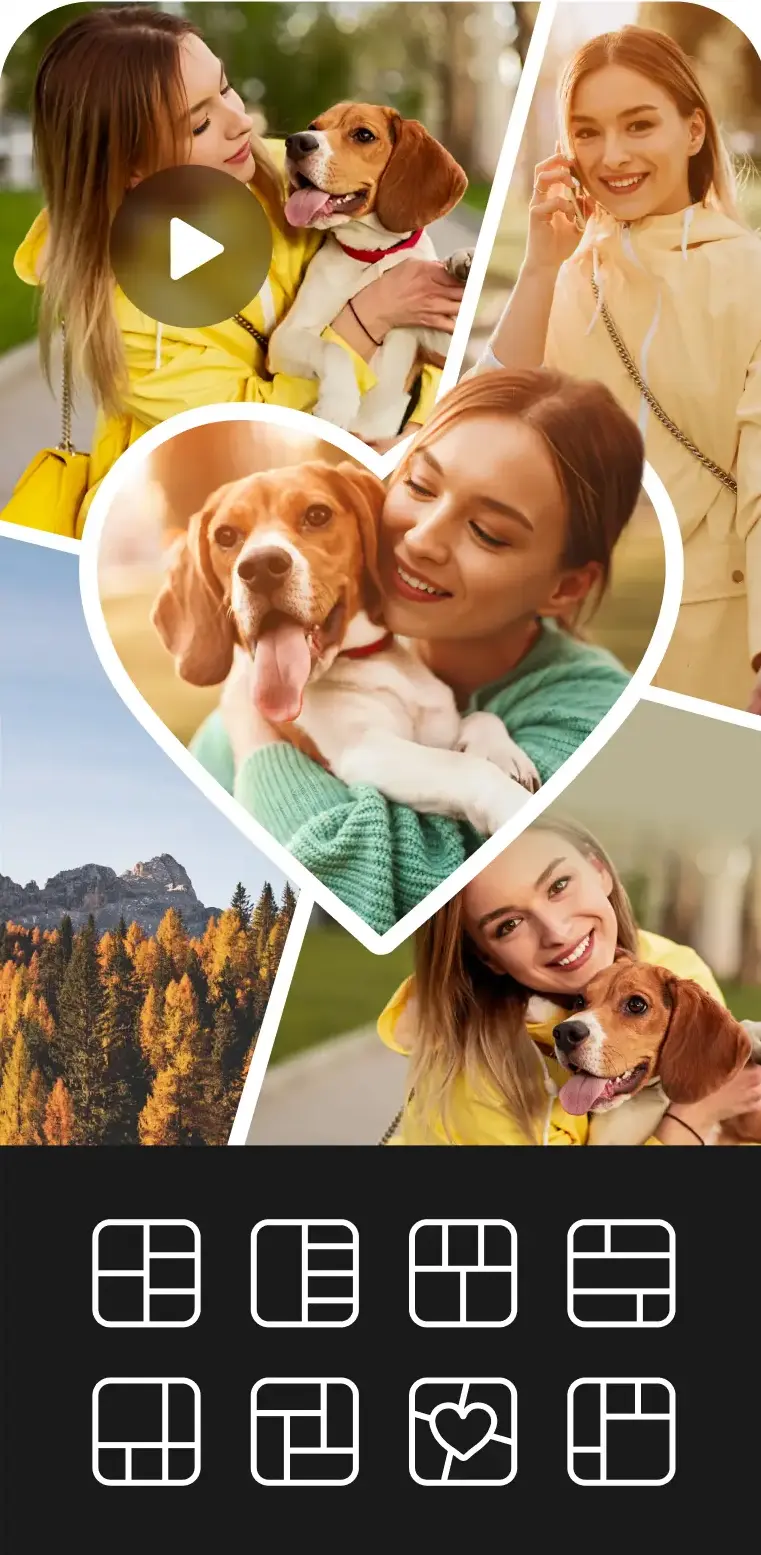
PhotoGrid does exactly what its name says and does it quickly, with aspect ratio presets that match the common social formats so nothing gets cropped awkwardly on upload. One caution about which PhotoGrid you install: the listing carrying that name on 28 August 2026 was first published on 3 March 2024, is credited to PhotoGrid Corporation, shows 10,000,000+ installs and carries the Contains ads label, while the older com.roidapp.photogrid address returned a 404 when we read it on the same day.
Freeform and stickers
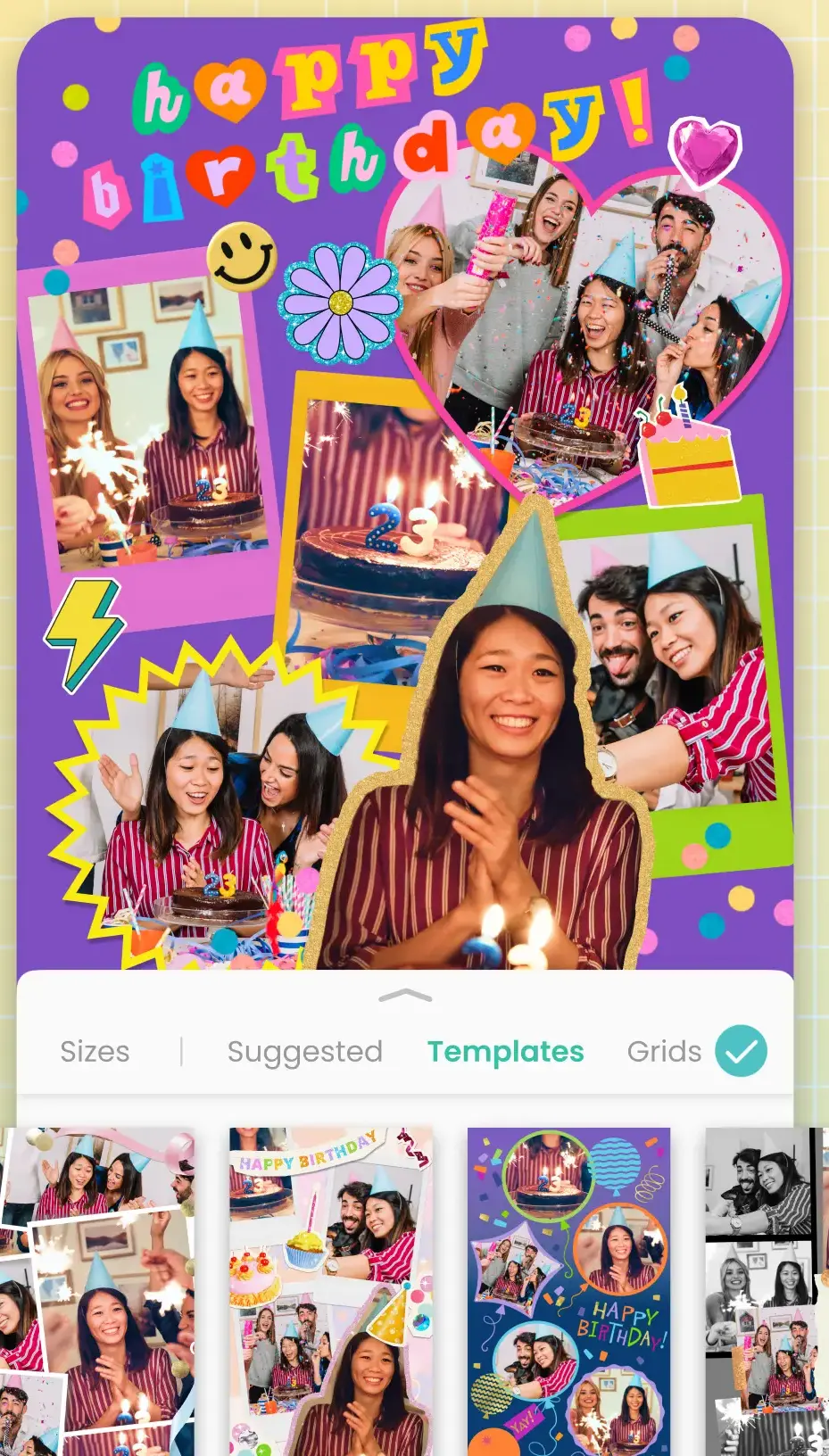
PicCollage is built around freeform arrangement rather than grids. Photos can be rotated, overlapped and decorated with stickers, which suits birthday and holiday collages more than tidy layouts.
↑ Back to the comparison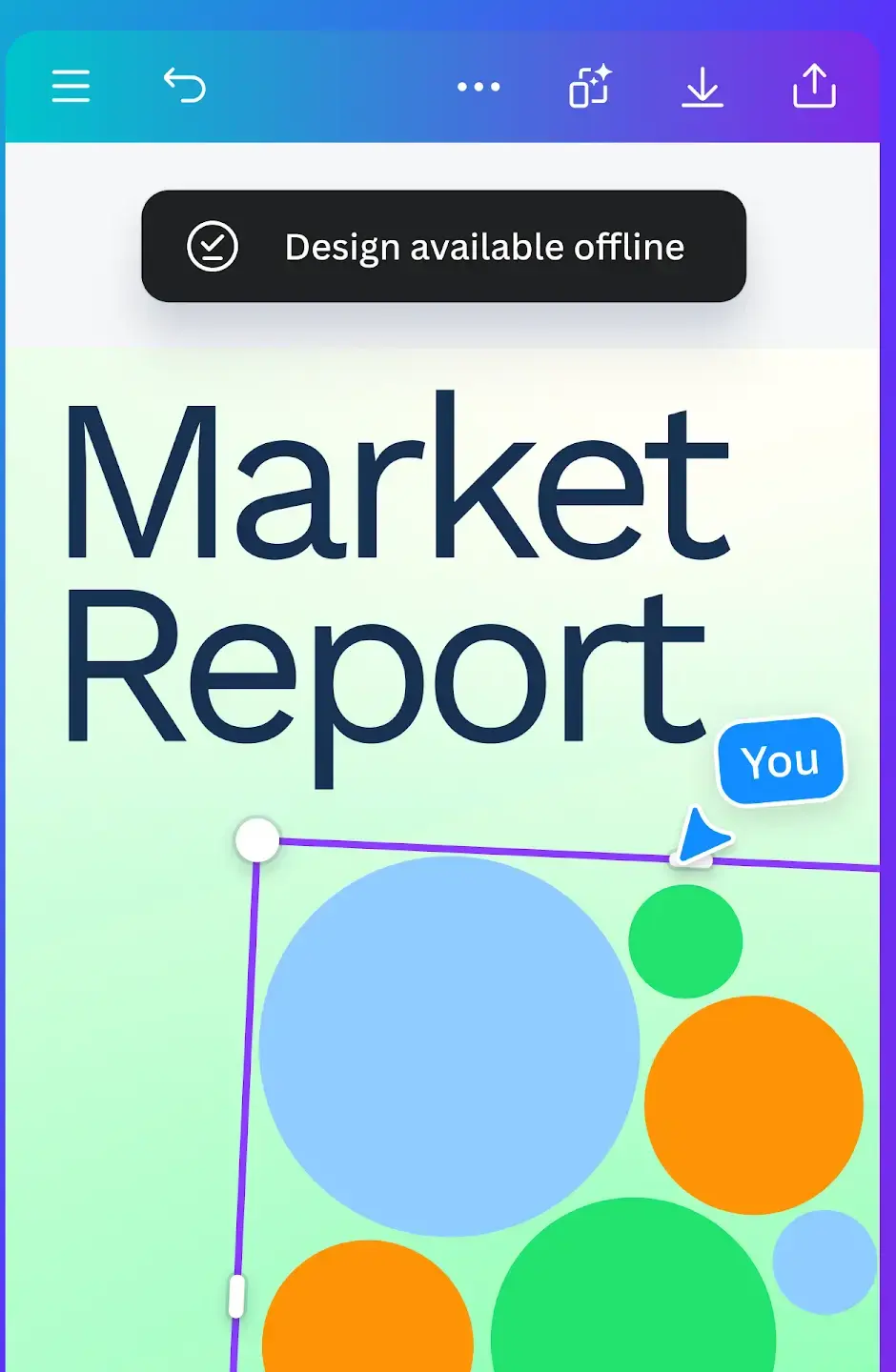
Borders and spacing
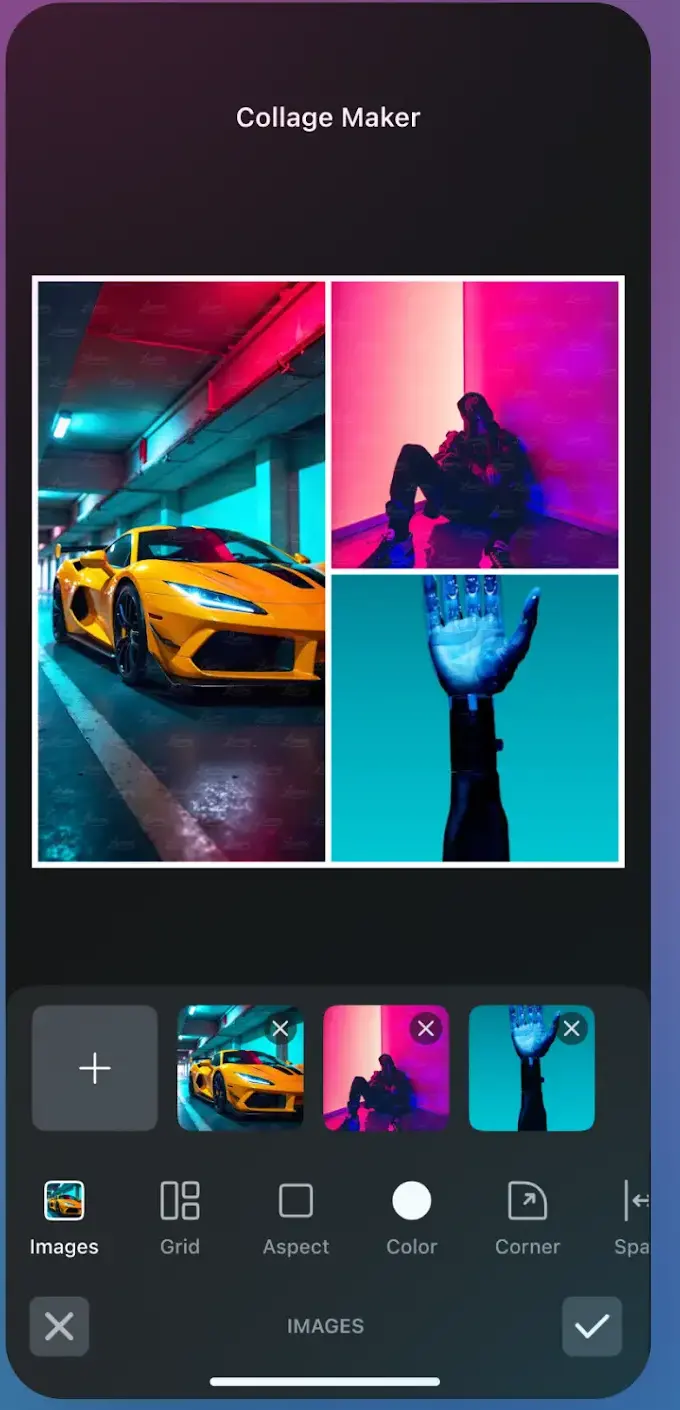
Collage Maker is the focused option: grids, layouts and free arrangement without a large surrounding app. The adjustable borders and spacing are what people usually come for. This page called it Collage Maker by InShot until 28 August 2026; on that day the listing is titled Collage Maker | Photo Editor, is credited to Photo Editor & Collage Maker at photoeditorapps.com, and carries the Contains ads label, so the developer name here now follows the store.
The everything app
PicsArt is the maximalist choice, combining grids, freestyle, backgrounds and a very large template catalogue with editing tools. More capable than most people need, and correspondingly busier to use.
Middle ground
Fotor sits in between, pairing competent editing with magazine style layouts and a tidy interface.
Layers on a phone
Pixlr brings desktop style layers and effects to the phone, which is the right tool when a collage needs to go beyond arranging rectangles. It is also the lowest rated app on this page: 3.6 stars from 1,214,702 ratings on 28 August 2026, on a listing that carries the Contains ads label.
↑ Back to the comparisonIf the collage will be printed, quality matters more than templates.
Print quality first
Adobe Lightroom is the pick here. Its strength is not collage variety but colour and exposure work before assembly, which is what separates a print that looks good from one that looks like a phone screenshot.
Whatever app you use, check the export settings before printing. Many apps default to a resolution sized for social media, which looks fine on a phone and poor on paper. Look for a quality or resolution option in the export dialogue and set it to the maximum.
↑ Back to the comparisonCut out, not boxed
PhotoLayers is for collages with cut out subjects layered over each other rather than photos in boxes. The eraser tool for isolating a subject is better than the category usually manages. Its listing on 28 August 2026 shows no in-app purchases at all but does carry the Contains ads label, so the price is advertising rather than money.
Selfies and retouch
YouCam Perfect aims at selfies, with soft framed layouts and retouching alongside the collage tools.
Strange, not tidy
Mirror Lab is not a collage app in the normal sense. It makes kaleidoscopic and mirrored compositions out of your photos, and it is the one to try when you want something strange rather than tidy. On 28 August 2026 its listing carries no Contains ads label, prices its unlocks from $10.99, and its Data Safety section is the only one on this page that says no data is collected.
↑ Back to the comparisonWatermarks. Several free apps stamp the finished image. Usually there is a small close or remove control on the watermark layer before you export, and it is easy to miss. If not, removing it is what the paid tier sells. Check before you spend time on a design, not after.
Whether your photos are uploaded. Most collage apps process entirely on the device, and your photos never leave the phone. The exceptions are the cloud based features: AI backgrounds, automatic subject cutout and template syncing generally send the image to a server. If that matters to you, stick to the offline editing tools and avoid the AI ones. The store says a little more than that: on 28 August 2026 the Data Safety sections for PicsArt, Fotor, Pixlr and PicCollage each said the app may share data with third parties, while the other eight listings on this page said no data is shared, and one of those eight, Mirror Lab, said no data is collected at all. That covers more than your photos, but it is the only declaration the store publishes.
On photos in general, a collage app is not an editor. For adjusting the images themselves, see our guide to the best photo editor apps for Android.
Google Photos, which is already on most Android phones, makes grid collages with no watermark, no ads and no extra install. Canva also has a capable free tier and its listing shows no ads label. PhotoGrid is free to use as well, but on 28 August 2026 its listing carries the Contains ads label, so the free tier there is paid for with advertising.
Canva if the collage includes text, since it is a design tool with correctly sized templates for posts and stories. PhotoGrid if you want a fast grid, because its aspect ratio presets match the social formats so nothing is cropped awkwardly.
Yes, but check the export settings first. Many apps default to a resolution meant for social media, which looks poor on paper. Find the quality or resolution option before exporting. Editing the photos in Lightroom before assembly makes the biggest difference to a print.
Fewer than you think. Beyond about six to nine, individual images become too small to read on a phone screen. If you have more, several collages work better than one crowded grid.
Usually not. Most collage work happens on the device. The exceptions are cloud features such as AI backgrounds, automatic subject cutout and template sync, which do send the image to a server. Stick to the offline tools if that matters.
Some free apps add one. Look for a small close or remove control on the watermark layer before exporting, which is easy to miss. If there is none, removing it is what the paid version sells, so check before spending time on a design.
 Best Photo Editor Apps for AndroidPhoto & Video
 Best Scanner Apps for AndroidPhoto & Video