
Getting More Done With WhatsApp Web on Android
If your thumbs are tired from typing replies all day, pairing WhatsApp Web with your Android phone is one of the quietest productivity wins out there. We spent a couple of weeks running it as our main messaging setup across a Pixel and a mid-range Samsung, and the short version is this: once it is linked, you stop reaching for your phone every few minutes and start clearing chats from a real keyboard. Here is exactly how we set it up, what felt genuinely useful, what changed in 2026, and where it still trips people up.
How to set up WhatsApp Web from your Android phone
The whole thing hinges on a QR code, and the process takes about a minute. Open a browser on your computer and go to web.whatsapp.com. On your Android phone, open WhatsApp, tap the three dots in the top right, and choose Linked Devices. Tap Link a Device, let it use the camera, and point the phone at the QR code on your screen. That is it. Your chats sync over within a few seconds, and recent conversations land first so you can start replying before the whole history finishes loading.
In our testing the camera step was the only place people stumbled, usually because the screen brightness was too low for a clean scan. Bumping brightness up fixed it every time. If the code still will not read, try zooming the browser page to 100 percent, because some people run their monitor at a scaled resolution that shrinks the QR square below what the camera wants.
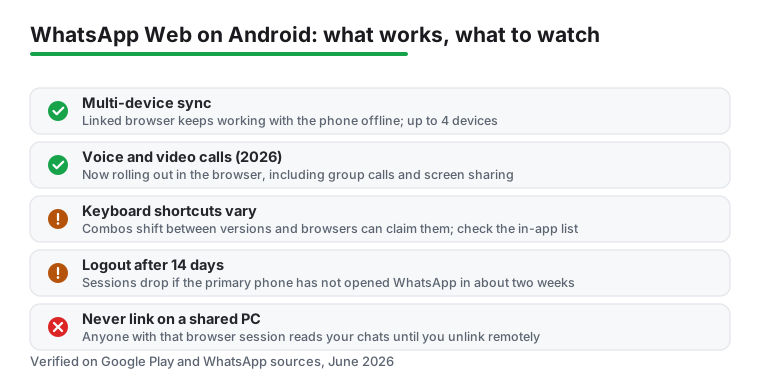
One detail worth knowing in 2026: WhatsApp runs on a multi-device system, so your phone does not need to stay connected to the internet for the web session to keep working. The linked browser talks to WhatsApp's servers directly. We left a phone in another room on airplane mode and the linked browser kept sending and receiving for the full session. You can link up to four devices to one phone at the same time, which covers a work laptop, a home desktop, a tablet, and a spare without forcing you to unlink anything. The catch sits on the phone side: if you do not open WhatsApp on your primary phone for about fourteen days, every linked device gets logged out for security. So if you come back to a logged-out screen, that is usually why, and a quick rescan puts you back in. It is also worth opening that Linked Devices list every week or two to remove sessions you no longer use. Each entry shows the device type and last active time, so stale links are easy to spot, and it takes about ten seconds.
The features that actually saved us time
Typing on a full keyboard is the obvious one, but the gains add up in smaller ways. Drag and drop is the feature we missed most when we switched back to phone-only. Pulling a PDF or a batch of photos straight from a desktop folder into a chat beats hunting through the mobile gallery every time. Pasting screenshots directly into the message box was equally handy for quick support replies, and you can paste an image you just copied without ever saving it to disk first.
Search is faster too. The web search bar scans across all your conversations as you type, which made digging up an address someone sent last month painless, and per-chat search jumps you to the one message you half-remember. We also leaned on keyboard shortcuts more than expected. The exact combinations have shifted around over the past year, and your browser sometimes claims a shortcut before WhatsApp can, so the reliable move is to open the in-app shortcut list and read what your version actually uses. In our current build on Windows, Ctrl plus Alt plus N starts a new chat, Ctrl plus Alt plus E archives the open one, Ctrl plus Alt plus Shift plus M mutes, Ctrl plus Alt plus Shift plus U marks unread, and Ctrl plus Alt plus forward slash jumps to search. To see every shortcut, open the three dot menu and choose Keyboard Shortcuts under Settings. After a day of muscle memory, clearing an inbox of 40 chats took a fraction of the usual time.
The big change for 2026 is calling. For years WhatsApp Web could not place a voice or video call, and you had to grab the phone for anything beyond text. That gap is closing. Starting in February 2026, WhatsApp began rolling out native voice and video calls inside the browser, including group calls and screen sharing, with the same end-to-end encryption as the phone app. It is arriving in stages rather than all at once, so depending on your account and browser you may already see a call button at the top of a chat, or you may still be waiting for it. If you do not see it yet, the desktop app has had calling for a while and is the fallback. We mention this because plenty of older guides still flatly say calls are impossible on the web, and that is no longer true.
Voice messages, reactions, replies, polls, starred messages, message editing, and the disappearing-messages toggle all work the same as on the phone, so the web view is now close to a full mirror rather than a stripped-down version.
Practical tips to work faster
A few habits made the biggest difference for us. First, pin your three or four busiest chats on the phone before you start. Pins carry over to the web view and keep the people who matter at the top all day. Second, lean on the notification controls inside the web Settings rather than letting every ping interrupt you. We turned notifications on for the first hour of the morning, then muted them and checked in batches. You can also mute individual noisy group chats from the web side, and that setting syncs back to the phone.
Third, if you live in your browser, install WhatsApp Web as a progressive web app. In Chrome you do this from the address bar menu or the three-dot menu under the install option, and it gives you a standalone window with its own taskbar icon instead of a buried tab. It survives a browser restart, so you are not hunting for the right tab every morning, and it stops messaging from competing with 30 open tabs.
Fourth, use the formatting tricks so longer messages are easy to skim on the other end. Wrap text in asterisks for bold, underscores for italics, a tilde on each side for strikethrough, and three backticks for a code block when you are pasting a snippet or a tracking number. On a real keyboard these are quick, and they make instructions far clearer than a wall of plain text.
One more that we keep coming back to: use starred messages as a lightweight to-do list. Star anything that needs an action, clear the star when it is done, and you have a running task list that follows you between devices without a separate app. It is not a project manager, but for the small follow-ups that hide inside chats, it works.
Permissions and the downsides worth knowing
WhatsApp Web is a mirror of your phone account, not a separate login, so the privacy picture is mostly about the device you link it to. The big rule we follow: never scan that QR code on a shared or public computer. Anyone with access to that browser session can read your chats until you unlink it, and a logged-in session does not ask for a password again. The fix is simple. Open Linked Devices on your phone, tap the active session, and log it out remotely the moment you are done. If you forget, that fourteen-day expiry is a backstop, not a plan.
The browser also asks for notification access and, if you make a call or send voice notes, microphone and camera access. Those prompts are reasonable for what they do, and you can decline the microphone and camera and still use everything except recording and calling from the desktop. Notifications you can leave off entirely if you would rather check on your own schedule.
The honest downsides. Large video files can be slow to load in the browser, and on a weak connection the web client lags the phone. Calling, as noted above, is still rolling out, so you may not have it yet. The web view also depends on your browser staying open and your computer awake; close the tab or sleep the laptop and notifications stop until you come back. And the phone still needs to check in every couple of weeks or the whole arrangement resets. None of this was a dealbreaker for text-heavy days, but it is good to know before you commit.
One cost note even though the app is free: WhatsApp Web uses your computer's connection, so on a metered or hotspot setup, syncing months of media on the first link can chew through data faster than you expect. If you are on a capped plan, do the initial link on wifi.
Alternatives and where WhatsApp Web fits
WhatsApp Web is not the only way to message from a bigger screen, and the right pick depends on who you talk to. If most of your contacts are on Telegram, its desktop app is a genuine standalone client that works entirely independent of your phone, which some people prefer because it does not lean on a primary handset at all. Signal also offers a real desktop app and is the one we reach for when a conversation needs to stay private. For anyone juggling plain text messages, a solid Android SMS app paired with Messages for web covers the people who never installed a chat app at all.
It is also worth knowing that WhatsApp itself ships a dedicated desktop app for Windows and Mac, separate from the browser version. It has carried calling longer than the web client and feels a little snappier with large media, so if you are on one machine all day it is the steadier choice. The web version wins when you hop between borrowed or locked-down computers where you cannot install anything.
We dug into the privacy-focused options in our roundup of free Android SMS apps for privacy, which is worth a look if encryption matters to you. For a wider view of what else is out there, our guide to the best free messaging apps for Android compares the major players side by side, and the full messaging apps for Android pillar lays out our recommendations by use case. You can also browse everything in our Communication apps hub. Our take after living with it: if WhatsApp is already where your conversations happen, the web companion is the lowest-effort upgrade you can make. There is no new app to learn, no contacts to migrate, just a faster way to handle the chats you already have, and as of 2026 it finally does calls too.
Frequently asked questions
Do I need to keep my phone connected to use WhatsApp Web?
No. With the multi-device system, your linked browser keeps working even when your phone is offline. We tested this with a phone on airplane mode and messages still sent and arrived. Your phone only needs to come online at least once every two weeks or so to keep the linked sessions from being logged out for security.
Is WhatsApp Web safe to use on Android?
It is safe on a device you trust, because it mirrors your own account rather than creating a separate one, and the chats stay end-to-end encrypted. The main risk is linking it on a shared computer where someone else could open the session. Always open Linked Devices on your phone and log out remotely when you finish a session you do not control.
Can I make voice or video calls from WhatsApp Web?
Yes, this changed in 2026. WhatsApp began rolling out native voice and video calls, including group calls and screen sharing, inside the browser version starting in February 2026. The rollout is gradual, so you may not see the call button yet depending on your account and browser. If it has not reached you, the separate WhatsApp desktop app has supported calling for longer and works as a fallback.
Why does my WhatsApp Web keep logging out?
Linked sessions log out after about fourteen days if your primary phone has not opened WhatsApp in that time, so an occasional logout is normal. Just rescan the QR code to reconnect. If it happens constantly, check that you have not hit the four linked-device limit and remove any old sessions you no longer use.