
Updated September 2026 · all three apps now carry their own dated listing figures, and two claims on this page were corrected by the listing
Gas is one of those costs you barely notice until you total it up at the end of the month, and then it stings. The question worth answering is whether a free app can genuinely shave money off every fill-up. The short version is yes, with a few caveats worth knowing before you install it. One of those caveats is about Android Auto, and it is not what most people expect, so we cover it honestly below. Here is exactly how to set it up, the features that matter day to day, and where it falls short.
Prices at neighboring stations can differ by a surprising amount, sometimes twenty or thirty cents a gallon between two pumps a mile apart. Eyeballing the big roadside signs while driving is both unsafe and unreliable, so the job belongs to an app that does the comparing for you. GasBuddy is the name most people land on, and the reasoning is sound. It pulls crowd reported prices from a large community of drivers, so the numbers stay reasonably fresh in busy areas.
The math gets more interesting on a long trip. Across a long route the per gallon spread between the cheapest and priciest stations adds up. On a tank or two that gap is small. Stretched across a full road trip with several fill-ups, planning each stop around a cheaper station is where the money is. The app is not doing anything magical here. It is just surfacing information you would never gather by hand while moving at seventy.
It helps to be realistic about who benefits most. If you drive a few miles a day and fill up once a fortnight, the savings will be modest and you might not bother opening the app every time. If you commute long distances, drive for work, or take regular road trips, the difference is more noticeable because you are buying more fuel more often. Either way, the install costs nothing, so trying it for a month and judging by your own receipts is the fair test. If you care about the cost side of driving more broadly, it pairs nicely with tracking your mileage too, which we cover in our guide to the best Android mileage tracking apps.
Installation is the easy part. Grab GasBuddy from the Play Store, open it, and let it use your location so it can show stations near you. The full name on the listing is GasBuddy: Find & Pay for Gas, and the developer shown on Play, read 5 September 2026, is PDI Software, Inc., so check that before you tap install to avoid copycats. You can browse without an account, but creating one takes under a minute and turns on the points and rewards features if you care about those.
On first launch the app pushes you toward the optional payment card and toward signing up for rewards. You can skip the card for now and still use everything that matters. Set your preferred fuel grade so the prices shown match what you actually buy, and turn on the home screen widget so the cheapest nearby price sits right on your launcher. The widget is the part worth keeping, because a glance tells you whether it is worth a short detour before a quieter glance turns into a full app session.
One small tip: open the filter settings and pick the brands and amenities you care about, because the default view lists everything and the clutter slows you down when you are in a hurry. If you only buy from one or two chains because of a loyalty card, filtering to those keeps the list short and honest. Turn off most of the notifications. By default the app pings you about deals and games, and trimming that back to nothing makes the whole thing calmer to live with. None of this setup is hard, but spending five minutes on it up front is the difference between an app you keep and one you delete after a week of noise.
Finding the cheapest pump before you leave
2.9 stars from 818,909 reviews · 10,000,000+ installs · free to install · in-app purchases $4.99 to $9.99 per item · last updated 30 July 2026 · by PDI Software, Inc. · Contains ads: Yes · checked 5 September 2026
Google Play listing · 2.9 (818,909) · read 5 September 2026
Three things on its listing, read 5 September 2026, correct what this page used to say. The developer shown on Play is PDI Software, Inc., not GasBuddy, LLC. The app carries the Contains ads label and it does sell paid tiers, as in-app purchases of $4.99 to $9.99 per item, so the free version is the ad supported one by design. And its rating is 2.9 stars from 818,909 reviews, the lowest of any app on this page, on a data safety card that says the app may share data types with third parties.
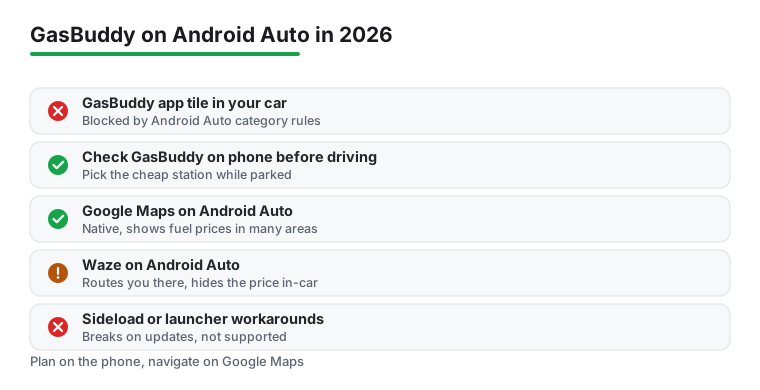
Here is the part that trips people up, and the reason we changed our advice from an earlier version of this guide. GasBuddy does not run on Android Auto. There is no GasBuddy tile on your car screen, and as of 2026 there is no sign one is coming. This is not GasBuddy being lazy. Android Auto allows a limited set of app categories on the dashboard, and although a points-of-interest category now exists for things like fuel finders, most gas price apps still have not shipped a dashboard version. Google enforces that list, so the app simply cannot appear there even if the developer wanted it to.
You will find forum threads where people try to force it on with sideloaded launchers or unofficial workarounds. We do not recommend going down that road. Those hacks tend to break with each Android Auto update, can stop your other car apps working properly, and put you outside anything Google or GasBuddy will support. The juice is not worth the squeeze for a price you could have checked in ten seconds before you left.
So the practical workflow is simple. Check GasBuddy on your phone while you are still parked, decide where you are filling up, and then drive. If you want a price reference once you are moving, the in-car option is Google Maps, which runs natively on Android Auto and shows fuel prices for many stations in supported regions. Waze has its own crowd-sourced gas prices that are often very current, but be aware that as of 2026 those prices show only in the phone app and not in the Android Auto projection, so Waze on your car screen will route you to a station without displaying the price.
Navigation on Android Auto that shows prices on the way
3.2 stars from 19,533,196 reviews · 10,000,000,000+ installs · free · no in-app purchases · by Google LLC · Contains ads: Yes · checked 5 September 2026
Google Play listing · 3.2 (19,533,196) · read 5 September 2026
The app that is actually on the dashboard, and the one that surfaces fuel prices in many regions while navigating. Free, no in-app purchases, and the Contains ads label on its listing, read 5 September 2026. Its rating is a surprise worth stating: 3.2 stars from 19,533,196 reviews, on 10,000,000,000+ installs, with a data safety card that says no data shared with third parties and an independent security review.
Most of the app is noise once you find your rhythm. The map view is the screen that matters, colour coding stations from cheap to pricey so a glance says where to go. Tapping a station opened a card with the posted prices by grade, the time the price was last reported, and a hand-off to your navigation app of choice, which hands a destination to Google Maps before pulling out of the driveway.
The trip cost feature is the one to open before a road trip: it estimates fuel spend for a route so the budget is set in advance. Reporting a price at the pump earns points and takes ten seconds, and doing it keeps the community data accurate for the next driver, so it is a habit worth keeping. That reporting loop is the whole reason the app works, so if everyone freeloads the prices go stale. Ten seconds at the pump is a fair trade.
The rewards side has been reworked. There is now a single Rewards tab that gathers the ways to earn and spend points in one place, and GasBuddy has added activities like scanning receipts, playing small games, answering surveys, and browsing marketplace and finance deals to rack up points. Points convert to cents-per-gallon discounts at the pump or to digital gift cards. Most of these are low-value time sinks. Scanning a receipt now and then is harmless, but real minutes playing in-app games buy a fraction of a cent off a gallon. There is also a GasBack program that returns rewards when you shop or dine through GasBuddy's deals, redeemable at the pump. The real value sits in three things: the map, the trip cost estimate, and reporting prices. Everything else is optional.
Let us be honest about the trade-offs. GasBuddy wants location access, which is fair enough for a gas finder, but to get the most accurate nearby results it nudges you toward allowing location all the time rather than only while using the app. The while-using-the-app setting is enough for the app to do its job, so start there and only loosen it if you find the results genuinely lacking. Allowing all-the-time location to any app means it can log where you go even when you are not using it, so that is a privacy cost, not just a convenience toggle.
The free version shows ads, including a full screen one at launch, which is intrusive when all you want is a quick price check. The listing, read 5 September 2026, carries the Contains ads label and sells in-app purchases of $4.99 to $9.99 per item, so the free tier is the ad supported one and the paid tiers are where the per-gallon discounts live. Crowd sourced prices can also go stale in rural areas where fewer people report, so treat those numbers as a guide rather than a promise.
The optional Pay with GasBuddy card deserves its own caution. The card comes in a free tier plus paid Plus and Premium memberships. The free card guarantees only about three cents a gallon, and the headline thirty-three cents needs an activated Flash Deal; the paid tiers, sold as in-app purchases of $4.99 to $9.99 per item on the listing read 5 September 2026, give twenty cents a gallon on your first fifty gallons each month (checked July 2026). It works at most stations, but it links directly to your checking account and pulls funds like a debit card rather than a credit card. That means fewer fraud protections than a credit card gives you, and you are handing bank access to an app company. It can pay off if you fill up a lot and trust the setup, but it is not something to recommend broadly, especially for occasional drivers. None of these points are dealbreakers, but they are worth a clear head before you commit.
GasBuddy is the one to install first for finding cheap fuel, but it is not the only tool in the glovebox, and as we covered above it is not the one you will use while driving. If you mainly want navigation that happens to show fuel prices, Google Maps surfaces gas costs in many regions and runs on Android Auto, so you may already have the in-car answer open anyway. Waze is great for live traffic and shows gas prices in its phone app, just not on the car screen.
Drivers who like to understand what their car is doing under the hood should look at our picks for OBD2 diagnostics in these OBD2 apps, which can flag a dragging brake or a misfire that quietly eats your fuel economy in ways a price app never will. Better driving habits and a healthy engine often save more over a year than chasing the cheapest pump. And for the bigger picture on everything car and commute related, our Navigation & Auto hub collects the apps we cover for the road. Pick the combination that fits how you drive: GasBuddy on the phone before you leave, Google Maps on the dash once you are moving, and a diagnostics app for the longer game. Your wallet will thank you.
Traffic first, with prices as a bonus
4.3 stars from 8,911,842 reviews · 500,000,000+ installs · free · no in-app purchases · updated 1 September 2026 · by Waze · Contains ads: Yes · checked 5 September 2026
Google Play listing · 4.3 (8,911,842) · read 5 September 2026
The best rated app on this page at 4.3 stars from 8,911,842 reviews, free with no in-app purchases and the Contains ads label, read 5 September 2026, and updated on the store on 1 September 2026. It shows gas prices in the phone app, just not on the car screen, and its data safety card, like GasBuddy's, says data may be shared with third parties.
No. As of 2026 GasBuddy does not run on Android Auto, and there is no tile for it on your car screen. Android Auto only allows navigation, audio, and messaging apps on the dashboard, and a gas price finder does not fit those categories. The practical approach is to check prices in the GasBuddy phone app before you drive, then use Google Maps on Android Auto, which shows fuel prices for many stations while you navigate.
Yes. The core app is free, including the map, price search, trip cost estimate, and rewards. It is funded by ads and an optional payment card, so you will see the occasional banner or full screen advert, and there is no paid ad-free tier we could find. There is no paywall on the features that matter, namely finding and routing to cheaper fuel.
It depends on where you are. Prices come from drivers reporting them at the pump, so in cities and along busy highways the data stays fresh and reliable. In quieter rural spots with fewer contributors, a listed price can be hours or days old, and we did see that happen on a quiet route. Each station card shows when the price was last reported, so check that timestamp before you trust a number.
It can be if you buy a lot of fuel. The free card guarantees about three cents a gallon, and the advertised thirty-three cents needs an activated Flash Deal; the paid Plus and Premium memberships, sold as in-app purchases of $4.99 to $9.99 per item on the listing read 5 September 2026, give twenty cents a gallon on your first fifty gallons each month. It is accepted at most stations. The catch is that it links to your checking account and pulls funds like a debit card, so it carries fewer fraud protections than a credit card and gives an app company access to your bank. For occasional drivers we would skip it; for heavy drivers who trust the setup it may pay off.
The developer shown on its Google Play listing, read 5 September 2026, is PDI Software, Inc. The listing carries the Contains ads label, sells in-app purchases of $4.99 to $9.99 per item for its paid tiers, and sits at 2.9 stars from 818,909 reviews, the lowest rating of the three apps on this page. Its data safety card says the app may share data types with third parties.
Checked 5 September 2026: the page named three apps and linked none, with no ratings, no ads labels, no table and no dated line. Reading GasBuddy's listing corrected it twice: the developer shown on Play is PDI Software, Inc., so the line the developer is GasBuddy, LLC is withdrawn; and the app sells in-app purchases of $4.99 to $9.99 per item, so the line There is no ad-free paid tier as far as we could tell is withdrawn too, along with the monthly figures 7.99 and 9.99 that no listing publishes. Three claims about our own use are withdrawn: The real value for us sat in three things, creating one took us under a minute, and GasBuddy is the one we would install first. The rating deserves saying plainly: 2.9 stars from 818,909 reviews.
 GPS Speedometer: The Best Free Speed App for AndroidNavigation & Auto