
Android Shopping List Apps: A Hands-On Setup and Buying Guide
A good shopping list app turns the weekly grocery run from a stressful scramble into something you barely think about. We spent a few weeks living with the most popular Android list apps, sharing them with family members, and dragging them around real supermarkets to see which features hold up. This guide walks you through getting one running on your phone, the things worth caring about, and the small annoyances nobody mentions until you have already committed.
Getting set up on your Android phone
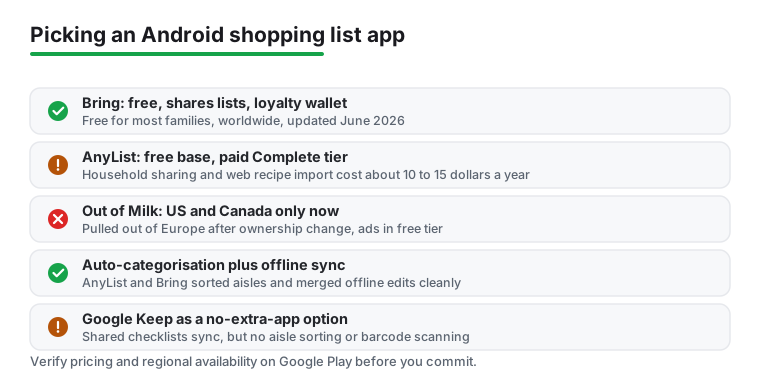
Setup is genuinely quick. Open the Play Store, search for the shopping list app you want to try, and tap install. The three we kept coming back to were AnyList, Bring, and Out of Milk, and all three are free to download. One thing worth knowing before you start: Out of Milk changed hands a few years back and the new owner pulled it out of Europe, so it now serves the United States and Canada only. If you are outside those two countries, AnyList or Bring are the safer bets because they still work everywhere. Bring in particular has been around on the Play Store since 2013 and still gets regular updates, with a new version landing in June 2026, so it is not going anywhere.
On first launch most of these apps ask you to create an account. We recommend signing up with an email rather than a social login, simply because it makes moving your data later much easier if you decide to switch apps. Social logins tie your list history to a third party account, and if you ever lose access to that account you can lose your lists with it. An email and a password you control is the cleaner option.
Once you are in, create your first list and give it a clear name like Weekly Groceries. In our testing the apps that let you start adding items immediately, without forcing you through a tutorial, felt the most pleasant. Type a few items to get a feel for how the app handles autocomplete. The better ones recognise that you mean bananas the moment you type ban, and they remember your past entries so the second week is noticeably faster than the first. AnyList and Bring both learn your habits quickly. After a couple of shops they were suggesting our regular items before we had finished the first letter.
If you live with other people, this is the moment to invite them. Look for a share or collaborate button, usually tucked into the list settings, and send the link by text or email. AnyList lets you add household members by email, and Bring generates a code or link you can pass around. We found that getting everyone onboard early saved a lot of duplicate milk purchases down the line. A quick word on the household side: AnyList sharing is free, so you can add household members by email and sync lists in real time without paying a cent. What sits behind its paid tier, called AnyList Complete (about ten dollars a year for one person or fifteen for a whole household), is extras like unlimited web recipe import, the meal planning calendar, and web and desktop access. Try the free version first and only pay if you want those extras. Bring keeps sharing free too, which is one reason it is an easy first recommendation for families who do not want to think about a subscription at all.
The features that actually matter
Real time sync is the headline feature, and it is the one we leaned on most. When a partner adds eggs from home while you are already in the aisle, that item should appear on your phone within a second or two. Every app claims to do this. In practice the gap between the good ones and the laggy ones is real, so test it before you trust it on a busy Saturday. Our quick test was simple: open the same list on two phones, add an item on one, and count how long it takes to show on the other. AnyList and Bring were both near instant on a decent connection. On weak store wifi the lag stretched to a few seconds, which is fine, but worth knowing if your supermarket is a signal dead zone.
Automatic categorisation is the quiet hero. A strong app sorts your jumble of items into produce, dairy, frozen, and so on, which means you walk the store once instead of doubling back. Bring and AnyList both did this without us lifting a finger. AnyList in particular drops items into categories like Produce, Dairy, and Deli, and crucially it lets you drag those categories into whatever order matches your store. That reordering step is the difference between a list that fights you and one that flows with your route through the aisles.
Recipe import is a genuinely handy touch for anyone who cooks. You share a recipe page to the app and it pulls out the ingredients and drops them onto your list, which saved us a fair amount of typing. AnyList handles this on Android by importing from Chrome and other apps through the standard share action, and it works with the big recipe sites and thousands of food blogs. One caveat: AnyList puts web recipe import behind its paid Complete tier, so if that workflow matters to you, factor the small yearly cost into your decision. For lighter use, copying a few ingredients by hand is no great hardship.
Barcode scanning rounds things out. Point your camera at an empty cereal box and the item lands on your next list. It is not a feature you will use every day, but once you get used to it, going back feels like a chore. Loyalty card storage is another one worth flagging. Bring lets you keep your store loyalty cards in the app and pull them up at the till, which means one less physical card in your wallet and one less app to juggle at checkout. We liked having the list and the card in the same place. If you already lean on your phone for organisation, you may find these list features pair naturally with the wider set of tools we cover in our best notes apps for Android roundup.
Tips from weeks of real use
A few habits made these apps far more useful for us. First, build a few separate lists rather than one giant one. We kept Groceries, Household, and a running warehouse-store list, and switching between them at the right shop kept things tidy. A single mega list gets noisy fast, and you end up scrolling past dish soap to find the dish soap you actually need today. Splitting by store or by trip type keeps each list short enough to scan at a glance.
Second, take two minutes to reorder your categories so they match the layout of the shop you visit most. Walking the list top to bottom instead of zig zagging is a small change that adds up over a year of trips. Both AnyList and Bring let you set this order once and forget it. If you shop at two stores with very different layouts, it is worth keeping a separate list per store rather than constantly reshuffling, because the apps remember the order per list.
Pin a home screen widget if your app offers one. Glancing at the next three items without unlocking and opening anything is the kind of tiny convenience that keeps you actually using the app. Bring and AnyList both ship Android widgets, and Bring even has a Wear OS version if you wear a watch, so you can tick items off from your wrist while your hands are full of bags. We also got into the rhythm of adding items the instant we ran low, straight from the kitchen, rather than trying to remember everything at once on shopping day. That single habit cut our forgotten items down to almost nothing. The fridge is empty of butter on a Tuesday, you add butter on a Tuesday, and it is waiting on the list come Saturday.
Lean on voice input too. Saying add olive oil to your phone while your hands are covered in flour is the most natural way to capture something, and the major apps handle it reliably through the standard Android voice keyboard. If yours does not have a built in voice button, the microphone key on Gboard does the same job inside the item field. One last tip: do a quick weekly tidy. Items you checked off stick around in the history on most apps, which is what powers those handy suggestions, but the active list can accumulate stragglers you decided not to buy. Clearing them on Sunday night keeps the next week clean.
Permissions and the downsides to know
Shopping list apps are fairly modest with permissions, which is reassuring. The main one you will be asked for is camera access, and only if you want barcode scanning. Microphone access shows up for voice entry. Both are optional, and you can decline them at install and grant them later from Android settings if you change your mind. We did not encounter any of these apps demanding location or contacts just to function, and we would be wary of one that did. If a simple list app insists on your contacts or your precise location before it will even open, that is a reason to look elsewhere.
The honest downsides are mostly about money and accounts. The freemium model is everywhere here. AnyList, as mentioned, keeps sharing free but gates unlimited web recipe import and meal planning behind its Complete tier at roughly ten dollars a year for one person or fifteen for a household. That is not a lot, but it is a recurring cost, and you should know what you are paying for. Out of Milk has historically shown ads in its free version, which some people find intrusive in an app they open in a quiet store aisle. None of this is a dealbreaker, but it is worth knowing before you build your whole routine around a feature that turns out to cost money or comes wrapped in advertising.
Then there is the regional issue we keep coming back to. Out of Milk leaving Europe is a real example of a risk that applies to any app: ownership changes, and the new owner may shrink the service, add charges, or shut features off. If you are picking an app to rely on for years, a longer track record and a clear business model count for something. Bring being free and well established, and AnyList having a straightforward paid tier that funds the app, both feel more stable than a free app whose plans you cannot read.
Privacy, offline use, and the data question
Because your lists live in the cloud so they can sync, you are trusting a company with a small but real picture of how your household eats and shops. That is not sinister on its own, but it is worth a thought. A grocery list is data, and data has value to advertisers. The free apps have to make money somehow, and if it is not a subscription it is usually ads or aggregated insights drawn from what people buy. None of the apps we tested did anything alarming, but the general rule holds: if you are not paying, your shopping habits are part of the product. A paid tier like AnyList Complete is partly you paying so the app does not need to lean on your data as hard.
Offline behaviour matters more than people expect, and it varies. Most of these apps let you view and edit a list with no signal and then sync once you reconnect, which is exactly what you want in a store with thick concrete walls. We tested this by putting the phone in airplane mode, ticking off and adding items, then reconnecting to watch them sync. AnyList and Bring both handled it cleanly, merging our offline changes with whatever a family member had done in the meantime. A couple of lesser apps we tried lost an edit or two in that handover, which is the kind of thing you only discover at the worst moment, standing at the dairy case wondering whether you already grabbed the yoghurt.
Account dependence is the last thing to weigh. Your lists are tied to your login, so a forgotten password can lock you out at the checkout when you need the list most. Keep your email and password somewhere you can reach in a pinch, ideally in a password manager. Turn on two factor authentication if the app supports it, but make sure you can still get a code when you are standing in a store on a flaky connection. It is a minor thing right up until the morning it is not. None of this should put you off; it is just the small print of trusting any cloud service with a part of your daily routine.
Alternatives worth considering
A dedicated shopping list app is not the only route. If your needs are simple, the notes app already on your phone can hold a perfectly serviceable checklist, and Google Keep in particular handles shared lists and checkboxes with very little fuss. You can turn a Keep note into a checklist, share it with anyone in your contacts by email, and changes sync across phones in real time, much like the dedicated apps. Google folded its old standalone shopping list into Keep some time ago, so if you already use Keep for notes, you may not need a separate app at all. The trade off is that Keep does not do automatic store categorisation or barcode scanning, so heavy shoppers will still prefer a purpose built tool.
For people who like to plan meals and shopping together in one place, a broader organiser can be a better fit, and our best planner apps for Android guide covers options that blend lists with calendars and reminders. Tying your shop to your meal plan for the week is one of those habits that quietly saves both money and the Wednesday what is for dinner panic.
It is also worth remembering that many grocery chains now ship their own apps with built in lists tied to your loyalty account, which can surface digital coupons as you shop. We found these handy for one specific store but clumsy when shopping across several, since each one only knows about its own products and prices. For most households, a standalone cross store app remains the more flexible choice, with a chain app kept alongside it purely for the coupons. Whichever direction you lean, you will find more curated picks across our Shopping & Lifestyle section.
Frequently asked questions
Are Android shopping list apps free to use?
Most are free to download and cover the basics at no cost, including creating lists and sharing them. Bring is free for the features most families need, including sharing. AnyList is free too, including list sharing, but it puts extras like unlimited web recipe import and meal planning behind a paid tier called Complete, which is about ten dollars a year for one person or fifteen for a household. Check what sits behind a subscription before you settle in.
Can I share a shopping list with my family?
Yes, and it is the feature we relied on most. Open your list settings, tap share or invite, and send the link or add people by email. Changes sync across all phones in real time, so when someone adds an item at home it shows up on your screen at the store within a second or two. Note that AnyList keeps list sharing free, putting only extras like unlimited web recipe import behind its paid tier, and Bring keeps sharing free as well.
Do these apps work without an internet connection?
The good ones do. You can view and edit your list offline, and any changes sync the next time you reconnect, which is handy in shops with poor signal. We tested this in airplane mode and AnyList and Bring both merged our offline edits cleanly. A few lesser apps stumbled in that handover, so it is worth testing a quick offline edit before you depend on it.
Is Out of Milk still available?
It is, but only in some places. Out of Milk changed ownership a few years ago and the new owner withdrew it from Europe, so it now serves the United States and Canada only and still gets updates there. If you are outside those countries, pick AnyList or Bring instead, since both work worldwide and are actively maintained.
Which permissions should a shopping list app need?
Very few. Camera access is only needed for barcode scanning and microphone access only for voice entry, and both are optional. You can decline them at install and grant them later if you want those features. Be cautious of any app asking for location or contacts without a clear reason, since a simple list does not need either to work.