
Open the Play Store on any Android phone and you see the same top charts everyone else sees. The genuinely interesting apps, the small tools made by one developer who cared, almost never reach those lists. There is a lot to dig through past the front page, and this is where the good stuff actually hides. This is a practical guide to finding new Android apps on the Play Store that are worth installing, not just the ones with the biggest ad budget.
Updated September 2026 · no store listing was read for this page, which publishes no app figures; the steps, the Play Store screens they sit on and the September 30, 2026 verified developer date were reviewed on 17 September 2026
Turn Play Protect on first, from your profile menu in the Play Store. It is the one step that changes the odds rather than the odds of finding something: every app you download is checked against Google's database before it installs, which removes a lot of the risk in trying unfamiliar software. It does not remove all of it, and this page says plainly that the Play Store does not catch everything, so the three checks before you install still matter. Everything else here is a way of finding something worth keeping.
Data checked: 17 September 2026.
This page names no apps and publishes no ratings, review counts, install bands or prices, so no store listing was read for it and none is quoted. The steps, filters and rows are described from the Play Store's own screens, and the vetting, permission and Play Protect behaviour from Google's own documentation, as is the verified developer change dated September 30, 2026. Menu wording and menu paths differ by manufacturer and Android version, so treat the paths here as the common case. Nothing on this page rests on installing or running an app.
The Play Store is already on your phone, so there is nothing to install, but a couple of minutes of setup makes a real difference to what it shows you. Open Play, tap your profile picture in the top right, then Settings, then Network preferences. Set auto update apps to over Wi Fi only, so the gems you find stay current without eating into your mobile data. Then back out to your profile menu and open Play Protect. Make sure scanning is turned on there, because every app you download gets checked against Google's database before it installs, and that single switch removes a lot of the risk that comes with trying unfamiliar software.
While you are in Play Protect, take note of one behaviour that trips people up. If you have an app installed but do not open it for about three months, Android quietly resets its permissions and may pause it to save battery. For the throwaway apps you test and forget, that is fine. For a gem you only reach for now and then, it means you might have to re-grant a permission later, so it is worth knowing rather than being surprised by it.
The bigger trick is teaching Play what you like. The home feed leans heavily on your own install and rating history, so it stays bland until you feed it. The recommendations get noticeably sharper once you install smaller apps, leave honest ratings, and tap into listings that look interesting even when you do not download. If your feed still feels stale, scroll past the top charts on the Apps tab to the rows lower down. The New and Updated row and the Editors' Choice row refresh far more often than the charts. Spend two minutes a week there and the feed slowly starts working for you instead of showing you the same five names.
One more setting worth checking is your country and payment profile, because Play tailors a chunk of what you see to your region. If you have moved or set up the phone in another country, some local gems may be hidden from you until the store catches up. You cannot fudge this freely, and it is not worth attempting, but it explains why a friend abroad sometimes sees an app you simply cannot find.
Search is the obvious tool, but the Play Store rewards specific searches over broad ones. Type notes and you get a wall of giants you already know. Type markdown notes offline, or plain text journal no account, and the tiny well made apps that never rank for the generic term finally show their faces. Keep a running note of oddly specific phrases for exactly this reason, things like clipboard manager no ads or unit converter dark mode: it pays off almost every time. The more precise the phrase, the smaller and more focused the developer who tends to rank for it.
There is also a filter most people walk straight past. Run any search, then look for the Editors' Choice toggle in the filter row at the top of the results. Tapping it narrows the list to apps Google's own staff have handpicked, which strips out the ad-stuffed clones in one move. Google refreshed the Editors' Choice section during 2026 with more curated picks and a banner Google calls New apps we love
, so it is genuinely worth checking each month rather than treating it as a static list.
Three other spots reward a regular visit. Category pages, reached by tapping any app's category label, let you switch from Top to a fresher ranking, which is where new releases surface before the charts notice them. The similar apps carousel near the bottom of any listing is a quiet rabbit hole worth falling into. Start on one app you already love and follow the trail of suggestions, because the algorithm there is matching on function rather than popularity. And the developer's own page, reached by tapping their name, often hides two or three smaller tools by the same person that never got their own marketing push. Whole evenings can disappear that way, in the best sense, and a good developer's back catalogue often holds more keepers than any chart.
If you read tech sites at all, let other people do some of the digging for you. A short habit of skimming Android forums and the occasional roundup gives you a shortlist of names to type straight into Play search, which sidesteps the discovery problem entirely. The store is good at telling you about an app once you know it exists. It is poor at introducing you to one cold. Combining outside reading with the in-store tricks above covers both gaps.
To keep this grounded, here are a few of the kinds of lesser known apps that digging surfaces rather than scrolling the charts. None of these are the household names, and that is the point. This page deliberately describes categories rather than fixing single titles, because small apps change names, change owners, and sometimes vanish, and a method that keeps working is worth more than a list that goes stale.
For note taking, the plain minimalist editors hiding under specific searches beat the big suites for speed when all you want is to jot something down and close the phone. They open instantly, they do not nag you to sign in, and they store your notes as ordinary files you can read anywhere. In personalisation, smaller home screen and widget tools regularly do a tidier job than the famous launchers, because a solo developer iterates fast and reads every review. Single purpose utilities that solve one job properly keep turning up this way: a unit converter that respects your time, a clipboard manager that just remembers what you copied, a QR scanner with no banner ads stapled across the screen. Those one-job tools are where gem hunting pays off most, because the big suites rarely bother to do the small thing well.
If app discovery is your thing, the roundup on this site of rare Android apps you have never heard of goes deeper into specific titles, and Google's own quieter releases get their own treatment in the guide to Google's hidden gems. Read those alongside this page and you have both the method and a starting shortlist.
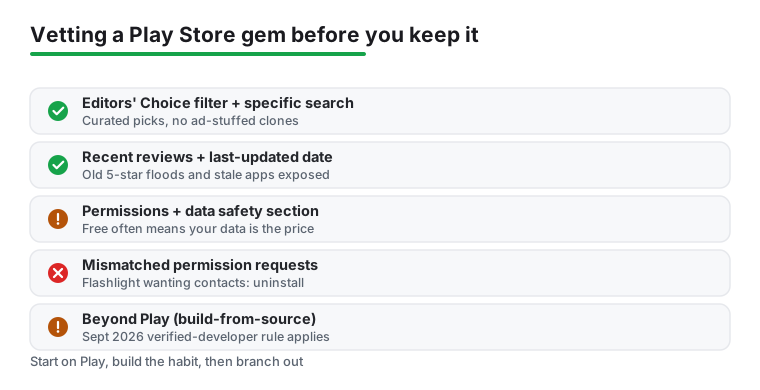
A hidden gem is only a gem if it is safe, and the Play Store does not catch everything. Before installing anything unfamiliar, run the same quick checks; they take about thirty seconds each. The habit is more useful than any single rule, because once it is automatic it catches most dud listings before you install them.
First, read the reviews from the bottom up, sorting by most recent rather than most helpful. A flood of five star reviews all posted in the same week is a warning worth trusting, and so is a string of recent one star reviews complaining that a once-good app went ad-heavy after an update. The most helpful reviews are often months old and may no longer reflect what the app does. Second, tap See more next to About this app and check the last updated date and the size. Anything untouched for a couple of years may misbehave on a current phone, and a tiny utility that somehow weighs eighty megabytes is usually carrying ad libraries you do not want.
Third, and this is the one most people skip, scroll to the App permissions line near the bottom of the listing and read what it wants before you commit. A simple flashlight asking for your contacts, or an offline calculator asking for location, tells you everything you need to know, and that is the moment to walk away without a second thought. It is also worth a quick look at the data safety section just above it, where the developer has to declare what data they collect and whether they share it with third parties. Those declarations are self-reported and not gospel, but a free utility that admits to sharing your identifiers and location for advertising is being honest about a trade you may not want to make.
Once an app is installed, Android gives you the final say, and it is worth using it. Go to Settings, then Apps, pick the new app, and open Permissions. Modern Android lets you grant location only while using the app, and for photos it now leans on a system picker that hands over just the specific images you choose rather than your whole gallery. Those limits are worth using for anything unfamiliar: say no first, and only grant a permission when the app clearly cannot do its job without it. If something asks for far more than its work needs, that is the cue to uninstall rather than argue with it.
The honest downside of gem hunting is volume.
For every keeper you find, expect three or four apps that turn out to be mediocre, ad heavy, or simply abandoned. That is the cost of looking past the curated charts, and it is exactly why the vetting habit above matters so much. The good news is that uninstalling on Android is painless and leaves almost nothing behind, so there is little real risk in trying something and dropping it the same day. Treat your phone like a workbench rather than a museum, install on a whim, and clear out anything that has not earned its space by the end of the week.
A couple of cost and privacy caveats are worth saying plainly. Free is rarely free: a tool with no price tag and no ads is often funding itself by collecting and selling data, so read that data safety section before you trust it with anything personal. Watch the subscription traps too, where a small app is genuinely good but locks the part you actually need behind a recurring charge that auto-renews quietly. There is nothing wrong with paying a fair one-off price to a solo developer, and it is often money well spent, but check the In-app purchases line on the listing so the model does not surprise you a month later.
The Play Store is the safest place to start and where most people should stay, but it is not the only catalogue out there. Some of the most interesting open source tools never appear on Play at all, because their developers prefer stores that build apps from source code and flag any tracking or ads openly. That build-from-source model lets you trust that the app matches its published code, which is a different and in some ways stronger kind of safety than a one-time scan.
There is a live wrinkle here worth knowing in 2026. Google has announced that, from September 30, 2026, starting in Brazil, Indonesia, Singapore, and Thailand and expanding after, apps installed on certified Android devices will need to come from verified developers, a change that affects how freely you can sideload from outside the official store. The open source community has pushed back on this, and the details are still settling, so if you plan to wander beyond Play, read up on the current state of sideloading on your specific phone before you rely on it.
If you have exhausted the gems on Play and want to push further, the pillar on this site covering the app store apps for Android covers the alternatives and how to install them safely, and the wider tools and utilities hub collects the rest of the guides here. Start on Play, build the vetting habit here, and only then branch out once you can tell a real gem from a dressed up dud at a glance.
Skip the top charts and use specific multi word searches, then tap the Editors' Choice filter in the search results and sort any category page by its fresher ranking instead of Top. The similar apps carousel at the bottom of a listing you already like, and the developer's own page, are the two strongest routes to related gems.
Most are, because Play Protect scans every download, but it does not catch everything. Before installing, read the most recent reviews, check the last updated date, and read both the requested permissions and the data safety section on the listing. If a simple tool asks for access it has no reason to need, walk away.
The top charts reward downloads and marketing spend, so established apps stay on top and small new releases rarely break through. Teaching your feed by installing and rating smaller apps, and browsing the New and Updated and Editors' Choice rows lower down the Apps tab, gets you much fresher recommendations.
Some apps, especially open source ones, are only offered on alternative stores that build from source. Note that from September 2026 Google plans to require apps on certified devices to come from verified developers, so check the current sideloading rules for your phone first. Once you have the vetting habit down, the app store apps for Android guide on this site covers the safe alternatives worth trying beyond Play.
Checked 17 September 2026: this guide carried no decision table, no answer capsule, no verification box and no changelog, and it was written in a voice that implied first-hand use of apps while naming none and resting on no installs. All four are now here and that contradiction is removed: twenty-one passages were rewritten, among them two section headings, a figure caption, the meta description and three FAQ answers. The table lists eight steps drawn from the sections already on the page and names no app, rating or price, because the page fixes no titles on purpose. Eight in-page anchors are new: the page previously rendered its section headings with no ids at all, so nothing on it could be linked to. One soft relative date in the Editors' Choice sentence now reads during 2026, and Google's own banner name is attributed rather than left in the page's voice. No figure was altered, because the page publishes none.
 Best App Store Apps for AndroidTools & Utilities
 Signs of Android Malware and How to Remove ItSecurity & Privacy