
Updated September 2026 · the app now carries its own dated listing figures, and the claims about our own use of it are gone
A voice changer is pitch shifting, time stretching and a couple of classic studio effects, wrapped in one tap presets. This explains what each one does to the sound, sets the app up, and says what it costs.
Before the fun part, it helps to understand what is happening under the hood, because it makes the app far easier to use well. Your voice is just a wave, a pattern of air pressure that rises and falls many thousands of times a second, and an effect reshapes that wave in one of a few ways. There are really only three levers an app like this can pull, and almost every preset you see is some combination of them.
The first lever is pitch shifting. This raises or lowers the frequency of the wave, which is why the chipmunk preset speeds the wave up and the monster preset drags it down. Think of it the way an old tape sounds when you play it too fast or too slow, except the app does it without changing how long the clip runs. The second lever is time stretching, which changes the speed without touching the pitch, so you can sound slow and looming without going deep, or quick and frantic without turning into a cartoon mouse. The third lever is added reflections, the family of reverb and echo effects that make you sound like you are standing in a cave, a stairwell, or a tin can. Reverb is the wash of a room bouncing your voice back at you, and echo is the same idea but with distinct repeats you can count.
AndroidRock bundles these building blocks into one tap presets, so you do not need to know any of the theory to enjoy it. The robot effect, for instance, is mostly a pitch tweak with a ring of metallic distortion layered on. The drunk effect wobbles the pitch up and down over time, which is why it sounds unsteady. Once we understood that most presets are really just pitch plus a touch of echo or wobble, we stopped tapping at random and started mixing them on purpose, and the results got a lot funnier. Knowing the levers also tells you why some clips come out muddy. If your original recording already has room echo in it, stacking the app's reverb on top doubles the wash and the words turn to soup. A drier starting clip almost always gives a cleaner, more convincing result.
Quick, silly voice notes and ringtones
4.3 stars from 407,385 reviews · 50,000,000+ installs · free to install · no in-app purchases listed · by AndroidRock · Contains ads: Yes · checked 3 September 2026
Google Play listing · 4.3 (407,385) · read 3 September 2026
This is a free app with one job: record a clip, tap a preset, and the voice comes back robotic, chipmunk or underwater. Nothing is sold inside it, and the price of admission is on the listing instead, which carries the Contains ads label. The blunt con: the listing has gone about a year without an update, and on a phone-recorded clip the effects amplify whatever room noise was already there.
The developer names the effects on its own Play listing: "Get robotic, alien, chipmunk, duck and other funny effects for your voice", and the app is published simply as Voice Changer rather than under the longer name some guides use.
Setup is quick and painless. Search for Voice Changer by AndroidRock in the Google Play Store, tap install, and open it. Worth a small note here, the app is published simply as "Voice Changer" by the developer AndroidRock rather than under the longer name some sites use, so if you search the full phrase and see a few similar listings, the one you want shows the AndroidRock developer name and has tens of millions of downloads behind it. There is no account to create and no email required, which we appreciated. The app is free and ad supported, so expect a banner along the bottom and the occasional full screen ad between actions. On both of our phones it was ready to use within about a minute of the download finishing.
The very first thing it does is ask for microphone access, which makes sense since recording your voice is the whole point. Grant that, then record a short clip by holding the record button, or import an existing audio file if you would rather modulate something you already have. We started by recording a plain ten second sentence so we had a clean base to test every effect against. That one habit, keeping a neutral clip on hand, made comparing presets much faster, because you are hearing the difference the effect makes rather than the difference in what you happened to say.
A couple of practical setup notes from our two weeks with it. The app saves its work locally, so nothing syncs to a cloud account and nothing follows you to a new phone automatically. If you build up a folder of clips and custom ringtones you care about, copy them off the device yourself before you switch handsets, because there is no built in backup. We also found the app runs fine on older hardware.
This is where the app earns its place. AndroidRock ships with dozens of presets, and you apply one by tapping it and pressing play, so auditioning the whole list takes a few minutes. The presets that carry the app are the robot, which adds a metallic ring that is well suited to silly voice notes, and the helium chipmunk, which never failed to get a laugh from friends. The deep monster and the drunk effects were close runners up. Beyond those there is a genuinely long bench of options, including bee, old man, martian, fan, hoarse, and underwater, plus a backwards playback option and themed sound effects you can stack on top of a recorded clip.
What kept us experimenting was how the presets respond to your own delivery. Speak slowly into the robot effect and you sound like a classic sci fi machine, but speak fast and it turns into something closer to an alien. The deep monster preset rewards a low, calm voice and falls apart if you rush, because the pitch drop exaggerates every consonant you trip over. We got our best results treating the preset as a duet partner, adjusting how we talked to suit it rather than expecting it to fix a flat reading.
A few small habits make the app noticeably better in daily use. Record in a quiet room, because the effects amplify background hum and a noisy clip just sounds muddy once it is pitched. A fridge two rooms away, a fan, or street noise through a window all sneak into the recording and the chipmunk preset in particular turns that low rumble into an ugly whine. Keep the phone a hand width from your mouth rather than right against it, which avoids the popping that ruins otherwise good takes on hard letters like P and B. And record a little longer than you think you need, since trimming a clip is easy but you cannot add words you never said.
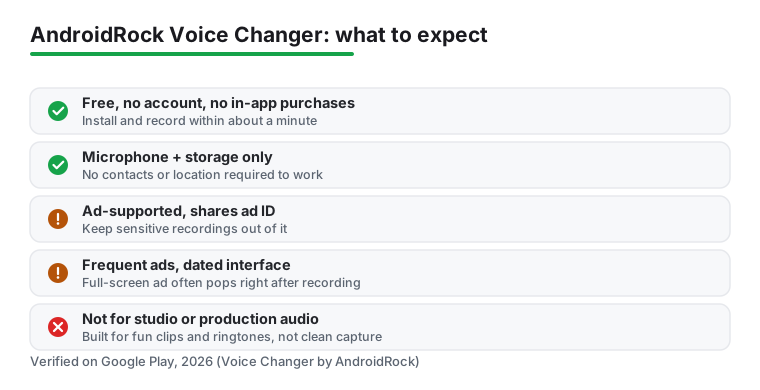
On the permissions front, AndroidRock is reasonable. The core request is microphone access, which is unavoidable for a voice recorder, and storage access so your saved clips and custom ringtones can live on the device. It does not need your contacts or location to do its job, and you can decline anything optional and still record and modulate without trouble. We never felt the app was reaching for data it had no business touching. That said, do not mistake a free, ad supported app for a private one. Ad networks inside these apps typically collect an advertising identifier and rough usage data to target the banners and full screen spots, and AndroidRock is no different. The recordings themselves stay on your phone as far as we could tell, but if you are recording anything you would not want associated with an ad profile, treat this as a toy rather than a vault and keep sensitive audio out of it.
The rest of the downsides are about polish. This is a free app, so ads are frequent and a full screen one will pop up at slightly annoying moments, like right after you finish a recording, which is exactly when you want to hear the result. Its listing lists no in-app purchases at all, so there is no paid tier that removes them: the ads are simply the cost of using it. The interface looks a little dated next to sleeker 2026 apps, with chunky buttons and a layout that has not changed much in years. The audio quality is fine for fun clips and ringtones but not for serious production work, because the processing is built for instant laughs rather than clean output. If you want studio grade results rather than party tricks, you will outgrow it quickly. For casual laughs and custom tones, though, none of this got in our way.
AndroidRock sits firmly in the for fun corner, and that is exactly who should grab it. Download it if you want quick, silly voice notes, custom ringtones, and effects that make group chats funnier, all without paying a cent or making an account. The one tap presets mean anyone can use it, and the ad load is the only real price of admission. After you record a clip and apply an effect, the save options let you set it as a ringtone, notification tone, or alarm directly from the app, and you can share a finished clip straight into a messaging app or over Bluetooth. Assigning a different modulated voice as a contact ringtone is the trick people keep: calls then announce themselves in robot or chipmunk form.
If your interest leans more toward making music or processing instrument tones rather than your voice, a dedicated audio tool will serve you better. IK Multimedia's AmpliTube is still on Google Play in 2026 as a free guitar and bass effects app, and our look at AmpliTube on Android is a good place to start. If you find yourself recording more than goofing around, our roundup of free multitrack recording apps covers tools that layer takes properly. For clean voice capture, lectures, and interviews where you want accuracy rather than effects, weigh the options in our best voice recorder apps for Android guide. And to explore the wider world of audio tools, from players to equalizers, browse the full Music and Audio hub. For a free bit of fun, though, AndroidRock kept us smiling longer than we expected in 2026.
Yes, and its listing lists no in-app purchases at all, read 3 September 2026. What it does carry is the Contains ads label, so advertising rather than a purchase is how the app is paid for. Checked 3 September 2026.
The microphone, which no voice recorder can avoid, and storage so saved clips and custom tones can be written. Both can be revoked afterwards under Settings, Apps, Permissions, and the app keeps working for playback. Checked 3 September 2026.
Yes. After applying an effect the save menu offers ringtone, notification tone and alarm directly, and a saved clip can also be shared into a messaging app. Checked 3 September 2026.
No, and it is not meant to be. The source is a phone microphone and the effects sit on top of it, so background noise is amplified rather than removed. For music or instrument tones a dedicated audio tool is the right choice. Checked 3 September 2026.
Checked 3 September 2026: the review praised the app with no store link and no figure of any kind, and rested four claims on our own use of it. Those are withdrawn: "AndroidRock Voice Changer pushed back on that assumption for us", "Our consistent favorites were the robot", "A few small habits made AndroidRock noticeably better in daily use" and "We had the most fun assigning a different modulated voice as a contact ringtone". The listing now sits on the page: 4.3 stars from 407,385 reviews, 50,000,000+ installs, free with no in-app purchases, and the Contains ads label, which is the honest price of a free voice changer. Its listing has also gone about a year without an update, which the page now says.