
Updated September 2026 · the three YouTube listings are read afresh, and the differences between them sit in one table
YouTube is the app most of us open without thinking, yet hardly anyone takes ten minutes to set it up properly. The short version: a handful of small changes made playback smoother, cut needless data use, and turned the big screen into something that feels closer to a proper streaming service than a video site.
On a phone or tablet, YouTube usually comes preinstalled, so there is nothing to download. If it is missing, open the Google Play Store, search for YouTube, and install the official app from Google LLC. The first time you open it you sign in with your Google account, and that one step is worth doing because it carries your subscriptions, watch history, and saved playlists across every device you own. If you skip the sign in, the app still plays, but you lose the personal feed and you have to rebuild your subscriptions by hand on each device, which gets old fast.
On a television it is a little different. Most Android TV and Google TV devices ship with the YouTube app ready to go. Note that there are two separate apps on the Play Store and it is easy to grab the wrong one. The one you want for a TV box or stick is "YouTube for Android TV" (package com.google.android.youtube.tv), built for a remote and a ten foot view. The plain "YouTube" listing is the phone and tablet build. On a recent Google TV box the TV version is already installed; on an older smart TV or a budget stick you may need to install it from the device's own Play Store.
We linked our phone to the TV app by signing into the same account, and within a minute our subscriptions and watch later list showed up on the big screen. If your TV asks you to sign in with a code, the app shows a short code and a URL; you type that code at the URL on your phone or laptop and the TV signs itself in, which is far less painful than spelling out an email address with a remote. The whole process took us under five minutes on each device, and you only do it once. One honest caveat on hardware: the TV app needs a reasonably modern device to run 4K and HDR smoothly. On a cheap stick from a few years back it still works, but expect 1080p as the practical ceiling and the odd stutter when the home screen loads its thumbnails.
The remote control for the television
3.8 stars from 171,607,359 reviews · 10,000,000,000+ installs · free to install · in-app purchases $0.05 to $999.99 per item · by Google LLC · Contains ads: Yes · checked 4 September 2026
Google Play listing · 3.8 (171,607,359) · read 4 September 2026
The phone app is the one to set up first, because it is also the best remote the television has. Its listing, read 4 September 2026, carries the Contains ads label, which is the plain truth of the free tier, and its in-app purchases run $0.05 to $999.99 per item, the band that Premium and channel memberships are sold through. Its rating, 3.8 stars from 171,607,359 reviews, is the largest review count anywhere on this site.
This is where YouTube on a television quietly earns its place. The TV interface is built for a remote, with large thumbnails, easy left and right browsing, and a clean home row of your subscriptions. The standout trick is pairing the phone as a remote. Once both devices are on the same Wi-Fi, a cast icon appears in the phone app, and you can queue videos, search with the on screen keyboard, or type using your phone instead of clicking letters one at a time on the remote. Typing a long search on a TV remote is miserable, so this alone is worth setting up. The pairing is automatic on the same network most of the time; if the cast icon does not appear, check that both devices sit on the same Wi-Fi band, since some routers split the 2.4GHz and 5GHz networks into separate names and that quietly breaks the link.
There is a difference worth understanding between casting and the dedicated TV app, and people mix them up. Casting from your phone sends the video to the TV and your phone acts as the controller, but it is still your phone doing the steering. The TV app, by contrast, plays everything on the television itself and only borrows your phone as a keyboard when you want one. The TV app suits long sessions, because you can put the phone down and the playback keeps going, while casting suits the quick "watch this right now" moments when the phone is already in hand.
A few other touches are easy to miss. The TV app supports 4K, HDR, and 60 frames per second on hardware that can handle it, which makes a real difference on nature footage and gaming clips, though you will only see it on videos that were uploaded at those settings. You can set the default playback quality, turn on captions globally, and build playlists on your phone that appear instantly on the TV. For anyone who watches music, tutorials, or long talks, lining up a playlist before you sit down means no fumbling with the remote halfway through. There is also a handy continue watching behaviour: pause a video on the TV and you can pick it up on your phone later from roughly the same spot, as long as you are signed into the same account. It is the closest YouTube gets to feeling like a channel of your own rather than a wall of recommendations.
The big screen, once the phone has set it up
3.5 stars from 194,326 reviews · 500,000,000+ installs · free to install · in-app purchases $0.05 to $999.99 per item · by Google LLC · Contains ads: Yes · checked 4 September 2026
Google Play listing · 3.5 (194,326) · read 4 September 2026
The television app is a separate listing from the phone app, and it is rated lower than anything else on this page: 3.5 stars from 194,326 reviews, read 4 September 2026. It carries the Contains ads label like the others. It is worth knowing it is a different app before you go looking for a phone feature on the TV and cannot find it, and it is the reason casting from the phone is the smoother route for search and sign-in.
A few habits do most of the work. First, set your video quality deliberately rather than leaving it on auto. On the TV, lock it to the highest setting your connection can hold; on the phone over mobile data, cap it lower to avoid burning through an allowance. You will find this under Settings, then Video quality preferences, with separate options for Wi-Fi and mobile. Auto is fine if your connection never wavers, but it tends to overshoot on a flaky signal and then stall, so a fixed ceiling often feels steadier than letting the app guess.
Second, lean on playlists and the watch later queue. Saving a video for later from your phone, then finding it waiting on the TV that evening, is a small win once you get into the rhythm. You can save anything to watch later with a long press on a thumbnail, and the queue syncs across every device on your account within seconds. Third, learn the gestures on the phone player: double tap the left or right edge to skip back or forward ten seconds, and swipe up on a video to jump into full screen. You can change the skip amount under Settings if ten seconds does not suit you. None of this is hidden, but most people never discover it, and it makes everyday watching feel quicker and more in your control.
A couple of smaller settings are worth a look too. The home feed has an option to turn off autoplay of the next video, which stops a tutorial rolling into something you did not ask for. On the TV, the ambient mode screensaver that drifts photos across the screen can be switched off if you find it distracting during a pause. And if you share a household account, history based recommendations get muddled fast, so consider separate Google accounts or at least pausing watch history when you let someone borrow the remote. None of these are dramatic, but together they make the app behave the way you want rather than the way Google's defaults assume.
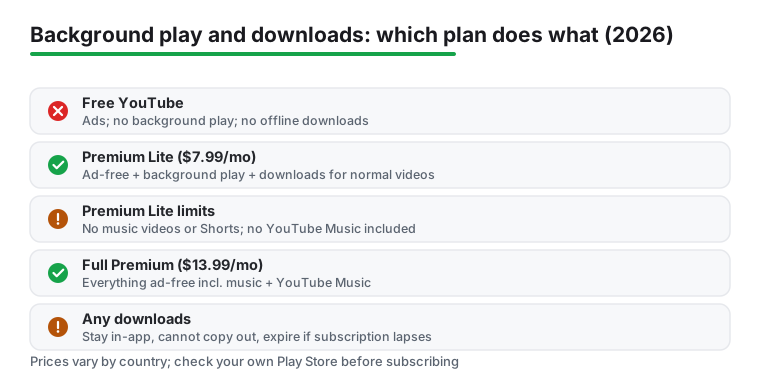
It would be dishonest to pretend YouTube is without rough edges. The free version runs ads, and on a television those interruptions feel longer than they do on a phone, partly because you cannot easily reach over and tap skip the moment the button appears. Background play, where audio keeps going after you lock the screen or switch apps, used to be locked entirely behind the full Premium plan, and for years that was the single feature people most often wished were free. If you mainly use YouTube for music or podcasts with the screen off, the free app still will not do it.
The pricing picture changed in early 2026, so it is worth being current here. Premium is sold through the same Play listing as the app, whose in-app purchases run $0.05 to $999.99 per item, read 4 September 2026. The full tier removes ads, allows background play and offline downloads across videos and music, and includes YouTube Music Premium; a cheaper tier, Premium Lite, sits below it and gained background play and offline downloads during 2026. Tier prices differ by country and change without notice, so the purchase screen in the app is the only honest place to read yours. So if your reason for paying is background audio for music, Lite is the wrong choice and you want the full plan. If you mostly watch ordinary videos and just want them ad free with the option of background audio for talks and podcasts, Lite is the sensible pick. Prices vary by country and Google changes them from time to time, so check the figure in your own Play Store before you commit.
On permissions, the app is fairly reasonable. It asks for microphone access only if you want voice search, and notifications only if you want alerts when channels post. You can leave the microphone off until you actually want to search by voice, and declining it does not break normal playback. The bigger trade-off is data and privacy. Video is heavy, and autoplay can quietly chew through a mobile allowance, so turning autoplay off and capping mobile quality is worth doing if your plan is not unlimited. On privacy, remember that watch history feeds the recommendations and is tied to your Google account; you can pause or clear history under your account settings, and on a shared TV that is the difference between sensible suggestions and a feed full of someone else's habits.
Background audio when the screen is off
4.5 stars from 7,788,988 reviews · 5,000,000,000+ installs · free to install · in-app purchases $0.05 to $999.99 per item · by Google LLC · Contains ads: Yes · checked 4 September 2026
Google Play listing · 4.5 (7,788,988) · read 4 September 2026
The best rated of the three at 4.5 stars from 7,788,988 reviews, read 4 September 2026, and the reason the full Premium tier is worth weighing against a music subscription: it is included. Free to install, with the Contains ads label on the listing and in-app purchases of $0.05 to $999.99 per item, the same band as the other two.
If your connection is patchy or you travel, the offline side is genuinely useful. With a paid plan, either full Premium or the Lite tier within its limits, you can download videos straight to the phone for watching on a plane or a train with no signal, and the quality you pick at download time is the quality you keep. Downloads live inside the app rather than as loose files, so you cannot copy them out, and they expire if your subscription lapses, which is a fair trade for the convenience but worth knowing before you rely on it for a long trip.
Even without a subscription, there are data-friendly habits that help. Lower the default mobile quality, switch off autoplay on the home feed so videos do not start preloading, and use Wi-Fi for anything long. The app also has a data saving toggle that nudges quality down on mobile automatically, which is a blunter version of setting the ceiling yourself but fine if you would rather not fiddle. We avoid third party apps and modified versions that promise free downloads or background play, because they breach YouTube's terms, often break when the app updates, and frequently carry adware or worse. The official route, free or paid, is the only one we would trust on a device that holds your Google account.
A simple download routine helps on trips. The night before a flight, queue a few longer videos to download over home Wi-Fi, then watch them the next day without touching mobile data at all. Smart Downloads, which automatically saves a few recommended videos overnight, can fill the gaps if you forget, though it is easy to leave on and find your storage quietly full, so check it now and then. It takes a small amount of planning, but once it becomes a habit it is the difference between a smooth journey and a frustrating one with endless buffering.
One last note on storage: downloads can be large, especially at high quality, so on a phone with limited space drop the download quality a notch and clear out videos you have already watched. The app shows how much room your downloads take up under the library, and a quick tidy now and then keeps the phone from filling up at the worst moment.
YouTube is the obvious default, but it is not the only way to fill a television, and the right pick depends on what you watch. If you want films and box sets rather than clips and channels, a dedicated movie app will serve you far better, and our roundup of free options in the guide to Showbox alternatives is a good place to start. For live channels and on demand shows, our list of the best TV streaming apps for Android covers the services we rate most highly. A quick word of caution on the free movie apps in particular: many sit in a legal grey area, sideload outside the Play Store, and come and go without warning, so treat them with more care than you would the official YouTube app and keep them off any device tied to your main accounts.
If you are still deciding what to install on a new box, our best movie streaming apps for Android comparison weighs the paid and free choices side by side, and you can browse everything we cover for the big screen in the Entertainment hub. Most homes end up with YouTube for clips, music, and how to videos, plus one or two streaming apps for films and series, and that pairing covers almost everything. There is no need to clutter the home screen with a dozen apps you open once; pick the two or three that match what you actually watch and let the rest go.
Put your phone and your TV on the same Wi-Fi network and sign both into the same Google account. A cast icon then appears in the phone app, and tapping it lets you queue videos, search, and type using the phone keyboard instead of the remote. If the icon does not show up, check that both devices are on the same network name, since some routers split the 2.4GHz and 5GHz bands and that breaks the link.
No. Background play and offline downloads both need a paid plan. Full YouTube Premium covers everything including music; the cheaper YouTube Premium Lite added background play and downloads during 2026, but those do not apply to music videos or Shorts, and Lite does not include YouTube Music. Without any subscription you can still save videos to playlists and the watch later queue, but the screen has to stay on for playback.
Open Settings, then Video quality preferences, and cap the quality for mobile networks to a lower level while leaving Wi-Fi on high. Turning off autoplay also helps, since it stops the next video preloading in the background, and there is a data saving toggle that nudges quality down on mobile automatically. We cap quality and disable autoplay, and our mobile data use dropped noticeably without hurting the experience on Wi-Fi.
You can watch without signing in, but an account is worth it. Signing in syncs your subscriptions, history, and saved playlists across your phone, tablet, and TV, so everything follows you from one screen to the next. It is free and takes a few seconds if you already use other Google apps. On a shared TV, consider pausing watch history when others borrow the remote so your recommendations stay sensible.
No, they are separate Play listings and they do not carry the same features. Read 4 September 2026: the phone app sits at 3.8 stars from 171,607,359 reviews, and YouTube for Android TV at 3.5 stars from 194,326 reviews, which is the lowest rating of the three YouTube apps. Both carry the Contains ads label. Casting from the phone is the smoother way to search and sign in.
Checked 4 September 2026: the guide treated YouTube as one app, linked nothing and quoted no figures. It is three separate listings and they disagree with each other: 3.8 stars from 171,607,359 reviews on the phone, 3.5 stars from 194,326 reviews on Android TV, and 4.5 stars from 7,788,988 reviews for Music, all three carrying the Contains ads label and all three selling their in-app purchases in a $0.05 to $999.99 band. Two Premium prices are withdrawn, 15.99 and 8.99 a month, because this account cannot re-read the page that carried them; the purchase screen is the honest place to check. One claim about our own use is withdrawn: A few habits make the biggest difference.
 12 Best TV Streaming Apps for AndroidEntertainment