
Offline Weather Apps on Android: Stay Informed Without Internet
The forecast you actually need is the one you can see when the signal drops. We have been deep in a canyon, off-grid at a campsite, and stuck on a plane wishing we had checked the radar one more time. The good news is that with the right offline weather app on Android, your phone keeps showing the last forecast it pulled, so you are never flying blind. Here is how we set ours up, what worked in our testing, and where the trade-offs hide.
What offline actually means for a weather app
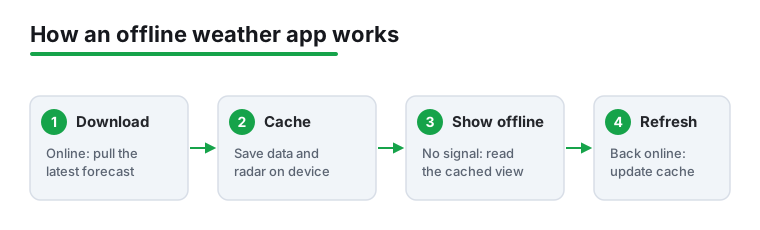
Let us be honest about the wording first. No app can predict the weather without ever touching the internet. What a good offline weather app does is download a forecast while you still have a connection, then keep that data readable when you go dark. In practice that means hourly and daily outlooks, a cached radar image, and sometimes a downloadable map tile for your area.
In our testing the apps that handled this best were the ones that let us refresh on purpose right before heading out. We would open the app on Wi-Fi at home, pull the latest data, and trust that the saved forecast would still be there on the trail. The difference between a forecast that is two hours old and one that is two days old is huge, so the manual refresh habit matters more than any single feature. If you only remember one thing from this guide, make it that: pull fresh data before you lose signal.
Setting up an offline weather app on Android
Getting started is quick, and the steps are similar across most weather apps on the Play Store. Here is the routine we follow on a fresh install.
- Install and open. Grab your chosen app from Google Play, open it, and let it find your area.
- Add your locations. Search for the towns or trailheads you care about and save them. Saved places are what get cached, so add the spots you will visit, not just home.
- Force a manual refresh. Pull down to refresh while you still have a connection. This is the step people skip, and it is the one that fills your offline cache.
- Download maps if offered. If the app has a downloadable radar or map layer, save the tiles for your region before you leave coverage.
- Pin a widget. A home screen widget shows the cached forecast at a glance without opening the app, which is handy when you are conserving battery.
That whole process took us under five minutes. Once it is done, the app shows your last synced forecast even in airplane mode, which we confirmed by toggling the connection off and reopening it.
Key features we look for
Not every weather app caches data the same way, so a few features separate the genuinely useful ones from the apps that just show a stale blank screen offline.
A visible last updated timestamp. This is the single most important detail. When you are offline you need to know whether you are looking at fresh data or yesterday's guess. The apps we trusted most put that timestamp right at the top.
Cached radar and maps. A saved radar loop tells you far more than a single icon. Being able to scrub back through the last frames helped us judge whether a storm was moving toward us or away.
Multiple saved locations. If you are road tripping, caching several towns along the route means you are covered no matter where the signal cuts out.
Lightweight design. The best offline weather apps are small and fast. They open instantly and do not nag you to reconnect every few seconds. For a deeper look at how to pick a daily driver, our roundup of the best weather apps for Android walks through the top contenders side by side.
Tips that made offline weather genuinely reliable
After enough trips where the forecast let us down, we built a small set of habits that make a real difference.
First, refresh in stages. If you are heading somewhere remote, pull fresh data the night before and again at the last spot with signal, like a gas station or trailhead parking lot. That second pull is gold.
Second, lean on widgets and notifications. A widget keeps the cached forecast one glance away, and severe weather alerts that arrive over a brief data connection can still reach you when you crest a hill and catch a bar of signal.
Third, pair your weather app with a good offline map. The two go hand in hand for any outdoor plan. We also like keeping a low data browser around for quick lookups when coverage is patchy, and our notes on battery friendly Android browsers cover options that sip power instead of draining it.
Finally, do not delete the app between trips. Leaving it installed means it quietly keeps a recent forecast cached, so even an impromptu outing starts with something on screen.
Permissions and the downsides to know
It is worth going in with clear eyes. Offline weather apps ask for a few permissions, and the main one is location. Background location lets an app refresh your local forecast automatically, but it also runs down the battery and raises a fair privacy question. We usually set location to Allow only while using the app and refresh manually, which keeps the data fresh enough without a constant background drain.
The honest downsides are simple. Cached data ages, and a forecast saved two days ago is not much better than a guess, so the manual refresh discipline is non negotiable. Radar tiles can eat storage if you download large regions, though it is rarely more than a few megabytes. And many free apps lean on ads or push you toward a paid tier for the nicer radar features. None of this is a dealbreaker, but knowing it up front means no surprises when you are counting on the app in the field.
Alternatives worth a look
No single app wins for everyone, so it pays to try a couple. If you want polished radar and a deep feature set, AccuWeather is a strong pick, and we dug into its lesser known tools in our guide to the hidden features of the AccuWeather Android app. Its forecasts cache well, and the radar is among the clearest we tested.
For a minimalist, the stock weather widget that ships on many Android phones already caches the last forecast and barely touches your battery, which is plenty for a quick glance. Open source options on the Play Store appeal to privacy minded users who want no ads and no tracking, and they tend to be featherweight. Whichever route you take, the setup routine and the refresh habit stay the same. Browse the full Tools and Utilities category for more handy Android picks that earn a spot on your home screen.
Frequently asked questions
Can a weather app really work with no internet at all?
Partly. It cannot fetch a brand new forecast offline, but it will show the last data it downloaded while connected. In our testing, refreshing on Wi-Fi before heading out meant the hourly and daily forecast stayed readable in airplane mode for hours.
How do I make sure my forecast is cached before I lose signal?
Open the app while you still have a connection and pull down to refresh, or tap the refresh button. If the app offers downloadable radar or map tiles, save them too. Then check the last updated timestamp so you know exactly how fresh your cached forecast is.
Do offline weather apps drain the battery?
They can if you leave background location and constant auto refresh on. We set location to allow only while using the app and refresh by hand, which kept battery use low. A home screen widget also lets you check the cached forecast without keeping the app running.
Which offline weather app should I start with?
Start with one that shows a clear last updated time and caches radar, then compare a couple. AccuWeather is a feature rich option, while the built in Android weather widget is the lightest. Our best weather apps roundup lines up the leading choices so you can pick what fits your routine.