
Best App Store Apps for Android (2026)
The Play Store covers most of what you need, but it is not the only place to find Android apps, and sometimes it is not the best one. Open source storefronts, anonymous front ends, and developer direct installers can surface things Google never shows you. We installed each of these on our own phones, watched how they handle updates and permissions, and kept the ones we actually trust. If you love finding apps nobody else has heard of, you are in the right place.
1. Google Play Store
Still the heart of Android for good reason. Play has the widest catalogue, Play Protect scanning baked in, and the smoothest update flow of anything here. It suits almost everyone, and it is free with the usual in app purchases. What people miss is how much hides under the surface, so it is worth digging for the lesser known gems rather than scrolling the same top charts.
2. F-Droid
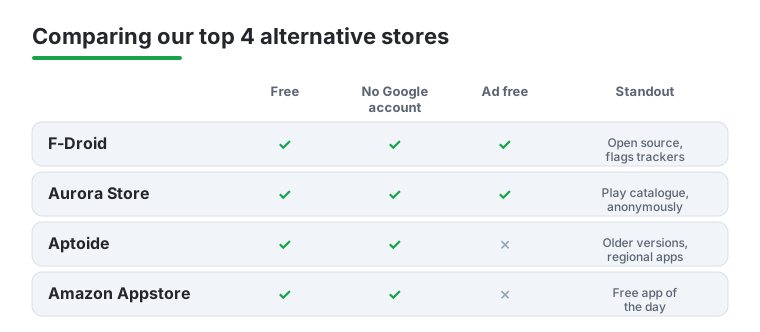
Our favourite store for people who care about privacy. F-Droid lists only free and open source apps, builds them from source itself, and flags anything with tracking or ads right on the listing. In our testing it was the cleanest way to find honest tools. It is completely free with no account. Updates lag a day behind, but the transparency is worth that small wait.
3. Aurora Store
Aurora is a slick open source front end for the Play catalogue that lets you download the same apps without a Google account or all the tracking. We run it on a spare phone with no Google services and it just works, pulling real Play listings and updates anonymously. It is free and ad free. Pair it with F-Droid and you can cover almost everything while keeping Google at arm's length.
4. Aptoide
One of the oldest independent stores, Aptoide runs on community managed catalogues so you often find older app versions and regional releases Play has dropped. It suits tinkerers who want choice and do not mind vetting a source. It is free. Aptoide runs automated scanning across multiple engines and gives apps that pass a Trusted badge, but it is an open upload store, so it pays to prefer the Trusted badge and check the source before installing. We dug into how it works in our full Aptoide walkthrough if you want the safety details first.
5. Amazon Appstore
Amazon retired its standalone Appstore app for Android phones in August 2025, so you can no longer install it on a regular handset. It now lives only on Fire tablets and Fire TV, where it is the built in store and works as it always did. It is free to use. If you own a Fire tablet, it stays a sensible, mainstream source for the apps and games that run on Fire OS, and it is the place to manage anything you bought there before the phone app closed.
6. Samsung Galaxy Store
If you carry a Galaxy phone, this one is already installed and genuinely useful. The Galaxy Store is where Samsung exclusive themes, watch faces, and Good Lock modules live, none of which appear on Play. It is free. We would not use it as a main store, but for getting the most out of One UI and a Galaxy Watch it is essential, and the curated Samsung specific picks are actually decent.
7. Uptodown
Uptodown is an established alternative store with a tidy Android app, and it needs no Google account to use. It keeps a version history for the apps it lists, which is a lifesaver when an update breaks something you rely on, and it runs each file through a malware scan before listing it. It suits anyone who has ever wanted to roll an app back. It is free and ad supported, and it works across dozens of languages.
8. Obtainium
This is the power user pick, and a clever one. Obtainium installs and updates apps straight from their GitHub releases or the developer's own site, so you get new versions the moment they ship, before any store catches up. It is free and open source. Setup takes a little effort adding source URLs, but for following open source projects directly it has quietly become the tool we reach for most.
9. APKMirror Installer
From the team behind the trusted APKMirror site, this app handles the split APK bundles that modern Android apps ship as, which a plain file manager cannot. We use it to grab specific older builds or region locked releases safely, since every upload is signature verified against the developer's key. It is free with light ads. Not a browsing store, more a careful installer for files you already found.
10. Droid-ify
Droid-ify is a fast, modern client for the F-Droid network and one we now reach for over the official app. It pulls the same open source catalogue, adds support for extra trusted repositories, and handles background updates cleanly. It is free, open source, and ad free. In our testing the search and update handling felt noticeably snappier, and adding a few well known third party repos opened up apps the default repo does not carry.
11. Huawei AppGallery
Worth knowing about even if you do not own a Huawei device. AppGallery is Huawei's polished, well funded store and the default on its phones, with solid security review and frequent free app promotions. It is free. The catalogue skews toward apps that support Huawei Mobile Services, so coverage is patchy on a regular phone, but for Huawei owners it is a capable, genuinely safe primary store.
12. Xiaomi GetApps
GetApps is the built in store on Xiaomi, Redmi, and POCO phones running MIUI and HyperOS. It mixes the usual catalogue with Xiaomi exclusive themes and the occasional region specific app you will not find elsewhere. It is free. We would keep Play as the main store and lean on GetApps for the device specific extras, since its own picks and theme store add real value on top of a Xiaomi handset.
How to choose an Android app store, safely
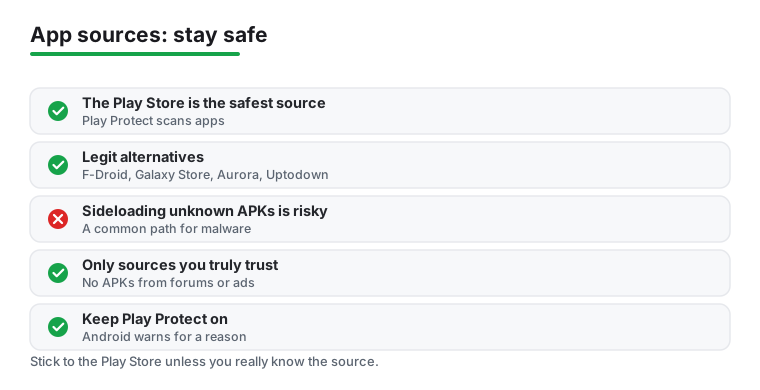
Most people only ever need the Google Play Store. It is the default on almost every Android phone, and it is the safest source for one simple reason: Google Play Protect scans apps before and after you install them, watching for malware and quietly removing things that turn out to be harmful. If you do nothing else, leave Play Protect switched on. You will find it in the Play Store under your profile picture, in the Play Protect section. For the large majority of users, Play plus Play Protect is the whole story, and that is fine.
So why look further at all? There are a few honest reasons. You might want open source apps with no tracking, an older version of something a recent update broke, a regional release Play does not offer in your country, or simply more privacy from Google itself. Those are all real needs, and there are legitimate stores built around each one. The goal of this guide is to help you add a second store without adding risk, and to be clear about where the genuine dangers actually lie.
It helps to separate two ideas that often get blurred together. The first is the store itself, which is an app that browses a catalogue and keeps your other apps updated. The second is the file it installs, the APK. A trustworthy store protects you mostly because of how it handles those files, since it checks where each one came from and confirms it has not been altered along the way. A risky download skips all of that. Almost every safety question on Android comes back to that one difference, so keep it in mind as you read on.
The legitimate alternatives
A handful of alternative stores are run by serious organisations and are safe to use when you stick to their official apps:
- F-Droid lists only free and open source apps and builds them from source itself, so it is the natural choice if privacy and transparency matter most to you. Clients like Droid-ify connect to the same network with a faster interface.
- Samsung Galaxy Store comes preinstalled on Galaxy phones and is the official home for Samsung themes, watch faces, and Good Lock modules. Because it ships with the device, it is already trusted by the system.
- Uptodown is a long running alternative store that needs no Google account, keeps a version history so you can roll an app back, and runs each file through a malware scan before listing it. It is ad supported, which keeps it free.
- Aurora Store is an open source front end that downloads the very same apps as Play, without requiring a Google account. It is popular with people who want Play's catalogue while keeping Google at arm's length.
What these share is accountability. Each one vets, signs, or builds the apps it distributes, and each shows you enough information to confirm a download is the genuine release before you install it.
There are also more specialist tools worth knowing about, even if most people will not need them. Aurora Store has a sibling approach in clients that follow developer releases directly, and a separate category of installers exists purely to handle the split APK bundles that modern apps ship as. These suit people who like to follow a project closely or roll an app back to an older build. They are reasonable in the right hands, but they ask more of you, because you are choosing the source yourself rather than trusting a curated catalogue. If that sounds like more work than you want, you lose nothing by sticking with Play and one mainstream alternative.
How to compare them
When you are deciding which extra store, if any, to add, weigh a few practical things. Look at who runs it and whether that organisation is open about how the store works. Check whether the store verifies app signatures, meaning it confirms each app really came from the developer who claims to have made it. Consider how updates arrive, because the store you installed an app from is the one responsible for keeping it current, not Play. And be honest about whether you actually need it. A second store you check once and forget is just extra surface area for something to go wrong.
Match the store to the reason
The simplest way to choose is to start from why you want one. If your reason is privacy and open source software, F-Droid or a client for it is the clear fit. If you want Play's apps without a Google account, Aurora Store is built for exactly that. If you own a Galaxy phone or a Fire tablet, the maker's own store is already there and already trusted by the device. And if you only want an older version of one specific app, you may not need a full second store at all, just a careful one off download from a source that verifies signatures. Picking the smallest tool that solves your actual problem keeps your phone simpler and safer.
Security: the part that matters most
Here is the line worth remembering. Installing an app from a reputable store is one thing. Sideloading a raw APK file from an unknown source is another thing entirely, and it is the most common way Android phones pick up malware.
An APK is the installable package behind any Android app. When you download one directly, instead of through a store, nothing has scanned it, nothing has confirmed where it came from, and nothing guarantees it has not been tampered with. This is exactly why Android makes you grant a specific permission, sometimes labelled install unknown apps or installing from unknown sources, before it will let an app or browser install a package. That warning is not red tape. It is the system telling you that you are stepping outside the part of Android that protects you, and it deliberately restricts these installs so a stray tap cannot quietly load something harmful.
If you do choose to install an APK, follow a few rules without exception. Only install APKs from sources you genuinely trust, such as the developer's own website or a verified mirror like APKMirror that checks the developer signature on every upload. Never install an APK that arrived in a text message, an email, an ad, or a random forum link, no matter how convincing the reason sounds. Where a store or installer shows the developer signature, confirm it matches the official app. Once you have installed what you needed, turn the unknown sources permission back off, so nothing else can use it. And above all, keep Play Protect on; it scans sideloaded apps too, which gives you a second pair of eyes even on files that did not come from Play.
Used this way, alternative stores are a reasonable tool for a real need rather than a gamble. Keep Play as your foundation, add one trusted store only if you have a clear reason, verify what you install, and let Play Protect keep watch in the background. That is the whole of safe app installing on Android, and it is not complicated.
Frequently asked questions
Is it safe to install apps from stores other than Google Play?
It can be, as long as you stick to reputable sources. Stores like F-Droid, the Samsung Galaxy Store, and Aurora vet, sign, or build what they host, so the risk is low. The danger comes from random APK sites with no checks. Whenever a store shows the developer signature, confirm it matches the official app. If you are cautious by nature, F-Droid and the Galaxy Store are two of the easiest to trust.
Why would I use an alternative app store at all?
A few real reasons. You might want open source apps with no tracking, an older version of something an update broke, a regional release Play does not offer, or simply more privacy. Independent stores also surface apps the big charts bury. If discovery is your goal, our roundup of rare Android finds is a great place to start hunting beyond the obvious.
How do I install an app store that is not on Google Play?
You download its APK from the official website, then allow your browser or files app to install from unknown sources when Android prompts you. The system walks you through granting that one permission. A trustworthy Android browser helps you reach the genuine site, and a good file manager makes locating the downloaded file painless. Turn that permission back off once the store is installed.
Do apps from other stores still get updates?
Yes, but the store you installed from handles them, not Play. Each store checks for and pushes its own updates, so keep that app around rather than installing once and deleting it. Tools like Obtainium and Aurora are especially good at this, often delivering new versions faster than Play does. For more storage and maintenance helpers, browse our wider tools and utilities guides.
What is Play Protect and should I keep it on?
Play Protect is Google's built in scanner that checks apps for malware before and after you install them, including apps that did not come from the Play Store. You will find it in the Play Store under your profile picture. We would always keep it on, especially if you ever sideload an APK or use a second store, because it acts as a quiet safety net that does not slow your phone down.
Is sideloading an APK dangerous?
It can be, and it is the most common way phones pick up malware, which is why Android restricts it behind a warning. The risk is not the APK format itself but where the file came from. Only install APKs from sources you genuinely trust, such as a developer's own site or a signature checking mirror, and never one sent by message, email, or an ad. Confirm the developer signature where you can, and leave Play Protect on to scan it.